Chapter 3A day's work in order
This part follows one working day of a laboratory in the order things happen, as a path through the screens. It gives no field-by-field detail: each stage names the screen to open, the few steps, and what to check before moving on. The detail is in the chapter of each screen, named at the end of every stage.
| Stage | Who usually does it | Screen |
|---|---|---|
| Morning | Anyone who opens the day | Home |
| Reception | Reception | New order |
| The bench | Technologist | Samples, Results, Daily QC, Microbiology |
| Approval | Whoever approves results | Results |
| Delivery | Reception or the delivery desk | Delivery |
| The evening | The one who closes the day | the shift chip, Data and continuity |
What a person sees depends on the permissions of their role, so a stage may be done by one person in a small laboratory and by five in a large one.
3.1 Morning
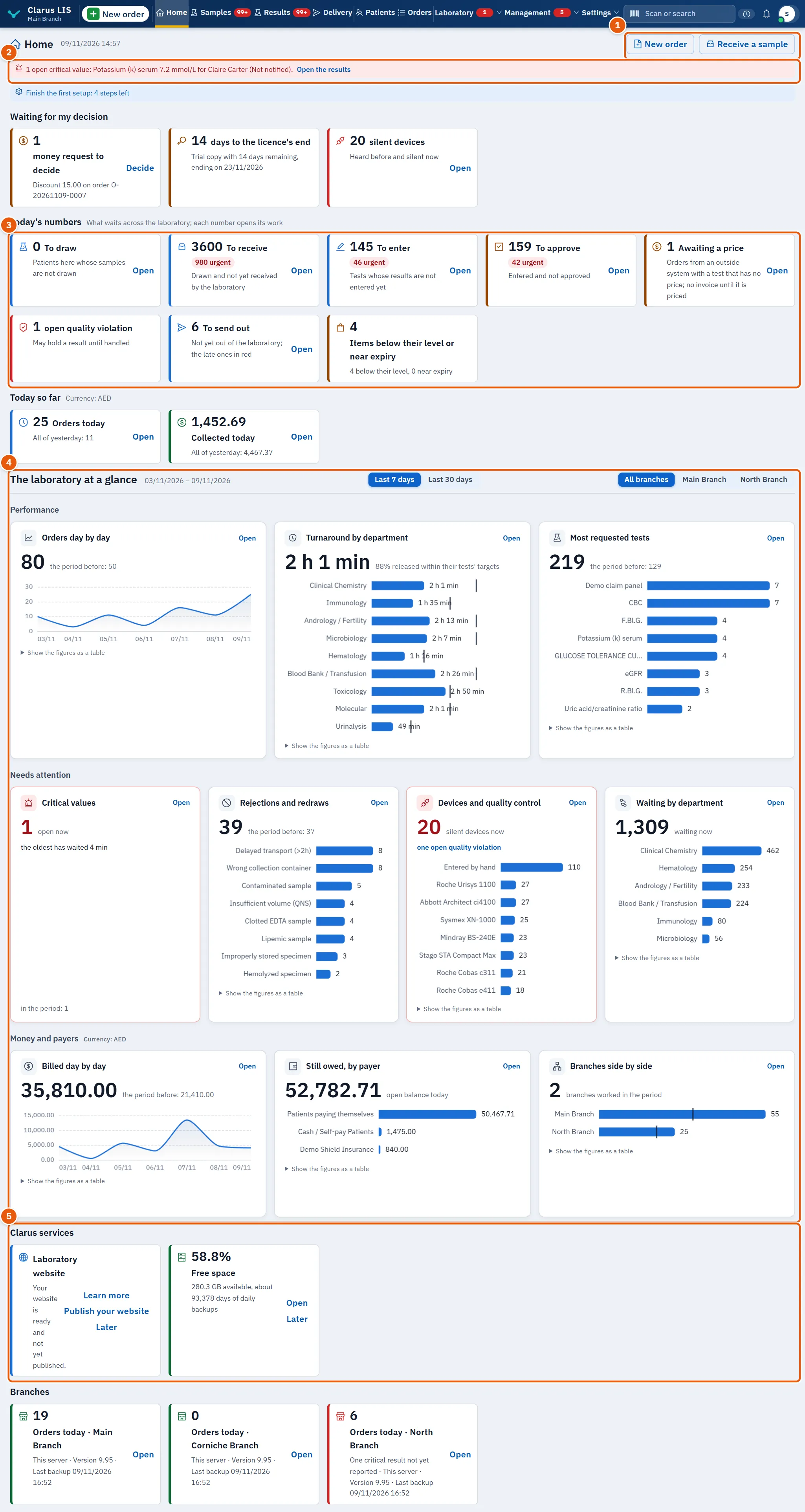
- Sign in. Home opens first.
- If a red alert about critical values is there, read it first and press Open the results.
- Read the cards: To draw, To receive, To enter and the card of results to approve. Each number is live; pressing a card opens the screen where that work is done.
- Open your shift: in the top bar the shift chip says No shift; press Open a shift. If it says Yesterday's shift is open, a shift from an earlier day was never closed.
Check before moving on: that you have a shift of your own, because where the laboratory allows money without a shift, what you take goes into no shift (the order screen warns of it), and where the laboratory requires a shift, the payment window refuses until one is open. Detail: Home.
3.2 Reception
Reception opens New order (or presses New order on Home).
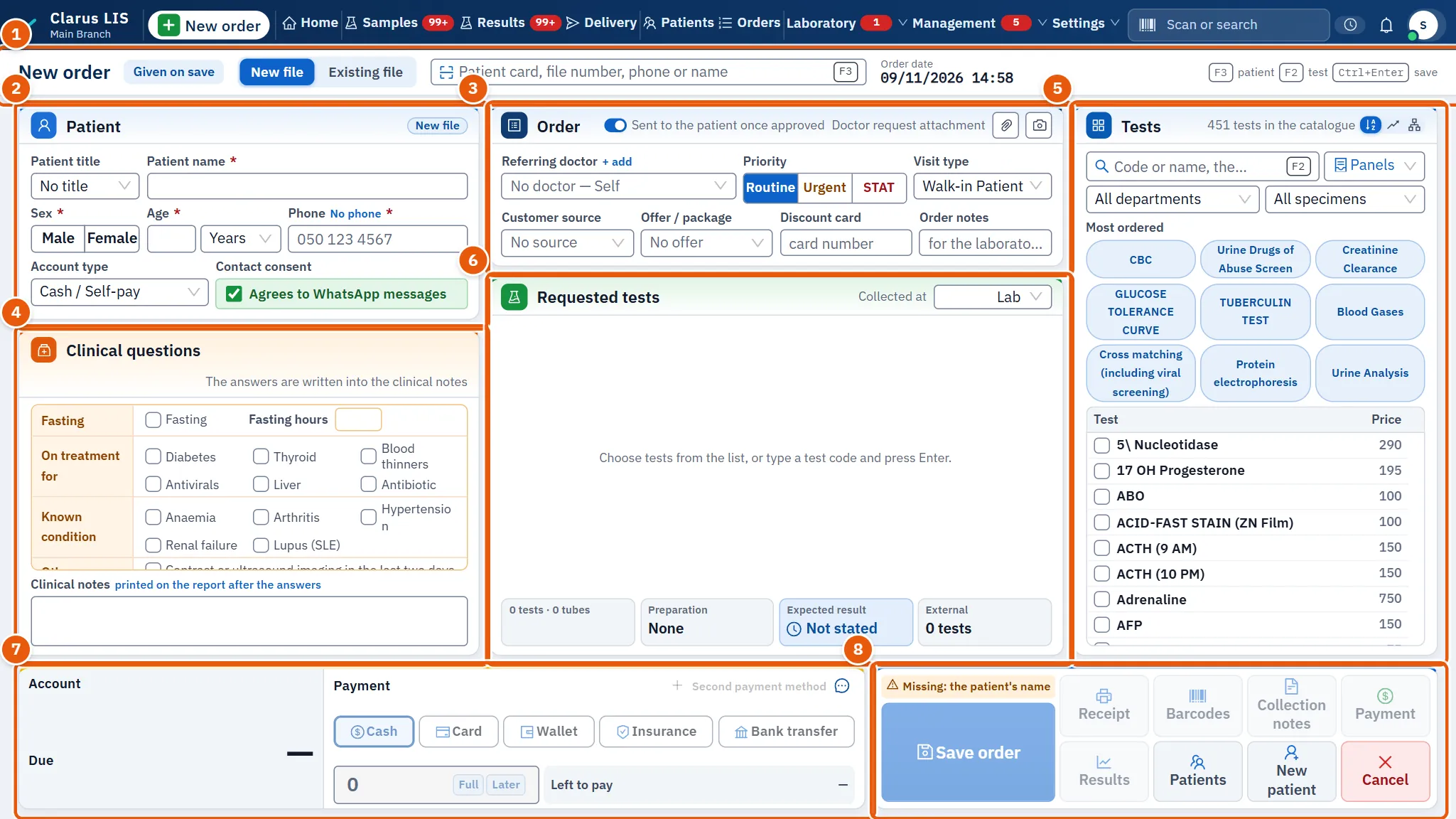
- Find the patient in Patient card, file number, phone or name by card, file number, phone or name. If there is no file, fill the new file: name, sex, age or birth date, and phone. Answer any identity window the program raises about a possible duplicate.
- Choose the doctor and the priority.
- Add the tests from the catalogue or by typing a code, and check the basket.
- Read the price and what is due, choose the payment method and write what is collected now, or leave it empty to collect later.
- When the list under Before saving shows Ready to save, save. The order receives its number.
- After saving, print the receipt and the barcodes (Receipt, Barcodes) and the collection instructions if the patient needs them.
Check before moving on: that the labels are printed and stuck on the tubes, and that the patient knows when to come back. The patient's file is seen and changed in Patients; saved orders are found in Orders. Detail: New order, Patients, Orders.
3.3 The bench
3.3.1 Drawing and receiving samples
Open Samples.
- Scan the label of each tube in Scan a label or type a number.
- Press Receive the sample. To receive many at once, tick them and use the bulk bar.
- Look at the tube. If it cannot be used, record its condition or reject it; the program then opens a new draw.
- When analysis begins, press Start the analysis.
Check before moving on: that no sample carries an open alert you have not read, and that every tube has been received.
3.3.2 Entering results
Open Results.
- Scan the sample, or choose the order from the queue. The queue puts the most urgent first.
- Type the value in each row and press Enter to move on. Results from an analyzer arrive by themselves and are marked as such.
- Look at the flags: a value outside the interval is flagged at once, and a value far from the last one is held until you look at it.
- Press Save.
Check before moving on: that no row is left typed but not saved, and that the foot shows no red mark you have not understood. Detail: Samples, Results and approval.
3.3.3 Daily quality control
Approval of a test can be held until a quality-control run has passed in the last 24 hours. Record the day's run on Daily QC before the first approval, so that nothing is held for it later.
3.3.4 Microbiology
A culture test is requested at reception with its antibiotics chosen in the order screen. Its work is done on Microbiology.
3.4 Approval
The person who approves results opens Results and chooses the state awaiting approval.
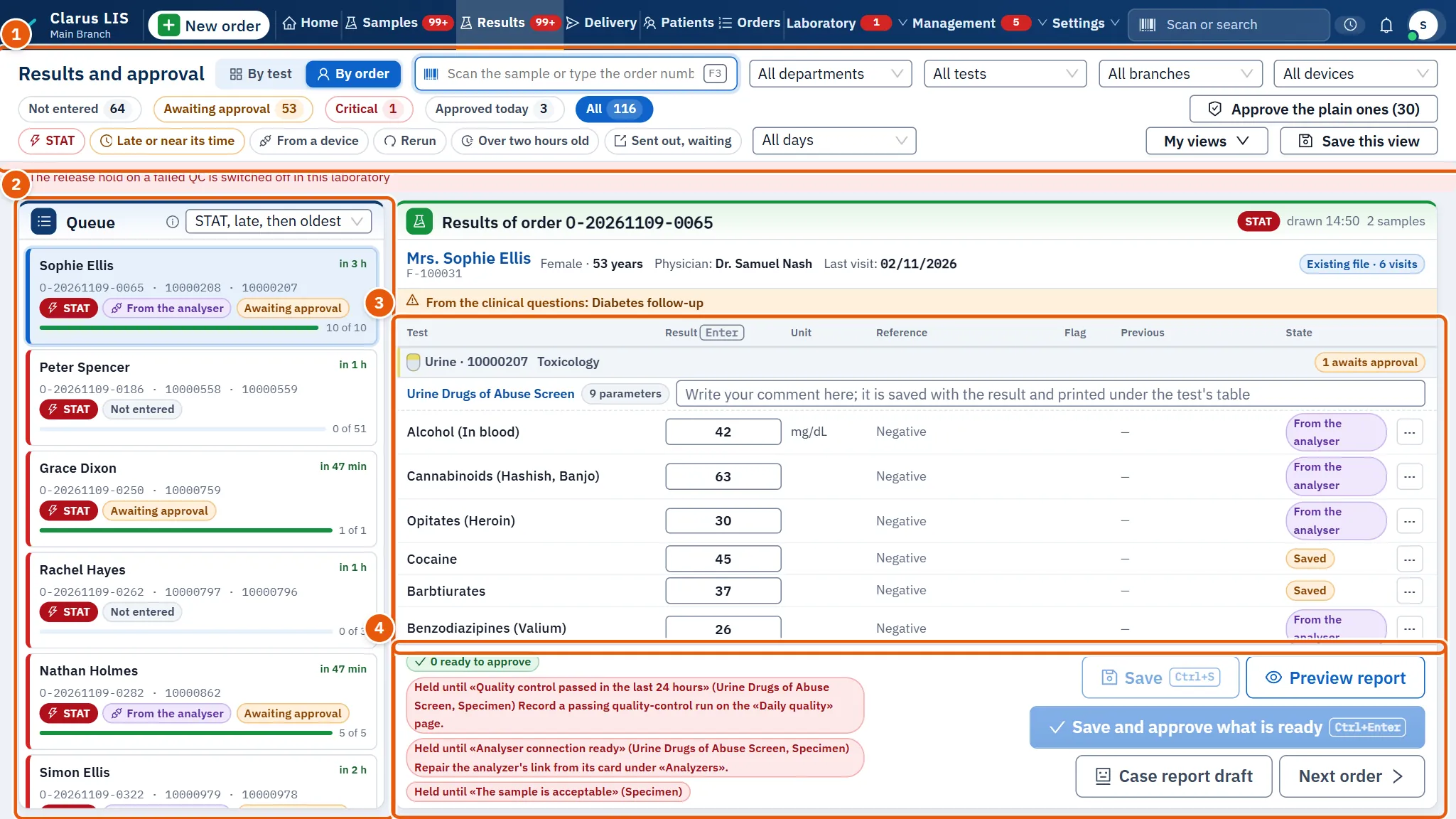
- Open the order and read the values with their flags, the reference interval and the previous result.
- For a critical value, record the call to the physician and his read-back; approval is held until it is recorded.
- Press Save and approve what is ready and confirm. To approve many plain results together, use the bulk approval of the plain ones. It never takes a critical value, and takes values outside the interval only if the laboratory's setting allows it.
- Press Next order.
Check before moving on: that nothing critical is still waiting for its call. Home shows a red alert for open critical values first. A mistake found after approval is corrected on the same screen by amending or withdrawing the result, with a written reason. Detail: Results and approval.
3.5 Delivery
The delivery desk opens Delivery, on the page Ready to hand over.
- Find the order: scan the receipt, or type the order number or the phone.
- Look at the money left. If some is left, press Collect the remainder, then hand over, or follow the laboratory's setting.
- Choose who receives: The patient, A relative or The treating doctor, and press Handed over. Or print the report, download the PDF, or send the link or the WhatsApp message.
- Watch the page Messages sent for messages that failed, and send again what waits.
Check before moving on: that each order handed over has its entry in the hand-over log, and that no order is held without its reason. Detail: Delivery.
3.6 The evening
- Collect what is still owed from the day's orders, or leave it recorded as owed.
- Close the shift: press the shift chip's Close the shift. The money you took is counted under that shift. The accounts of shifts are in Treasury.
- The manager looks at the backup card on Home, which says when the last backup was made and where else a copy is kept. A backup that has not run is dealt with before the day ends.
- Press Sign out.
Check before leaving: that the shift is closed and that Home shows the day's backup. Detail: Home, and the chapter on data and backup.
3.7 See also
Home, New order, Samples, Results and approval, Delivery, Patients, Orders.