Chapter 19Follow-up
Menu: Follow-up. Address: /management/follow-up.
19.1 What this screen is for
This is the manager's view of the laboratory's money for a period: what was collected, what was handed back, what was spent, and what is left. It answers one question at a glance — did the laboratory earn or lose in this period?
Every figure is counted by the server. The screen only shows them and adds nothing up itself. You choose a period and, if you may, a branch; the report follows your choice.
19.2 Who sees it
Whoever holds Read analytics. The menu hides the screen from everyone else.
| You can… | …if your role holds |
|---|---|
| Open the screen, read the figures and export them | Read analytics |
| Choose the whole laboratory instead of one branch | Read analytics, and not be held to particular branches |
A person held to some branches reads only their own branches; the choice The whole laboratory is not offered to them, and the screen opens on their first branch. If only one branch is left to choose from, the branch choice does not appear at all.
19.3 The screen at a glance
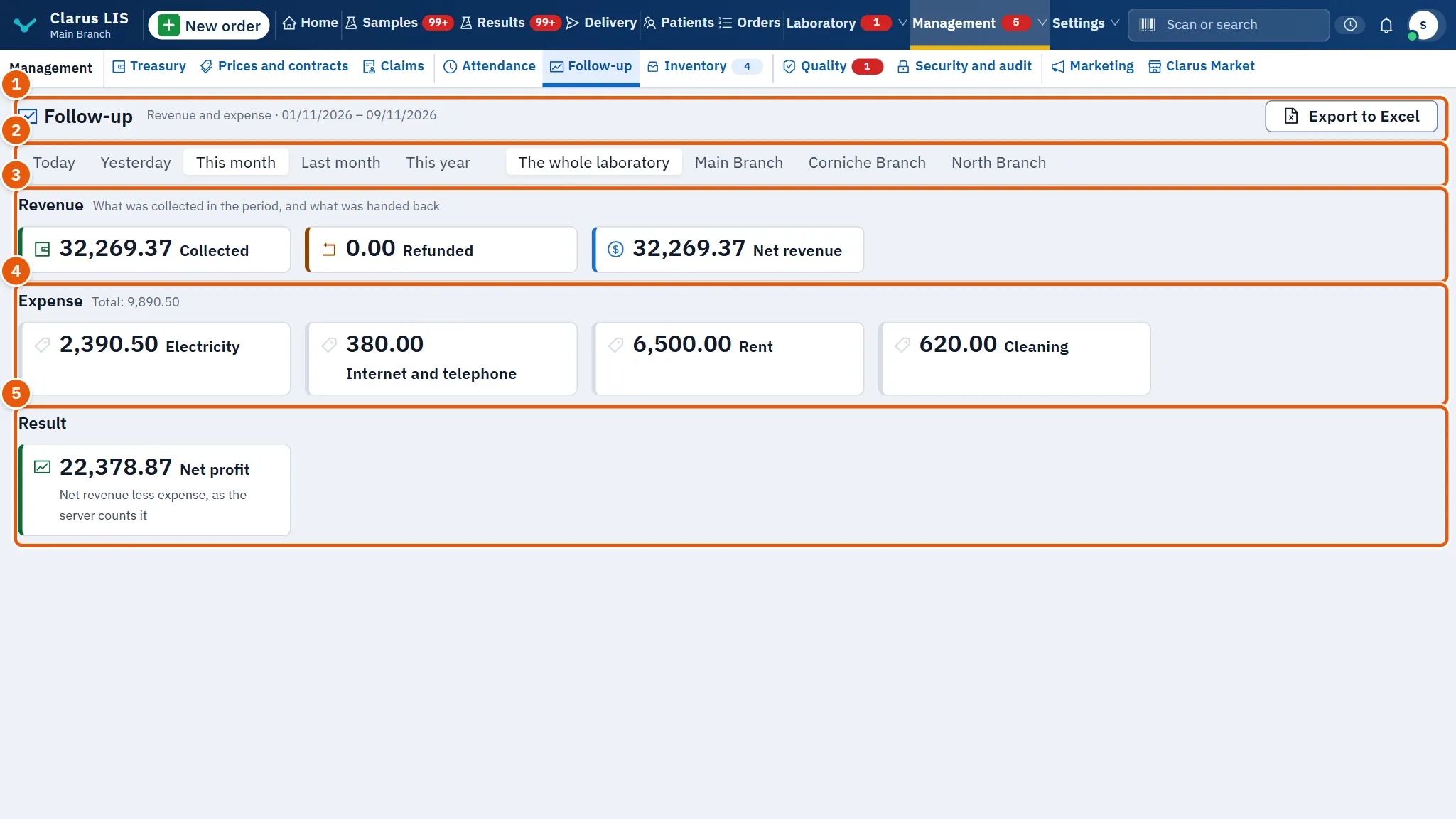
- The head: the title Follow-up, the report name Revenue and expense with the first and last day of the period, and the button Export to Excel.
- The choices: the period, and the branch when there is more than one to choose from.
- Revenue: what was collected, what was refunded, and the net.
- Expense: the total and each expense category.
- Result: the net profit.
19.4 The choices
| Control | What it does |
|---|---|
| Period | Five visible choices: Today, Yesterday, This month (the default), Last month and This year. The first and last day appear beside the report name. |
| Branch | Appears only when there is more than one choice: The whole laboratory and each branch. |
| Export to Excel | Downloads the report on screen as an Excel file. It stays dim until the figures have loaded (and while they are failing to load), and shows a busy mark while the file is prepared. |
19.5 The figures
| Area | Card | What it shows |
|---|---|---|
| Revenue | Collected | What was collected in the period. |
| Revenue | Refunded | What was handed back from it. |
| Revenue | Net revenue | Collected less refunded. |
| Expense | One card per category | The amount spent in each expense category, named in the language of the screen. The heading also carries the total. |
| Expense | Store purchases received | Shown only for the whole laboratory, and only when there were purchases received in the period. |
| Result | Net profit | Net revenue less expense, as the server counts it. The card is green, and turns red when the result is below zero. |
19.6 Tasks step by step
19.6.1 Task 1 — Read the result of a month
- Open Follow-up.
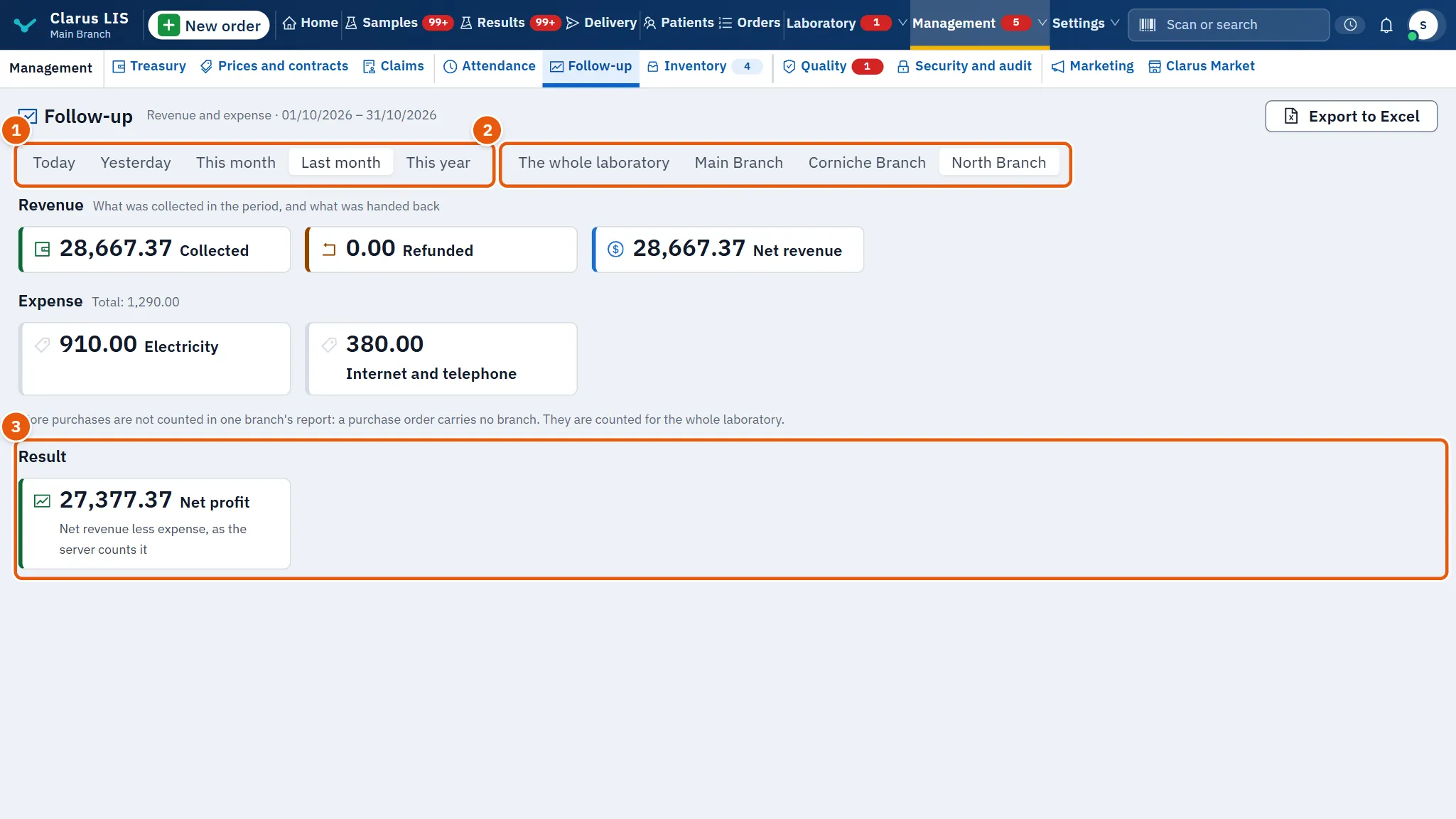
- Under Period choose Last month (or leave This month).
- If you manage several branches, choose The whole laboratory or one branch under Branch.
- Read Revenue, then Expense, then Net profit at the bottom.
19.6.2 Task 2 — Export the report to Excel
- Choose the period and the branch as above and wait until the figures appear.
- Press Export to Excel.
- The file downloads. If it cannot, a red message appears at the top (the server's own message when it gave one) and you may press the button again.
19.7 Messages and what to do
| The screen says | It means | What to do |
|---|---|---|
| No expense recorded in the period. | No expense is recorded in the chosen period. | Nothing is wrong; choose another period if you expected expenses. |
| Store purchases are not counted in one branch's report: a purchase order carries no branch. They are counted for the whole laboratory. | A single branch's report leaves out store purchases, because a purchase order carries no branch. | Choose The whole laboratory to see them counted. |
| The file could not be downloaded. Please try again. | The Excel file did not download. | Press Export to Excel again; if it persists, check the connection to the server. |
19.8 See also
- Follow-up is read-only: expenses themselves are recorded elsewhere in the program, not here.