Chapter 14Clinical AI
Menu: Clinical AI. Address: /lab/clinical-ai.
14.1 What this screen is for
Clinical AI holds the drafts that the Clarus clinical AI service has written: a comment on one result, or a case report for a whole order. They are scientific, not diagnostic. A specialist reads each draft and approves it, edits it and then approves it, or rejects it.
The screen is for reviewing. A draft is not asked for here: a case report draft is requested from the results screen (see 14.7 Asking for a draft), and a comment on one result from that result's tools window there, with the button Comment draft. The program states it on the screen itself: No draft enters a report before approval. A draft is never a result, and it never enters a report, until a person approves it.
14.2 Who sees it
| You can… | …if your role holds |
|---|---|
| Open the screen, read the drafts, approve, edit, reject, and remove an approved case report | Verify results |
| Open the Settings window and the Top up window | Manage settings |
| Open the Ledger window | Manage settings or Manage billing |
A button you may not use is not shown.
14.3 The screen at a glance
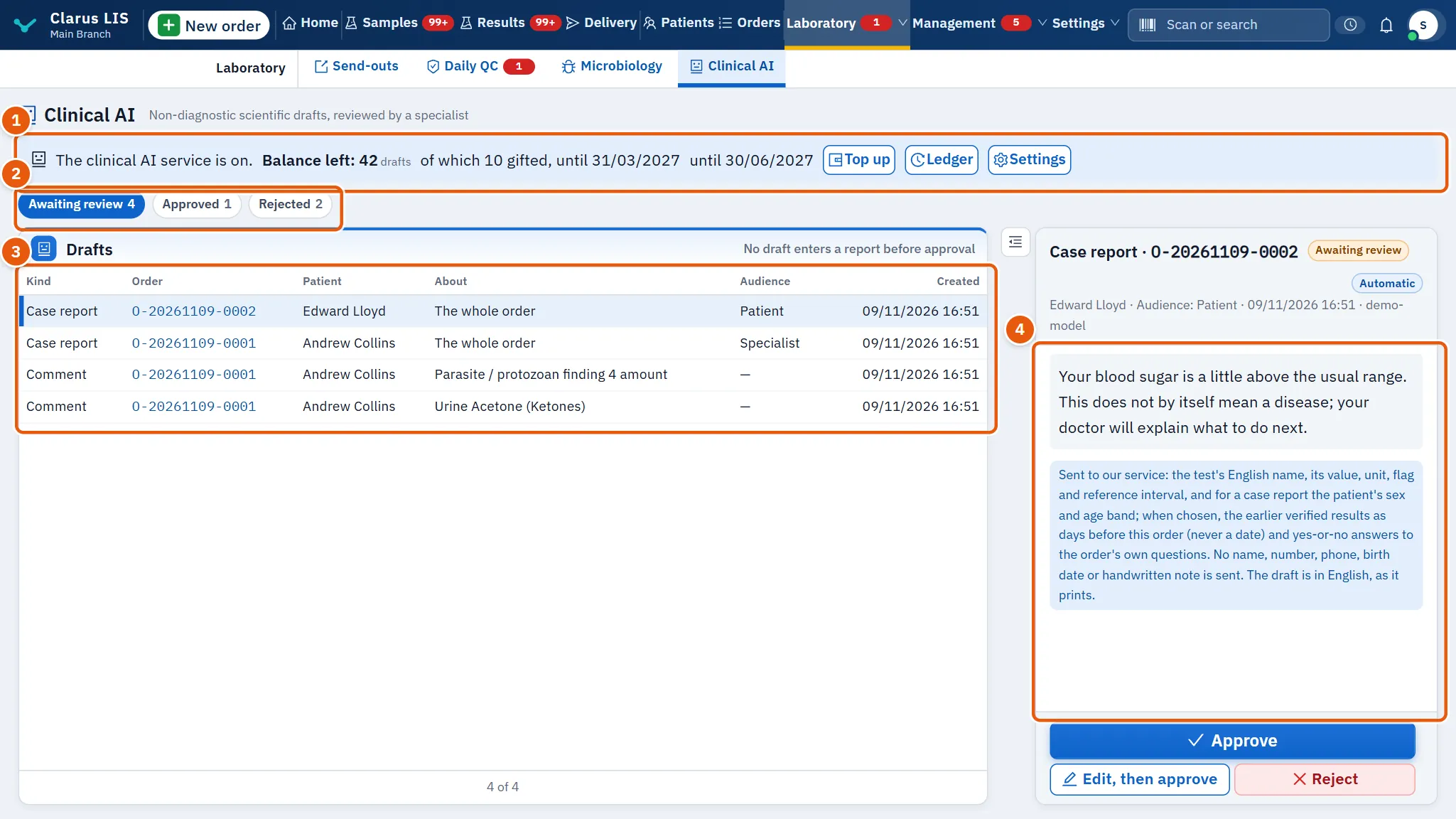
- The service bar: the service's state in the server's own sentence, the balance, and the buttons.
- The filter Draft state: three states, each with a count.
- The list Drafts.
- The draft pane The draft: the text, and the buttons to decide.
When the service is switched off for this laboratory, the screen shows only the service bar and a card titled The service is not switched on yet. The card says what the service is and that the drafts waiting for review will appear here once it is switched on. There are no filters and no list.
14.4 The service bar

| Item | What it does |
|---|---|
| The sentence | The service's state as the server states it: on, no balance, unreachable, or off. |
| Balance left: | The drafts left in the balance. Shown when the service is on. |
| of which … gifted, until … | Shown when part of the balance is a gift, and until when it is valid. |
| until … | Shown when the service is valid until a set date. |
| Top up | Opens the top-up window. Shown to whoever manages settings, when the service is on or has run out of balance (or when the server offers a purchase of drafts). |
| Ledger | Opens the balance ledger. Shown when the service is on or out of balance. |
| Activate now | Takes you to the licence screen. Shown only when the server says the licence must be bought and this copy has no working licence. |
| Try again | Shown when the service could not be reached; asks again. |
| Settings | Opens the settings window. Shown to whoever manages settings. |
While the balance is empty or the service cannot be reached, asking for a new draft is refused with a reason. Approving or rejecting drafts that already exist continues.
14.4.1 Top up the balance
- Press Top up.
- Type the Card number. It has sixteen characters after CAI; dashes and spaces do not matter. The Top up button stays dim until the number reads as valid.
- Press Top up. The window then states the new balance. Press Done.
Only the last four characters of the card are kept in the record. If the server refuses the card, its reason appears in red in the window and nothing is added.
14.4.2 The ledger
The window Clinical AI balance ledger says the balance now, and under it lists every movement: Date, Movement, Drafts, Details and By. The movements are: Top-up card, Draft, Gift, Automatic gift, Refund, Correction and Expired. A gift shows until when it is valid. Press Back to close it.
14.4.3 The settings window
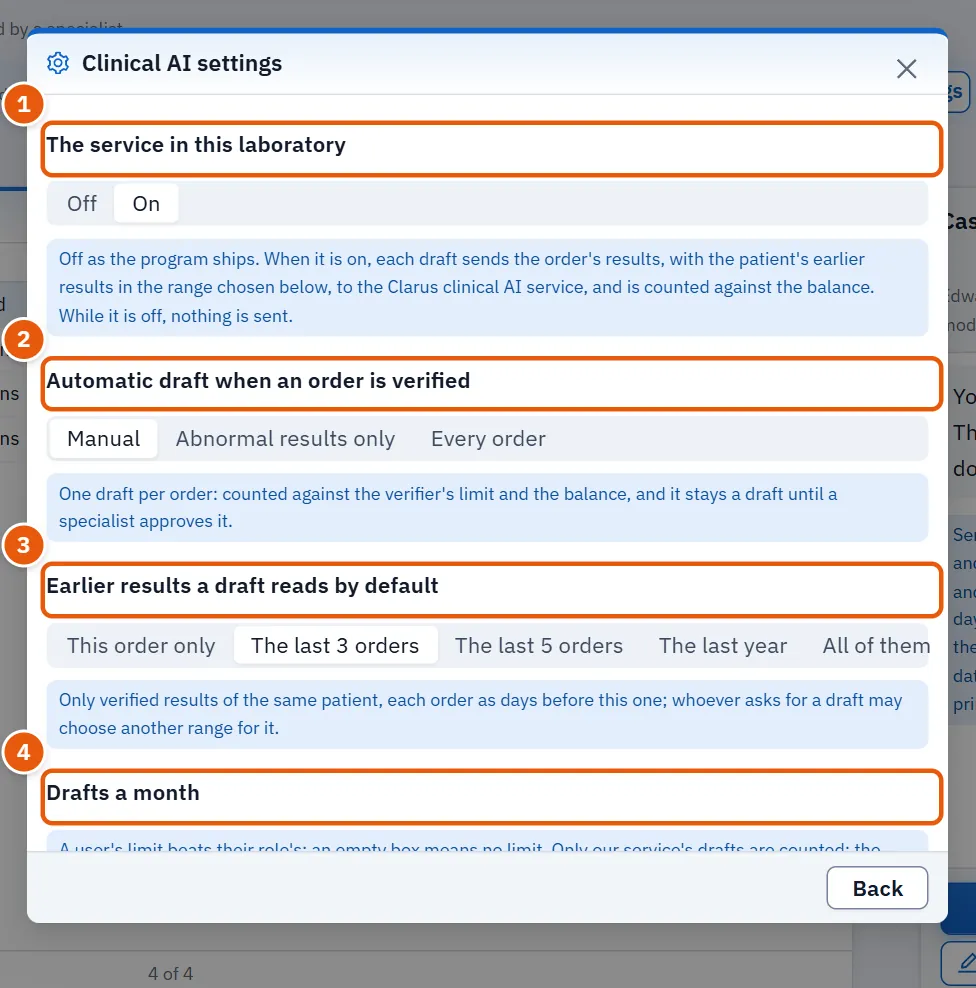
Each choice is saved the moment you make it; the screen answers with the message Saved.
| Setting | What it does |
|---|---|
| The service in this laboratory: Off / On | The service ships off. While it is off nothing is sent. When it is on, each draft sends the order's results, with the patient's earlier results in the chosen range, to the Clarus clinical AI service and is counted against the balance. |
| Automatic draft when an order is verified: Manual / Abnormal results only / Every order | Whether a draft is written by itself when an order is verified. One draft per order, counted against the limit of the person who verified and against the balance; it stays a draft until a specialist approves it. |
| Earlier results a draft reads by default | The earlier verified results of the same patient that a draft reads: This order only, The last 3 orders, The last 5 orders, The last year or All of them. Whoever asks for a draft may choose another range for it. |
| Drafts a month, Roles | A limit for each role. An empty box means No limit. Save stays dim until you change the number; press it to keep it. The line beside it says who set it and when. |
| Drafts a month, Users | A limit for one user, which beats the role's. The table shows This month against the limit, and whether the limit is Own or From the role. Follow the role gives the user back to the role. |
The count renews on the date the window states. Only the service's own drafts are counted.
14.5 The drafts list
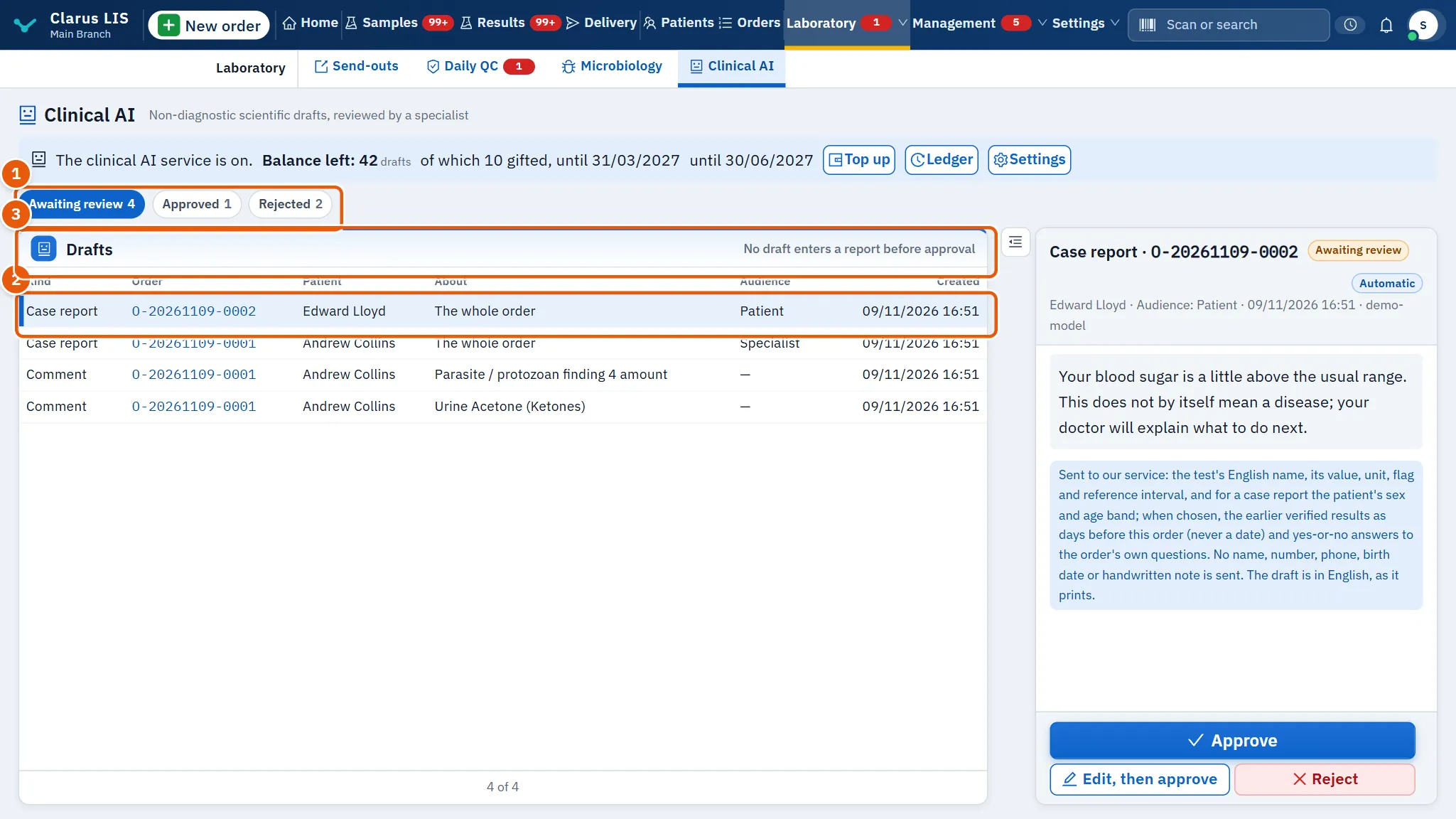
The filter Draft state has three chips: Awaiting review, Approved and Rejected, each with the number it holds. The screen opens on Awaiting review. Changing the filter clears the draft you had chosen.
| Column | Meaning |
|---|---|
| Kind | Case report or Comment. |
| Order | The order number, a link to the order. |
| Patient | The patient's name. |
| About | For a comment, the test it is about. For a case report, The whole order. |
| Audience | For a case report, who it is written for: Patient, Treating physician or Specialist. A dash for a comment. |
| Created | When the draft was written. |
Press the button for more rows at the foot of the list when there are more than fit. An empty filter says so, for example No drafts awaiting review. The list refreshes by itself about every minute. If it cannot be loaded the list says The drafts could not be loaded. with a button to try again. In one case the server returns an incomplete list; the screen then says Drafts are shown without the patient's name, and comments only while awaiting review, until the server returns the full list.
14.6 Reviewing a draft
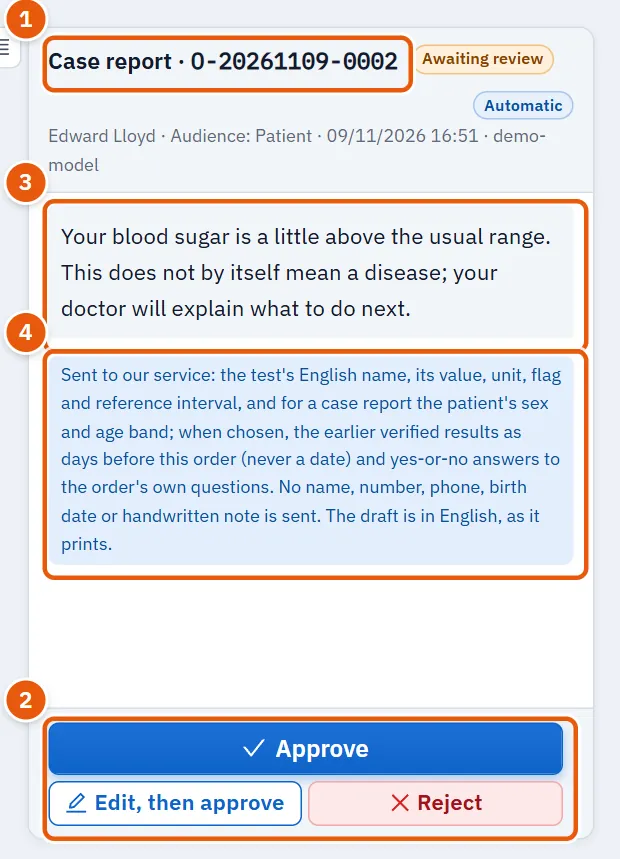
Select a row. The pane The draft shows the kind and order number, the state (Awaiting review, Approved or Rejected), a tag Automatic if the program wrote it by itself, and a line with the patient, the audience or test, the date and the model. Below is the draft's text, in English and left to right, as it prints. A note under it states exactly what is sent to the service, and that no name, number, phone, birth date or handwritten note is sent.
For a draft Awaiting review, the buttons are:
| Button | What it does |
|---|---|
| Approve | Approves the text as it is. The screen says The draft was approved. |
| Edit, then approve | Turns the text into a box you can type in. |
| Approve the edited text | Replaces Approve while editing. Dim if the box is empty. The screen says The edited text was approved. |
| Cancel the edit | Leaves the editing without saving. |
| Reject | Rejects the draft. The screen says The draft was rejected. |
An approved case report has one button, Remove it from the approved. It takes the report off, and the screen says Removed from the approved; it stays in the audit trail. A rejected draft, and an approved comment, have no button.
14.6.1 Task 1 — Approve a draft as it is
- Open Clinical AI. The chip Awaiting review is selected.
- Select a row. Read the whole text.
- Press Approve.
- The message The draft was approved. appears and the draft leaves the list. Find it under Approved.
14.6.2 Task 2 — Correct a draft and approve it
- Select the draft.
- Press Edit, then approve. The text becomes a box.
- Correct the text.
- Press Approve the edited text. To give up instead, press Cancel the edit.
14.6.3 Task 3 — Reject a draft
- Select the draft.
- Press Reject. It moves to Rejected.
14.6.4 Task 4 — Remove an approved case report
- Press the chip Approved.
- Select a case report.
- Press Remove it from the approved. It is removed from the approved list and, as the message says, stays in the audit trail.
If an action fails, the screen shows the server's reason or The action failed. Try again.
14.7 Asking for a draft
A case report draft is requested from the results screen (Results and approval), not from this one. The button Case report draft in the foot of an open order is shown only to someone who may approve results, and only when the service is not off.
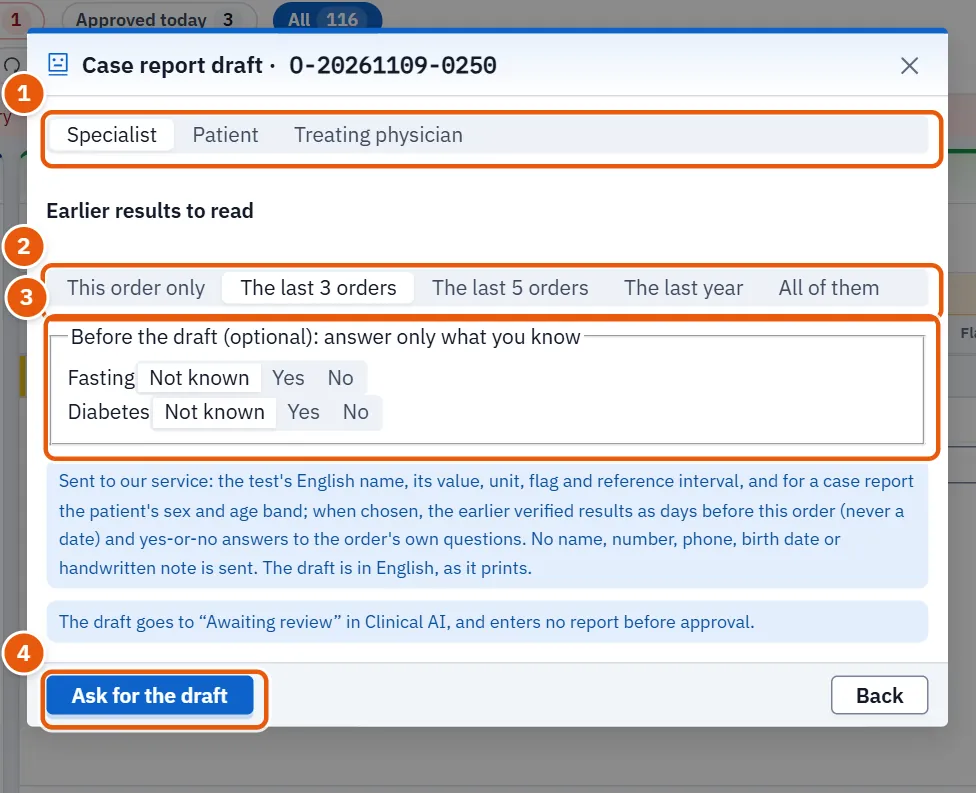
- Open the order and press Case report draft. The window Case report draft opens with the order number.
- Choose the audience: Patient, Treating physician or Specialist. Nothing can be asked until one is chosen.
- Under Earlier results to read choose the range. It starts at the range the manager set, or the last 3 orders if none was set.
- If the order carries clinical questions, Before the draft (optional): answer only what you know shows up to three. Answer Yes or No; Not known sends nothing for that question.
- Press Ask for the draft. The draft reaches Awaiting review here and enters no report before approval.
If the service is not on, the window shows the reason and Ask for the draft stays dim. A refusal from the server appears in red in the window.
14.8 Messages and what to do
| The screen says | Meaning | What to do |
|---|---|---|
| The service is not switched on yet | The service is off in this laboratory. | A manager can switch it on in Settings. |
| The drafts could not be loaded. | The drafts could not be loaded. | Press the retry button on the list. |
| The action failed. Try again. | An approve, reject or remove did not go through. | Try again. |
| Choose a draft to review. | No draft is selected. | Select a row. |
| No drafts here. | The filter has no drafts. | Choose another chip. |
| No movement of the balance yet. | The balance has not moved. | Nothing to do. |
14.9 See also
- Results and approval: where a case report draft is requested and where results are approved.