Chapter 20Inventory
Menu: Inventory. Address: /admin/inventory.
20.1 What this screen is for
This is where the laboratory keeps track of what it consumes: reagents, tubes, consumables and everything else it buys and uses. It shows how much of each item is in stock, which lots are about to expire, what has moved in and out, what has been ordered from suppliers, and what has to be ordered next.
The screen has eight pages, reached by the tabs at the top: Items, Lots, Movements, Purchase orders, Stock counts, Suppliers, Consumption recipes and Reports. Stock changes in only three ways: a movement you record, a receipt of a purchase order, and a stock count that is posted. A fourth way happens by itself: a test whose result is approved takes its items from stock, according to the recipes.
20.2 Who sees it
Whoever holds View inventory and its reports. The menu hides the screen from everyone else. Within the screen:
| You can… | …if your role holds |
|---|---|
| See every page and the reports | View inventory and its reports |
| Create or edit items, import items, change lots (quarantine, recall, release), manage suppliers and their prices, and manage consumption recipes | Manage inventory items, lots and recalls |
| Record a stock movement | Record stock movements |
| Start, enter, send for review, post or cancel a stock count | Run and post stock counts |
| Write purchase orders, send them for approval, receive, close or cancel them (by the order's state); order from the reorder recommendations | Manage purchase orders and supplier prices |
| Approve or refuse a purchase order above the threshold | Approve purchase orders above the threshold |
A button you may not use is not shown. A purchase order awaiting approval that you created or sent yourself cannot be approved by you: the approve and refuse buttons are simply not offered to you, and the server also requires someone else with procurement approval. Exporting items is open to everyone who sees the screen.
20.3 The screen at a glance
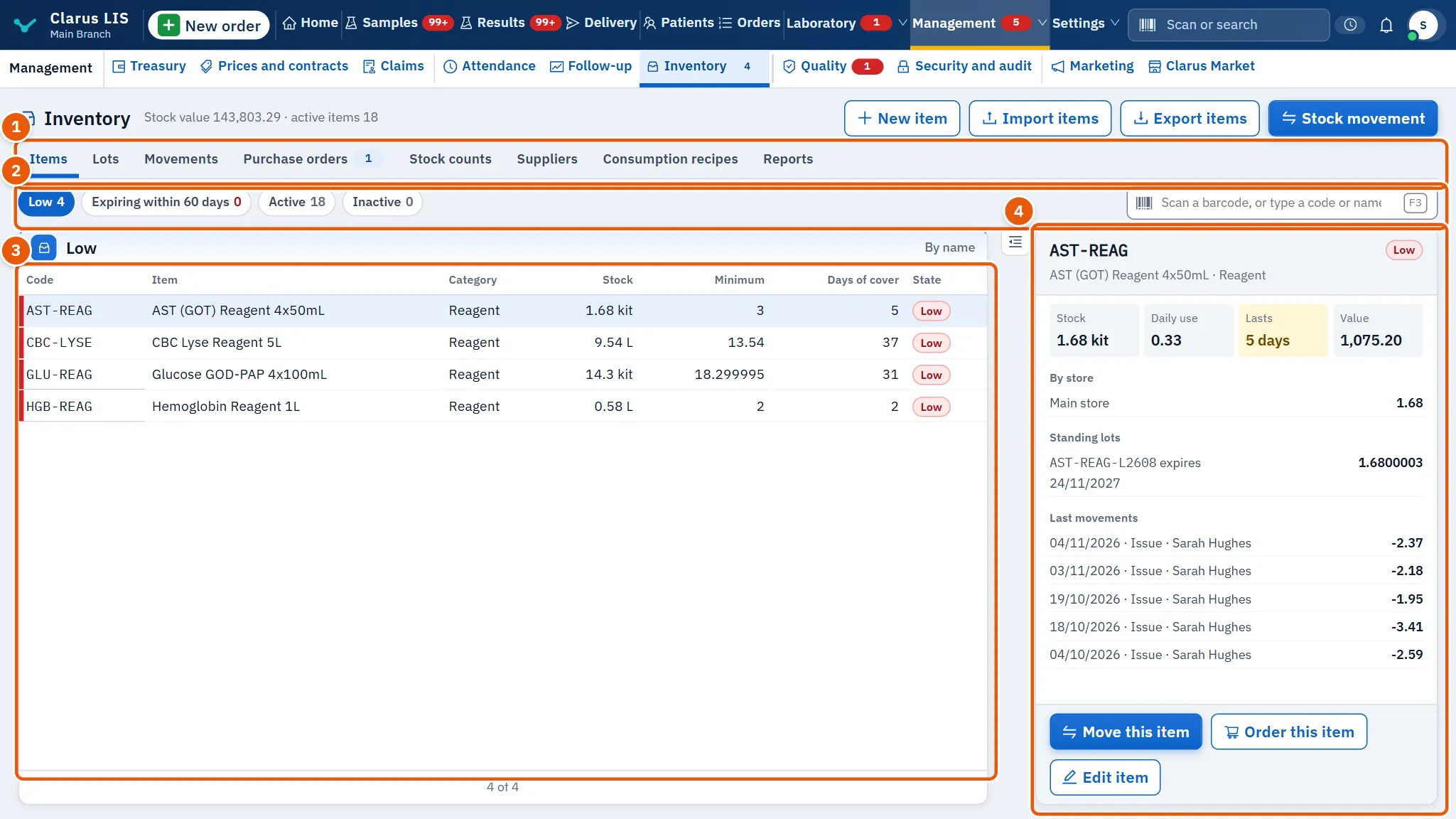
Every page has the same shape:
- The tabs, labelled Inventory pages, and above them a line that gives the stock value and the number of active items (and, on the purchase orders page, the approval threshold and the over-receipt limit).
- The filters and the search box of the page.
- The list: one row per item, lot, movement and so on, newest or most urgent first. A message tells you when the list is empty or could not be read (The inventory could not be read.).
- The details of the chosen row, with the buttons that act on it. Until you choose a row it says: Choose a row from the list to see its details.
20.4 Page: Items
The list of everything the laboratory stocks.
| Control | What it does |
|---|---|
| Filters: Active, Low, Expiring within 60 days, Inactive | Limit the list by the state of the item. |
| Search box | A barcode scanner types into it, or you search by code or name. |
| New item | Opens the item window to create an item. |
| Import items | Imports items from a file (20.12.2 Task 2 — Import items). |
| Export items | Exports the items. |
| Stock movement | Opens the movement window (20.12.1 Task 1 — Record a stock movement). |
Columns: Code, Item, Category, Stock, Minimum, Days of cover and State (Sound, Low or Inactive).
The details of an item show its supplier, the Daily use and how long the stock Lasts, the Value, the stock By store, the Standing lots with their expiry dates, and the Last movements. Its buttons are Edit item, Move this item and Order this item, each shown only to those who may use it.
20.4.1 The item window
| Field | What it holds |
|---|---|
| Item code, Item name | The item's code and name. |
| Category, Unit, Brand | How the item is grouped, counted and branded. |
| Minimum, Maximum | The stock below which the item is called low, and the most you want to hold. |
| Supplier, Pack size | The usual supplier and the size of a pack. |
| Tests per unit | How many tests one unit covers. It gives the cost of a single test and the tests remaining. It does not link the item to a test. Leave it empty if you do not count the item in tests. |
| Barcode | The code a scanner reads. |
| Active | An item that is not active is hidden from the default list. |
The section Tests that use it is where you choose the tests that use the item and how much of the unit each takes. The item is taken from stock when the test's result is approved. You add a test by searching it (Search a test by code or name to add it), by adding a whole department (Add all the department's tests), or by copying from another item (Or copy the tests from another item: search it by code or name). The quantity of each test must be above zero. The program never picks the tests on its own.
20.5 Page: Lots
A lot is a delivery of an item with its own number and expiry date.
| Control | What it does |
|---|---|
| Filters: Active, Expiring soon, Quarantined, Recalled, Depleted, All | Limit the list by the lot's status. |
| Search box | By lot number or item. |
| Soonest expiry first | The order of the list. |
| Quarantine | Shown for an active lot. Holds the lot: nothing is issued from it until it is released. A reason is required. |
| Recall | Shown for an active lot. The lot is withdrawn and nothing is issued from it. A reason is required. |
| Release | Shown for a held or recalled lot. Returns it to use. |
Columns: Lot, Item, Store, Expiry (with the days left, or Expired), Remaining and Status. The three buttons need Manage inventory items, lots and recalls.
20.6 Page: Movements
The record of every change of stock. It cannot be edited. Filter by type (All types, Receipt, Issue, Transfer, Adjustment, Waste, Return to supplier) or search by item, lot or reason. Columns: Date, Item, Type, Quantity, Lot, Store, By and Reason. The page has no details pane and shows 50 rows at a time, with a button to show more. The quantity carries a sign: plus for stock coming in, minus for stock going out.
20.7 Page: Purchase orders
| Control | What it does |
|---|---|
| Filters (Open, Draft, Awaiting approval, Ordered, Partly received, Received, Closed, Refused, Cancelled, All) | Limit the list by the order's state. A state with no orders is not shown. |
| Search box | By order number or supplier. |
| Purchase order | Opens the new order window (20.12.4 Task 4 — Write and approve a purchase order). Needs Manage purchase orders and supplier prices. |
| Reorder recommendations · … | Opens the reorder recommendations (20.12.3 Task 3 — Reorder). |
Columns: Order, Supplier, Created, Lines, Total and State. The details list each line: what was ordered, the price and what has been received. The buttons of the details depend on the order's state and on your role: a draft offers send and cancel; a submitted order offers approve and refuse (to an approver who did not create or send it); an ordered order offers receive, close and cancel; a partly received one offers receive and close only. The buttons are Send for approval, Approve, Refuse with a reason, Receive, Close with a reason and Cancel. Message the supplier builds a message listing the order's lines to send to the supplier.
20.8 Page: Stock counts
A count compares what the program thinks is in stock with what is on the shelves.
| Control | What it does |
|---|---|
| Filters: In progress, In review, Posted, Cancelled, All | Limit the list by the count's state. |
| Start a count | Starts a count (20.12.6 Task 6 — A stock count: start, enter, post). Needs Run and post stock counts. |
Columns: Code, Scope, Started, Started by, Items, Counted, Differences and State. The details show the stages Started, Counting, Review and Posted.
20.9 Page: Suppliers
| Control | What it does |
|---|---|
| Filters: Active, Inactive, All | Limit the list. |
| Search box | By supplier code, name or phone. |
| New supplier | Creates a supplier: Supplier code, Supplier name, Contact person, Phone, WhatsApp phone, Email, Website, Address, Notes, Active. |
| Edit supplier | Changes the chosen supplier. |
| Add a price | Gives an item a price at this supplier: Unit price, Pack size, Minimum order quantity, and whether it is the Preferred supplier for this item. |
| Delete price | Removes a price after asking you to confirm. It sits beside each price in the details. |
The list shows Items and Open orders of each supplier; the details list the Item prices, each with the price, the pack size and a mark if it is the preferred supplier. The add-price window needs you to choose an item and give the unit price; the pack size and minimum order are optional. The create, edit, add-price and remove-price buttons are not shown to anyone without Manage inventory items, lots and recalls.
20.10 Page: Consumption recipes
A recipe says what stock an activity takes each time it happens.
| Control | What it does |
|---|---|
| Filter Consumption recipe kind: Tests, Sample draws, Quality control, Printing | Each kind has its own list and a note saying what it covers. |
| Add a consumption recipe | Adds a recipe: the subject (a test number, a device number with its QC, a specimen type, or a print kind: Label, Receipt page or Report page), the Item and the quantity above zero. |
| Remove | Removes a recipe after asking you to confirm. |
Both buttons need Manage inventory items, lots and recalls. Recipes for tests can also be set from the item window.
20.11 Page: Reports
Choose the report under Report:
| Report | What it shows |
|---|---|
| Consumption | What was used between From and To, grouped by Item, Category or Month (choose under Group by). |
| Expiry ageing | The lots by how soon they expire: Expired, Within 30 days, 31 to 60 days, 61 to 90 days and Over 90 days. |
| Movement value | For the period between From and To, one row per movement type with the number of movements, the net quantity and the net value. |
The period starts as the last 30 days and applies to consumption and valuation; the expiry report has no period and shows the lots as they stand today, with the number of lots, the quantity and the value in each band (a band with no lots is not listed). Only the consumption report shows a total, in the heading of the table. With no data in the period the page says so.
20.12 Tasks, step by step
20.12.1 Task 1 — Record a stock movement
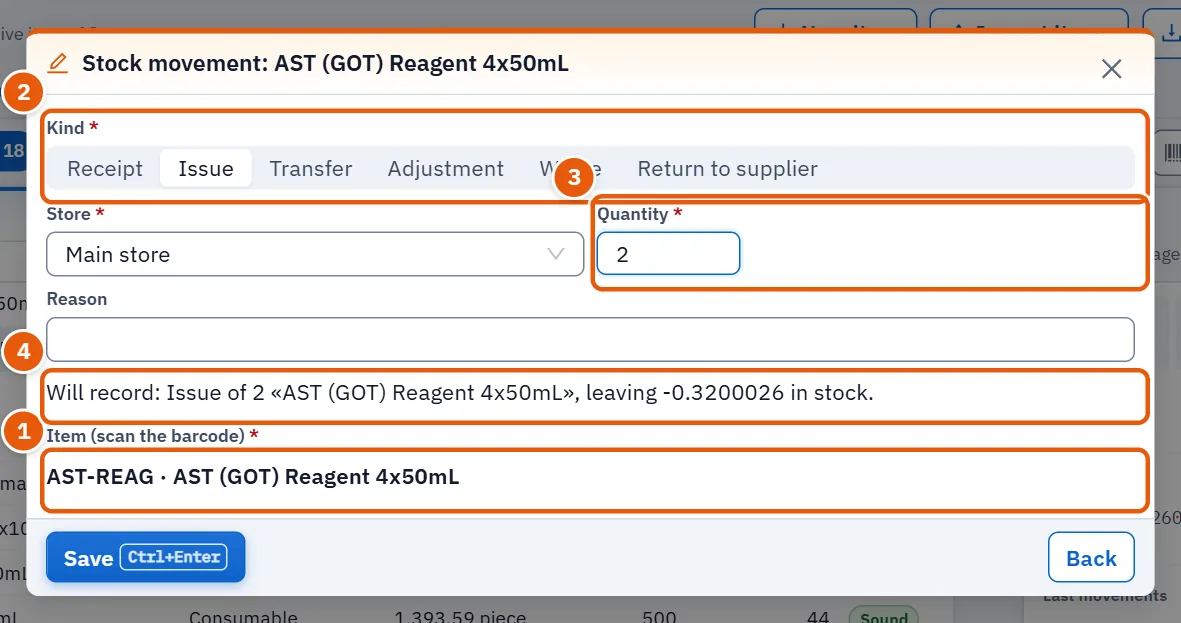
- Press Stock movement (or Move this item on an item's details). Needs Record stock movements.
- Under Item (scan the barcode), scan the barcode or search the item, then choose it.
- Choose the Kind: Receipt, Issue, Transfer, Adjustment, Waste or Return to supplier.
- Enter the quantity. For an adjustment the quantity is a difference: positive to add, negative to take away. For a transfer choose From store and To store, which must differ.
- Choose the Store (a transfer asks for From and To instead). Only a receipt also asks for the Unit cost (optional), the Lot and Expires on (both required). The Reason is optional for every kind.
- Read the sentence at the foot of the window. It says what will be recorded and what stock will be left. If the stock is not enough the window says so and refuses.
- Confirm with the window's main button.
20.12.2 Task 2 — Import items
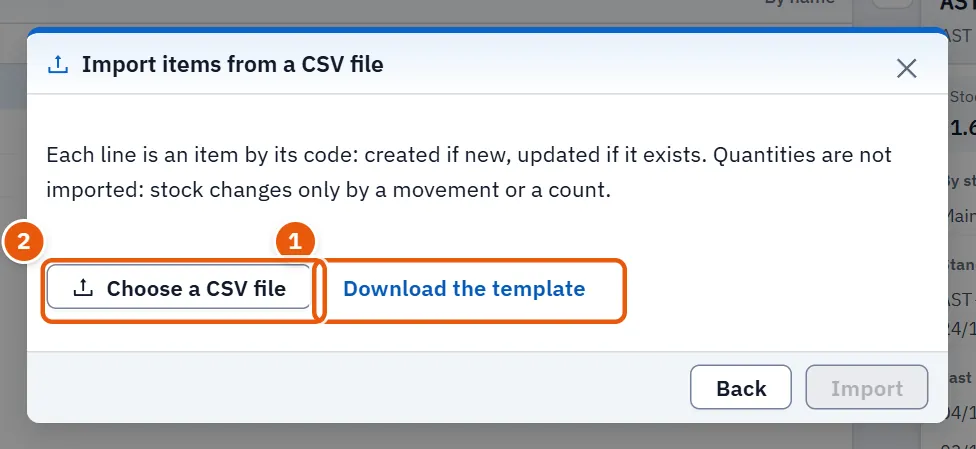
- On the items page press Import items. Needs Manage inventory items, lots and recalls.
- Press Download the template to get the file layout, fill it, and save it as CSV.
- Press Choose a CSV file and pick your file. The window says how many lines it read.
- Press Import.
- The window reports how many items were created, how many updated and how many refused. Each refused line is listed by its line number and item code only (the first 20 at most); the window does not give the reason, so check those lines in your file.
Each line is an item identified by its code: a new code creates an item, an existing code updates it. Quantities are not imported. Stock changes only by a movement or a count.
20.12.3 Task 3 — Reorder
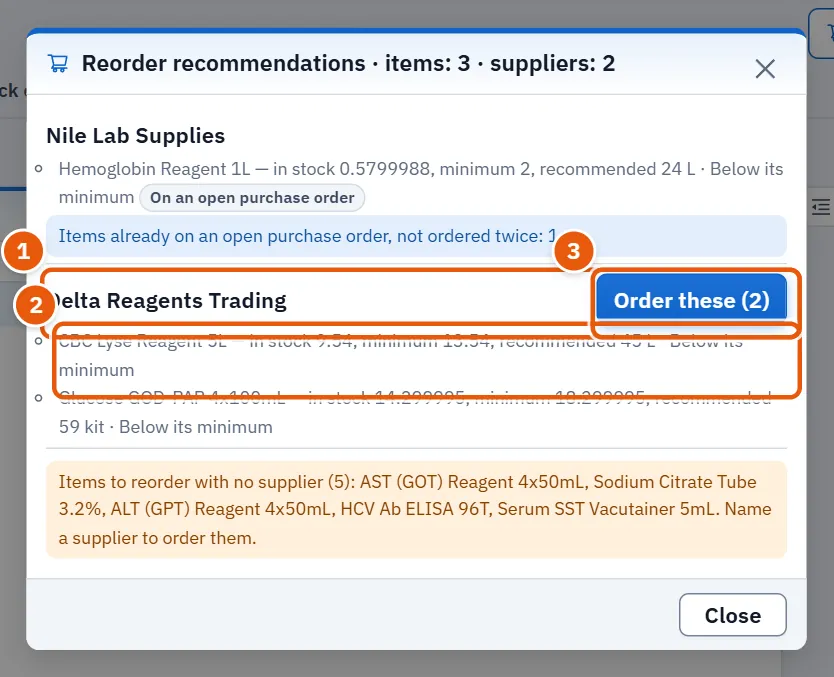
- On the purchase orders page press Reorder recommendations · …; the number is how many items need ordering.
- The window groups the items by supplier. Each line shows what is in stock, the minimum and the recommended quantity, and the reason: Below its minimum, Runs out within a week at this use, Lasts less than a month, Needed by the expected use or Expires before it is used.
- Items already on an open purchase order are marked and left out of the order and of the message so they are not ordered twice (a note counts them); when every item of a supplier is already on an open order, the order button is not shown for that supplier. Items with no supplier are listed apart: name a supplier for them first.
- Press Message the supplier (shown only for a supplier with a WhatsApp number) to prepare a message to the supplier, or Order these (…) to open a purchase order already filled with those items (this needs Manage purchase orders and supplier prices).
20.12.4 Task 4 — Write and approve a purchase order
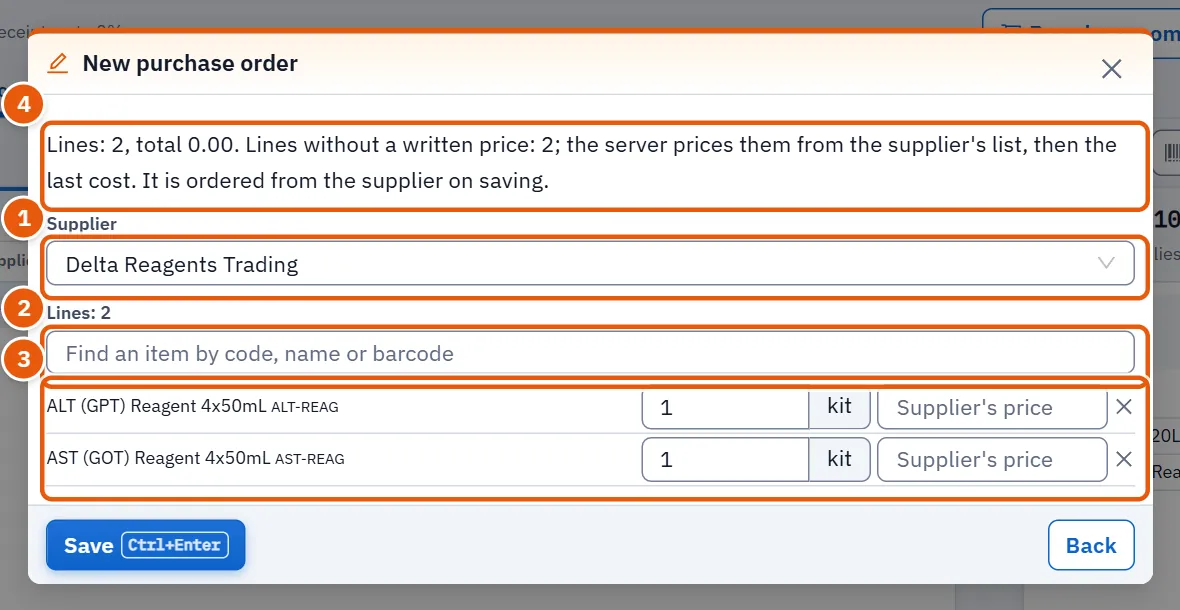
- Press Purchase order. Choose the Supplier (an order may be written with none).
- Search items by code, name or barcode and add them. Give each a quantity above zero. A price may be written; if it is not, the server prices the line from the supplier's list and then from the last cost.
- Read the summary. If the total is above the approval threshold the order is saved as a draft awaiting approval; otherwise it is ordered from the supplier on saving.
- Confirm. A draft is then sent with Send for approval.
- Someone else who holds Approve purchase orders above the threshold opens it and presses Approve (with an optional note) or Refuse with a reason (with a reason, which the creator sees).
20.12.5 Task 5 — Receive an order
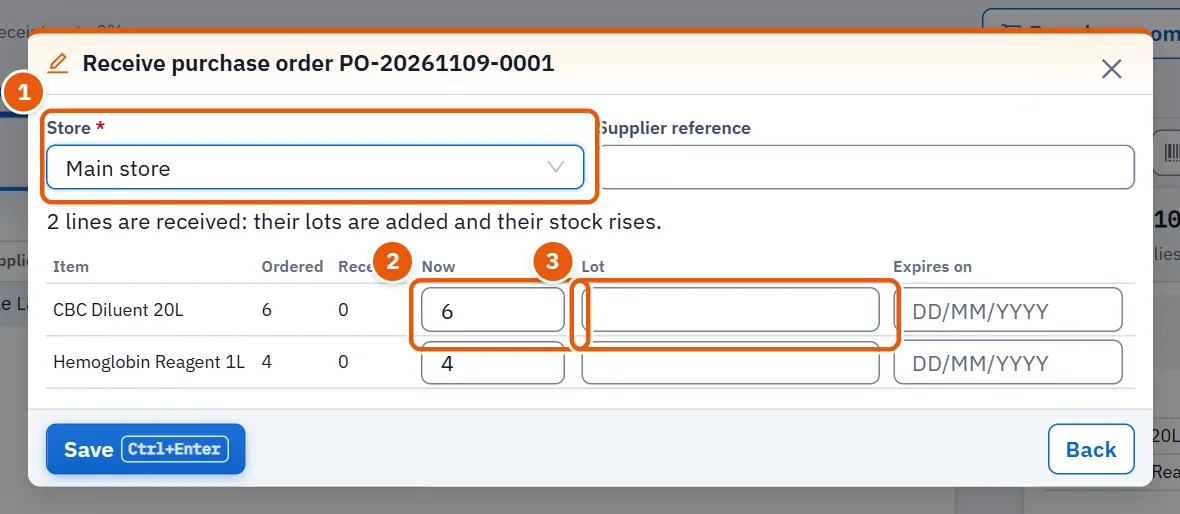
- Choose the order in the list. It must be ordered or partly received (and you need the Manage purchase orders and supplier prices permission); press Receive.
- Choose the Store that receives the goods and, if you have it, the Supplier reference.
- For each line the table shows what was ordered and what was received before. The box Now is filled with the rest; change it to what actually arrived (a line with zero is skipped).
- Write the Lot of every line that arrives, and its Expires on. The window insists on the lot; it does not check the expiry itself.
- The window refuses a quantity above the order beyond the over-receipt limit, and a line with no lot.
- Confirm. The lots are added and the stock rises. Anything not yet received keeps the order Partly received. When nothing more will come, use Close with a reason with a reason.
20.12.6 Task 6 — A stock count: start, enter, post
- On the counts page press Start a count. Choose the Count scope: Full count, Category (type the category) or Store (choose the store). A full count stops any other count from opening until it ends.
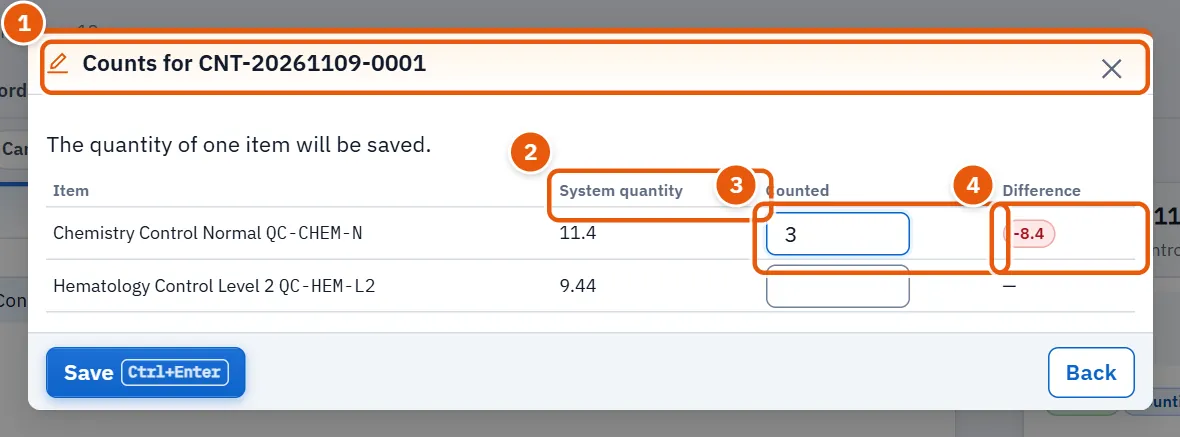
- Choose the count in the list and press Enter the counts. For each item write the quantity you counted; the table shows the system quantity and the difference. An item marked Stock moved since the count started has had stock move since the count began. Confirm to save: only the items you filled in are saved, and a quantity cannot be negative. You can return and enter more. Entering is offered only while the count is open.
- When all are entered, press Send for review and confirm in the window that opens. The count goes to review and its quantities can no longer be changed.
- Press Post the differences (offered only in review). A window says how many lines have a difference; confirm and each difference is recorded as an adjustment movement.
- To abandon a count press Cancel the count (offered while the count is open or in review) and write the reason; a cancelled count can never be posted.
20.12.7 Task 7 — Hold or recall a lot
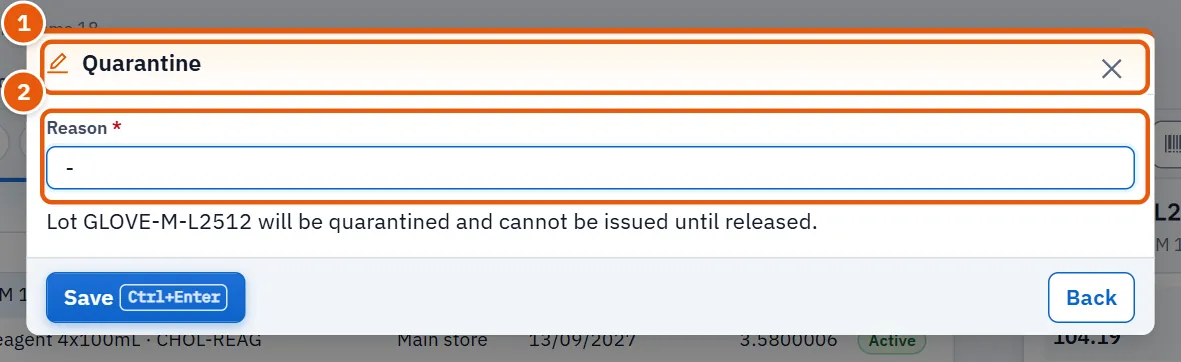
- On the lots page choose the lot and press Quarantine or Recall.
- Write the reason and confirm. Nothing is issued from the lot afterwards.
- When the lot is cleared, choose it and press Release.
20.12.8 Task 8 — Read a report
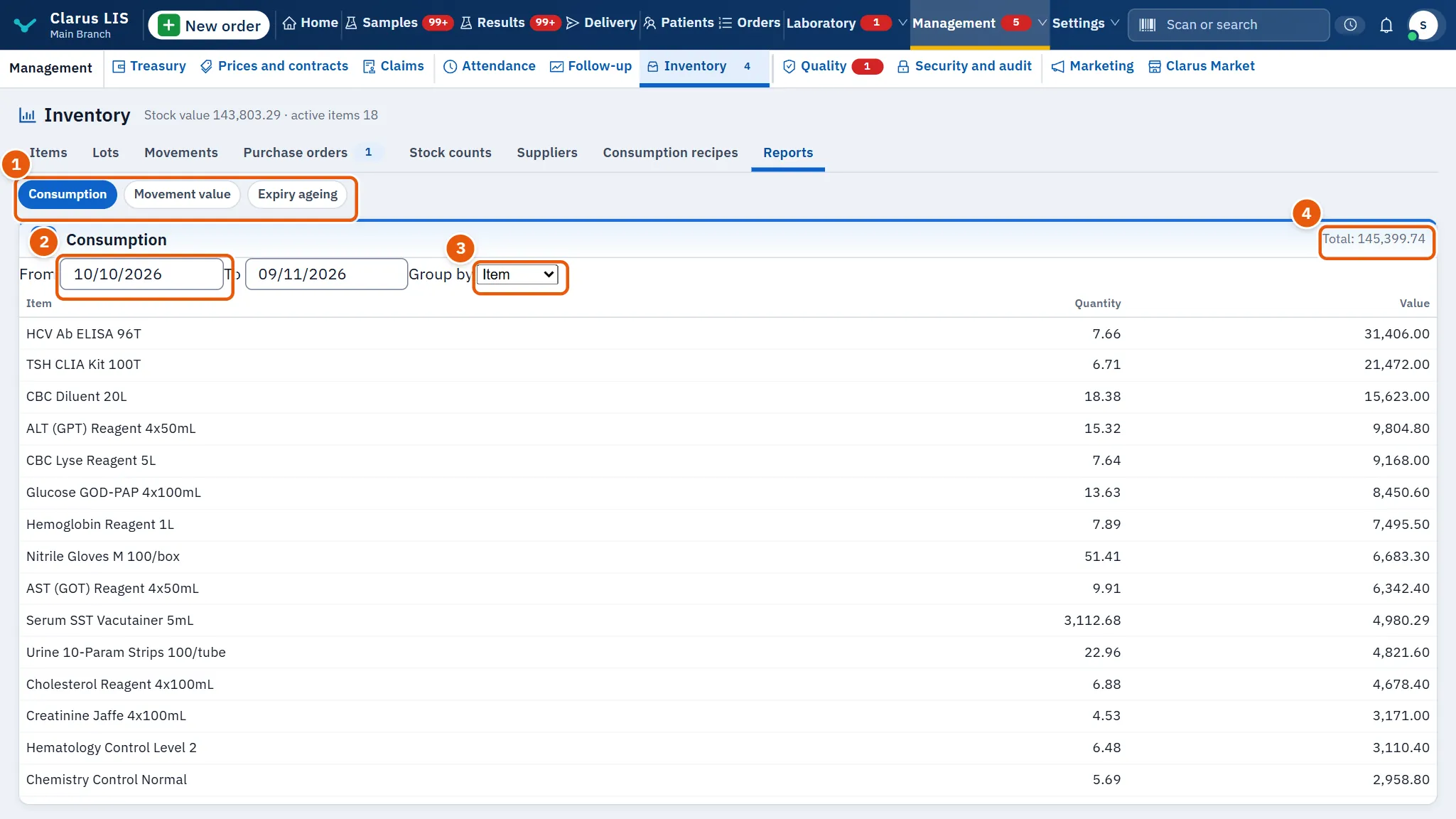
- Open the reports page and choose the report.
- For consumption set From, To and Group by.
- Read the table and the total under it.
20.13 Messages and what to do
| The screen says | Meaning | What to do |
|---|---|---|
| Not enough stock: … only. | A movement takes more than is in the store. | Lower the quantity or check the store. |
| A transfer needs two different stores. | From and to are the same. | Choose two stores. |
| Choose the category or store to count. | A count by category or store needs its scope. | Fill the category or store. |
| Enter the lot of «…». | A received line has no lot. | Write the lot. |
| «…» exceeds what was ordered beyond the over-receipt limit. | The quantity received is too high. | Lower it to the allowed level. |
| Approved by someone with procurement approval who neither created nor sent it. | You may not approve your own order. | Ask another approver. |
| Write the reason. | Cancel, close, refuse, quarantine and recall need a reason. | Type it. |
| The tests linked to this item could not be read… | The item's test list failed to load. | Reopen the window. |
| The import failed. Try again. | The file could not be imported. | Check the file and repeat. |
20.14 See also
Results (where an approved result takes its items from stock), Settings and users (the permissions above).