Chapter 34The manager's phone app
Menu: Users and permissions, tab Phones and screens; and the window My account. The app itself runs on an Android phone.
34.1 What this app is for
Clarus LIS Manager is a small app for the person who runs the laboratory. On the phone the manager follows the laboratory's figures branch by branch, receives its alerts, and can decide a few things without going to the computer: approve results, approve a discount or a refund, suspend an account, switch outside access off, send a message to the program's screens, and send a result to a patient. The same phone can also stand in for a verification code when someone signs in to the program from outside the laboratory.
The app speaks only to the laboratory's own program. It does not use Google services, does not track the person and does not read the phone's contacts or location. A notification never names a patient. The app is for Android only; there is no iPhone version.
The laboratory decides everything about it. The administrator switches the app on, chooses how phones reach the laboratory, and decides in the roles matrix who may carry it and what each phone may do. A phone can never do what its person may not do at the bench.
34.2 Who can use it
| You can… | …if your role holds |
|---|---|
| Pair your own phone and use the app's Branches, Alerts and Settings tabs | Link the program to one's phone (Clarus Manager) |
| Use the phone only to sign in (the code and the approval) | Sign in with the phone |
| Switch the app on or off, choose the road, set the days of absence, and remove anyone's phone (from inside the laboratory) | Manage user accounts |
| Change which roles hold the app's permissions | Manage settings |
The permissions of the group Manager app are ticked in the tab Roles and permissions of the screen Chapter 33: Users and permissions. The administrator's role holds all of them; no other role holds any until it is ticked.
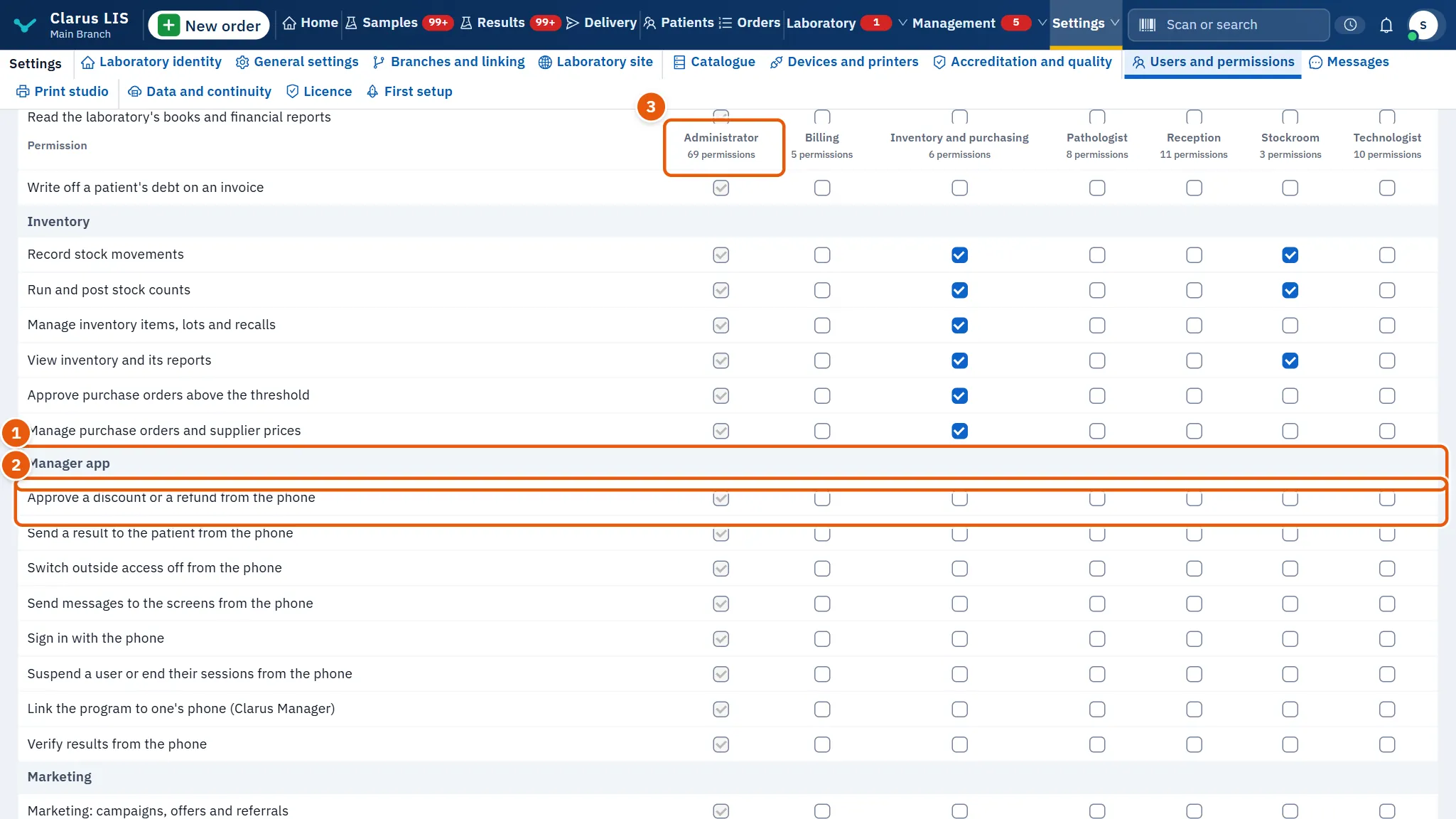
- The group Manager app.
- A permission: each of the group's permissions has a line of its own.
- A role's column. Tick a line to give that role the permission.
Each action on the phone needs two things together: the phone permission below and the program permission behind it.
| Phone permission | What it opens in the app | The program permission it also needs |
|---|---|---|
| Send messages to the screens from the phone | The tab Messages | Send messages to the program's screens |
| Verify results from the phone | Actions, the section for results waiting for approval | Verify results |
| Approve a discount or a refund from the phone | Actions, the section for discounts and refunds | Manage billing |
| Suspend a user or end their sessions from the phone | Actions, the section for users | Manage user accounts |
| Switch outside access off from the phone | Actions, the switch for access from outside | Manage settings |
| Send a result to the patient from the phone | The button that sends a result to the patient, on an order's page | Publish the portal and communications |
The tab Actions appears when at least one of its four sections is allowed. The search for a patient in the app follows Read patient files, and the money figures follow the same rule as the program's statistics.
34.3 Install and pair
The app is downloaded straight from the vendor's website, not from an app store, and it is installed from the file. Once installed it offers its own updates, signed by the vendor; nothing is installed without the person's tap.
The pairing window shows everything you need. It opens from My account, which you reach by pressing your name in the bar (see Chapter 2: Getting started). Pairing is done from inside the laboratory only.
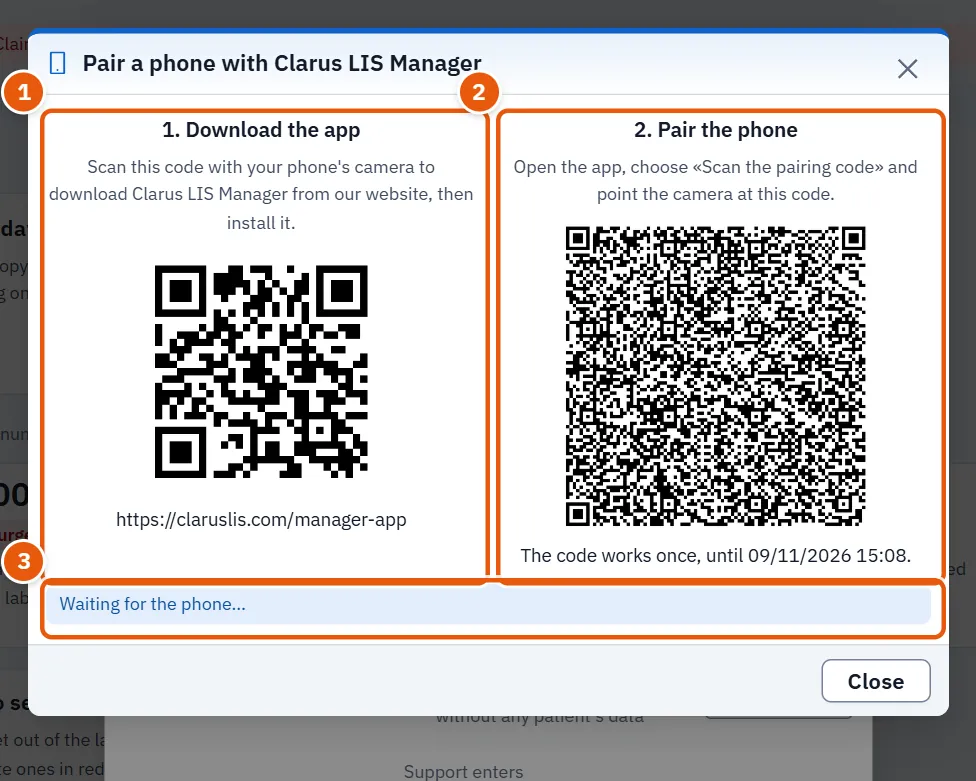
- 1. Download the app: a code for the phone's camera. It leads to the app's page on the vendor's site.
- 2. Pair the phone: the pairing code. It works once and for ten minutes.
- The waiting line: Waiting for the phone, then The phone is paired. when the phone has taken the code.
The first screen of the app, before it is paired, is the welcome screen.
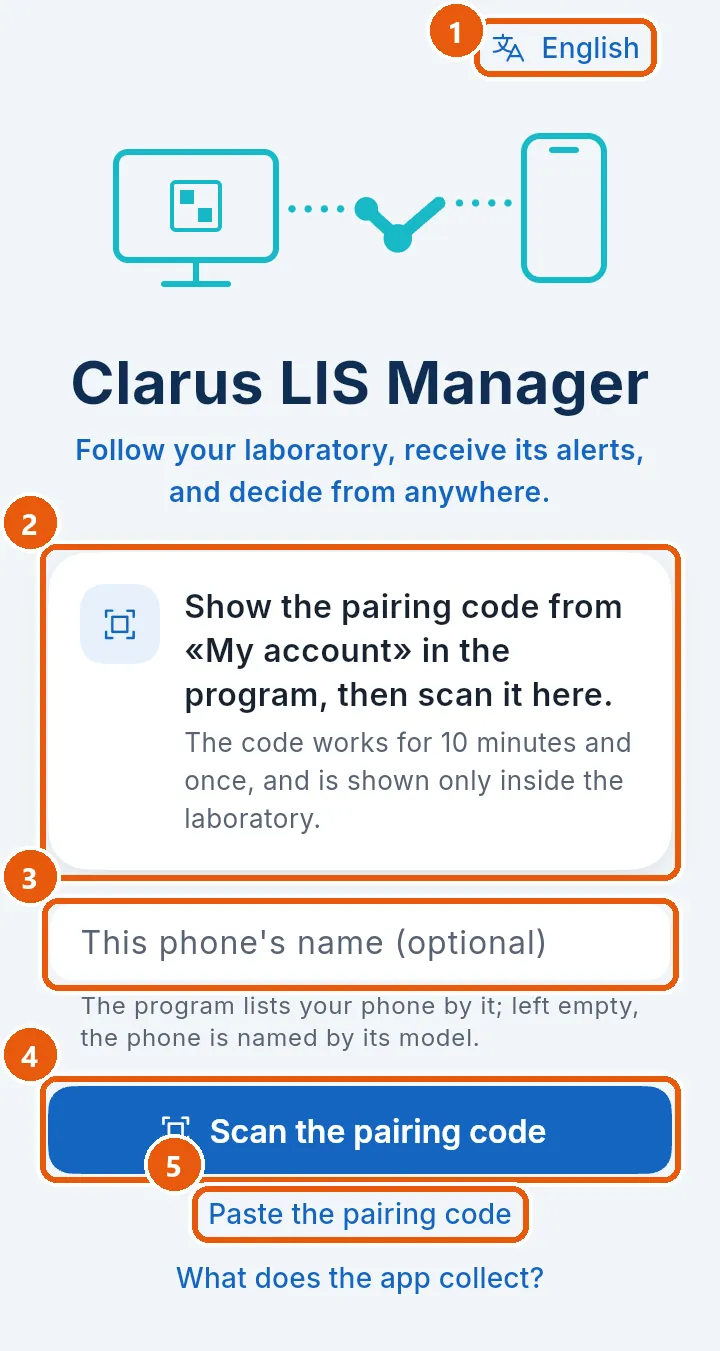
- The language button. The app opens in the phone's language when it is one of the program's eleven; the person changes it here or later in the settings.
- What the app is for, and what to do. It says to show the pairing code from My account in the program and scan it. The code is valid for ten minutes and once.
- The phone's name (optional). It is the name by which the laboratory lists this phone; left empty, the phone's model is used.
- Scan the pairing code, the main button.
- Paste the pairing code, for a phone whose camera cannot read a screen.
34.3.1 Task 1 — Pair a phone
You need your own computer inside the laboratory and the phone in your hand.
- In the program, press your name in the bar. In My account, under My phone, press Pair a phone.
- On the phone, point the camera at the first code and open the page it leads to. Download the file, open it and install it. Android may ask you to allow your browser to install apps: allow it.
- Open the app. Its first screen is the welcome screen, described above.
- Type a name for the phone if you wish, press Scan the pairing code and point the camera at the second code in the program's window. If the camera cannot read a screen, press Paste the pairing code and paste the code's text.
- The program says The phone is paired. and the app opens. The phone's own screen lock opens it (see below). The first time, the app explains why a small icon stays in the notification bar and asks for the notifications and for the exemption from battery saving. Allow both: without them the phone may stop the app and the alerts do not arrive.
The code works once, for ten minutes. If it has expired or was already used, close the window and open it again for a new one. The window may also say that a phone cannot reach this computer yet; open the server to the laboratory's network in Chapter 27: Branches and linking or turn on the intermediary server, then try again.
34.4 The road from the phone to the laboratory
The code carries the roads the phone may use, and the phone tries them in turn.
| The road | What it needs |
|---|---|
| Directly, inside the laboratory | The server opened to the laboratory's network in Chapter 27: Branches and linking, and the phone on that network |
| Directly, from outside | A fixed secure address the laboratory declares, or a private network such as Tailscale |
| Clarus Link | The laboratory's program reaching the vendor's server. The vendor's server only joins the two ends and reads nothing |
The administrator chooses among Directly, Clarus Link and Both, and Both is the choice until the laboratory chooses. While a phone is on Clarus Link it tries the direct roads again about every minute, so it comes back to the direct road when its person returns to the laboratory. In the app's settings, the row Reached through says which road is in use, and a red line says why Clarus Link refuses, when it does.
34.5 The phone's lock and its permanent icon
The app has no password of its own. When it opens it asks for the phone's own screen lock, fingerprint or code, and it locks again after five minutes away. A phone with no screen lock cannot open it. The small icon in the notification bar is the app following the laboratory; it keeps one question open to the laboratory, and that is how an alert reaches the phone without any push service. Do not switch it off.
34.6 The tabs of the app
The bottom bar shows five tabs at most, and a person sees only those the roles matrix allows. If the person follows two or more branches, a button at the top of the tabs chooses the branch, and urgent alerts keep arriving from all of them.
34.6.1 Branches
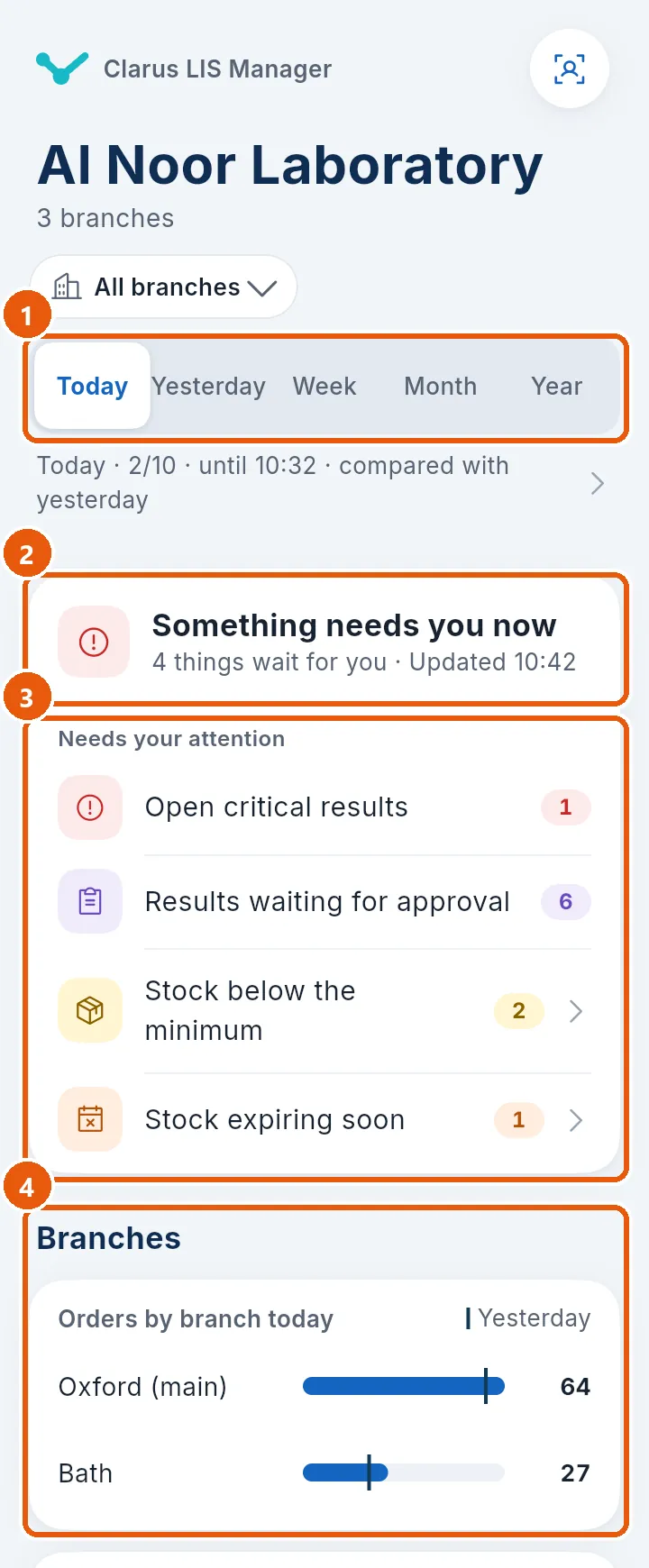
- The period: Today, Yesterday, Week, Month or Year, compared with the previous one. The choice is remembered.
- The headline card: one sentence says whether something needs attention now, whether things are waiting, or whether all runs smoothly.
- Things that need attention: open critical results, results waiting for approval, discounts or refunds waiting for a decision, stopped analyzers, open quality control, and stock. A tap goes to the right tab, or says that the matter is handled in the program.
- The branches: when the person follows several branches and has not chosen one, a chart compares their requests today and each branch has a line of its own with its figures. Further down come the main figures (requests, patients, results released, those on time, the median turnaround and rejected samples), the money figures for a person who may see money, with a button that hides them, and the work waiting now.
34.6.2 Alerts
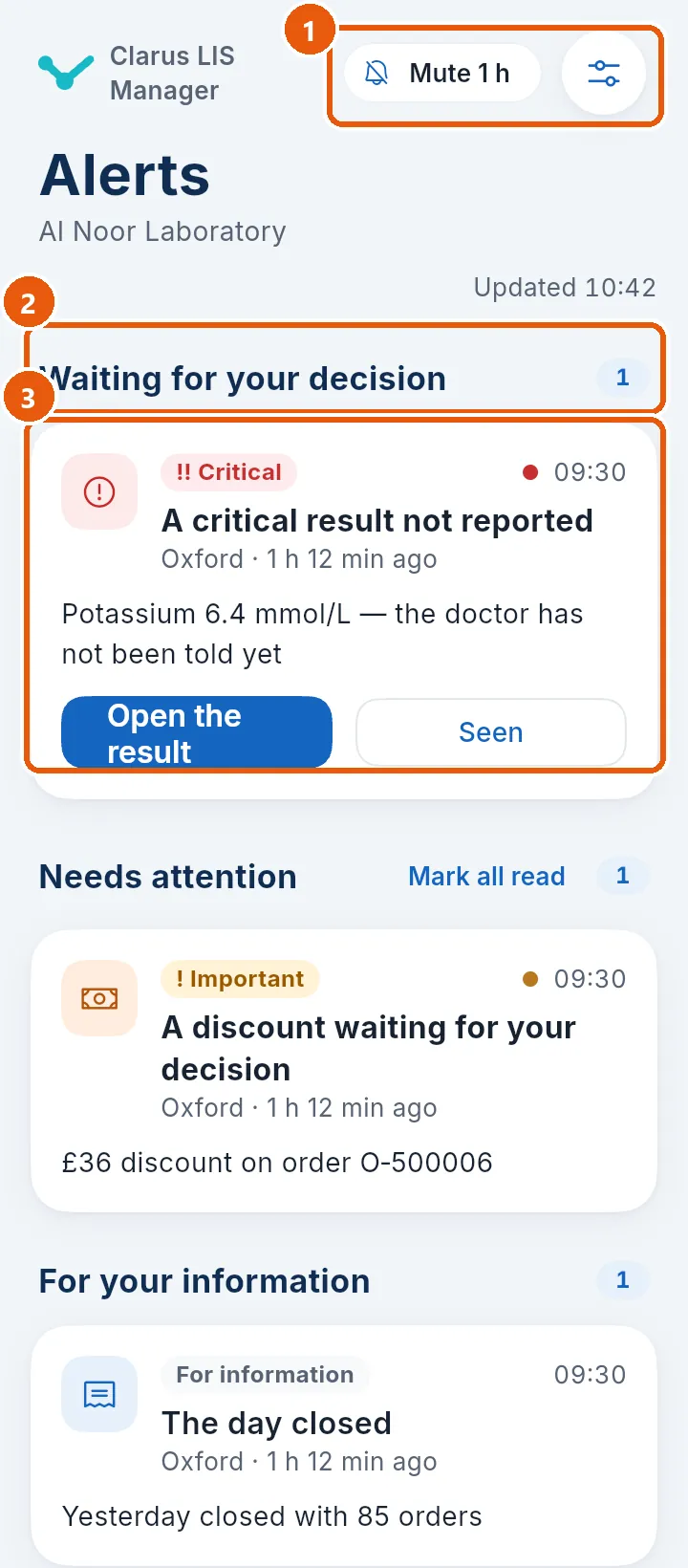
- Mute for one hour, and beside it the button Alerts I receive, where the person chooses which kinds reach the phone and sets quiet hours.
- The sections: waiting for your decision, critical and open, needs attention, and for your information.
- An alert: its severity, its time, its branch and a few lines that never name a patient. A critical result offers Open the result and Seen.
A critical result rings with its own sound and repeats until it is opened. The alerts the person can receive follow the roles matrix and the person's own switches. If the phone has not heard from the laboratory for a while, a red banner says so, with a button that checks whether alerts can reach the phone.
34.6.3 Actions
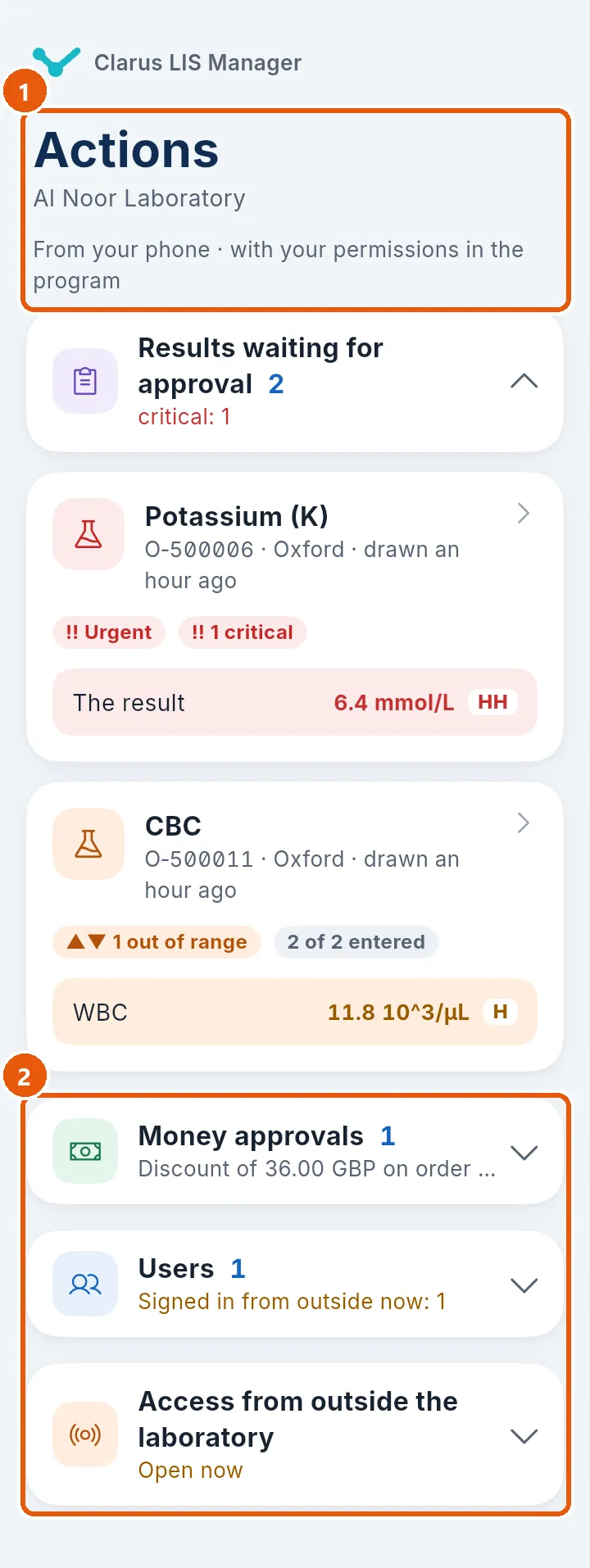
- The header: the laboratory's name and the line that says the phone acts with the person's own permissions in the program.
- The other sections, closed here, shown only for the permissions the person holds: results waiting for approval, money approvals, users, and access from outside the laboratory.
Approving a result is one decision at a time: the phone shows the result and its flags, offers an approval note (printed in the report or kept for the laboratory), and has no bulk approval. A discount or a refund is approved or declined, and a decline needs a written reason. Suspending a person's account, or ending their sessions, also needs a written reason, which is recorded under the manager's name. The switch for access from outside the laboratory is shown only when access is open, and it asks before it acts.
34.6.4 Messages
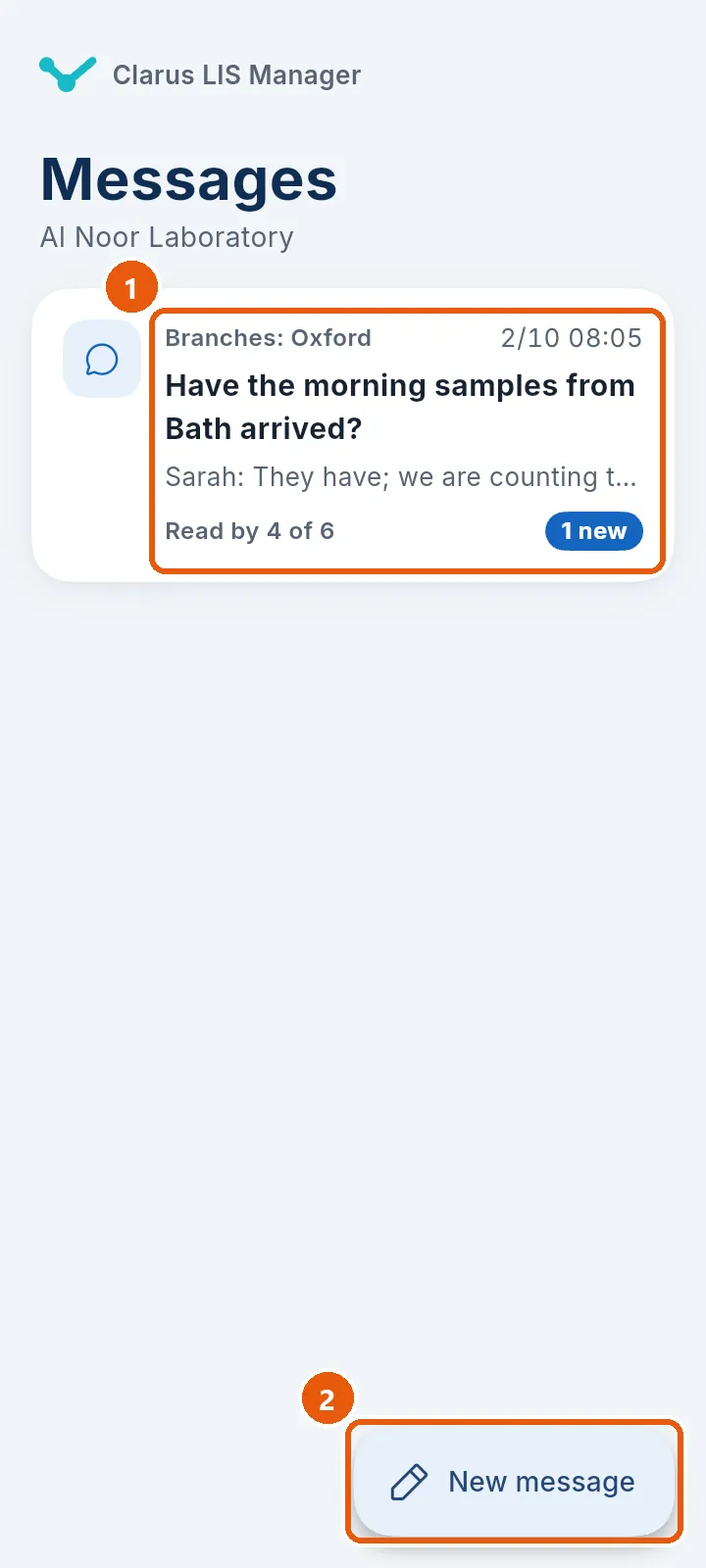
- The conversations: what the person sent to the program's screens and what the program wrote to the management, with who has read each.
- New message: choose how it appears (a notice, a band or an urgent message), to whom (branches, people or devices), write it and choose how long it is shown. An urgent message stays on the screen until it is marked read or answered.
34.6.5 Settings
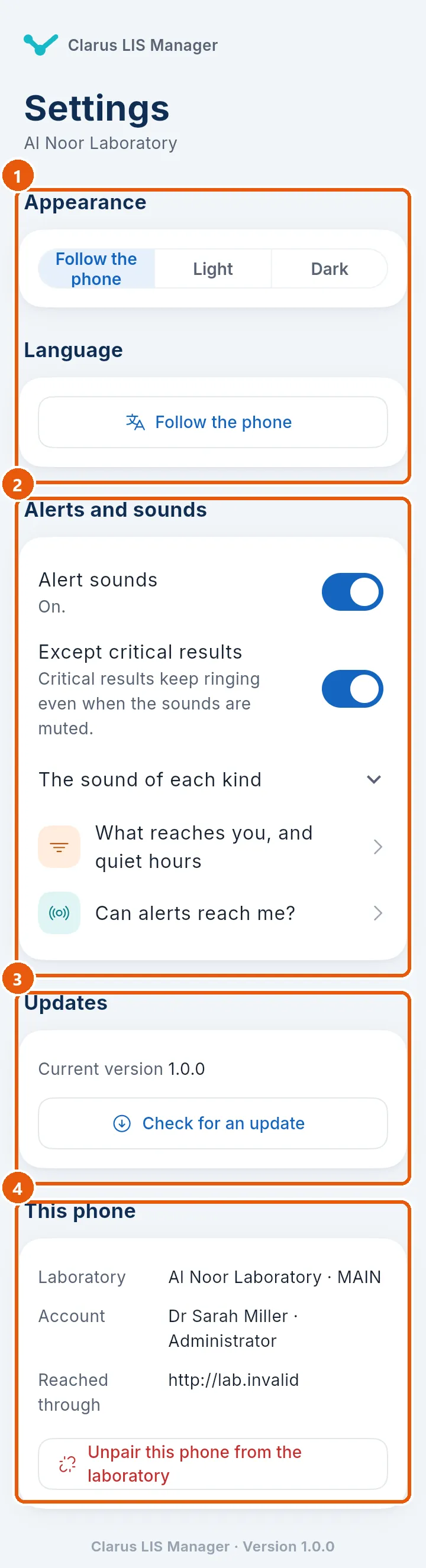
- Appearance: light, dark or as the phone; and below it the app's own language.
- Alerts and sounds: mute, the sound of each kind, quiet hours, and a check that tells whether alerts can reach the phone.
- Updates: the version in use and the button that looks for a newer one.
- This phone: the laboratory, the account, the road in use, and the red button that unpairs the phone.
A person who may use the sign-in code or the scan also sees a section Sign-in with this phone with those two rows, which are described below.
34.7 Signing in with the phone
A phone whose person holds Sign in with the phone can help sign in to the program from outside the laboratory.
- The code. The app shows a six-digit code that changes every thirty seconds. Type it when the program asks for the verification code. The laboratory hands the secret over only from inside the laboratory, and the app asks for it while the phone is on the laboratory's network.
- The approval. When someone signs in from outside, an alert reaches the phone and rings whatever the sound settings are. Choose the number the computer shows. The request lasts about a minute. Not me refuses it and tells the laboratory's managers.
- The scan. The app can scan the code on the program's sign-in page and confirm the sign-in after asking.
A person who holds only the sign-in permission sees just two tabs, the code and the settings.
34.8 Removing a phone
- From the phone. In the settings, press the red button that unpairs the phone and confirm. The phone forgets the laboratory and returns to the welcome screen. If the laboratory cannot be reached, the phone is forgotten anyway and the administrator can remove its entry.
- From your account. In My account, under My phone, press Remove beside your own phone.
- By the administrator. In the tab Phones and screens of Chapter 33: Users and permissions, the card Paired phones lists the paired phones with their owner and device name, and Remove removes one.
- By the program. A phone that is not heard from for more than the number of days set in the same tab is removed (30 by default). Nobody is told; the person finds out when the app says that the phone was removed from the laboratory and must be paired again. A person who loses both app permissions loses all their phones.
A removed phone is refused at its next request, and to use it again its person pairs it again with a new code.
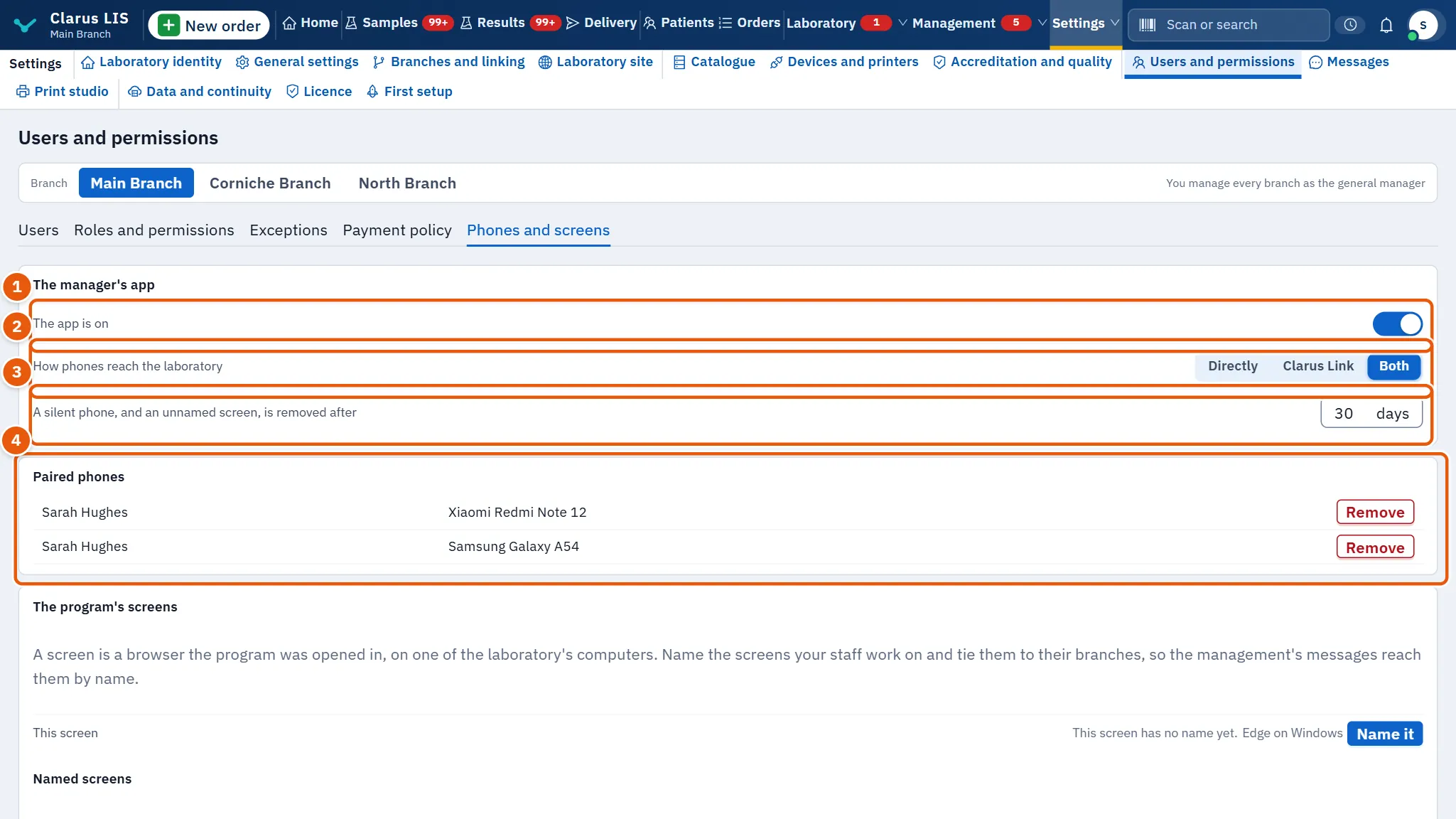
- The app is on: off, every phone is stopped and no new code can be made.
- How phones reach the laboratory.
- The days of absence, for a phone and for a screen with no name.
- Paired phones, with a remove button for each.
All of this is saved at once, and only from inside the laboratory.
34.9 Keeping the app up to date
When a newer signed version exists, a blue strip appears above the tabs and the settings offer the update. Nothing downloads without a tap, and Android always asks the person to confirm the installation. If the laboratory no longer accepts an old version, the whole app is replaced by a screen that asks for the update.
34.10 Messages and what to do
| The app or the program says | What it means | What to do |
|---|---|---|
| The pairing code has expired, or was already used | The code works once and for ten minutes | Close the pairing window and open it again |
| A phone cannot reach this computer yet | The code carries no road the phone can use | Open the server to the laboratory's network in Chapter 27: Branches and linking, or turn on the intermediary server |
| The laboratory could not be reached | The phone is not on a road that reaches the laboratory | Check the phone's connection, and the program's computer |
| This phone was removed from the laboratory | An administrator, the person or the days of absence removed it | Pair the phone again from My account |
| The manager app is switched off for this laboratory | The switch in the tab Phones and screens is off | The administrator switches it on |
| Update the app | The laboratory no longer accepts this version | Install the newer version |
| Last contact with the laboratory… alerts may not reach you | The phone has not heard from the laboratory for over a minute | Press the check button and follow what it says |
34.11 See also
Chapter 33: Users and permissions, Chapter 27: Branches and linking, Chapter 2: Getting started, Chapter 28: Linking branches and computers, Chapter 41: Questions and problems