Chapter 22Security and audit
Menu: Security and audit. Address: /admin/audit.
22.1 What this screen is for
This screen keeps the laboratory's memory of who did what. It has three pages. The audit trail lists every act the program recorded: who did it, when, in which part of the program and on which record. The sessions page shows who is signed in now, from where and since when, and lets you end a session. The access page lists sign-ins, failed attempts and every reading of a patient's record, and holds the laboratory's switch for access from outside.
Nothing here changes laboratory data. The only changes you can make are ending someone's session and turning access from outside on or off. The trail can also be exported to a file together with a proof that no entry in it was altered.
22.2 Who sees it
Whoever holds Manage settings. The menu hides the screen from everyone else.
| You can… | …if your role holds |
|---|---|
| Read the three pages, filter and search them | Manage settings |
| Export the trail with its integrity proof | Manage settings |
| End another person's session | Manage settings |
| Turn access from outside on or off | Manage settings |
22.3 The screen at a glance
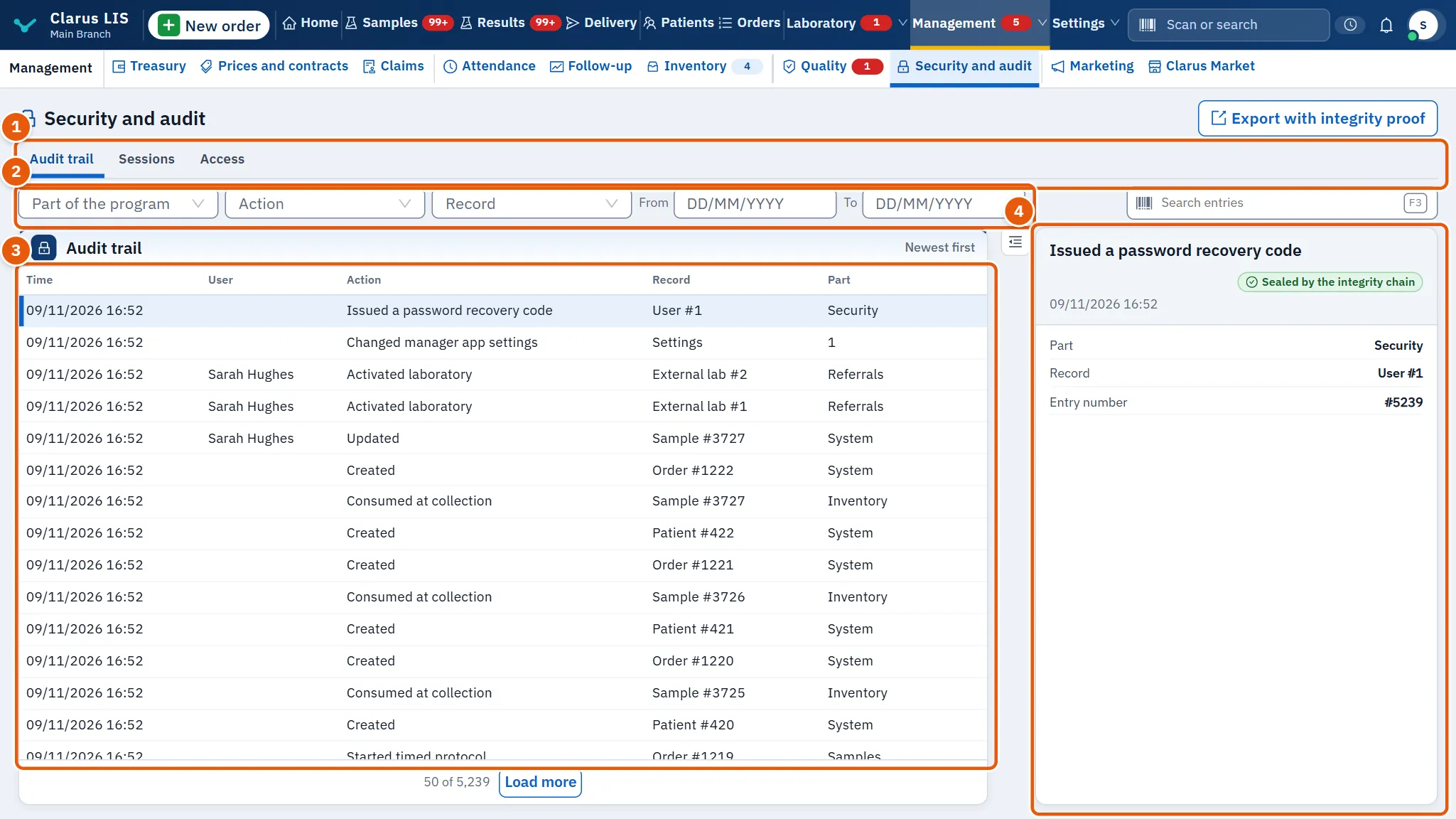
- The page tabs: Audit trail, Sessions and Access.
- The filters and search of the page you are on (they differ from page to page), and on the trail page the export button.
- The list: newest first, fifty rows at a time. When more rows exist, a bar under the list shows how many are shown and lets you load more.
- The details of the chosen row. The first row is chosen for you; click another to change it.
On every page, if the list cannot be loaded the screen says so and offers to try again; if nothing matches it says so in the list itself.
22.4 Page 1: the audit trail
22.4.1 The filters
| Control | What it does |
|---|---|
| Part of the program | Keeps only entries written by one part of the program (for example Billing, Results, Samples). Choose from the list, or type to search it. |
| Action | Keeps only one kind of act (for example Saved settings, Recorded payment). |
| Record | Keeps only entries about one kind of record (for example Patient, Backup). |
| From / To | Limit the entries to a span of days. The first day cannot be after the last. |
| Search entries | Free text; it is applied a moment after you stop typing. |
Each of the three lists offers only the values that exist in this laboratory's trail. A small cross in the box clears that filter. The filters combine: an entry must satisfy all of them.
22.4.2 The list
| Column | What it shows |
|---|---|
| Time | When the act happened. |
| User | The user who did it. When the program only knows a number, it is shown as «User» followed by that number. |
| Action | The act, in words. |
| Record | The kind of record, then its number after a #. |
| Part | The part of the program that wrote the entry. |
22.4.3 The details
| Element | What it shows |
|---|---|
| The title | The act, in words. |
| Sealed by the integrity chain / Not sealed | Whether the entry is sealed by the integrity chain. A sealed entry is linked to the ones before it, so an altered or removed entry would be found. |
| The line under the title | The user and the time. |
| Part, Record, Entry number | The part of the program, the record (kind and number), and the entry's own number. |
| What was recorded | What the program stored with the entry, as pairs of name and value. A name the program knows is shown in words with the stored name in brackets beside it; any other is shown as it was written. The values are data and are not translated. |
22.4.4 What kinds of events are recorded
The trail names every act in words, and a code the screen has no words for is shown as stored, so a new kind of act never disappears from the trail. The kinds fall into these groups. The group names are only for this explanation and do not appear on the screen; everything in the table is taken from the acts the trail actually names.
| Group | Examples of what is recorded |
|---|---|
| Results and reports | Recording, amending and auto-approving results; approving in bulk; marking a test not performed; generating or amending a report version; calculation failures and disagreements. |
| Samples, orders and patients | Assigning accession numbers, recording collection and rack position, disposing of a sample; creating, editing, cancelling or deleting an order; deleting a patient or physician; recording or revoking consent. |
| Money | Recording, reversing and voiding payments; discounts; patient write-offs and credit refunds; expenses and recurring expenses; cash remittances; claim statements, claim packages and their remittances. |
| Referrals and external laboratories | Choosing, assigning and changing referral laboratories; send-out costs; sending a test out as an exception; payments to external laboratories. |
| Inventory and procurement | Creating, approving, receiving, cancelling and closing purchase orders; goods receipts; stock counts; automatic consumption and its reversal; supplier prices. |
| Quality and blood bank | Quality-control lots and recipes; external quality rounds and results; competency records; corrective actions; blood donors, donations, unit screening, cross-matching, issue and transfusion. |
| Analyzers and devices | Device mappings, results-file layouts and pick-up sources; worklists sent to a device; refused orders; flag codes; reruns. |
| Users and access | Activating and deactivating users, resetting or recovering a password, recovery codes, permission overrides, branch access. |
| Branches and chains | Branch link keys, invitations and approvals; sync epochs and conflict policy; branch prices; member devices; chain links and handover. |
| Backup, restore and updates | Cloud backup enabled, disabled, uploaded, restored or deleted; restore drills; pruning old backups; preparing, applying and rolling back updates; importing an update manifest. |
| Phone app and messaging | Manager app phones paired, removed or suspended; remote access switched; screen messages and reminders; ready messages; patient messages and campaigns. |
| Artificial intelligence | Turning the clinical AI service on or off; usage limits; automatic drafting. |
| Settings and catalogue | Saving settings, print recipes, templates and request forms; catalogue changes; market items installed or reverted; migration imports and their undoing. |
| Exported hand-over packets | Many acts of the form «Exported … packet» that record the production of commercial, installer, evidence and readiness documents. |
The records are named in the same way, and the Record list holds them all: patients, orders, samples, results, devices, branches, backups, expenses and many more.
22.4.5 Exporting the trail with its proof
The export button, Export with integrity proof, exports exactly the entries the filters now select, and checks the integrity chain over exactly those entries. It is dim while the list is empty or an export is running.
- Set the filters to the entries you need.
- Press Export with integrity proof.
- Read the message. If the check passed it says how many entries were exported out of how many matched. If the check found altered entries, the message is red and says so: contact support.
- If the message Export was limited to the first … entries; narrow the filters to export the rest. appears, the export was limited to the first entries. Narrow the filters (for example by day) and export again to get the rest.
22.5 Page 2: sessions
A session is one signed-in browser or phone. The page lists them, newest first.
22.5.1 Filters
| Control | What it does |
|---|---|
| Active / Ended / All | Shows only the sessions in that state, with a count on each. The page opens on the active ones. |
| User name or address | Search by user name or address. |
22.5.2 The list and the details
| Column | What it shows |
|---|---|
| User | The person's name, or the user name. |
| Role | Their role. |
| Address | The network address the session came from. |
| From | Where it came from: Inside the laboratory, From outside or Manager app. |
| Started | When the session began. |
| Last active | Its last activity. |
| State | A tag: Your session for yours, Active or Ended. |
The details of the chosen session repeat the start and last activity, and add Expires, the time it ended (Ended at, if it was ended) and Device and browser.
The list refreshes by itself about every half minute.
22.5.3 Task: end someone's session
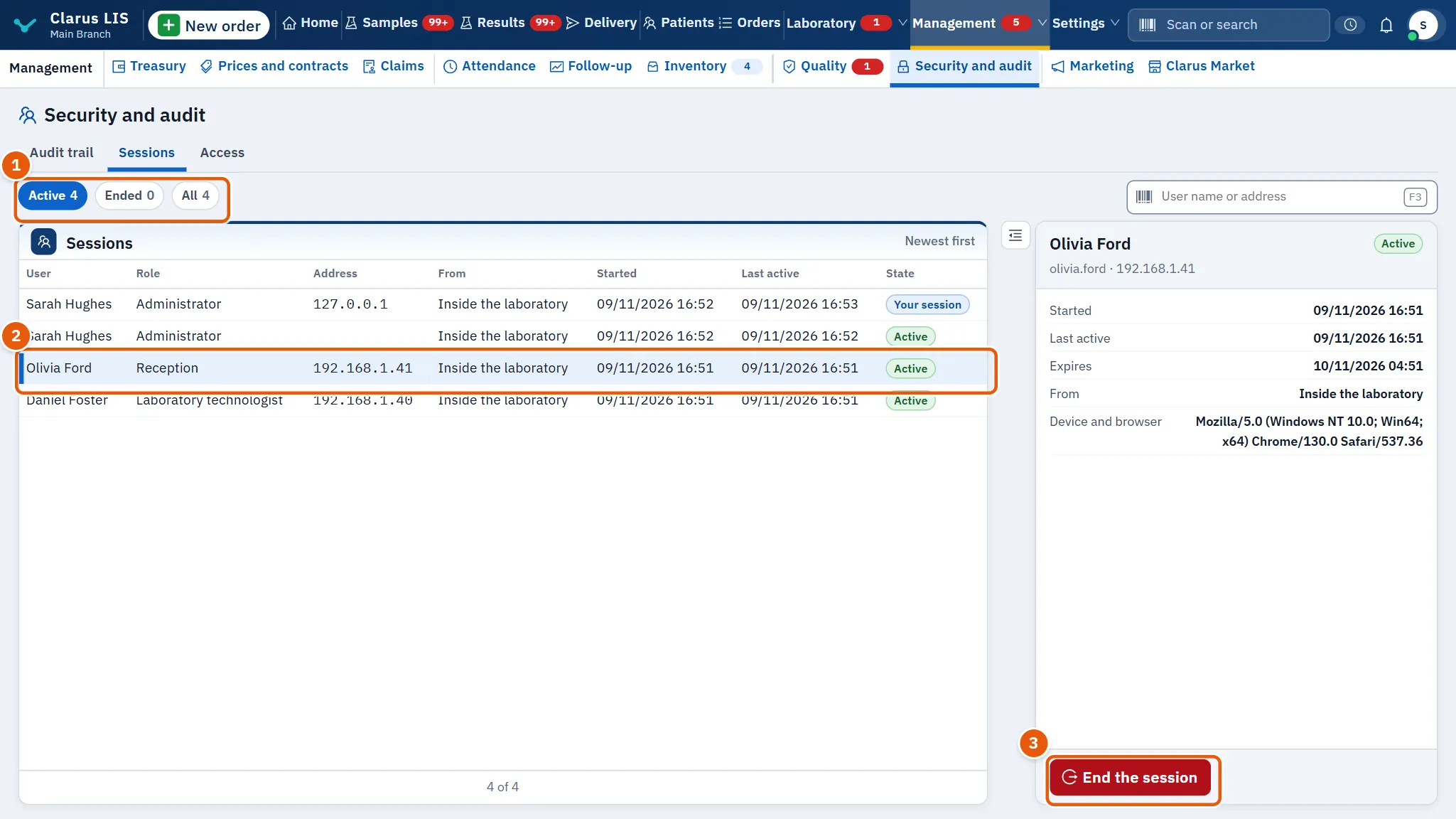
- Open Sessions.
- Find the session. Use User name or address if the list is long.
- Click its row.
- Press End the session. The button appears only for a session that is still active and is not your own.
- In the confirmation, read that the person is signed out at once and may sign in again, then press End the session to confirm, or the cancel button to leave it.
- The message The session was ended. appears.
Your own session shows a note that it cannot be ended from here.
22.6 Page 3: access
This page lists events about getting into the program and reading patient data. The top of the page may show a line about the access-event chain: either that it is intact, or that it is broken and you should contact support.
22.6.1 Filters
| Control | What it does |
|---|---|
| Result: All / Failed / Succeeded | Keeps all events, only failed ones, or only successful ones. |
| Event | Keeps one kind of event. The list shows how many events of each kind exist. |
| User or record | Search by user or record. |
22.6.2 The list and the details
| Column | What it shows |
|---|---|
| Time | When it happened. |
| User | The user name. |
| Event | The kind of event. |
| Record | The record concerned. |
| Result | A green tag for success or a red tag for failure. Failed rows are marked as urgent. |
The details pane (Event details) shows the kind of record, the result and up to six more stored facts about the event.
22.6.3 Kinds of access events
| Group | Events |
|---|---|
| Signing in and out | Sign-in, First-install sign-in, Sign-out, Session ended |
| Passwords | Password change, Request for a new password, Password recovery, Password recovery locked |
| Recovery codes | Recovery code issued, Recovery code renewed, Recovery code saved |
| Reading patient data | Patient search, Patient record read, Order read, Sample read, Result read, Report read |
| Refused requests | Unpermitted route refused |
| Claims | Claim package action |
22.6.4 Access from outside the laboratory
This box sits in the details pane of the access page, under the event details.
| Element | What it does |
|---|---|
| The switch | Shows On or Off; flip it to change. |
| Sessions from outside now | How many sessions are open from outside the laboratory now. |
| Accounts with two-step verification | How many accounts use two-step verification. It appears only when the program reports it. |
| The note under them | The setting is changed from inside the laboratory only; turning it off ends the outside sessions. |
22.6.5 Task: turn access from outside off
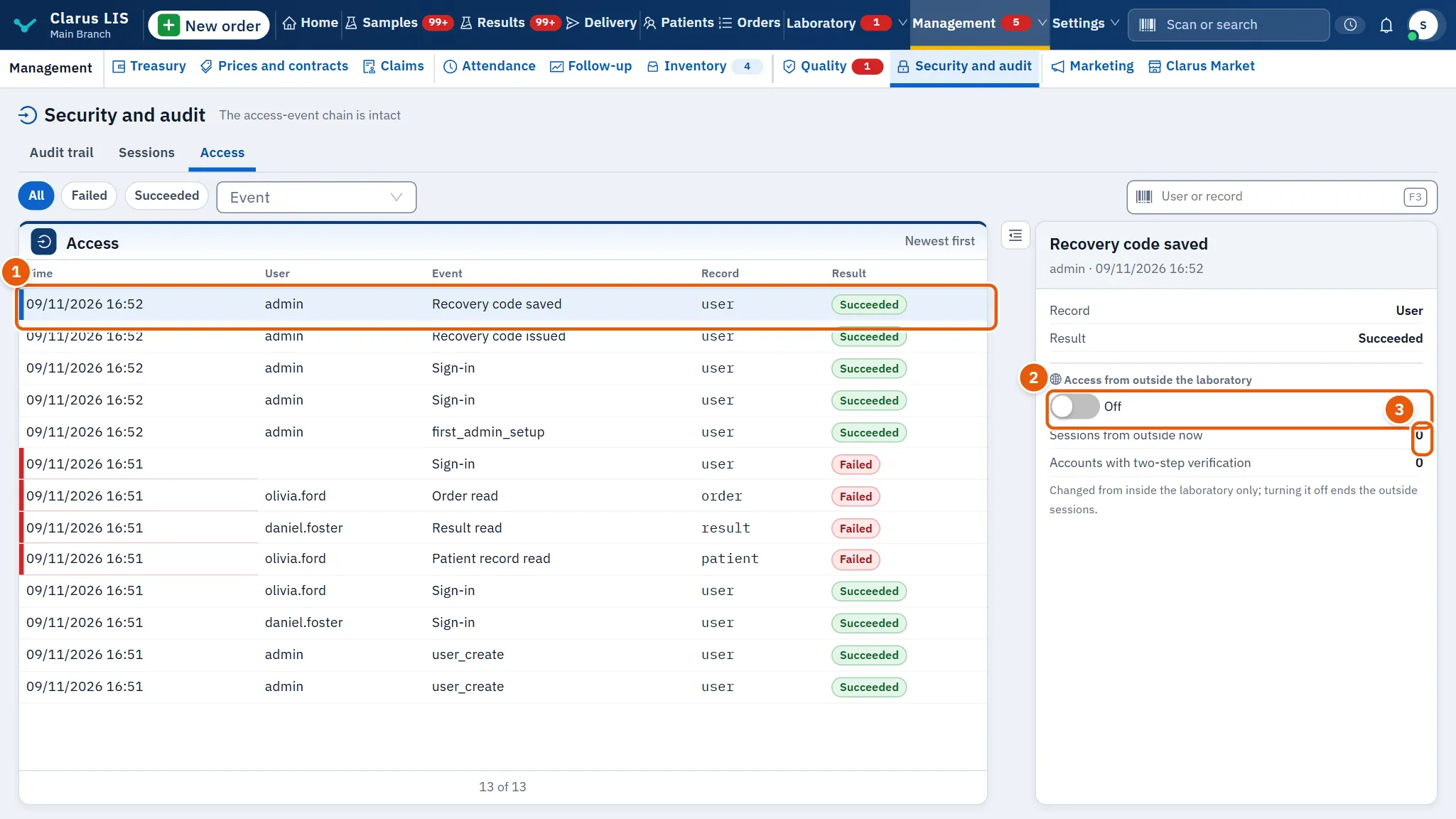
- Open Access.
- In the box Access from outside the laboratory, check Sessions from outside now: these people will be signed out.
- Flip the switch. It shows a loading mark while it saves.
- A message confirms the change: when turning it on, that access from outside is on; when turning it off, that it is off and how many sessions were ended.
22.7 Messages and what to do
| The screen says | Meaning | What to do |
|---|---|---|
| Could not load the audit trail. | The list or the box could not be loaded. | Use the retry button on the list; if it persists, check the program is running. |
| No entries match the filters. | No trail entry matches the filters. | Widen the filters or clear the search. |
| No active sessions. | No session is active. | Choose All to see ended ones. |
| No matching events. | No access event matches. | Widen the filters. |
| Export failed. | The export did not complete. | Try again; narrow the filters if the span is large. |
| The access-event chain is broken: contact support | The access events no longer form an unbroken chain. | Do not ignore it; contact support. |
| Choose an entry from the trail to see its details. | No row is chosen. | Click a row. |
22.8 See also
- Security and audit: this chapter.