Chapter 35Messages
Menu: Messages. Address: /setup/messages.
35.1 What this screen is for
This is where the laboratory decides how its messages leave and what they say. It holds three things: the channels (email, SMS and WhatsApp, each with the provider that carries it), the switch for messages to patients, and the wording of every message the program writes by itself or that the desk chooses from.
Nothing here sends a message by itself. The screen sets the road and the words; the messages are produced by the work of the laboratory (a result ready, a payment required, a message written at the desk).
35.2 Who sees it
| You can… | …if your role holds |
|---|---|
| Open the screen, set channels, open or close patients' messages, edit templates and ready messages, decide on waiting messages | Manage settings |
35.3 The screen at a glance
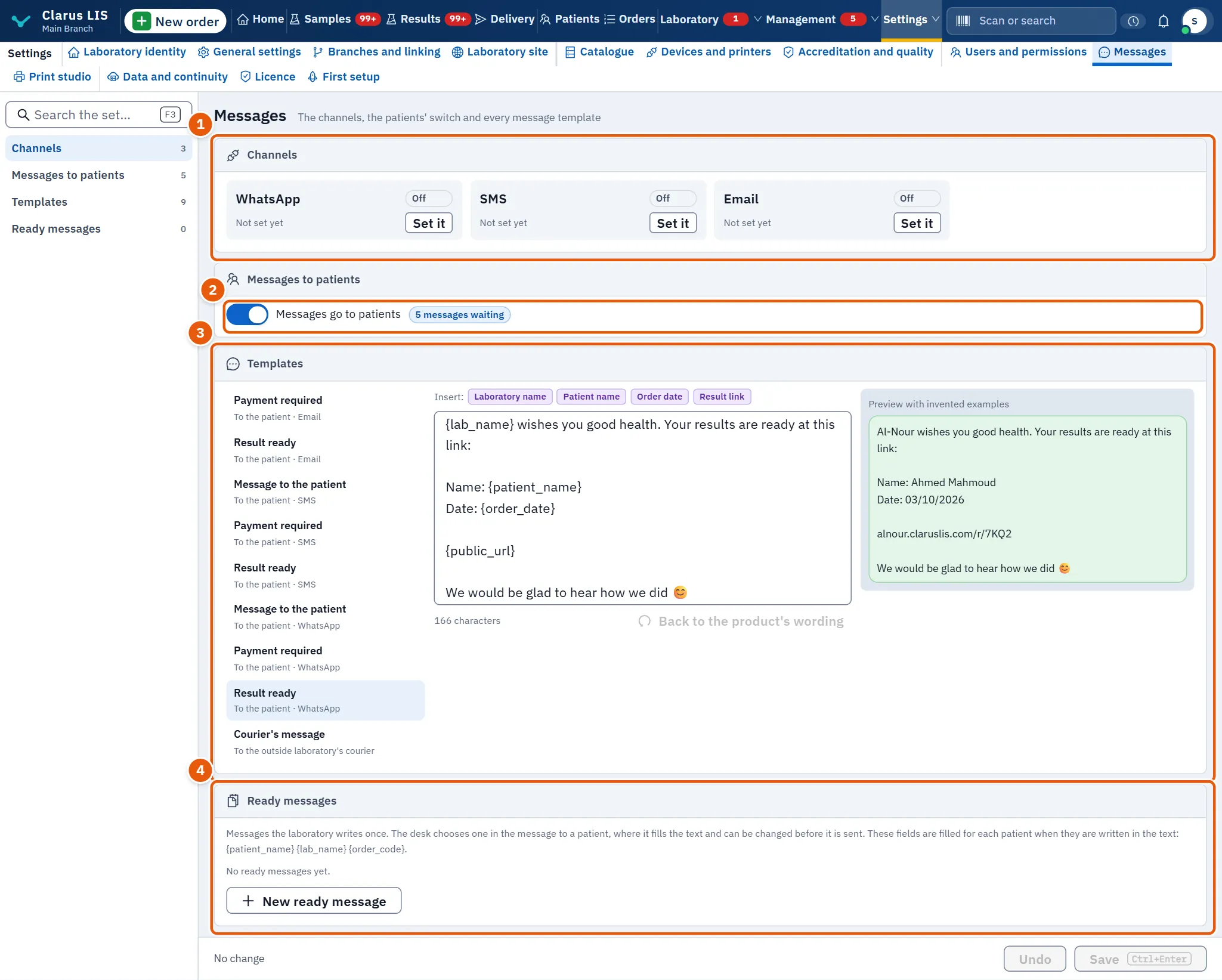
The screen has four sections, each with a count beside its name:
- Channels: the three channels and their state.
- Messages to patients: the switch, and any message held for review.
- Templates: the wording of each message.
- Ready messages: the laboratory's own messages.
If part of what was saved could not be read, a note above the sections says which part was not shown and that everything else is as saved. A change in the templates is saved with the page's save button; the channel and ready-message windows save on their own.
35.4 Channels
Each channel (email, SMS, WhatsApp) shows its name, a tag, and the provider's name. The tag shows how the channel works (for example A mail server (SMTP)) when it is enabled and not switched off, otherwise Off. A channel with no provider says Not set yet. The button Set it opens its window.
35.4.1 The provider window
| Field | What it does |
|---|---|
| Provider | The provider's name. |
| How it works | How the channel works. Email offers Off, A mail server (SMTP), Trial without sending and Local simulator. SMS offers Off, An HTTP service, A web address that receives them, Trial without sending and Local simulator. WhatsApp offers those too, and also WhatsApp Business (Cloud API). |
| Address | The service address. |
| From address (email) or Sender name (SMS and WhatsApp) | The sender the recipient sees. |
| Reference to the secret kept on the server | The name under which the server keeps the secret, never the secret itself: the program does not accept a secret typed here. Once one is kept, the window says so. |
| Limit per minute | How many messages may leave in a minute (from 1 to 1000). |
| Enabled | Turns the channel on or off. |
35.5 Messages to patients
The switch Patients' messages switch says in words what it does: Messages go to patients or No message goes to patients until you open it. Beside it a tag counts the messages waiting. Messages to patients stay in the queue while the switch is closed.
35.5.1 Messages that gathered before opening
If messages waited while the switch was closed, opening it does not send them. A window titled Messages that gathered before opening appears, states how many waited, and says that none leaves before you choose.
| Button | What it does |
|---|---|
| Review them first | Holds the waiting messages for your review. |
| Send them all | Sends them all. |
| Delete them from the queue | Removes them from the queue. |
Each choice also opens the switch. If you close the window without choosing, the switch stays closed, the messages stay waiting and none leaves. The window cannot be closed, and its buttons are dim, while a choice is being saved.
35.5.2 Messages held for review
After Review them first, the section lists the held messages under the switch, with the time, the recipient and the start of the text. None leaves until you decide. If there are many, only the first ones are shown and the note says how many.
| Button | What it does |
|---|---|
| Send them all | Sends every held message. |
| Delete them all | Deletes every held message. |
| Send (on a line) | Sends that message. |
| Delete (on a line) | Deletes that message. |
35.6 Templates
The editor lists each message to a patient, named by its purpose and its channel, and the message to the outside laboratory's courier. A dot beside a name means it holds a change not yet saved.
| Element | What it does |
|---|---|
| The text box | The wording of the chosen template. Its direction follows the language it is written in. |
| Insert: | One button per field this message knows (for example Patient name, Order number, Result link). Pressing it puts the field at the cursor. |
| The length line | The number of characters, and for the courier's message the limit too. |
| Back to the product's wording | Puts the product's own wording back. Dim when the text is already that wording. |
| Preview with invented examples | The text with every field filled by an invented example. |
35.7 Ready messages
Ready messages are written once by the laboratory. The desk chooses one in the message to a patient; it fills the text, and the desk can change it before sending. The screen lists the fields that are filled for each patient when written in the text.
| Element | What it does |
|---|---|
| The list | Each ready message with its name, channel and text. If there are none, the screen says so. |
| Edit | Opens the message for change. |
| Delete | Asks for confirmation, then deletes it. |
| New ready message | Opens an empty window. |
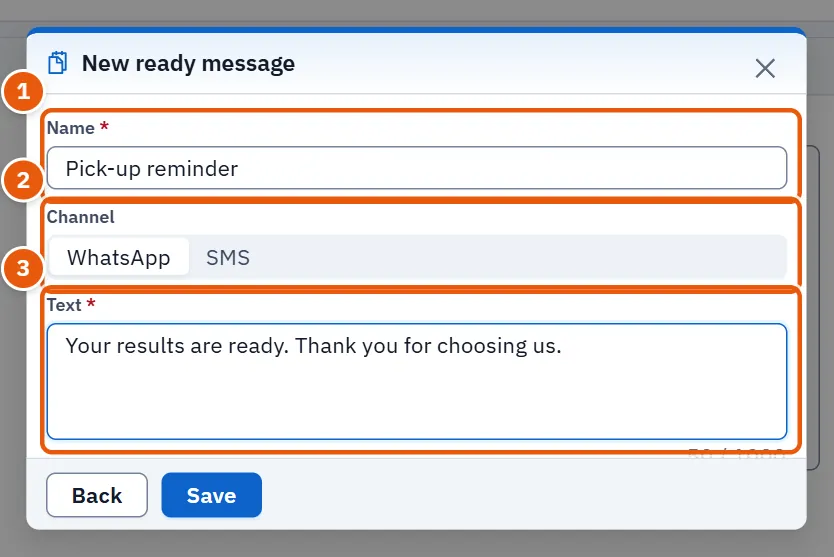
The window has Name and Text, both required, and Channel. The save button stays dim until the name and the text are filled.
35.8 Tasks
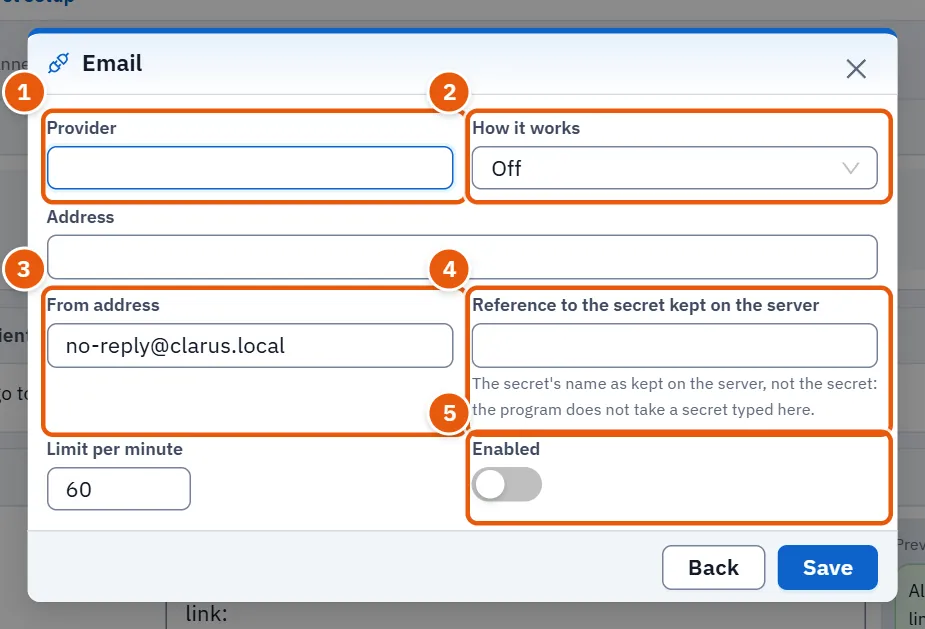
35.8.1 Task 1 — Set up a channel
- Press Set it beside the channel.
- Choose How it works.
- Fill Provider, Address and the sender (From address for email).
- Write the name of the server-kept secret in Reference to the secret kept on the server.
- Turn on Enabled and press Save. The screen answers «Channel saved.»
35.8.2 Task 2 — Edit a template
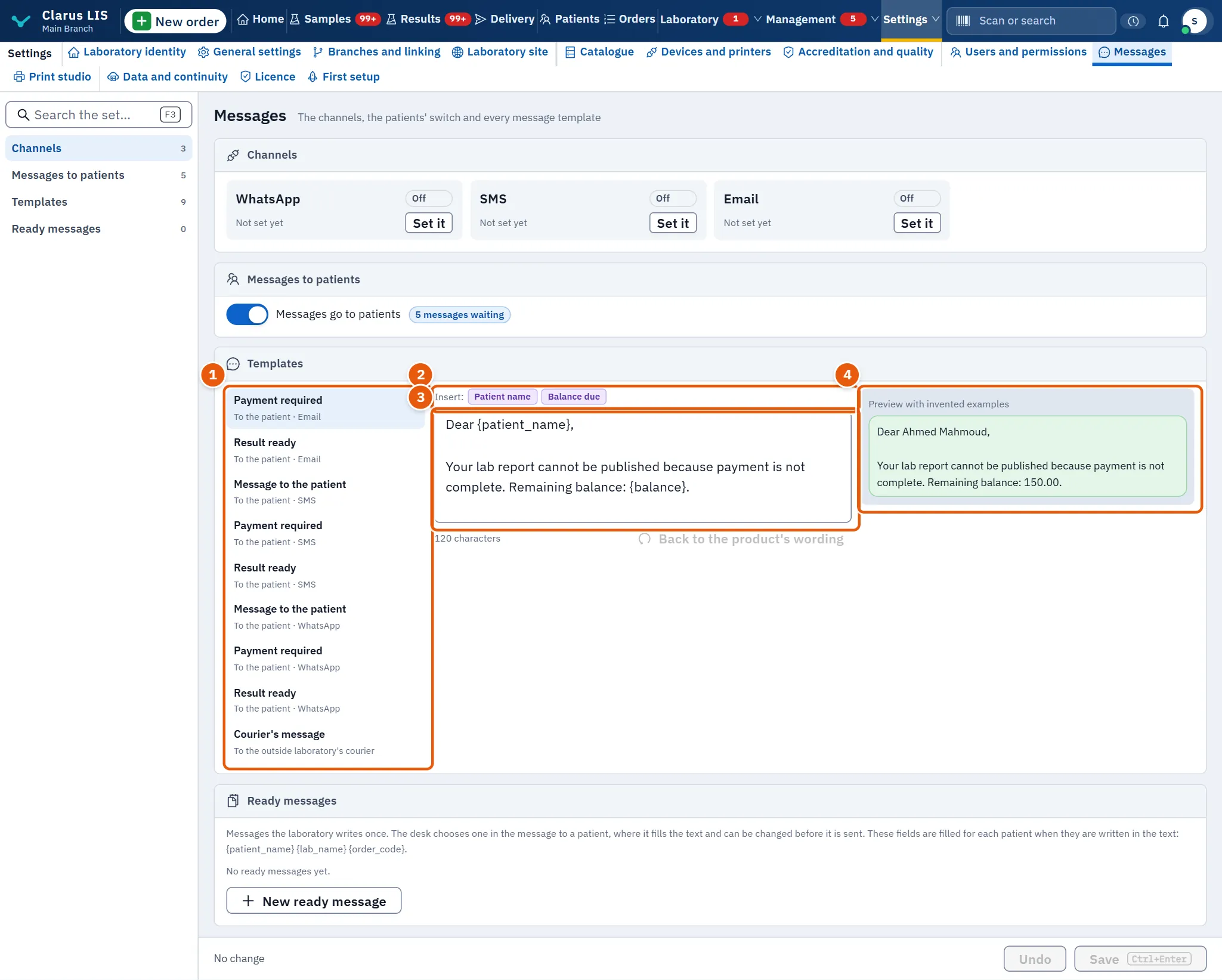
- Open Templates and pick the template from the list.
- Change the text; use Insert: for fields.
- Check Preview with invented examples.
- Save with the page's save button. The screen answers «Templates saved.»
35.8.3 Task 3 — Add, edit and delete a ready message
- In Ready messages press New ready message.
- Fill Name, choose Channel, write Text.
- Press Save. To change one later, press Edit on its line.
- To delete, press Delete on the line, then Delete again in the confirmation, or Back to keep it.
35.8.4 Task 4 — Open patients' messages when some are waiting
- Turn on the switch Patients' messages switch.
- In the window Messages that gathered before opening choose Review them first, Send them all or Delete them from the queue.
- If you chose review, go through the held lines and press Send or Delete on each, or act on all at once.
Sending is described here in words only; the manual's pictures never show a message being sent.
35.9 Messages and what to do
| The screen says | Meaning | What to do |
|---|---|---|
| The settings could not be loaded. | The settings did not load. | Use the retry button. |
| The settings could not be saved. Try again. | The save failed. | Try again; if the server gave a reason, read it. |
| The secret's name as kept on the server, not the secret: the program does not take a secret typed here. | No secret is kept yet. | Type the name of the secret kept on the server. |
| None of them leaves before you choose. | Nothing leaves before your choice. | Choose one of the three buttons. |
35.10 See also
- Patients