Chapter 30Catalogue
Menu: Catalogue. Address: /setup/catalogue.
30.1 What this screen is for
This is the laboratory's list of everything it can test: each test with its code, names, department, specimen, price and reference intervals, the panels and packages that group tests, the consent forms linked to tests, and the referring doctors. The order screens read from here, so what is written here is what the reception and the result screens offer.
The chapter describes how you read and maintain this list. It does not suggest changing the catalogue the program ships with: that stays as it is, and the screen is used for the laboratory's own settings around it (prices, intervals the laboratory sets, new tests it writes, panels it builds).
30.2 Who sees it
| You can… | …if your role holds |
|---|---|
| Open the screen and see its filters and the details of a test; change a test, its intervals and its external laboratories; switch a test on or off; export, import, write a new test, add from the master library; tick tests and act on many at once | Manage settings |
| Press New panel or package, and open a panel from the Packages page to edit it | Manage the test catalogue (on top of the permission above, which the screen itself needs) |
| Type a price in the list or in the panel window | Manage prices, contracts and commissions |
Without Manage settings the test window is read-only: the definition is shown as plain lines and no edit buttons appear. The bulk tick boxes, the top buttons and the Stop the test switch are absent (not greyed) without it. Without Manage prices, contracts and commissions the price in the list is plain text, and the price field is absent from the panel window. Without Manage the test catalogue the New panel or package button is absent and a row on the Packages page does not open. Saving reference bands and importing are for the laboratory's administrator; otherwise the screen says so.
30.3 The screen at a glance
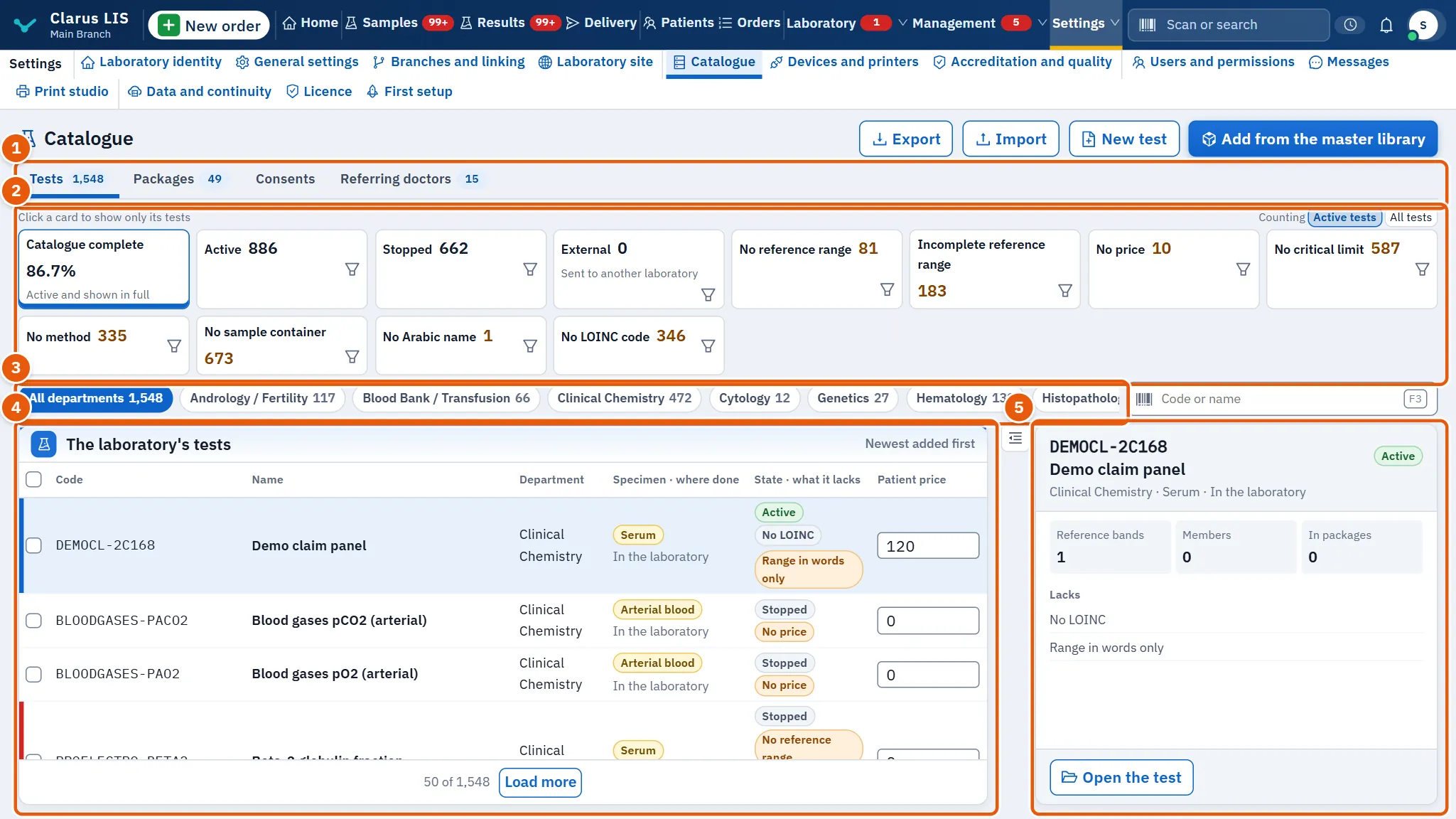
- The pages: Tests, Packages, Consents, Referring doctors.
- The health cards: figures about the catalogue; a click on a card shows only its tests.
- The filters and search: departments, the search box, and the filter in force.
- The list: The laboratory's tests, newest added first.
- The chosen test: its details beside the list.
30.4 The Tests page
30.4.1 The buttons at the top
| Button | What it does |
|---|---|
| Export | Downloads the catalogue as a file. |
| Import | Opens the import window. |
| New test | Opens the window for writing a new test. |
| Add from the master library | Opens the master library window. |
They appear only to whoever holds Manage settings.
30.4.2 The health cards
The cards count the catalogue: Catalogue complete (Active and shown in full), Active, External (Sent to another laboratory), and cards for what is missing. Click a card to show only its tests. Counting chooses whether the figures count Active tests or All tests.
The filters the cards offer:
| Filter | Shows |
|---|---|
| In use / Stopped / All | Tests by their state. |
| Sent out | Tests sent to another laboratory. |
| No reference range / Incomplete reference range / Ages to set | Tests with no interval, an incomplete one, or a band whose ages are still to be set. |
| No critical limit | Tests with no critical limit. |
| No price | Tests with no price. |
| No specimen type / No sample container | Tests with no specimen type or no sample container. |
| No Arabic name / No LOINC code / No method / No turnaround time | Tests with no Arabic name, LOINC code, method or turnaround time. |
| A choice with no options | A choice test with no options. |
| A panel with no members / A panel with a stopped member | A panel with no members, or one with a stopped member. |
All departments and the department chips limit the list to one department. The line Showing: … names the filter in force, with Clear the filter; Clear the filters clears everything. If nothing matches the screen says so (No tests in this choice.).
30.4.3 The list
| Column | Meaning |
|---|---|
| Code | The test's code. |
| Name | Its name. |
| Department | Its department. |
| Specimen · where done | The specimen and whether it is done here or sent out. |
| State · what it lacks | Its state and what it still lacks (for example No price or No reference range). |
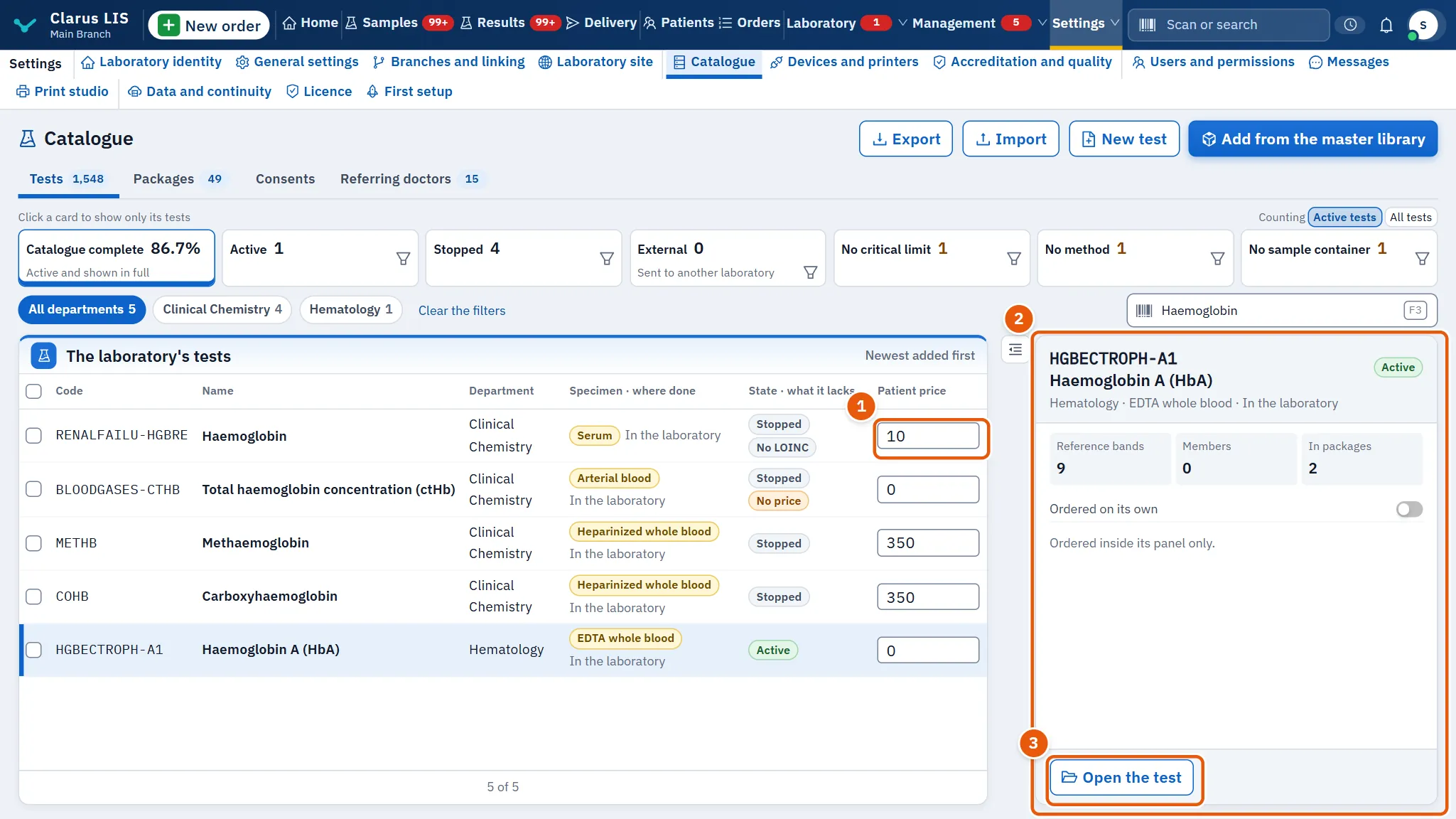
| Patient price | The patient's price; whoever holds Manage prices, contracts and commissions can type it in the cell and it is saved at once; for others it is plain text. |
The tick beside a line (and Choose all shown) chooses it for a bulk change. Choosing a line shows The chosen test beside the list: its reference bands, members and the packages that hold it; Open the test opens the test window. For a test inside a panel, the switch Ordered on its own says whether it can be ordered on its own; if off it is ordered only inside its panel.
30.5 The Packages page
Lists the panels and packages: Code, Name, Kind, Members, Specimen and State. Kinds of package chooses All, Panels or Packages. New panel or package opens the panel window.
30.6 The Consents page
Lists the consent forms: code or name, Kind (general, genetic, HIV, informed consent, research) and Tests linked. It is for reading and searching. With none, the page says «No consent forms yet.».
30.7 The Referring doctors page
Lists Doctor, Specialty, Organisation and Phone; the search box finds by any of them. It is for reading. With none, the page says «No referring doctors yet.».
30.8 The test window
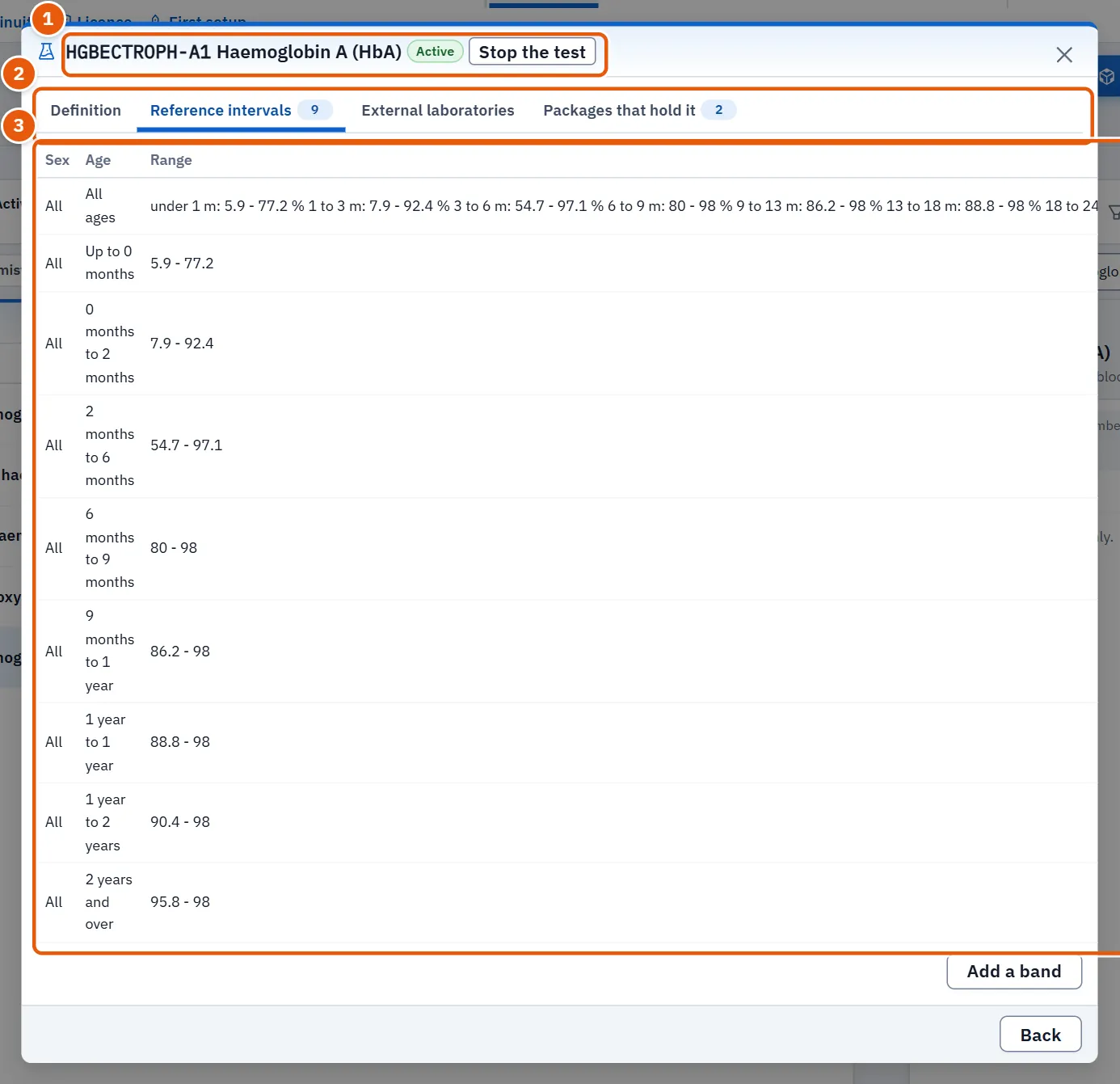
Press Open the test on a test. The head shows its code, name and whether it is Active or Stopped; whoever may edit has Stop the test or Start the test there. A stopped test leaves the order list and keeps its history. The tabs:
| Tab | What it holds |
|---|---|
| Definition | The test's fields (below). |
| Reference intervals | The reference bands, with a count. |
| External laboratories | The laboratories it is sent to. Always shown to whoever may edit; to others only if the test is sent out or lists one. |
| Members | The tests it is made of; shown only for a panel. |
| Packages that hold it | The packages that hold this test; shown only when there are some. |
| Consents | The consents linked to it, each marked mandatory or optional; shown only when there are some. |
| Doctor's interpretation | The doctor's interpretation, when the test has one. |
30.8.1 The Definition tab
| Field | What it holds |
|---|---|
| English name, Arabic name | The names. The English name and the sample are required. If the Arabic name is left empty, the catalogue's own Arabic name is shown. |
| Other names it is found by | Other names the test can be found by. |
| Department | Its department (or No department). |
| Method | The method. |
| Price, Largest discount | The patient's price and the largest discount allowed. |
| Turnaround | The time to a result, in minutes. |
| Sample volume | The sample volume. |
| Needs fasting | Whether fasting is needed. |
| LOINC code, CPT code | The LOINC and CPT codes. |
| Its group in the report | The heading it prints under in the report. |
| Clinical significance, Processing instructions, Reasons a sample is rejected | Clinical significance, processing instructions, and reasons to reject a sample. |
Press Save the test; it is enabled only when something has changed.
30.8.2 The External laboratories tab
For a test sent out. Choose a laboratory from Add a laboratory from the list (or Add a new laboratory), and for each give Laboratory's cost, Turnaround in hours and The test's code at that laboratory; mark one as Default laboratory, or Remove one. The cost is what the laboratory charges us; the patient's price does not change with it. Then Save the laboratories. A sent-out test with no laboratory leaves its orders waiting until one is chosen.
30.9 The reference-range window
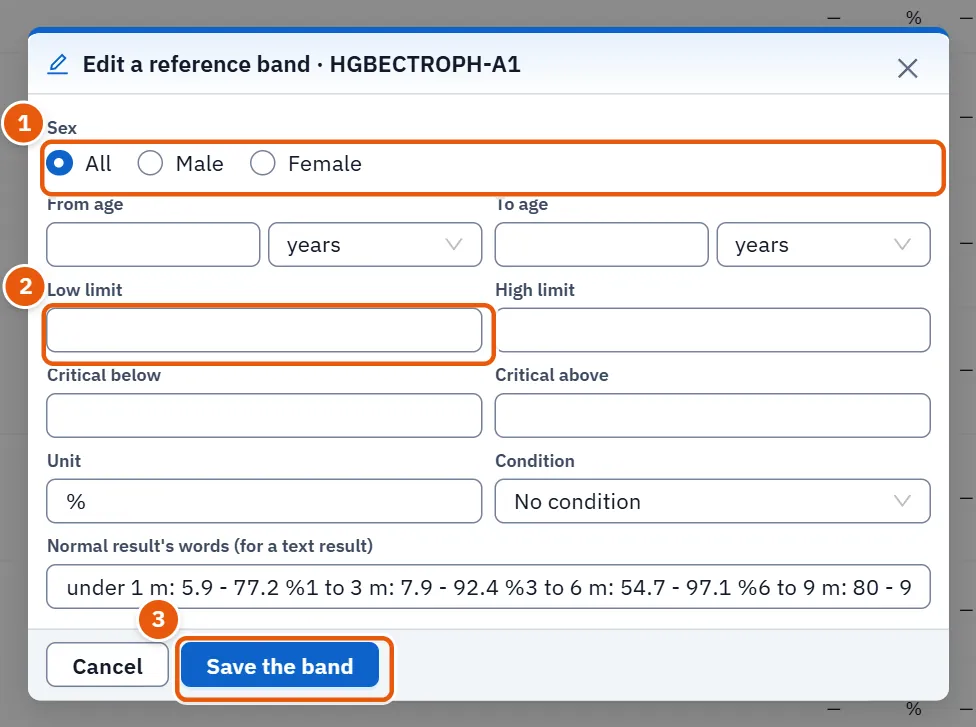
Open it from the Reference intervals tab with Add a band, or Edit on a band. A band whose ages are still to be set shows Needs review: set the ages; its chip opens the band.
| Field | What it holds |
|---|---|
| Sex | All, female or male. |
| From age, To age | The ages, each with a unit: days, months or years. |
| Low limit, High limit | The reference limits. |
| Critical below, Critical above | The critical limits. |
| Unit | The unit. |
| Condition | No condition, fasting, cycle phase or pregnant. |
| Normal result's words (for a text result) | The normal result's words, for a text result. |
Press Save the band. The window refuses a first age above the second, a low limit above the high one, a critical-below that is not lower than critical-above, and a band with no limit, words or critical limit at all.
30.10 Tasks, step by step
30.10.1 Task 1 — Find the tests that lack something
- Click a health card, for example the one for «No price». The list shows only those tests.
- Narrow by department or type in the search box.
- Choose a line and press Open the test to complete it.
- Press Clear the filter when done.
30.10.2 Task 2 — Write a new test
The window A test the laboratory writes has four steps and a preview.
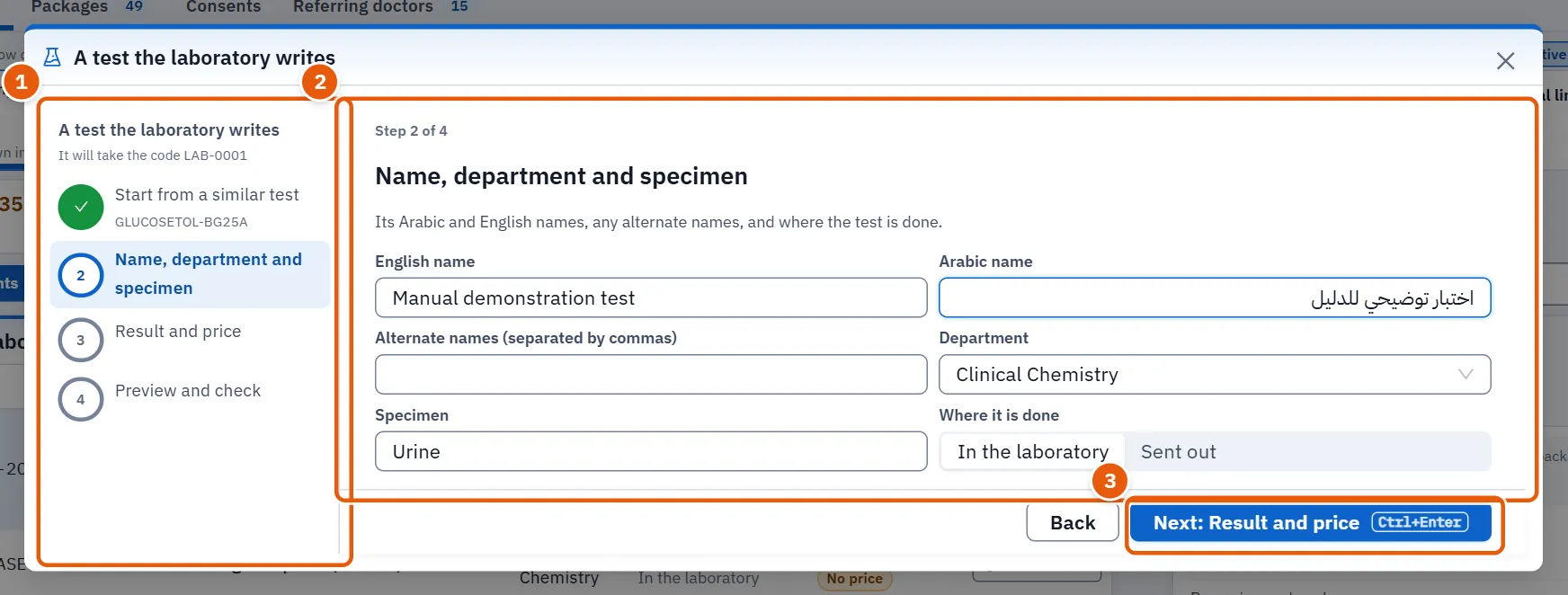
- Press New test.
- Start from a similar test: search a similar test by name or code. Its department, specimen, unit, turnaround and reference ranges come with it, never its name or price; if the unit differs the ranges are not copied. Or skip it: the test then starts empty.
- Name, department and specimen: the English and Arabic names (both must be written before the next button works), alternate names, department, specimen and Where it is done (In the laboratory or Sent out; it starts as In the laboratory). The specimen is required only when the window was opened from a partner's printed line.
- Result and price: Kind of result (Number, From a list or Text), the unit, or the values to choose from, one a line or separated by commas; the turnaround; the base price (neither can be below zero); the report heading; and whether fasting is required.
- Preview and check: Print preview shows how the result prints, and The catalogue's rules lists what the server checked. The window says when nothing blocks.
- Press Save the test. It works only after the check has finished and no blocker is listed. The window shows the code the test will take, and the screen confirms the save. If the server refuses, its reason is shown in the window.
The step titles can be clicked to go back, and a back button is offered except while saving. A blocker (for example a name already used by another test) stops the save until it is fixed; a warning is only shown.
30.10.3 Task 3 — Set a reference band
- Open the test and its Reference intervals tab.
- Press Add a band, or Edit on a band.
- Fill the sex, ages, limits, unit and condition as the table above says.
- Press Save the band.
30.10.4 Task 4 — Build a panel or a package
The panel window needs Manage the test catalogue.
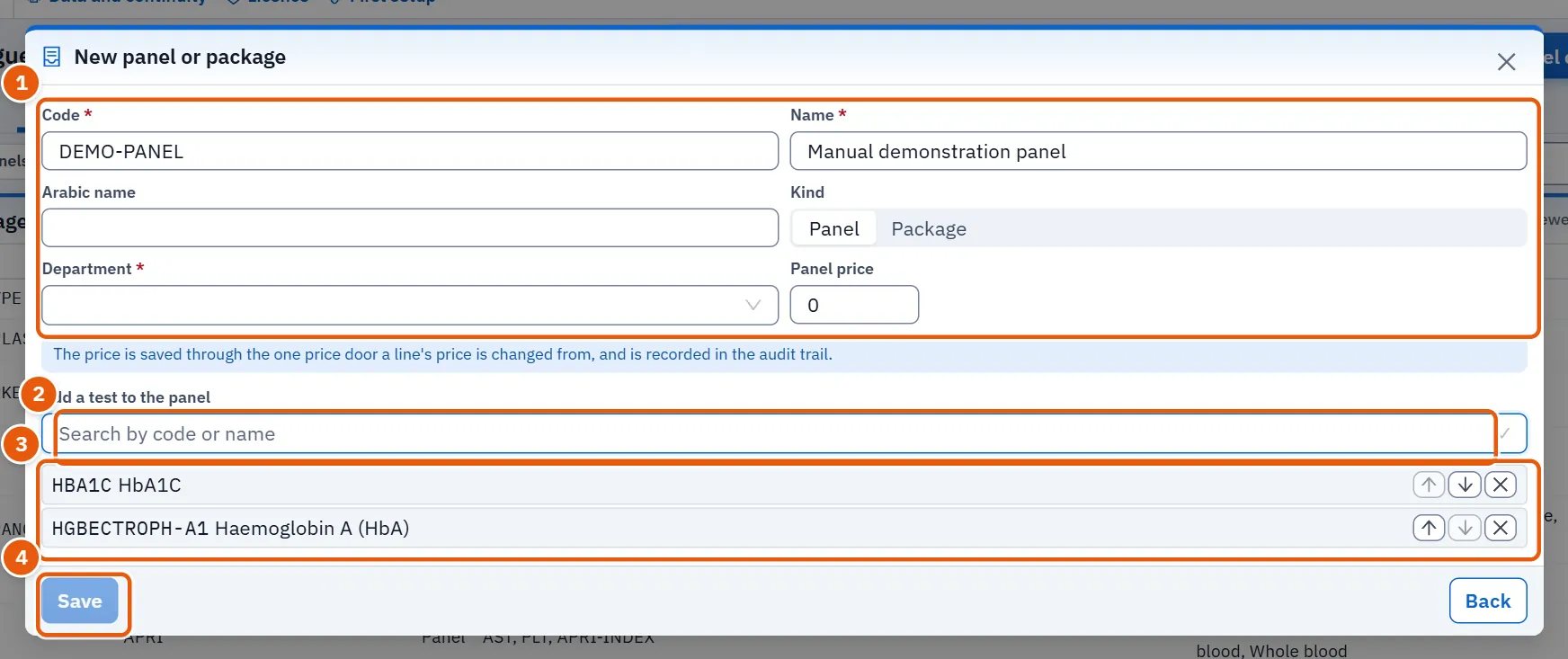
- On the Packages page press New panel or package.
- Type the Code (Latin letters and digits), the Name and the Arabic name (Arabic letters), choose the Kind (Panel or Package) and the Department.
- Under Add a test to the panel search by code or name (two letters at least) and choose each test. Use the move-up and move-down buttons to order them and the remove button to take one out. The search offers only active tests that are not panels and not already in the list, so a panel inside a panel cannot be chosen.
- Optionally set the Panel price (shown only to whoever holds Manage prices, contracts and commissions); it is saved through the same price path as a line's price and recorded in the audit trail.
- Press Save. It is blocked, with the reason as a tooltip, until the code, name, department and at least one member are present, the Arabic name (if written) has Arabic letters, and no other test already has the name.
The code is turned to capitals, its spaces to hyphens, and is limited to 40 characters. Only a row of kind panel opens for editing; a package row does not. When editing an existing panel the code and English name cannot be changed from here (the Arabic name can), and Stop the panel or Restart the panel switches it.
30.10.5 Task 5 — Change many tests at once
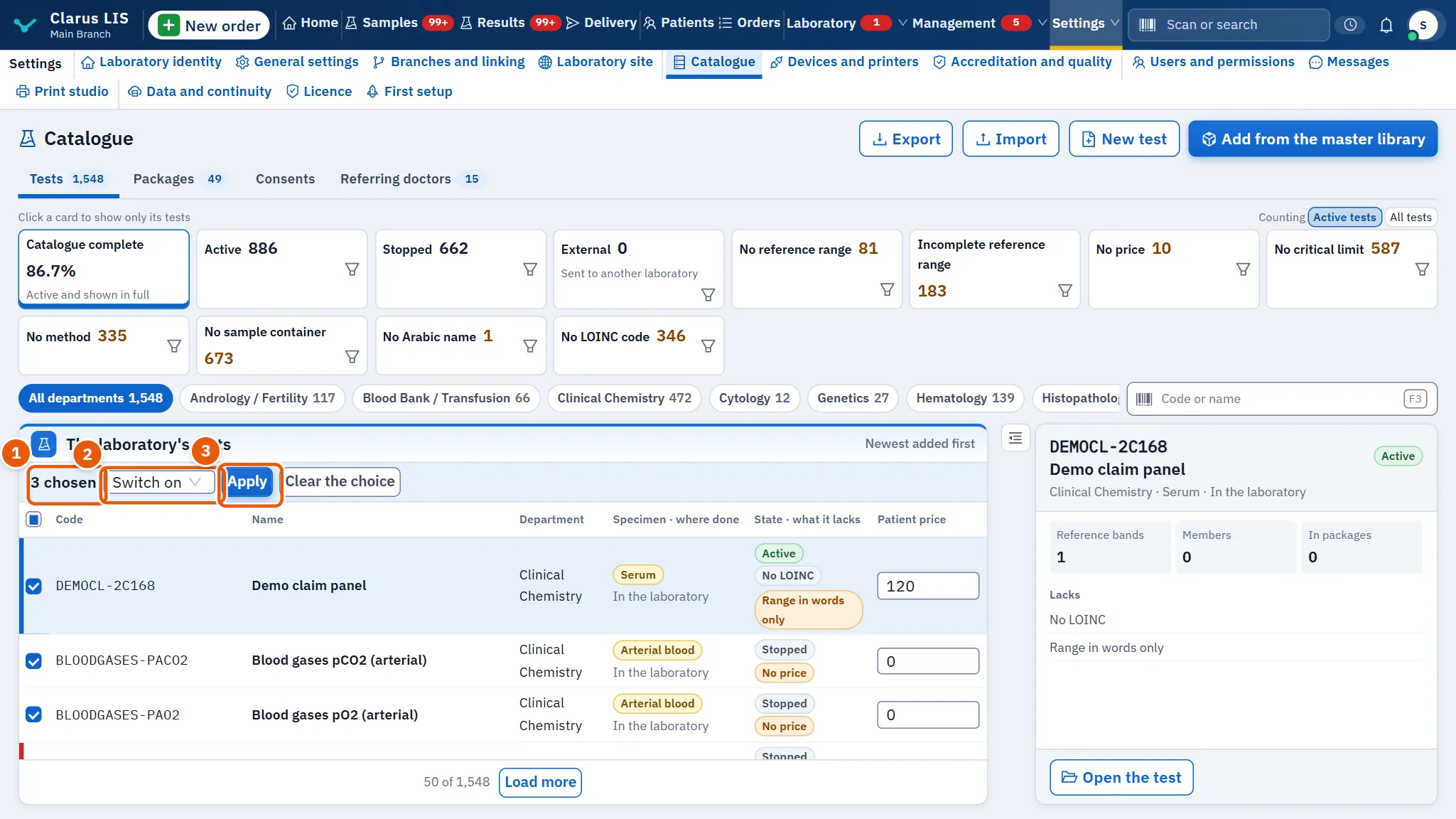
- Tick the tests, or press Choose all shown. The bar appears with … chosen.
- Under Action choose one: Switch on, Switch off, Move to a department, Where it is done or Change the specimen, and give the department, place or specimen the action needs.
- Press Apply and confirm: the action reaches all the chosen tests at once. The button is greyed until the department, place or specimen is given (for the three actions that need one), and while the action is running.
- Clear the choice drops the choice without applying.
When it succeeds the screen says how many tests it was applied to. If it fails, the screen shows the server's reason, or the message in the table below; the program applies it to all or none.
30.10.6 Task 6 — Export and import
- Press Export to download the catalogue (the button is greyed while the file is being prepared).
- To import, press Import. The window explains the file: a CSV with the template's columns, each line a test created or updated by its code.
- Press Download the template to get the template, fill it, then Choose a CSV file. The window says how many test lines it read.
- Note the warning: a line whose code matches an existing test updates it. Then press Import; it is greyed until a file with at least one test line is chosen, and it disappears once the result is shown.
- The result reports how many were created, updated and refused; each refused line is named with its number and code (the first 20 are listed). If the import fails, the window says so and nothing is shown as imported.
30.10.7 Task 7 — Add a test from the master library
- Press Add from the master library.
- Type two letters at least in Search by code or name.
- Press Add it on the test. A test already there shows In your catalogue. If adding fails, a message appears beside that test.
A test is added with its whole template: unit, specimen and reference bands.
30.11 Messages and what to do
| The screen says | Meaning | What to do |
|---|---|---|
| This server does not show the catalogue yet… | The server is older than the screen | Update the program. |
| The catalogue could not be loaded. | A connection fault | Check the connection and reload. |
| The action could not be applied. Nothing was changed. | A bulk change failed | Try again, or check the connection. |
| Only the laboratory's administrator imports. | Your role may not import | Ask the administrator. |
| Only the laboratory's administrator saves reference bands. | Your role may not save bands | Ask the administrator. |
| The server did not accept this band. Check its values. | A limit or age is not valid | Read the red line under the field. |
| The panel was saved, but … members were not accepted | A member does not exist or is itself a panel | Reopen the panel and fix its members. |
| The panel was saved, but its price was not changed. | The price path refused | Read the reason given with it. |
30.12 See also
Prices and contracts for price lists, Results where the intervals are applied, and Orders where these tests are ordered.