Chapter 12Daily QC
Menu: Daily QC. Address: /lab/qc.
12.1 What this screen is for
This is where the laboratory proves, every day, that its analyzers measure correctly. A technologist records a run of a control material (a control lot of known target value), the program judges each value against the Westgard rules, and the Levey-Jennings chart shows how the lot has behaved over time.
The screen is also a gate. A quality-control run that fails, or the absence of a passing run, holds the approval of results on the Results screen: the held result cannot be approved until a passing run is recorded and any open violation is resolved here. The same screen holds the setup of the automatic release of results (rules per test, a replay of the rules, and the analyzer controls).
12.2 Who sees it
Whoever holds Enter results. The menu hides the screen from everyone else. The dossier of the screen names no other permission; the buttons below are not separately restricted on the screen.
| You can… | …if your role holds |
|---|---|
| Open the screen, record a run, resolve a violation, manage lots, read the rules, and set the automatic release | Enter results |
12.3 The screen in a glance
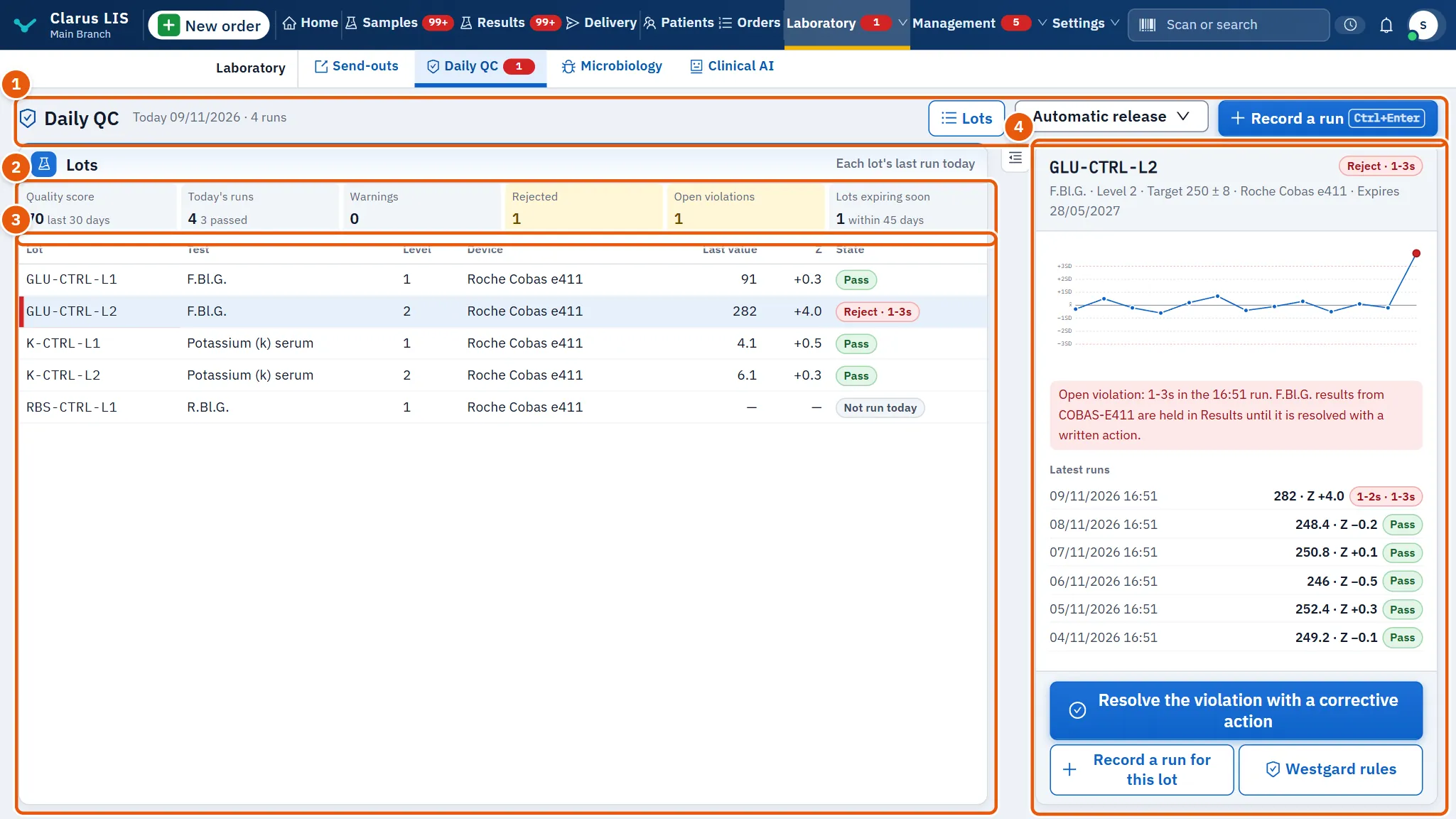
- The head: the title with today's date and the number of runs, and the buttons Lots, Automatic release and Record a run (Ctrl+Enter).
- The figures: Quality score, Today's runs, Warnings, Rejected, Open violations and Lots expiring soon.
- The list of lots: each active lot with its last run today.
- The lot details: the chosen lot, its Levey-Jennings chart, its latest runs and its actions.
12.4 The head and the figures
| Element | What it does |
|---|---|
| Lots | Opens the control lots window (12.7.4 Task 4 — Manage the control lots). |
| Automatic release | A menu with Rules per test, Replay the rules and Analyzer controls (12.7.5 Task 5 — Set the automatic release rules per test, 12.7.6 Task 6 — Replay the rules before relying on them, 12.7.7 Task 7 — Map an analyzer's control to a lot). |
| Record a run (Ctrl+Enter) | Opens the window to record a run (12.7.1 Task 1 — Record a run). |
| Quality score | The quality score for the last 30 days. |
| Today's runs | The runs recorded today and how many passed. |
| Warnings and Rejected | The warnings and rejections counted by the server. A non-zero rejected count is marked as due. |
| Open violations | Violations still open. Each one holds results until it is resolved. |
| Lots expiring soon | Lots that expire within 45 days. |
The screen refreshes itself every minute.
12.5 The list of lots
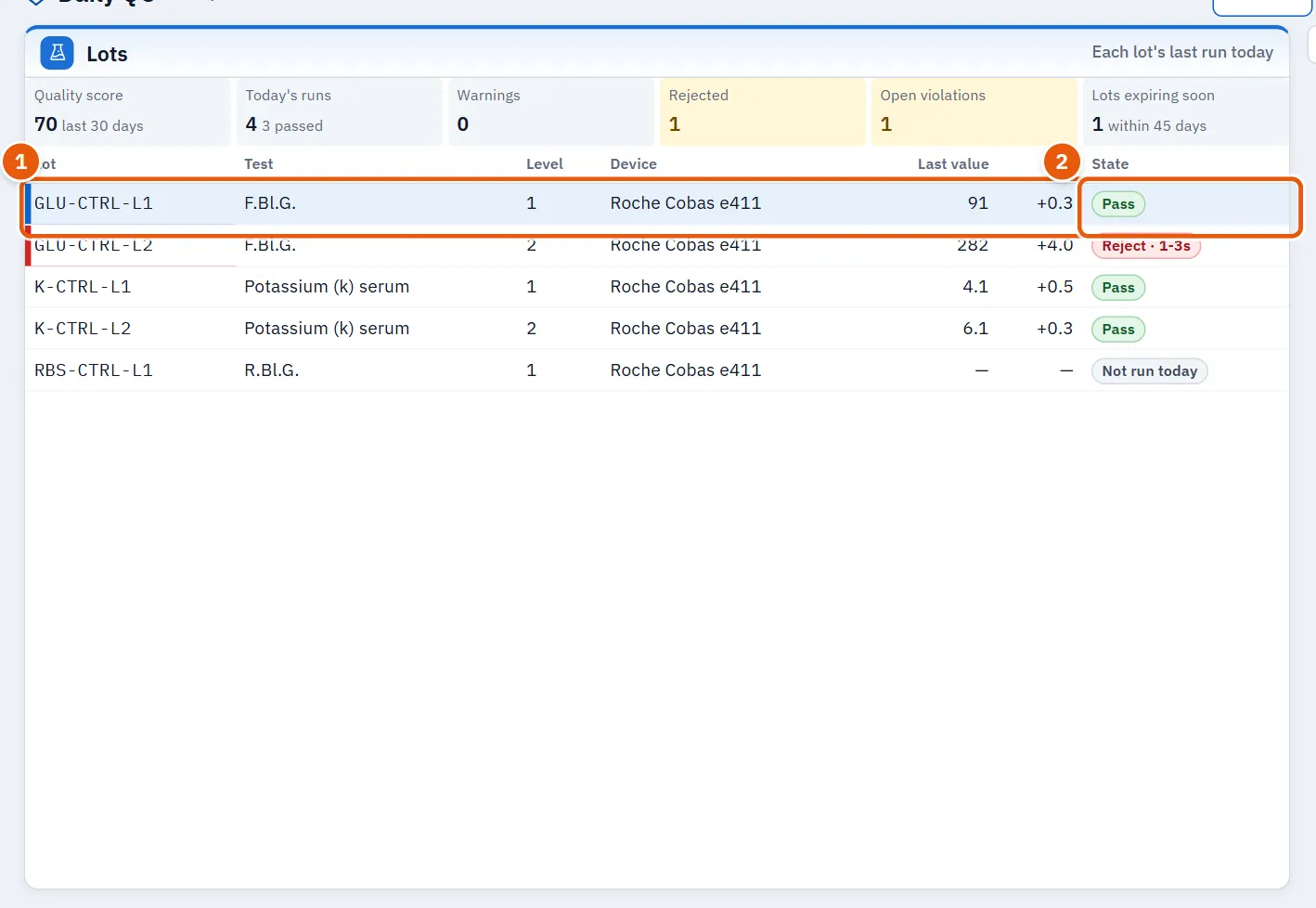
The list is headed «Each lot's last run today». Its columns are Lot, Test, Level, Device, Last value, Z and State. Z is how many standard deviations the value lies from the target. The state is the verdict the server gave: Pass, Warning or Reject, with the rule that failed beside it; or Not run today if the lot has no run today. A lot with an open violation is marked as urgent. If there is no active lot the list says to add one from Lots.
Choose a lot to see its details.
12.6 The lot details and the chart
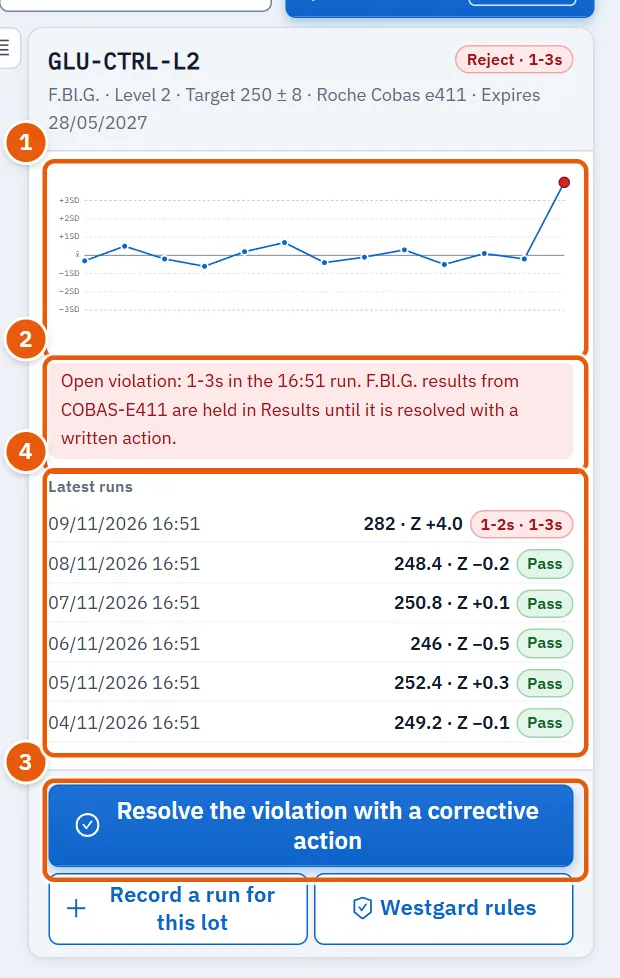
The heading gives the lot code and its state; under it are the test, the level, the target with its standard deviation (or «No target set»), the device and the expiry date.
| Element | What it does |
|---|---|
| The Levey-Jennings chart | Plots the lot's runs against its target. A warning or rejected run is a larger point with a ring, and its verdict shows in the tooltip. Empty, it says the lot has no runs yet. |
| The note about the chart | If it appears, the chart shows only the lot's runs among the newest results until the server returns all of them. |
| The red note about an open violation | Names the rule, the time of the run, the test and the device, and says that the device's results are held in Results until it is resolved with a written action. |
| The expiry note | Appears when the lot expires within 45 days: prepare the next lot and add it from Lots. |
| Resolve the violation with a corrective action | Shown only while the lot has an open violation. Opens 12.7.3 Task 3 — Resolve a violation. |
| Record a run for this lot | Opens the run window for this lot. |
| Westgard rules | Opens the Westgard rules and device performance window (12.7.8 Task 8 — Read the Westgard rules and device performance). |
| Latest runs | The lot's six latest runs: time, value, Z and the rules that failed or the verdict. |
12.7 Tasks, step by step
12.7.1 Task 1 — Record a run
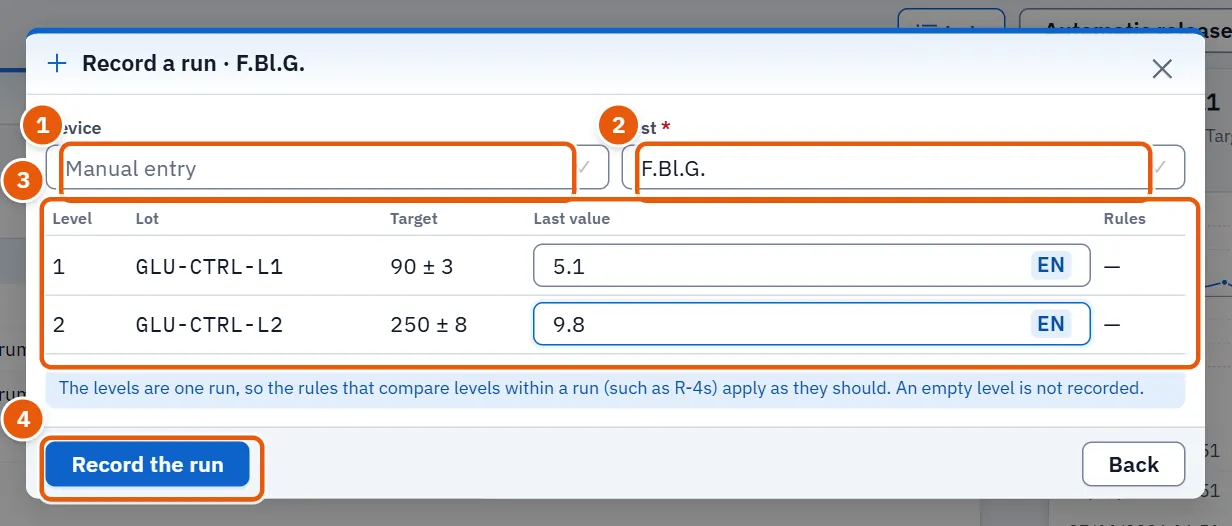
- Press Record a run (Ctrl+Enter, which works even while the cursor is in a field, but not while another window is open), or Record a run for this lot on a chosen lot.
- Choose the Device, or leave it as Manual entry. If only one device exists it is chosen for you.
- Choose the Test (it is already chosen when you started from a lot). The table lists one line per level of that test's active lots, with the lot and its target.
- Type the measured value of each level. A level left empty is not recorded.
- Press Record the run. The levels are recorded in order as one run, so the rules that compare levels within a run (such as R-4s) apply. Each line then shows its verdict, the failed rules and Z.
- Press Done.
If the server refuses, the reason shows in red in the window; correct and try again.
12.7.2 Task 2 — Read the Levey-Jennings chart
- Choose the lot in the list.
- Read the chart: the target line and the lot's runs. A point far from the target, or a ringed point, is a run that warned or was rejected.
- Read Latest runs for the exact value, Z and the rule behind each.
- If you need the rules' meaning, press Westgard rules (12.7.8 Task 8 — Read the Westgard rules and device performance).
12.7.3 Task 3 — Resolve a violation
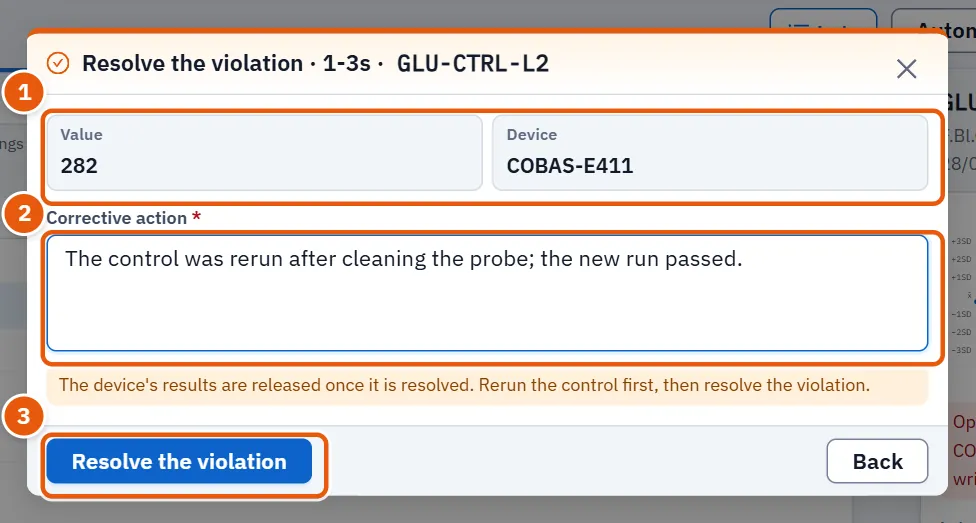
A failed run opens a violation. While it is open, the results of that device are held in Results.
- Rerun the control first and record the run (12.7.1 Task 1 — Record a run). The window says: rerun, then resolve.
- Choose the lot with the violation and press Resolve the violation with a corrective action.
- The window shows the value and the device. Write the corrective action that was taken.
- Press Resolve the violation.
A reject cannot be closed without its written corrective action: the button stays dim until you write it. A warning closes without one; write what was done if you wish. When it is resolved, the hold on the device's results is lifted.
12.7.4 Task 4 — Manage the control lots
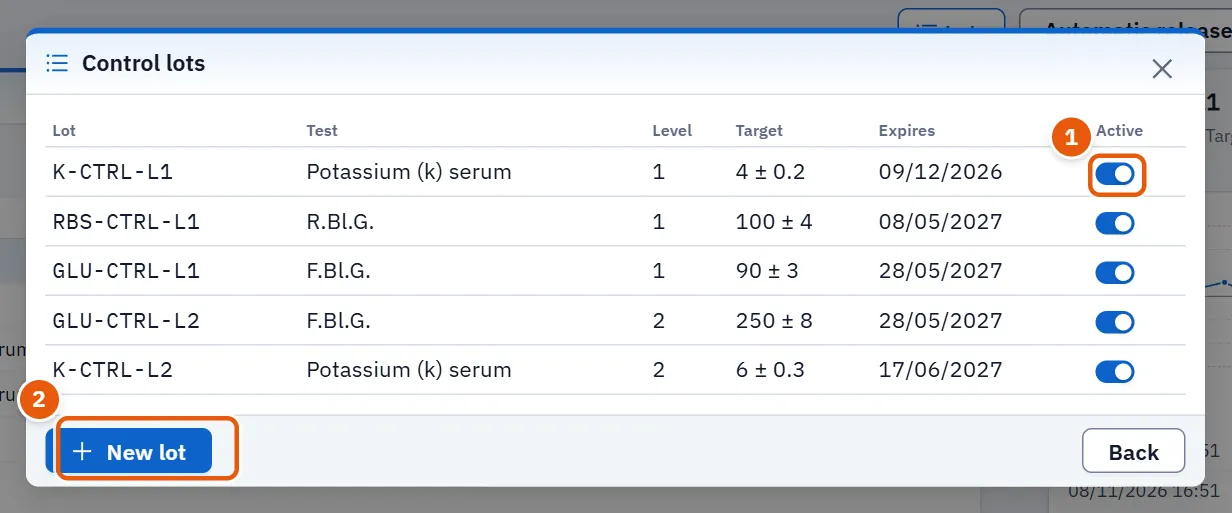
- Press Lots. The window Control lots lists the lots; if empty it says so.
- To retire a spent bottle, turn off its Active switch. A lot is switched off, never deleted; the window keeps listing switched-off lots, while the main list shows active ones only.
- To add a lot press New lot and fill Lot code (written in capitals), Test code (a test code; it also accepts one not yet used by any lot), Level (1, 2 or 3), Expires (optional), Target and Standard deviation. The standard deviation must be greater than zero, and the code, the test, the target and the deviation must all be filled before the button is enabled.
- Press Save and activate.
12.7.5 Task 5 — Set the automatic release rules per test
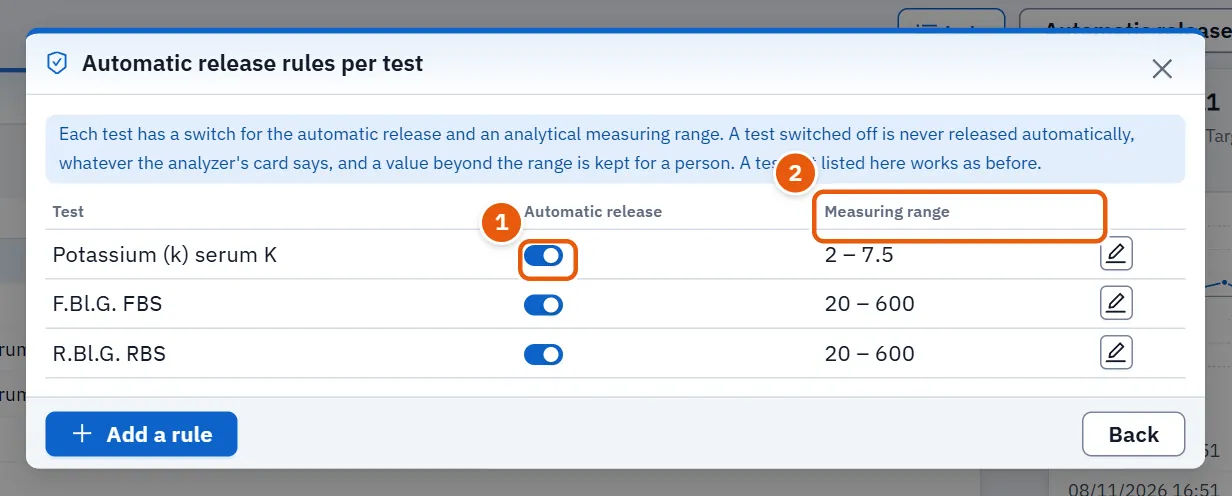
- Press Automatic release, then Rules per test. The window Automatic release rules per test lists the tests with a rule; if none, it says so.
- To allow or forbid the automatic release of a test, use the switch Automatic release on its line. A test switched off is never released automatically, whatever the analyzer's card says.
- To write a rule press Add a rule, choose the Test (search by code or name), and give the Lower limit and Upper limit limits of the Measuring range. Leave both empty to remove the range. A value beyond the range, or one the analyzer marks with "<" or ">", is kept for a person.
- Press Save.
A test not listed works as before.
12.7.6 Task 6 — Replay the rules before relying on them
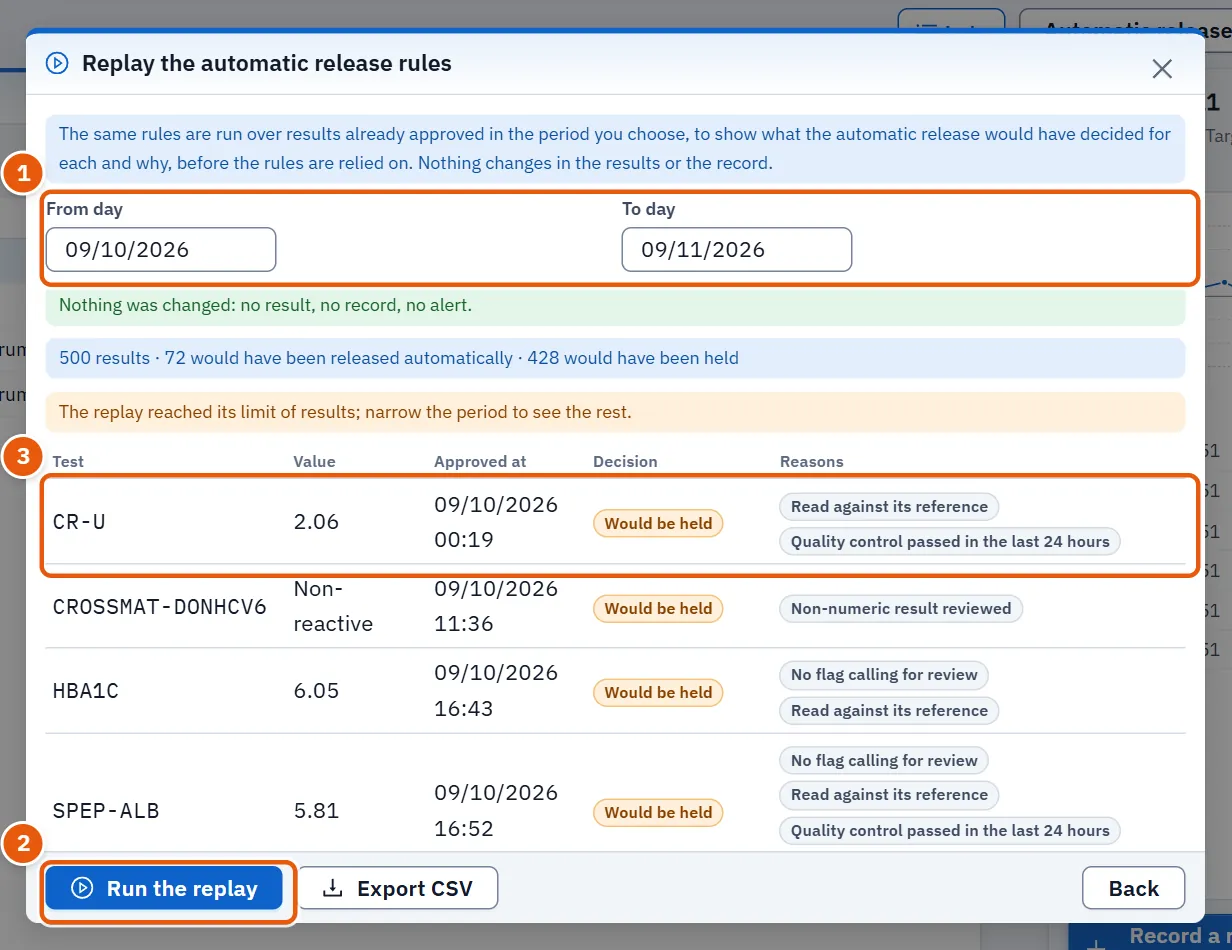
- Press Automatic release, then Replay the rules.
- Choose From day and To day.
- Press Run the replay.
- Read the counts: how many results, how many would have been released automatically and how many held. The table gives, per result, the Test, Value, Approved at, the decision (Would be released automatically or Would be held) and the reasons.
- To keep the table, press Export CSV.
The replay changes nothing: no result, no record and no alert. Quality-control, calibration and connection state are judged as they are now, not as they were when the result was approved. If the replay reaches its limit of results, narrow the period.
12.7.7 Task 7 — Map an analyzer's control to a lot
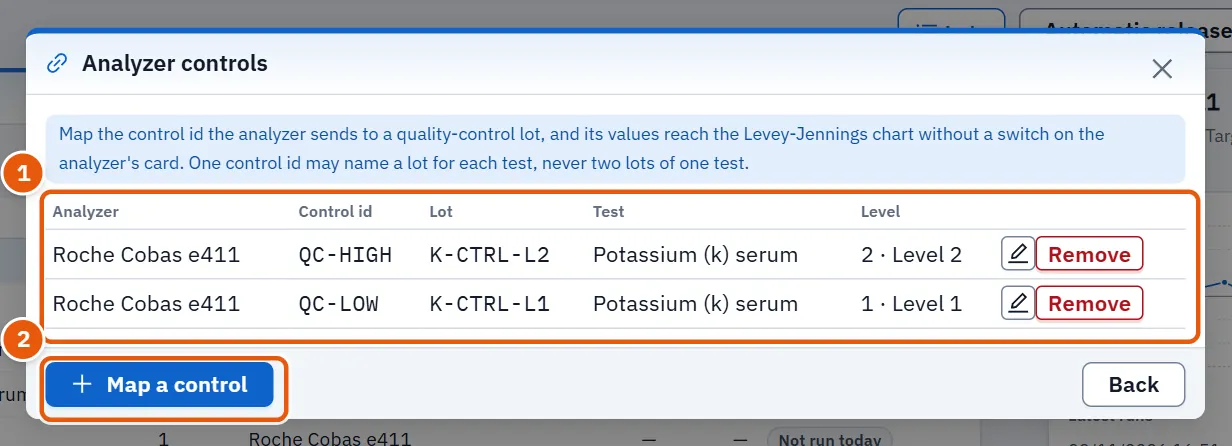
- Press Automatic release, then Analyzer controls.
- Press Map a control.
- Choose the Analyzer, type the Control id exactly as the analyzer sends it, choose the Lot, and add a Note if you wish.
- Press Save.
The values the analyzer sends under that control id then reach the Levey-Jennings chart without a switch on the analyzer's card. One control id may name a lot for each test, never two lots of one test. Remove deletes a mapping.
12.7.8 Task 8 — Read the Westgard rules and device performance
Press Westgard rules. The window Westgard rules and performance lists each rule with its Meaning, its Effect (Reject or Warning) and how many are Open; and under Device performance, per device, the Runs and the Mean |Z|. If there is no run yet, it says so.
12.8 How quality control holds approval
Two checks on the Results screen depend on this one:
| Check on Results | What holds | How to release it |
|---|---|---|
| Quality control passed in the last 24 hours | No passing quality-control run in the last 24 hours | Record a passing run (12.7.1 Task 1 — Record a run) |
| No quality-control hold | An open violation on the device | Rerun the control, then resolve the violation (12.7.3 Task 3 — Resolve a violation) |
The Results screen shows the hold as a red mark in its foot, and its own messages call this page «Daily quality». The hold is on the device's results, not on the lot alone. Some holds cannot be overridden from Results; they are lifted only here.
12.9 Messages and what to do
| The screen says | Meaning | What to do |
|---|---|---|
| Quality control could not be loaded. | A fault reading the screen's data | Retry; check the connection |
| No active control lots. Add one from Lots. | No active lot | Add a lot (12.7.4 Task 4 — Manage the control lots) |
| The action failed. Try again. | The server refused a step | Read the reason in red and try again |
| Open violation: … results … are held in Results until it is resolved with a written action. | A failed run holds that device | Resolve it (12.7.3 Task 3 — Resolve a violation) |
| This lot expires … Prepare the next one. | Expiry within 45 days | Add the next lot (12.7.4 Task 4 — Manage the control lots) |
| Unreadable range: … | A stored measuring range cannot be read | Open the rule and write the range again (12.7.5 Task 5 — Set the automatic release rules per test) |
| The replay failed. | The replay could not run | Narrow the period and try again |
| The replay reached its limit of results | Too many results in the period | Narrow the period |
| The rules could not be read. | A fault reading the rules | Close and reopen the window |
| The controls could not be read. | A fault reading the mappings | Close and reopen the window |
| It could not be saved. | The server refused the save | Check the fields and try again |
12.10 See also
Results (where the hold shows and approval happens), Devices and printers (analyzer cards and their faults), Quality (corrective actions).