Chapter 32Accreditation and quality
Menu: Accreditation and quality. Address: /setup/accreditation.
32.1 What this screen is for
This screen answers one question: how ready is the laboratory to be examined against an accreditation standard? It lists the standards the laboratory follows, breaks each into items (the clauses a surveyor will ask about), and shows for every item whether the program supplies the evidence from its own records, supplies part of it, or leaves it to the laboratory (policies, training, the facility).
It also keeps the laboratory's own judgement of each item (met, partly met, not met, not applicable, with its evidence), the quality registers (non-conformities, complaints and the like), the switches of the program's quality functions, and, for a laboratory that follows a QC rule pack, the limits for internal control and external assessment. Everything it shows is a self-assessment and does not replace an audit.
32.2 Who sees it
The screen opens for whoever holds Enter results, Verify results or Manage settings. Inside it:
| You can… | …if your role holds |
|---|---|
| Choose which standards the laboratory follows; bring standards from the library | Manage settings |
| Switch a function on or off (a switch of the program) | Manage settings |
| Switch a register or the QC hold on or off | Switch the quality functions on or off, together with Manage settings |
| Judge an item; open, edit, close or void a register entry | Verify results |
| Read the pages, export or print the report | Any of the three above |
What happens to a control you may not use depends on the control. Standards, From the library, the judge button and the register buttons (new, edit, close, void) are absent. A function switch is dim, with a line beside it: «Changed by whoever holds the settings permission» for a switch of the program, or «Only the laboratory's manager switches it on or off» for a register or the QC hold. The two report buttons are dim only while no standard is on screen (or while the workbook is being prepared). The register buttons are also absent while the register itself is switched off, whatever your role.
32.3 The screen at a glance
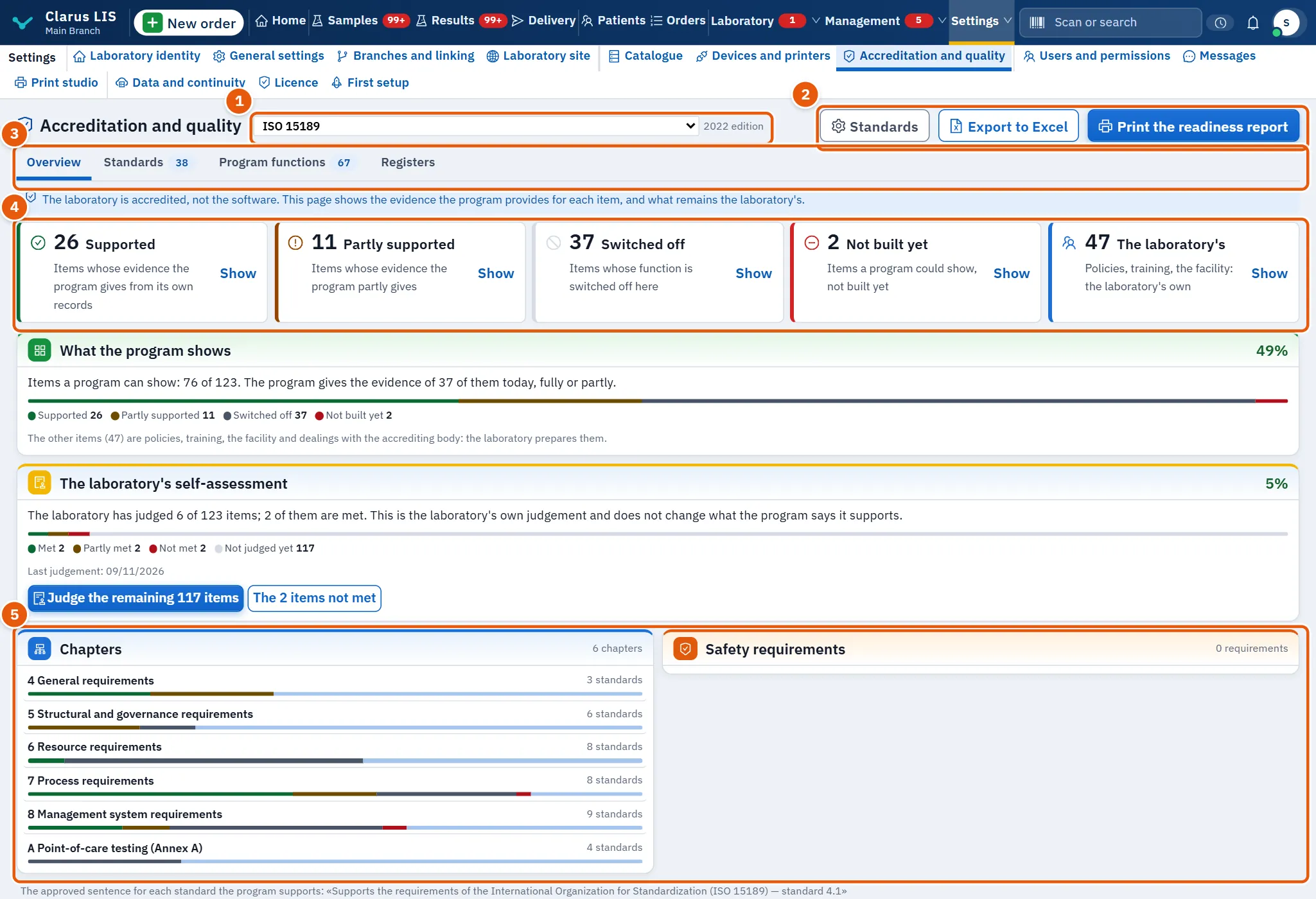
- The head: the name of the standard on screen with its edition; with more than one standard followed it is a list to pick from (The standard on screen).
- The buttons: Standards, Export to Excel and Print the readiness report.
- The tabs: Overview, Standards, Program functions, Registers, and QC limits only when the laboratory follows a QC rule pack.
- The tiles and cards of the overview.
Beside the name you may see these marks: Not followed (the laboratory has not chosen this standard), Partial pack (the pack does not cover the whole standard) and a link Applied over … (the standard is applied over a base standard; the link goes to the base).
32.4 Choosing the standards
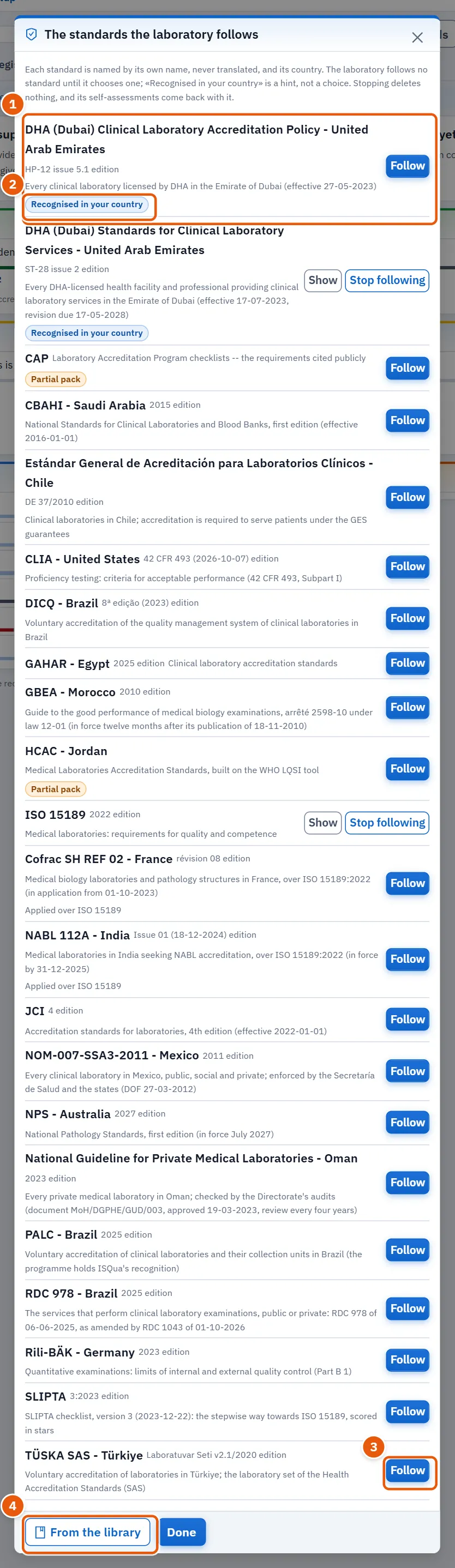
The laboratory follows no standard until it chooses one. The mark Recognised in your country is a hint, not a choice.
| Element | What it does |
|---|---|
| A row per standard | Its own name (never translated), its edition, its scope and its country. Further marks: Partial pack, Not shown on this page yet (the pages cannot show it yet) and Applied over …. |
| Follow / Stop following | Starts or stops following the standard. A reason is asked; see 32.11.1 Task 1 — Choose the standards the laboratory follows. |
| Show | For a followed standard: puts it on screen and closes the window. |
| From the library | Opens the standards library. Shown only to whoever may manage standards. |
| Done | Closes the window. |
32.5 The overview
| Element | What it shows |
|---|---|
| The note at the top | The notice that this is a self-assessment; and, for a partial pack, what the pack lacks. |
| Stars: … of … — … % (… of … points) | The laboratory's stars from the checklist's own rules, and how many questions are not judged yet (Questions not judged yet: …; they count for no points.). It is not an audit. |
| Five tiles | Supported, Partly supported, Switched off, Not built yet, The laboratory's: the number of items in each state, with its explanation. Show opens the Standards tab filtered to that state. |
| What the program shows | The share of items a program can show that this one shows today, fully or partly, with a coloured bar; and a line saying the rest is the laboratory's own. |
| The laboratory's self-assessment | How many items the laboratory has judged and how many are met, a bar of verdicts, and the date of the last judgement. The buttons take you to the items not yet judged (Judge the remaining … items) and the items not met (The … items not met). |
| Chapters | One row per chapter with its number of standards and a state bar. A click opens the Standards tab limited to that chapter. |
| Safety requirements | The standards marked as safety requirements, each with its state bar. A click opens that standard. |
| The approved sentence for each standard the program supports: | The approved sentence the laboratory may quote about a supported standard. |
32.6 The Standards tab
| Element | What it does |
|---|---|
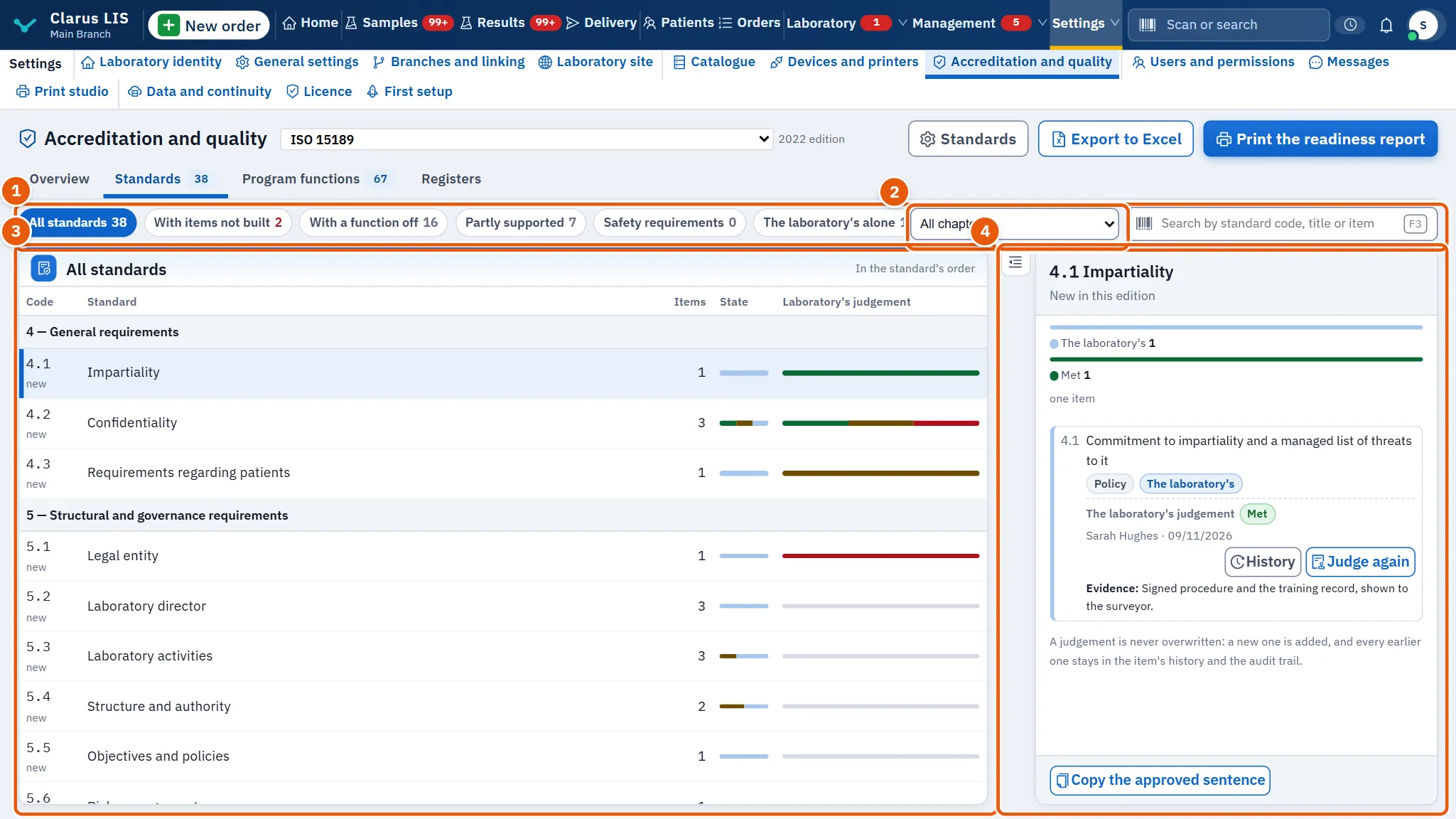
| Filters | All standards, Partly supported, With a function off, With items not built, The laboratory's alone, Safety requirements, With items not judged, With items not met, and With items to review (shown only when there are some). Each shows its count. |
| Chapter | Limits the list to one chapter (All chapters). |
| Search | Matches the standard's code, an earlier code, its title or the text of its items. |
| Table | Code (a standard new in this edition says new), Standard, Items, State (what the program supports) and Laboratory's judgement (the laboratory's own verdicts). |
| Copy the approved sentence | Copies the approved sentence for this standard to the clipboard. |
The open standard lists its items one by one. Under each item:
| Element | What it is |
|---|---|
| Item text | In the language of the screen. The standard's own text opens the standard's own wording where the pack carries it. |
| Chips | The kind of evidence (for example Program, Policy, Facility, Staff, Register), the state, the points, and the ISO 15189 clause. A mark says when the item is new in this edition or its text changed since it was judged (The text that was judged shows the old text). |
| Function links | Open the Program functions tab at the function that supplies the evidence. |
| The laboratory's judgement | The latest verdict, who gave it and when, with its evidence and note. Judge (or Judge again) is shown only to whoever may judge. History lists all earlier verdicts. |
Items the laboratory judged and a newer version of the standard removed stay at the foot for reading only.
32.7 The Functions tab
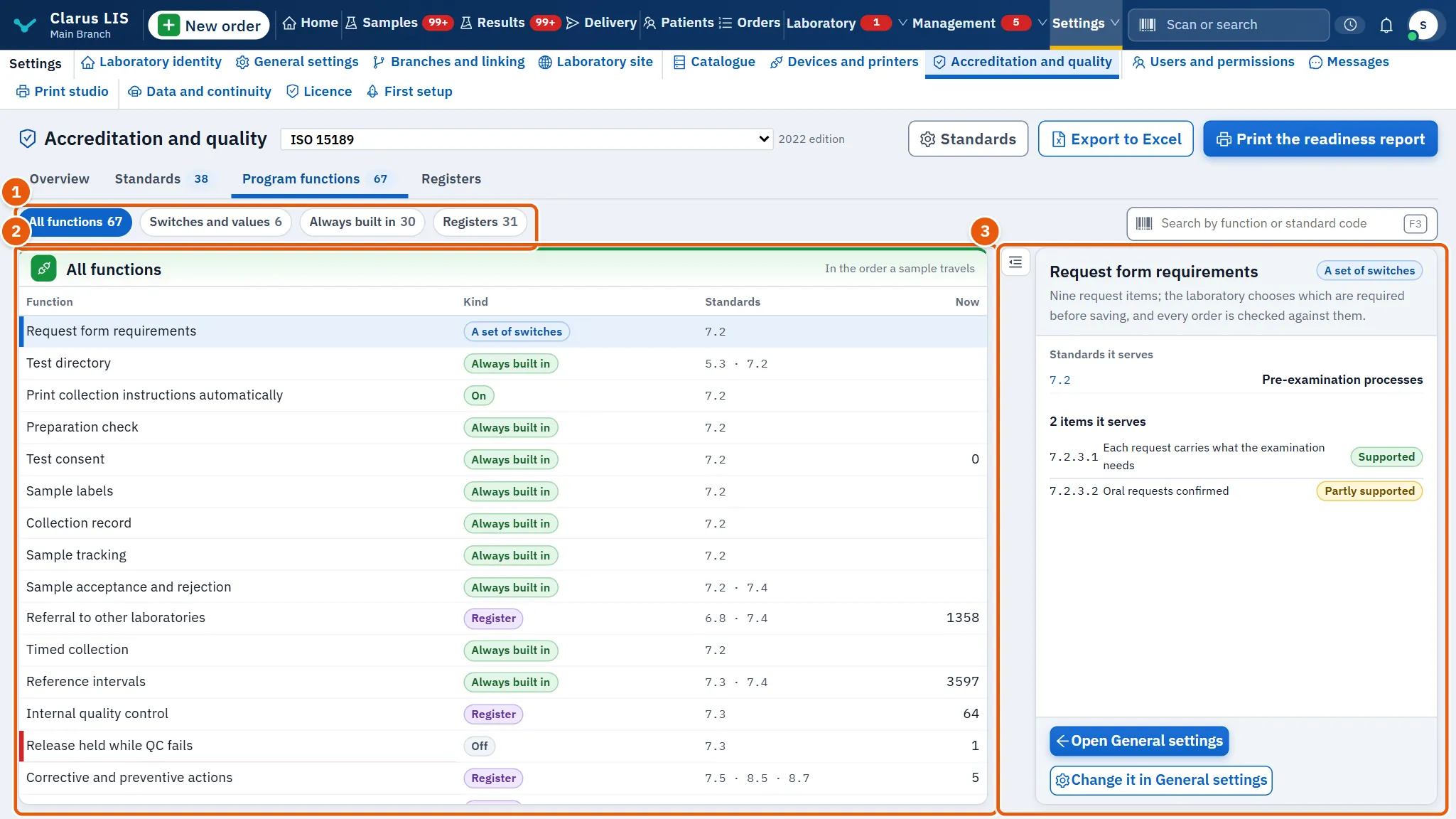
Each row is a function of the program that gives evidence for standards. Columns: Function, Kind, Standards, Now. The filter Filter the functions offers All functions, Always built in, Registers and Switches and values; the search takes a function name or a standard code.
Choosing a row shows its details: what it does, a switch (on or off) where it has one, the current figures, the standards and items it serves, and a button to the place where it works (Open the register or Open …). A value or a set of switches is changed elsewhere: Change it in General settings. A function that is always built in cannot be switched off.
32.8 The Registers tab
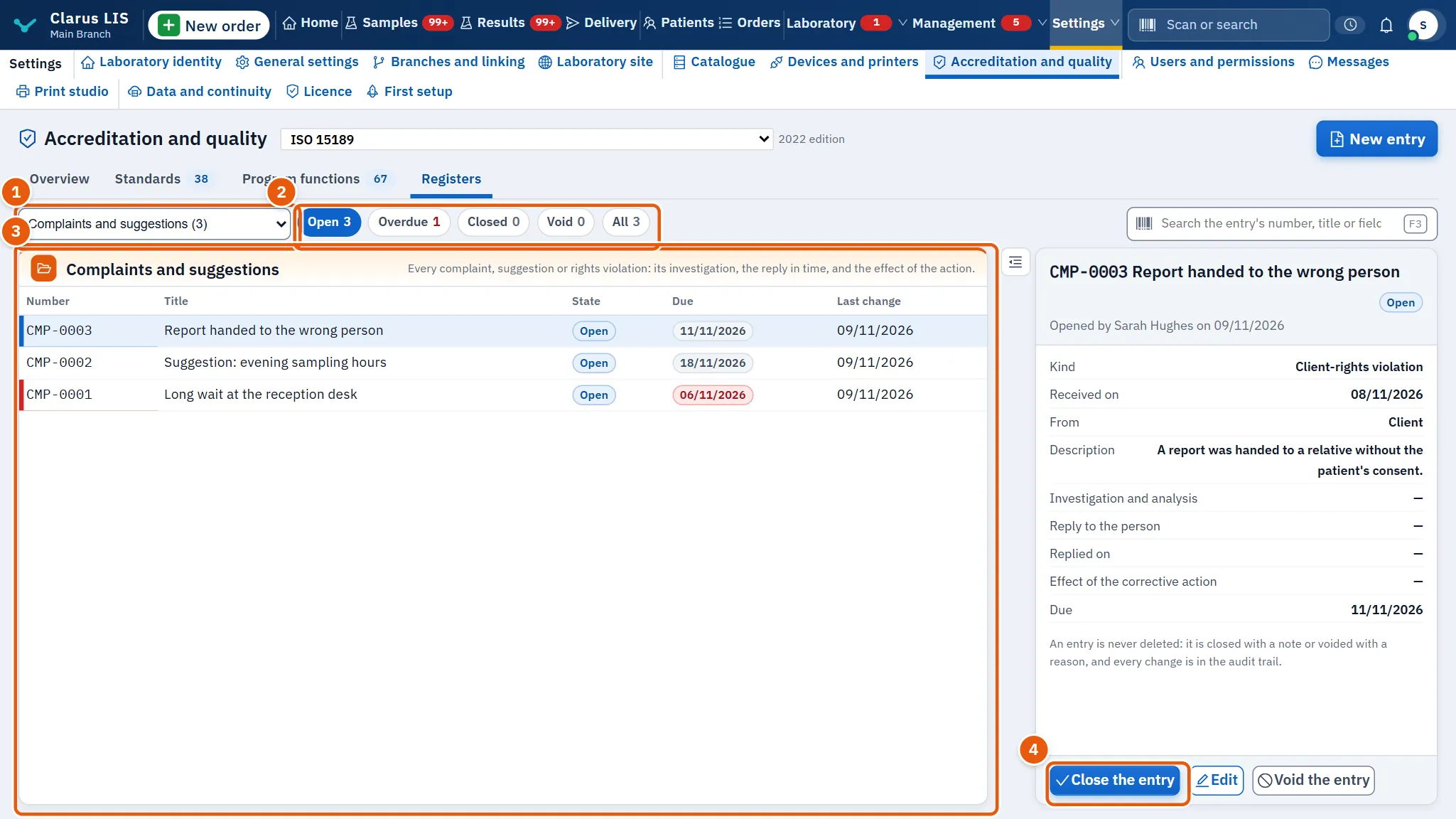
| Element | What it does |
|---|---|
| Register | Chooses the register; beside its name the number of open entries. |
| Filters | Open (the default), Overdue, Closed, Void, All. |
| Search | The number, title or fields of an entry. |
| Table | Number, Title, State, Due (red when late) and Last change. |
| New entry | Opens a new entry in the chosen register. Shown to whoever may write in registers. |
| Details | The entry's fields, who opened it and when, and, once closed or voided, the note and who closed it. |
| Close the entry, Edit, Void the entry | Shown on an open entry, to whoever may write in registers. |
A register that is switched off keeps its entries readable and accepts no new one and no change. An entry is never deleted: it is closed with a note or voided with a reason, and every change is in the audit trail.
32.9 The QC limits tab
This tab appears only when the laboratory follows a QC rule pack. Rule pack and Month choose the pack and the month. The table lists the measurands with Internal QC limit, EQA limit, Our tests (the laboratory's own tests bound to the measurand) and This month (Within the limit or Beyond the limit). The filters are All, Bound to our tests, Not bound and Beyond the limit this month. Choosing a row shows the standard's criterion and note, the bands, and each control lot of the month with its result.
32.10 The report
Two buttons in the head give the readiness report of the standard on screen: Export to Excel downloads a workbook, and Print the readiness report opens the printable report. Both are dim until a standard is on screen. If the workbook fails, the screen says: «The workbook could not be exported.».
32.11 Tasks
32.11.1 Task 1 — Choose the standards the laboratory follows
- Press Standards.
- On the row of the standard, press Follow (or Stop following).
- Write the reason in the box that opens. The window shows the standard before and after, and tells you the audit trail keeps your name, your reason and the list before and after.
- Confirm. Stopping deletes nothing: the self-assessments return if the standard is followed again.
- Press Show on a followed standard to read it, or Done.
32.11.2 Task 2 — Judge an item
- Open the Standards tab and choose a standard.
- Under the item press Judge.
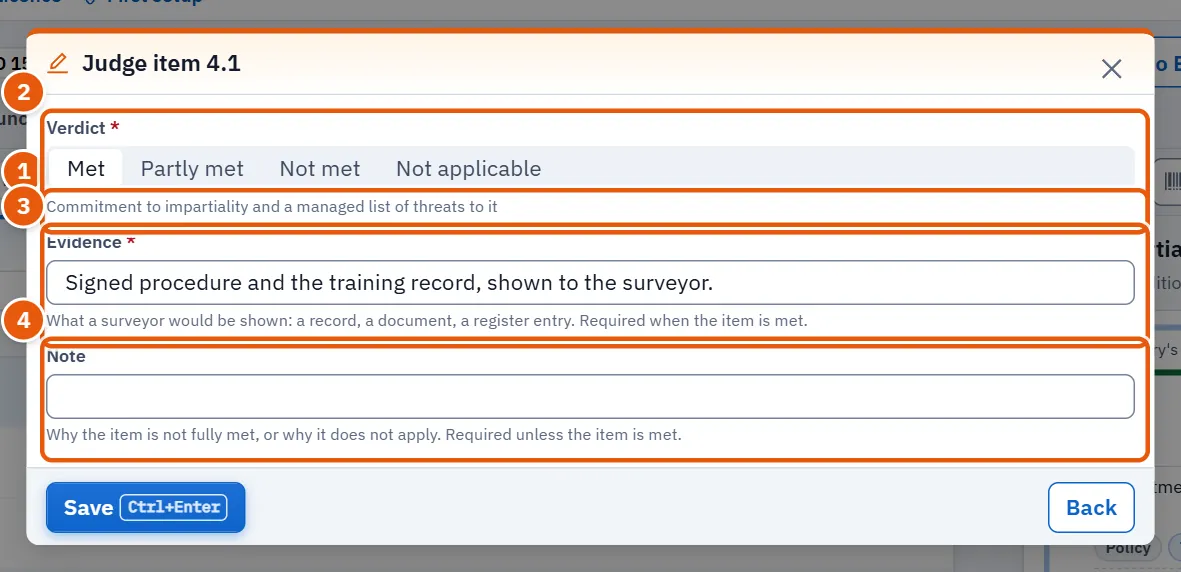
- Choose the Verdict: Met, Partly met, Not met or Not applicable.
- Fill Evidence (required when the item is met: what a surveyor would be shown) or Note (required for every other verdict: why it is not fully met or does not apply).
- Save. The new verdict is added; earlier ones stay in History and in the audit trail.
32.11.3 Task 3 — Bring a standard from the library
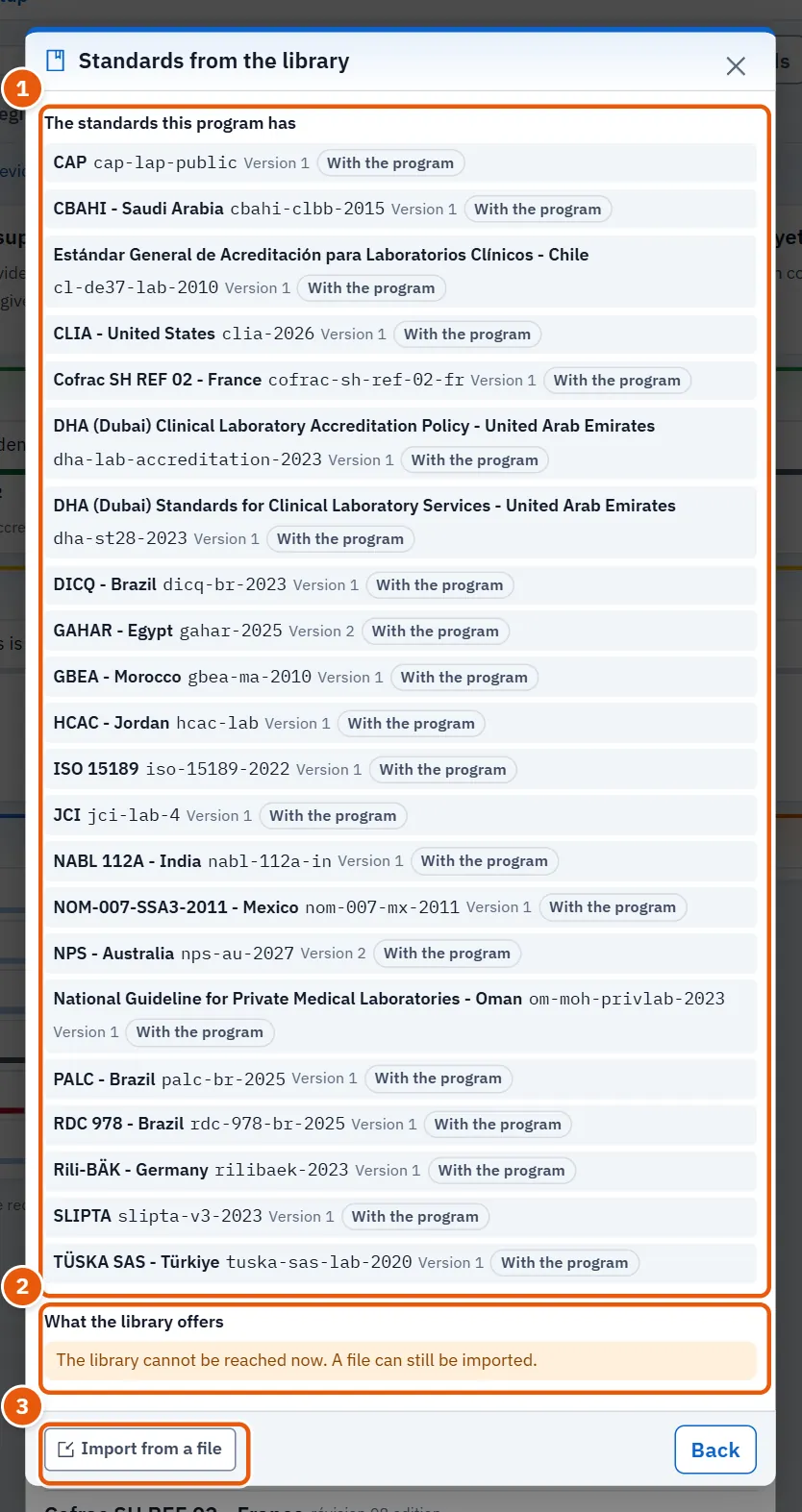
- In the standards window press From the library.
- The window lists The standards this program has (with their source: with the program, from the library or from a file) and What the library offers.
- On an offered standard press Show. For a file press Import from a file and choose it. If the library cannot be reached the window says so and a file can still be imported.
- The preview shows the version change, the numbers of new, rewritten and removed items, and the judgements kept. An update changes nothing the laboratory entered; judged items whose text changed stay judged and are marked for review.
- Press Apply, or Back to leave without changing anything. A new standard is not followed until you choose it (see 32.11.1 Task 1 — Choose the standards the laboratory follows).
- To return a library standard to the version shipped with the program, press Remove the library's version on it and confirm; no judgement is deleted.
32.11.4 Task 4 — Open a register entry
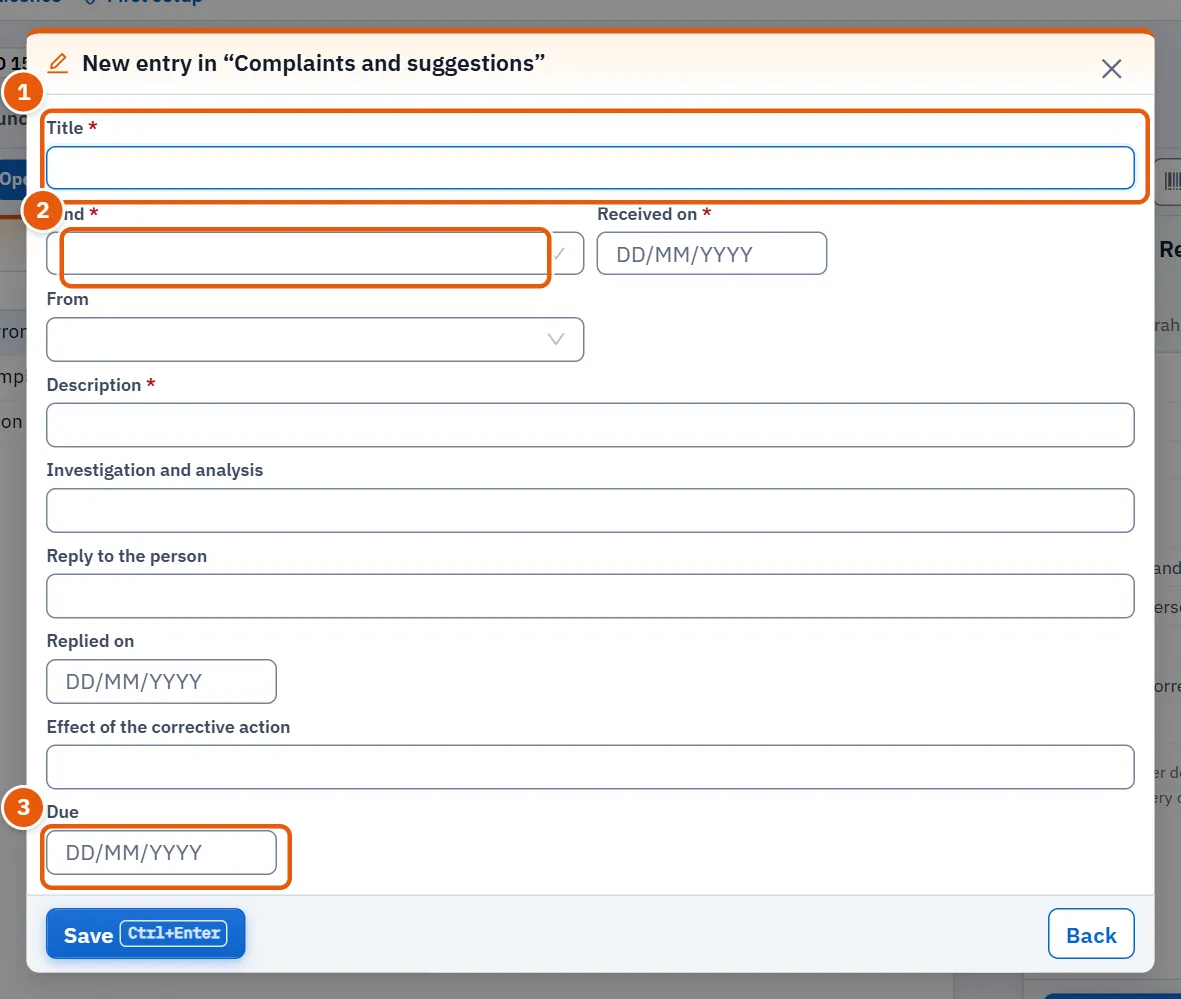
- Open the Registers tab and choose the register in Register.
- Press New entry.
- Fill the title, the register's own fields (those marked required must be filled) and, if you wish, the due date.
- Save. The entry opens in the details with its number.
32.11.5 Task 5 — Edit, close or void an entry
- Choose the entry in the table (use All to find a closed one; closed and void entries have no buttons).
- To change it press Edit; the state may be set to open or in progress.
- To finish it press Close the entry and write How the entry was closed.
- To cancel an entry made by mistake press Void the entry and write Why it is void.
32.11.6 Task 6 — Switch a function on or off
- Open the Program functions tab and choose the function.
- Move its switch. A reason is asked, with the standards the change applies to.
- Confirm. The change applies at once and no record is deleted; switching off stops the enforcement only.
32.11.7 Task 7 — Export the report
- Choose the standard on screen.
- Press Export to Excel for a workbook or Print the readiness report for the printable report.
32.12 Messages and what to do
| The screen says | Meaning | What to do |
|---|---|---|
| The standard could not be read. | The standard could not be read. | Use the retry button; if it persists, check the connection to the server. |
| The change could not be saved. | The change of standards was not saved. | Try again; the list stays as it was. |
| The change could not be saved. | The function switch was not saved. | Try again, or ask the person who holds the right. |
| The workbook could not be exported. | The workbook did not download. | Press the button again. |
| This register is switched off in this laboratory: its entries stay readable, and none is added or changed. | The register is off. | Switch it on from the Functions tab if you may. |
| The library cannot be reached now. | The library cannot be reached. | Import the standard from a file. |
| The history could not be read. | The history of an item did not load. | Close and open it again. |
32.13 See also
- General settings: where values and sets of switches are changed.