Chapter 17Claims
Menu: Claims. Address: /admin/claims. Two more pages open from it: Statements of claims (?page=statements) and Payer setup (?page=setup).
17.1 What this screen is for
A laboratory that bills a payer (an insurer, a company, a contract) does not hand the payer the invoice alone. It hands over a claim: the order, its invoice, the tests, the codes and the payer's share. This screen keeps every claim in one queue from the day it is staged until the payer's money is recorded on the invoice.
Along the way you export the claim as a file or send it through the payer's channel, record what the payer answers, record the transfer, and decide what to do about a refusal: appeal, rebill, adjust, write off, or hold. Beside the queue are the statements (one payer, one period, issued as a paper) and the set-up of the payer's channel.
17.2 Who sees it
Whoever holds Manage billing. The menu hides the screen from everyone else. Within the screen:
| You can… | …if your role holds |
|---|---|
| Use the queue, stage a claim, export, record answers and transfers, work the statements | Manage billing |
| Open Health information exchange for a claim's order | Publish reports |
| Open Payer setup | Manage settings |
Without that permission the Payer setup button is not shown, and the address ?page=setup simply opens the queue. The Reports-publish button is likewise absent, not dim.
17.3 The screen at a glance
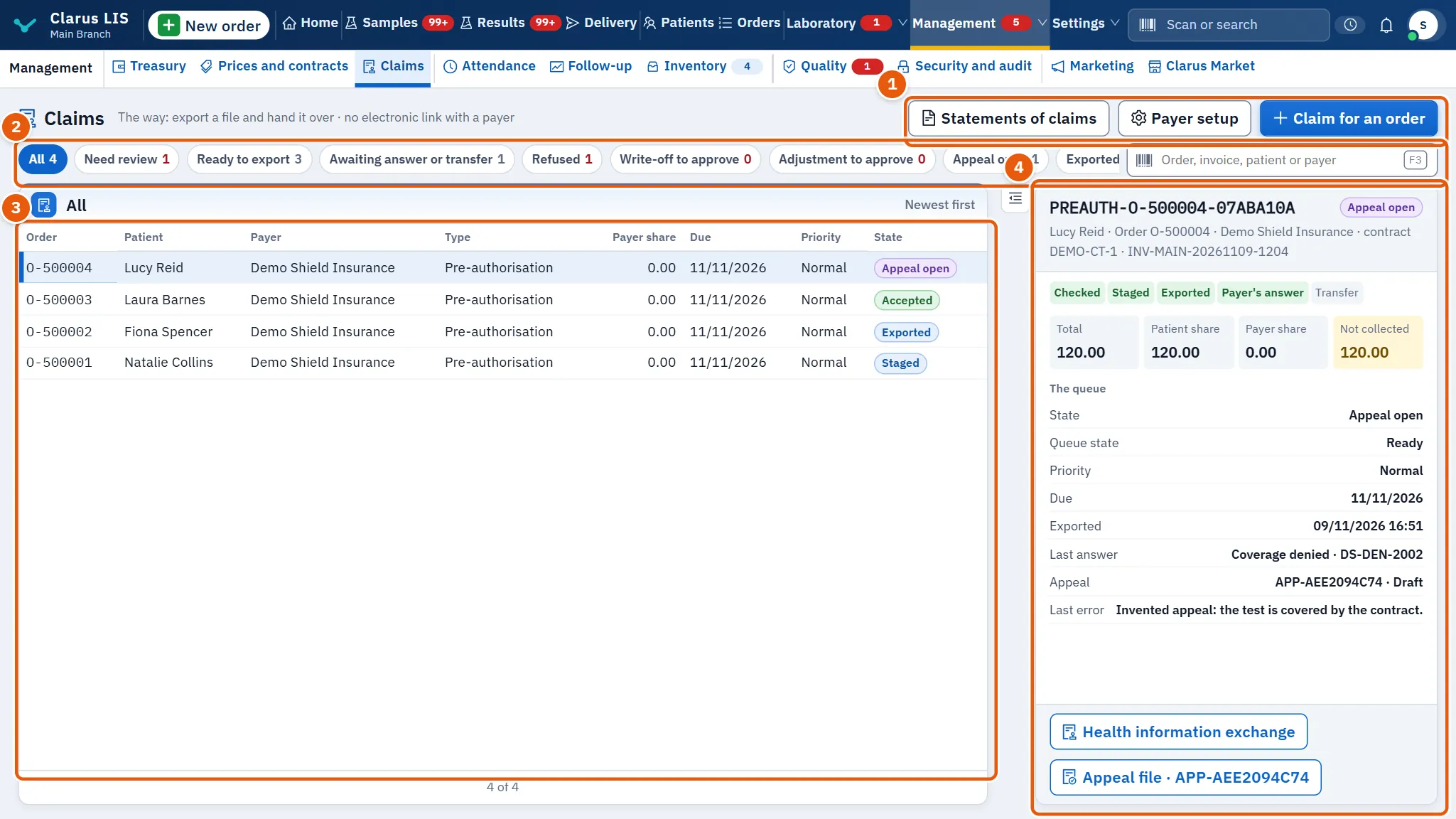
- The buttons at the top: Statements of claims, Payer setup (only for those who manage settings) and Claim for an order. A line under the title says how claims leave the laboratory: by exporting a file and handing it over, or, once a payer's channel is active, also through that channel.
- The filters and the search box, with a count on each filter.
- The claims table, newest first.
- The chosen claim: its steps, its figures, its queue and what you can do with it.
17.4 The queue
17.4.1 Filters and search
| Control | What it does |
|---|---|
| Filter the claims | One chip at a time, each with its count: All, Need review, Ready to export, Awaiting answer or transfer, Refused, Appeal open, Write-off to approve, Adjustment to approve, Exported or closed. |
| Search box | Finds by order, claim or invoice number, patient name or payer. When nothing matches it says: «No claim matches “…”». |
Choosing a filter or typing in the search clears the chosen claim; the first claim of the new list is chosen. The list refreshes by itself every minute, and it loads fifty claims at a time.
17.4.2 The table
| Column | Meaning |
|---|---|
| Order | The order's number. |
| Patient | The patient. |
| Payer | The payer. |
| Type | Final or Pre-authorisation. |
| Payer share | The part of the invoice the payer owes. |
| Due | The queue's due date, if one was set. |
| Priority | Immediate, Urgent, Normal or Low. |
| State | Where the claim stands (below). |
Rows that need attention are marked: send failed, coverage denied, returned for an error, write-off to approve, adjustment to approve.
17.4.3 The states
| State | Meaning |
|---|---|
| Staged | The claim is prepared and waits to be exported or sent. |
| Exported / Sent | The file was exported, or the claim was sent through the channel. |
| Send failed | The payer's channel did not take it; the reason is kept on the claim. |
| Answered, Accepted, Partly accepted, Paid | The payer answered. |
| Coverage denied, Returned for an error | The payer refused the coverage, or returned the claim for an error. |
| Remitted | The transfer was recorded. |
| Appeal open, Rebill needed | An appeal is open, or the claim must be billed again. |
| Write-off to approve, Adjustment to approve | A decision waits for a second person to approve. |
| Written off, Adjusted | The decision was approved. |
| On hold | The claim is on hold. |
| Recovery refused | The recovery decision was refused. |
17.5 The chosen claim
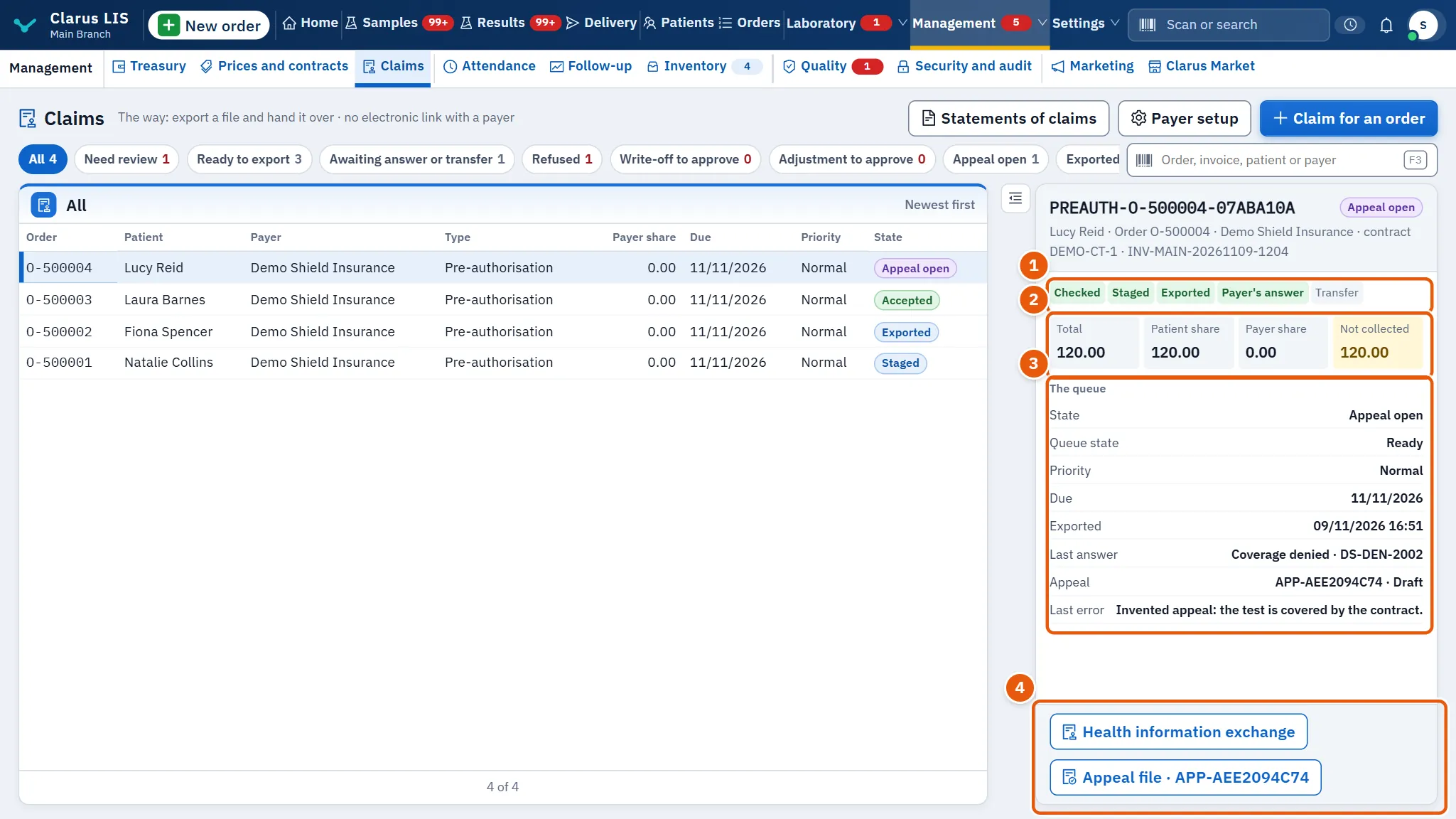
| Element | What it shows or does |
|---|---|
| The title | The claim's code and its state; under it the patient, the order, the payer, the contract and the invoice. |
| The claim's steps | Five steps: Checked, Staged, Exported, Payer's answer, Transfer. Those reached are marked. |
| Figures | Total, Patient share, Payer share and Not collected (the invoice's total less what was paid). |
| A red note | If the claim still lacks things: N things are missing before export. |
| The queue | The state, the queue state, the priority, the owner, the due date, the hold reason, when it was exported, the last answer with the payer's reference, the amount recorded on the invoice, the appeal and its state, and the last error. Only what exists is shown. |
| A decision awaiting approval | A recovery decision waiting for approval: its kind, amount, reason and when it was recorded. |
17.5.1 The buttons of a claim
The buttons depend on the state. The first one is the main one.
| State | Buttons |
|---|---|
| Staged | Send to the payer (only when a payer channel is active), Export the file, Hold or defer |
| Exported or send failed | Send to the payer (with an active channel), Record the payer's answer, Hold or defer |
| Sent | Record the payer's answer, Hold or defer |
| Responded, accepted, partly accepted, paid | Record the transfer, Record the payer's answer |
| Coverage denied, returned for an error | Recovery decision, Record the payer's answer |
| Write-off or adjustment to approve | Review the decision |
Health information exchange appears for those who may publish reports, and the appeal button (Appeal file, with its code) appears once the claim has an appeal or rebill file.
17.6 The windows
17.6.1 Claim for an order
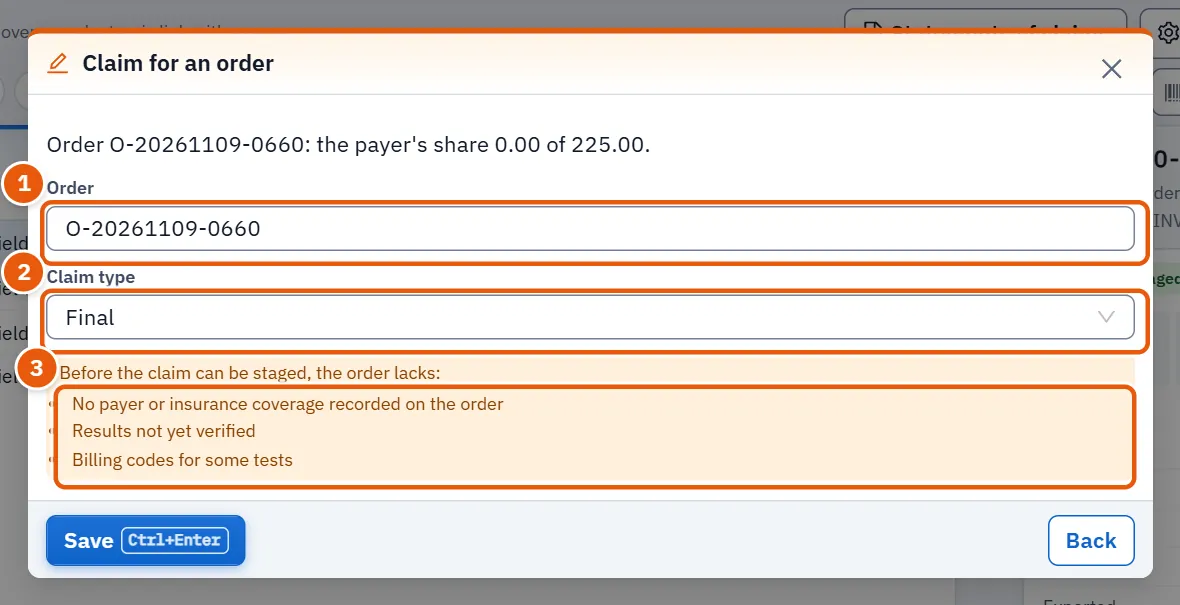
| Field | What it does |
|---|---|
| Order | Scan the order number, or search by number or patient name (at least two characters), then pick the order from the short list of six. Typing again clears the chosen order. |
| Claim type | Final or Pre-authorisation. |
When an order is chosen the program checks it. If it is complete it says so and the claim is staged on saving. If not, it lists what is missing: the payer or coverage, the invoice, clinical notes or a diagnosis, verified results, the authorisation number, billing codes for some tests, or release readiness. Saving is refused until the list is empty. Staging the same order twice does not make a second claim.
17.6.2 Send, export and record
| Window | Fields | Notes |
|---|---|---|
| Send to the payer | none: one press | The payer's channel answers. «The claim was sent to the payer», or a warning that the channel did not take it. |
| Export the file | none: one press | Marks the claim exported and saves a file to hand to the payer. |
| Hold or defer | Queue state, Priority, Owner, Due, Hold reason | The reason is required unless the state is ready. |
| Record the payer's answer | Answer (accepted, partly accepted, paid, coverage denied, returned for an error), Payer's reference, Note | |
| Record the transfer | Amount transferred, Payer adjustment, Expected, Payer's reference, What to do with the difference, Note | Enter the amount or the adjustment. |
| Recovery decision | Decision, Expected recovery, Write-off amount, Next action on, Owner, Reason | The reason is required. |
| Review the decision | Review, Your note or evidence reference, Evidence | The note is required. |
The recovery decisions are: Appeal, Rebill, Adjustment, Write-off, Hold for the owner, Accept, no action. The choices for the difference in a transfer are: Collect the rest from the payer, Request a corrected remittance advice, Adjust with the payer, The rest is the patient's, Review for write-off, No action.
While you fill in a transfer, the window shows what will be written on the invoice: the payment applied (never more than the invoice's open balance) and what is left, and whether the transfer is short of what was expected or is an overpayment. An overpayment is not recorded as a payment.
17.6.3 Appeal file
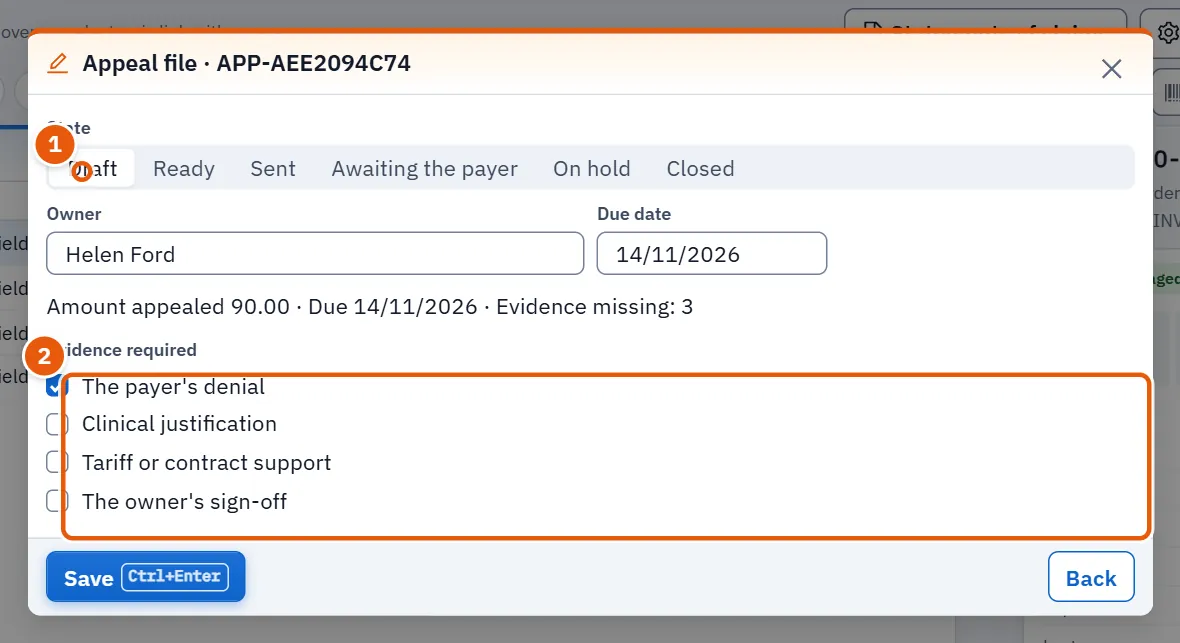
| Element | What it does |
|---|---|
| State | Draft, Ready, Sent, Awaiting the payer, On hold, Closed. |
| Owner, Due date | Who answers for the file and by when. |
| Evidence required | A tick for each paper in hand. The list is set by the file (for example the payer's denial, the corrected claim, the clinical justification, the owner's sign-off). |
The line at the foot says how much is appealed, the due date and how many papers are missing. A file cannot be marked sent, or awaiting the payer, while any paper is missing.
17.6.4 Health information exchange
For those who may publish reports. From a claim, Health information exchange prepares a package of the order's results for another system.
| Field | What it does |
|---|---|
| Destination | National health exchange, Hospital system (HL7 v2) or FHIR R4 interface. |
| Consent basis | The patient's explicit consent, the patient's request, treatment, payment, health care operations or public health. |
| Consent reference (optional) | Optional. |
As with a claim, the order is checked first: the patient's national number and file number, the patient's current consent, results on the order, verified results and release readiness. If anything is missing, the package is not staged. When complete, saving stages the package and downloads its file.
17.7 Statements of claims
Press Statements of claims. A statement gathers one payer's tests over one period, so that it can be reviewed, issued and printed as one paper. Back to claims returns to the queue.
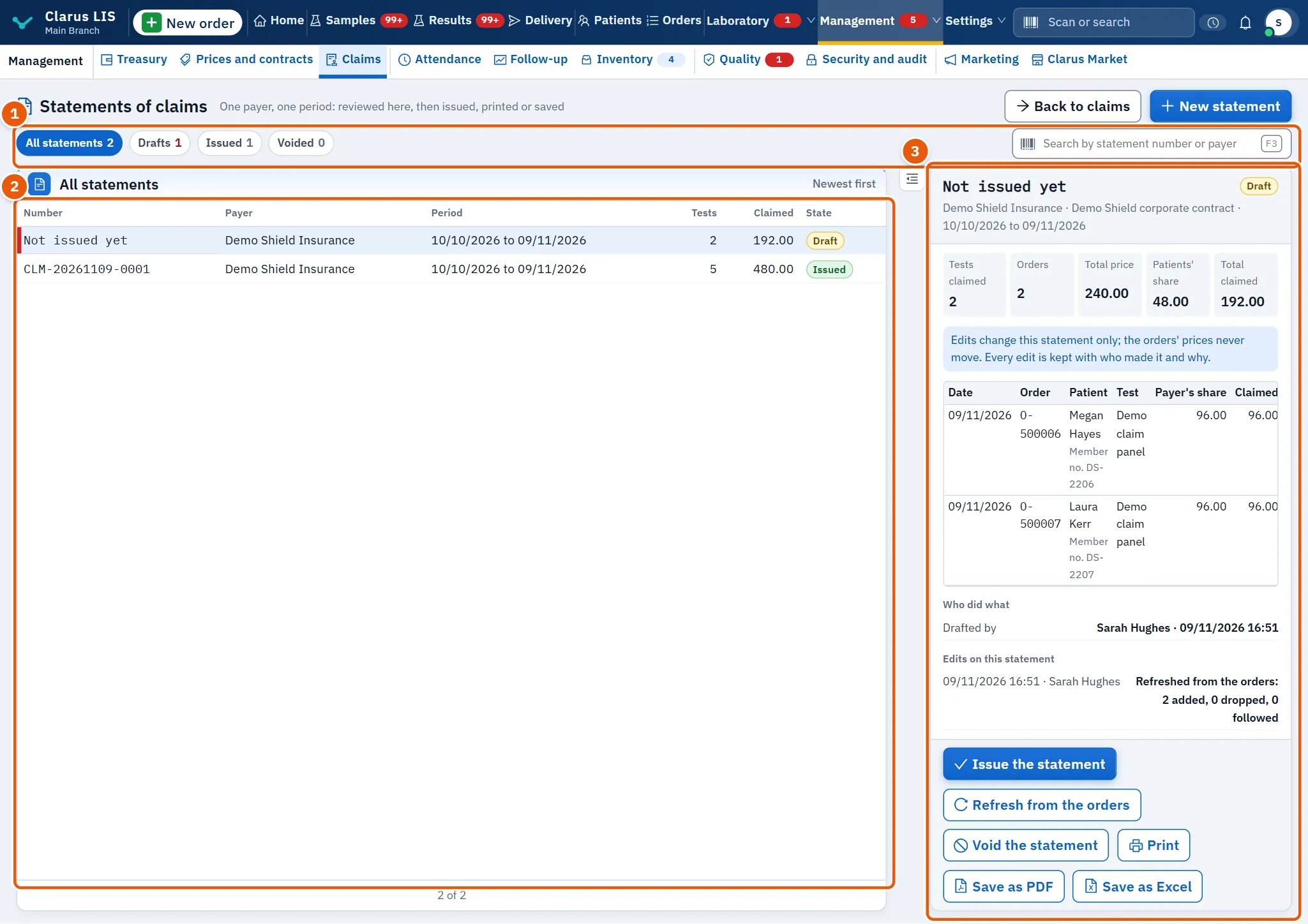
| Element | What it does |
|---|---|
| Statement state | All statements, Drafts, Issued, Voided. |
| Search box | By statement number or payer name. |
| Table | Number, Payer, Period, Tests, Claimed, State. |
| Figures | Tests claimed, Orders, Total price, Patients' share, Total claimed. |
| The statement's lines | Date, order, patient (with member number), test, the payer's share and the amount claimed. A line taken off the claim says so; an edited one says Edited. |
| Edits on this statement | Every edit with who made it, when, and why. |
| Who did what | Who drafted it and, once issued, who issued it. |
Buttons on the chosen statement: a draft has Issue the statement, Refresh from the orders and Void the statement; an issued statement has only Void the statement. For every statement: Print, Save as PDF, Save as Excel. Issue is dim while the statement has no lines.
17.8 Payer setup
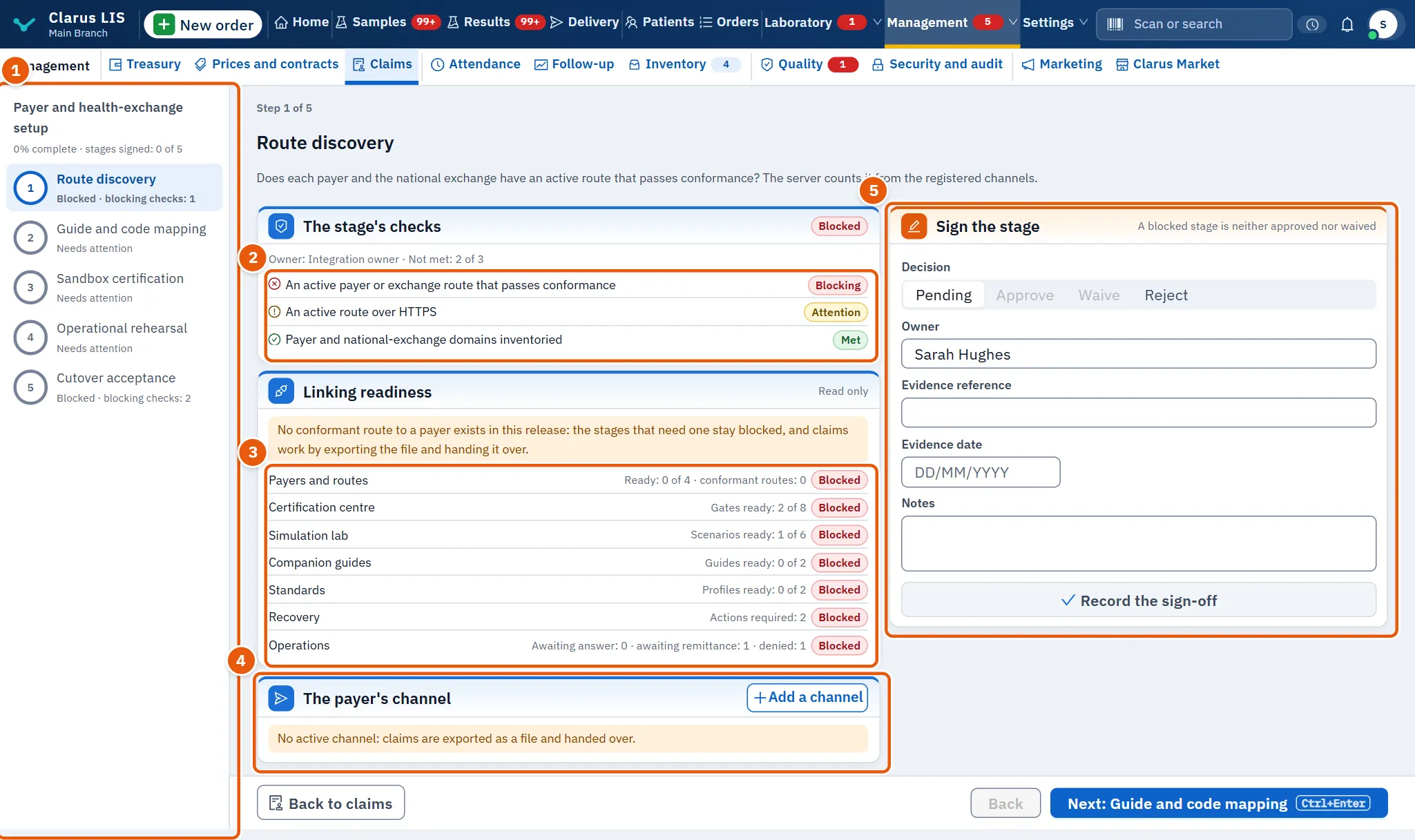
Payer setup is a guide through five stages, with a progress line («% complete · stages signed»). Each stage shows its owner and its checks.
| Stage | What it is for |
|---|---|
| Route discovery | Whether each payer and the national exchange has an active route that passes conformance; the server counts it from the registered channels. |
| Guide and code mapping | The payer's guide, and billing and LOINC codes mapped to the tests. |
| Sandbox certification | Conformance evidence from a sandbox or an official body. |
| Operational rehearsal | A rehearsal of eligibility, denials, remittance, acknowledgements, retries and escalation. |
| Cutover acceptance | The owners' decision to go live, the rollback plan and the route approval. |
Each check is passed, a warning, or blocking. Linking readiness (read only) shows one line per area with a status: Ready, Needs attention, Blocked. If no conformant route exists, the page says so: the stages that need one stay blocked, and claims work by exporting the file.
Sign the stage: choose a Decision (Pending, Approve, Waive, Reject), the Owner, the Evidence reference, the Evidence date and Notes, then Record the sign-off. Approval and waiver need the reference and the date. A blocked stage can be neither approved nor waived. If a stage's checks change after signing, it is marked as needing a new signature.
17.8.1 The payer's channel
The card The payer's channel lists the channels where Send to the payer posts a claim. Each shows its name, its address and whether it is active. A channel is switched off, never deleted.
| Field | What it does |
|---|---|
| Channel name | A name you recognise. Required, like the address. |
| Address (https://) | The address the payer gives for claims. It must start with https://: a claim leaves the laboratory over nothing else. |
| Active | Whether the channel is in use. |
17.9 Tasks, step by step
17.9.1 Task 1 — Stage a claim for an order
- Press Claim for an order.
- Scan the order number or type part of it, and pick the order.
- Choose the Claim type.
- Read the result of the check. If items are listed, complete them in their own screens and come back.
- Save. The claim appears in the queue as Staged.
17.9.2 Task 2 — Export or send a claim
- Choose the claim in the table (filter Ready to export lists those ready).
- Press Export the file and hand the saved file to the payer, or press Send to the payer if a channel is active.
- If a send fails, the claim stays with its reason (Last error); correct it and send again, or export.
17.9.3 Task 3 — Record the payer's answer and the transfer
- Choose the claim and press Record the payer's answer.
- Choose the Answer, type the payer's reference and save.
- When money arrives, press Record the transfer, type the amount (and the adjustment if any), choose what to do with the difference and save.
- Check the line that says what will be recorded on the invoice before saving.
17.9.4 Task 4 — Deal with a refusal
- Choose a refused claim and press Recovery decision.
- Choose the Decision, the amounts, the next action date and the owner, and write the reason.
- A write-off or an adjustment waits for approval. A different person chooses the claim, presses Review the decision, chooses Approve or Refuse and writes a note. The person who recorded the decision does not see the review button at all.
- For an appeal, open the Appeal file, tick the papers in hand and change its state.
17.9.5 Task 5 — Issue a statement
- Press Statements of claims, then New statement.
- Choose the Payer, a Contract or all of them, and the first and last day (the payer and both days are required, and the first day must come before the last). Save.
- Review the lines. Press Edit on a line to change the amount claimed, take it off the claim, or add a note (lines are edited only while the statement is a draft). The reason is required when the amount changes or the line is taken off the claim, and is kept with the edit; a change to the note alone does not need it.
- If lines say their order changed, press Refresh from the orders or take them off the claim.
- Press Issue the statement and confirm. An issued statement is not edited; it can only be voided, with a reason, and its tests may then be claimed on another statement.
17.10 Messages and what to do
| The screen says | Meaning | What to do |
|---|---|---|
| The claims could not be loaded. | The list did not arrive. | Use the retry button, then check the connection. |
| The claim cannot be staged until what it lacks is completed. | The order is missing something from the list. | Complete each item, then save again. |
| This claim was already staged; it was not created twice. | The order already has this claim. | Find it in the queue. |
| The payer's channel did not take the claim; the reason is kept on it. | The send failed. | Read Last error, correct, send again or export. |
| This write-off or adjustment is your decision, so someone else approves it. | You recorded it. | Ask another person to review it. |
| Enter the amount transferred or the adjustment. | The transfer window has neither. | Type one. |
| Write the reason for the hold or deferral. | The hold has no reason. | Write it. |
| The file cannot be marked sent while evidence is missing. | The appeal lacks papers. | Tick the papers in hand, or keep the file as a draft. |
| The address starts with https://… | A channel address does not. | Type the full address as the payer gave it. |
| Resolve the blocking checks first | The stage is blocked. | Clear its blocking checks. |
17.11 See also
- Claims: this screen.
- Delivery: reports and delivery.