Chapter 3First run, licence, activation and moving it
This chapter is for the support technician handing a laboratory an installed program. It explains:
- The steps of the first setup after installation.
- The trial, and activating the licence with and without the internet.
- Moving the licence to another computer, and what happens when work stops.
3.1 The first setup
After installation, and after the first administrator is created (see 11.1 The first administrator), the First setup screen opens. It also opens from the Settings menu until it is complete. Its steps:
| Step | What is set in it |
|---|---|
| Welcome | The start |
| Laboratory identity | The laboratory's name and details, as they print on its papers |
| Region | The country, currency, time zone and program language. Setup suggests them from what it found on the computer |
| Where to start | Where the laboratory starts: a migration from RealLab, a clean start, or a branch in a chain |
| Main branch | The main branch |
| Users | The first users |
| Printing | How the program prints (see 7.1 How the program prints) |
| Prices | The price list |
| Reference ranges | The reference ranges |
| Public site | The laboratory's site for patients |
| Review and finish | A review of the above, then Finish the setup |
Each step has a Finish later button. «Finish the first setup: 1 step left» stays at the top of the home until you do A server that is a branch in a chain sees fewer steps, because the chain decides the rest.
All of it can be set later from the settings (see Appendix D: Settings reference).
3.1.1 The laboratory's website
The site is hosted on Clarus's website service, under a name the laboratory takes in Laboratory site, on the Address and publishing tab, with Take the name. The name can be changed once, with Change the name.
When the service no longer has the site. A copy can keep the key of a site that the website service no longer holds. The tab then offers Choose the site's name again, with the old name already filled in, and offers no change of name. Press Take the name to create the site again under the same name, then publish it. Until then, a change of name or a publication is refused with one sentence saying the same thing.
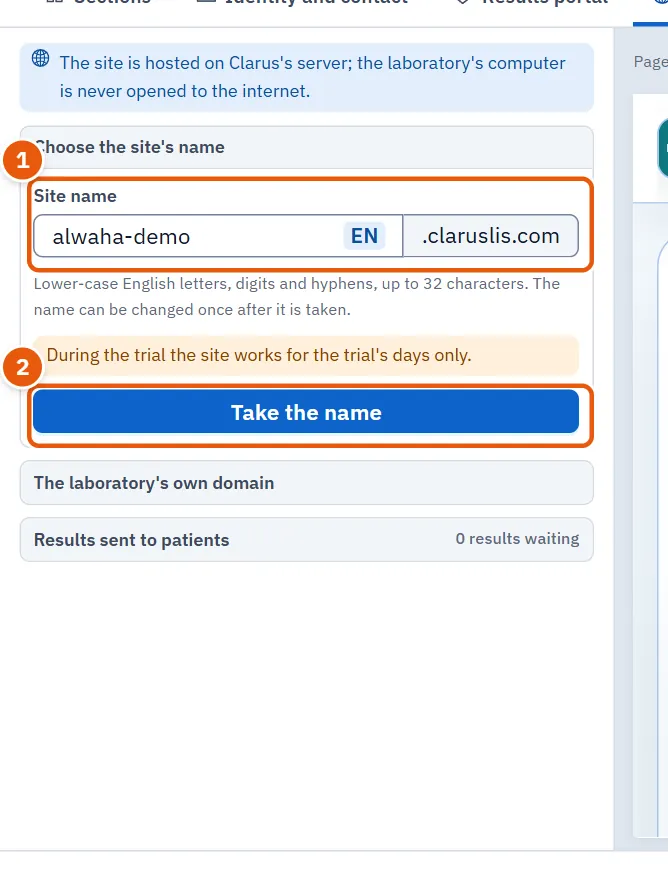
Every refusal from the website service is shown in the program's language, not in the service's own English. That covers taking the name, changing it, and publishing.
3.2 The trial
After installation the program runs for 14 days as a trial, with everything in it. The trial starts with a signature from the supplier:
- With internet: the signature arrives by itself.
- Without internet: in the Start the trial window, Scan with your phone to download the trial file, then Choose the trial file.
The trial's start is kept in more than one place on the computer (see B.5 Outside the three folders). So uninstalling and reinstalling the program does not restart the trial.
3.3 Activating the licence
The licence is per computer. It is bound to the computer by a fingerprint of its parts that tolerates some of them changing. Replacing a part or two does not stop the program, but replacing most of them makes it another computer to the program.
The Licence screen opens from the Settings menu, then Licence. It shows the licence's state (Working or Stopped), Activated, Ends, the Installation code, Last verified and the Version.
With internet:
- In Activating with the card number, type the card number.
- Press Activate with the card number. When it succeeds: The licence was activated.
Without internet (Activating with a file, without internet):
- The activation request: a small file carrying the installation code. Press Save the request file.
- Send it to Clarus on WhatsApp, and the licence file comes back.
- The licence file: choose the file you received. Press Choose the file.
3.4 Moving the licence to another computer
The program stops on this computer as soon as it is moved, and all its data stays kept on it. Then activate the same number on the new computer.
- If the new computer will work with the laboratory's data, take a backup first and carry it over (see 8.10 Moving the laboratory to a new computer).
- In Licence, press Move it to another computer.
- Type the laboratory's name to confirm, then Move the licence.
- The Hand-back code appears. Copy it before closing the window and give it to the supplier: it proves the licence was handed back.
- Activate the same number on the new computer.
3.5 When work stops
If the trial ends, the licence ends, the computer changes, or the program has been cut off too long, the Work has stopped on this computer page appears. All of your data is safe and untouched on this computer. Nothing has been deleted, and you may export a complete copy at any moment.
From that same page:
- Activate the licence and work resumes: type the Card code, the Laboratory name and the Phone with country code, then Activate. The name and phone go to the supplier with the code, so it can sign the licence for this computer.
- Export: a complete copy of the laboratory's data, at any time.
| What shows | Cause | What to do |
|---|---|---|
| The trial has ended | 14 days passed without activation | Activate the licence |
| The computer does not match the licence | Most of the computer's parts changed, or the data was carried to another computer | Move the licence as above, or contact the supplier |
| A long time without reaching Clarus | A copy activated over the internet has not connected for a long time | Turn the internet on for a minute |
| The licence could not be read. | The kept licence file cannot be read | Contact the supplier with the Installation code |
| The request file could not be made. | The request file could not be made | Try again, or contact the supplier |