Chapter 10Orders
Menu: Orders. Address: /orders.
10.1 What this screen is for
This is the list of every order the laboratory has registered. Use it to find an order, see its money and its tests, and move on to the screen that does the next piece of work on it. The daily work itself happens in the queue that owns it: samples, results and delivery.
The list is counted by state, and an order is found by its number, the patient, the phone or the doctor. The order you choose shows its total, what was paid and what remains, each of its tests with whether it is approved, and the buttons its state allows: hand over, edit, open its results, print.
10.2 Who sees it
Whoever holds Read orders. Within the screen:
| You can… | …if your role holds |
|---|---|
| Open the list and see the chosen order | Read orders |
| Press New order | Create orders |
| Press Edit the order | Edit registered orders |
| Press Hand over | Publish reports |
| Press Receipt | Print receipts, or Print reports, receipts and labels |
| Press Labels or Worksheet | Print reports, receipts and labels |
| Press Results | Enter results, or Verify results |
A button you may not use is not shown. (The handing-over button opens the delivery screen, which only a role that publishes reports can enter.) Receipt is hidden while the order awaits a price.
10.3 The screen at a glance
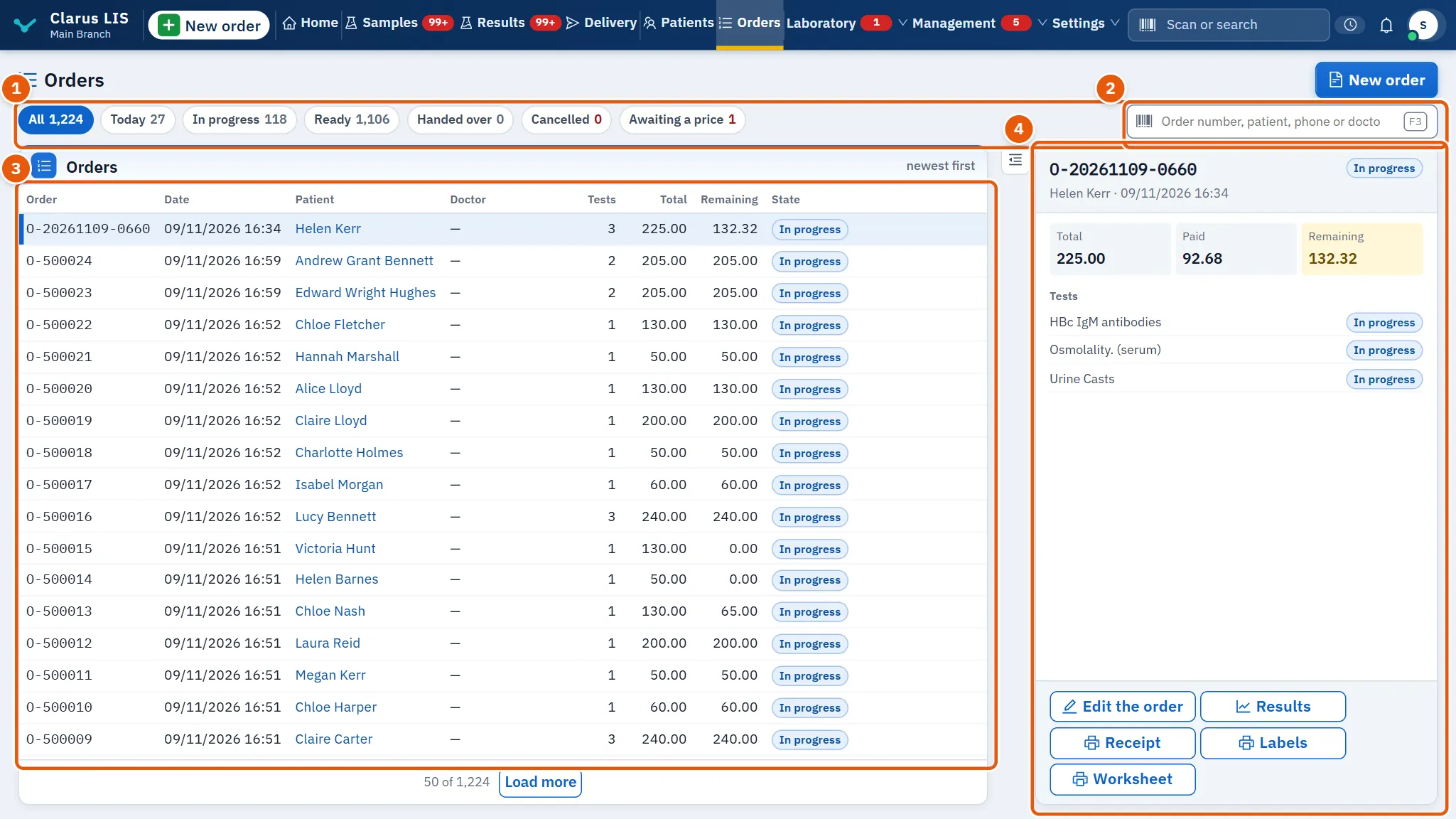
- The state filters: Order state, each with the number of orders it holds.
- The search box: Order number, patient, phone or doctor.
- The list: Orders, newest first.
- The chosen order: The chosen order, with its money, its tests and its buttons.
10.4 The state filters
| Filter | What it shows |
|---|---|
| All | Every order |
| Today | Orders of today |
| In progress | Orders still being worked |
| Ready | Orders whose results are ready |
| Handed over | Orders already handed over |
| Cancelled | Cancelled orders |
| Awaiting a price | Orders with a test that has no price. This filter appears only while at least one order waits for a price (or while it is the filter you chose). |
Choosing a filter clears the order you had chosen. A link from another screen (for example the home page) can open the list already on one of these filters.
10.5 The list
| Column | Meaning |
|---|---|
| Order | The order number |
| Date | When it was registered |
| Patient | The patient |
| Doctor | The requesting doctor, or a dash |
| Tests | How many tests the order has |
| Total and Remaining | The amount and what remains to pay. These two columns appear only when the list carries amounts. |
| State | The state, or how many tests are approved («3 of 8 approved»). An order with an unpriced test also carries a mark: «No price — needs pricing». |
The list reads 50 orders at a time; a button at its foot reads more. It refreshes itself every minute.
10.6 The chosen order
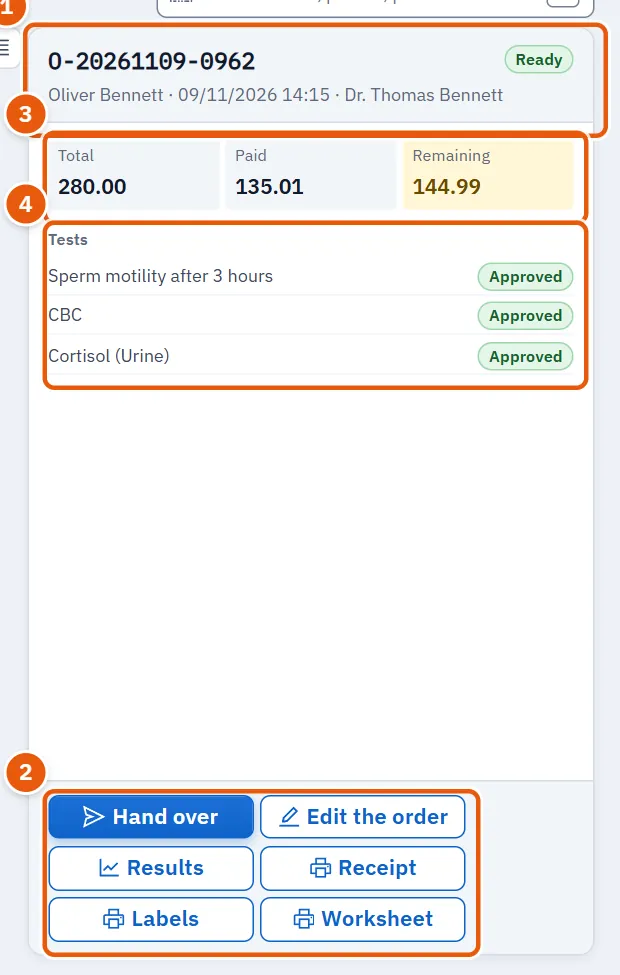
The heading shows the order number, its state, then the patient, the date and the doctor. If you have not chosen one, the first in the list is shown.
| Element | What it does |
|---|---|
| Hand over | Opens the delivery screen looking for this order. Shown only for a ready order that is not cancelled. |
| Edit the order | Opens the order for editing. Not shown for a cancelled order. |
| Results | Opens the results screen on this order. Not shown unless your role enters or verifies results; it does not depend on the order's state. |
| Receipt | Prints the receipt. |
| Labels | Opens the window of the order's barcode labels. |
| Worksheet | Prints the worksheet. |
| Total, Paid, Remaining | The invoice figures, shown when the order has an invoice. A remaining amount is marked as due. |
| Tests | Each test of the order, with whether it is approved or still in progress. |
| Handed over | When the order was handed over, shown if it was. |
If a test was ordered by an outside system and has no price here, a warning names it: no invoice is issued and no receipt is printed until its price is written. Edit the order and write the price; who wrote it is kept.
10.7 Tasks, step by step
10.7.1 Task 1 — Find an order
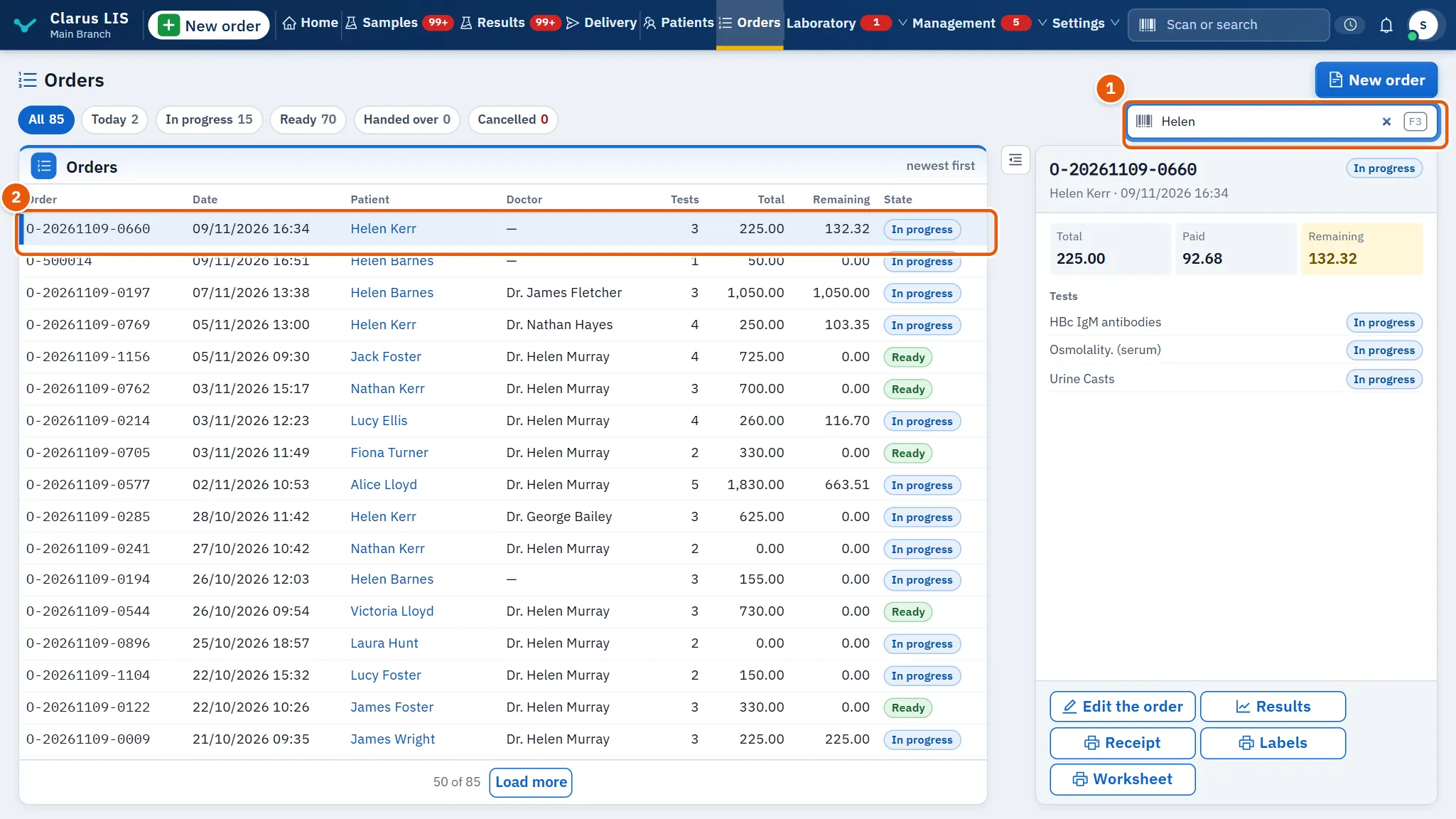
- Click the search box and type a number, a patient, a phone or a doctor.
- The list narrows after a moment. Click the order you want; it opens as the chosen order.
- To narrow by state first, press one of the state filters.
If nothing matches, the list says no order matches what you typed.
10.7.2 Task 2 — Register a new order
- Press New order (it is shown only if you may create orders).
- The order screen opens; fill it there.
10.7.3 Task 3 — Hand over a ready order
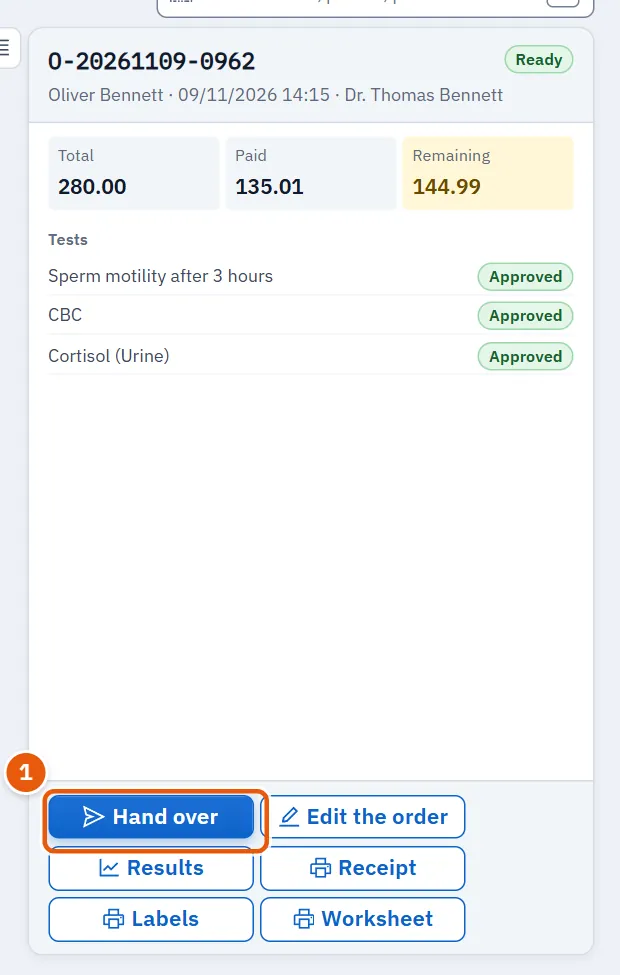
- Press Order state Ready, then choose the order.
- Press Hand over. The delivery screen opens with this order looked up.
- Finish the handing over there.
10.7.4 Task 4 — Price an order that waits for a price
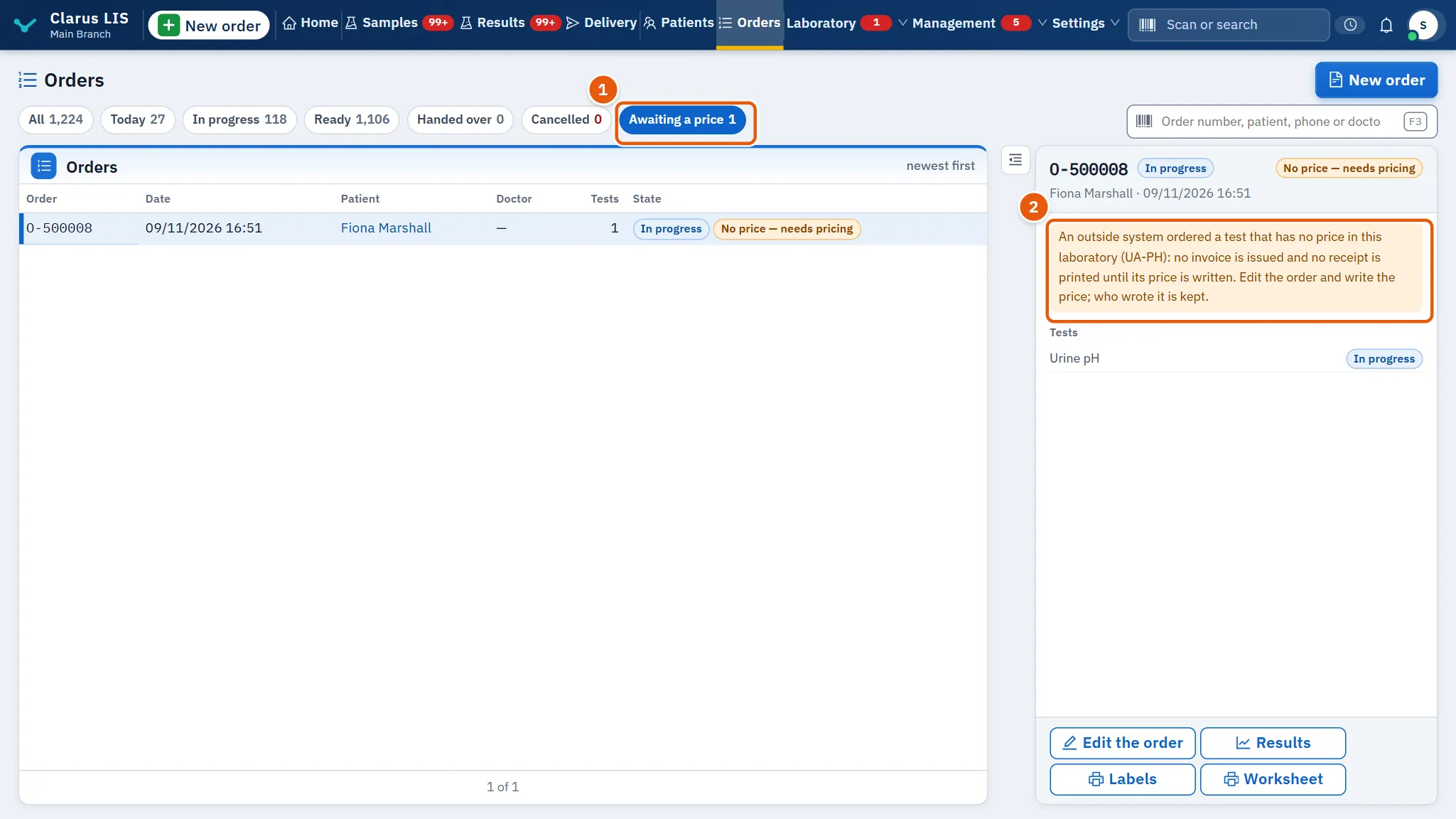
- Press Awaiting a price, then choose the order.
- Read the warning; it names the tests without a price.
- Press Edit the order and write the price in the order.
10.7.5 Task 5 — Print the order's papers
- Choose the order.
- Press Receipt, Labels or Worksheet.
- Labels opens a window for the barcode labels; the other two send the paper to print.
10.8 Messages and what to do
| The screen says | Meaning | What to do |
|---|---|---|
| Reading the orders… | The list is loading | Wait |
| The orders could not be read. | A fault reading the list | Use the retry control and check the connection |
| No order matches «…». | The search found nothing | Check the spelling, or clear the search |
| No order yet. / No order today. / No order in progress. | Nothing in that filter | Choose another filter |
| Choose an order from the list. | None is chosen | Click an order |
| No price — needs pricing | A test has no price | See 10.7.4 Task 4 — Price an order that waits for a price |
10.9 See also
New order (registering), Samples, Results and approval, Delivery (handing over), Prices (pricing a test), Settings and users (the permissions above).