Chapter 11Send-outs
Menu: Send-outs. Address: /lab/sendouts.
11.1 What this screen is for
Some tests are not done in your laboratory: they are sent to an external laboratory. This screen follows each of them from the moment it is created with the order, through calling the courier and handing the samples over, to the return of the result, and then keeps the account of what is owed to each external laboratory.
It has four pages, named in the bar Send-out pages: Send-outs, Batches, Accounts and External laboratories. The tests that have no laboratory yet are collected in a window opened by Waiting for a laboratory.
11.2 Who sees it
| You can… | …if your role holds |
|---|---|
| Open the screen, the queue and the batches (the Waiting for a laboratory window too) | Read orders |
| Record that a laboratory received a batch | Create orders |
| Enter the returned results; attach the external laboratory's report | Enter results |
| Print the batch's manifest again | Print reports, receipts and labels |
| Open the accounts page | Manage billing or Read analytics |
| Record or void a payment; export the accounts; open the statement of samples sent | Manage billing |
| Print a laboratory's month statement | Manage billing and Print reports, receipts and labels together |
| Open the External laboratories page, and on it add, edit, stop, delete laboratories; assign tests; edit price-list lines and routing rules; open the list library | Manage the laboratory's structure: branches, numbering, first run, external laboratories |
| Add a price-list line to the catalogue as a new test | Manage the laboratory's structure: branches, numbering, first run, external laboratories and Manage settings together |
A page or button you have no permission for is hidden, not greyed: a role without Manage the laboratory's structure: branches, numbering, first run, external laboratories has no External laboratories tab, and one without Manage billing sees no payment or export button. The queue's own buttons (call the courier, hand over, change laboratory, keep in house) are not hidden by role; if the server refuses one for your role it says so in the window.
11.3 The screen at a glance
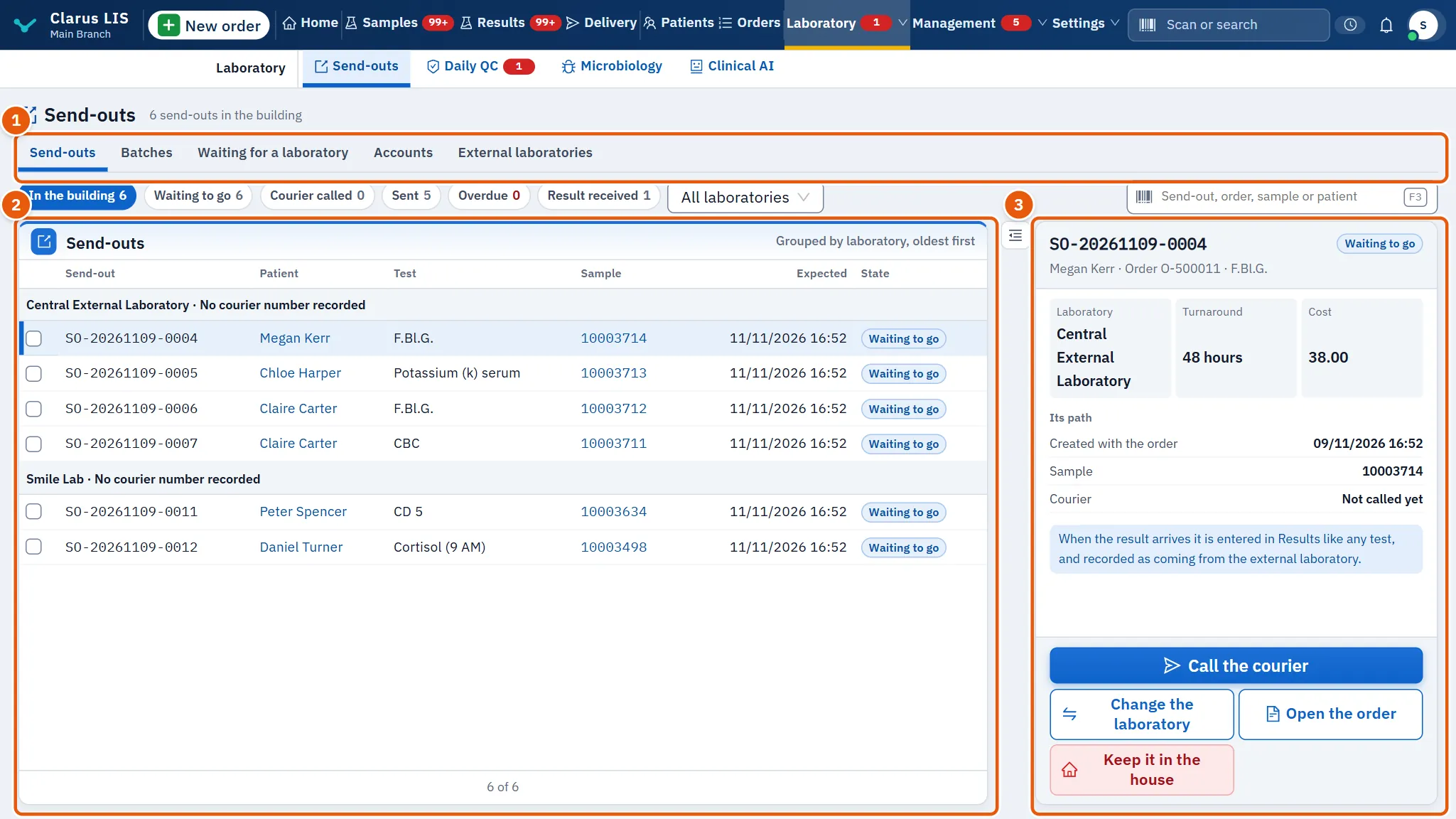
- The page bar: Send-outs, Batches, Waiting for a laboratory, Accounts, External laboratories.
- The list of the page, with a search box and state filters.
- The details of the line chosen in the list, with its actions.
11.4 Page: Send-outs
The list Send-outs is Grouped by laboratory, oldest first. A line has the send-out, the expected time and its state.
| Control | What it does |
|---|---|
| Send-out, order, sample or patient | Finds by send-out, order or sample code, or patient name. |
| Send-out state | In the building (the page opens on it), Waiting to go, Courier called, Sent, Overdue, Result received. Beside them a laboratory selector narrows the list to one laboratory. |
| Actions on the chosen | Appears when lines are ticked (only lines still in the building have a tick box): the number chosen, Call the courier, Hand to the courier and print the manifest, Clear the choice. |
The list loads 100 lines at a time (a button below it brings more) and refreshes by itself every minute.
The details show the laboratory, turnaround and cost, then Its path: Created with the order, the sample, the courier (Not called yet until called), Handed to the courier and Result received. The buttons depend on the state of the chosen line:
- Call the courier appears while it is Waiting to go; Hand to the courier once the courier is called; Enter the result once it is dispatched, and it takes you to Results for that order.
- Change the laboratory and Keep it in the house appear only while the sample is still in the building.
- Open the order is always there.
When a result is late the details say so and advise calling the laboratory. A result that arrives is entered in Results like any test and recorded as coming from the external laboratory.
11.4.1 The windows of this page
| Window | What it does |
|---|---|
| Call the courier · 1 send-out | Writes a message for each laboratory's courier with the number of tests and samples. Open WhatsApp records «Courier called» for that laboratory and opens WhatsApp; it is shown only when a courier number is recorded, and one press opens one conversation. Copy the text copies the text to send another way (and nothing is recorded as called). Send-outs that have already left the building are not included. |
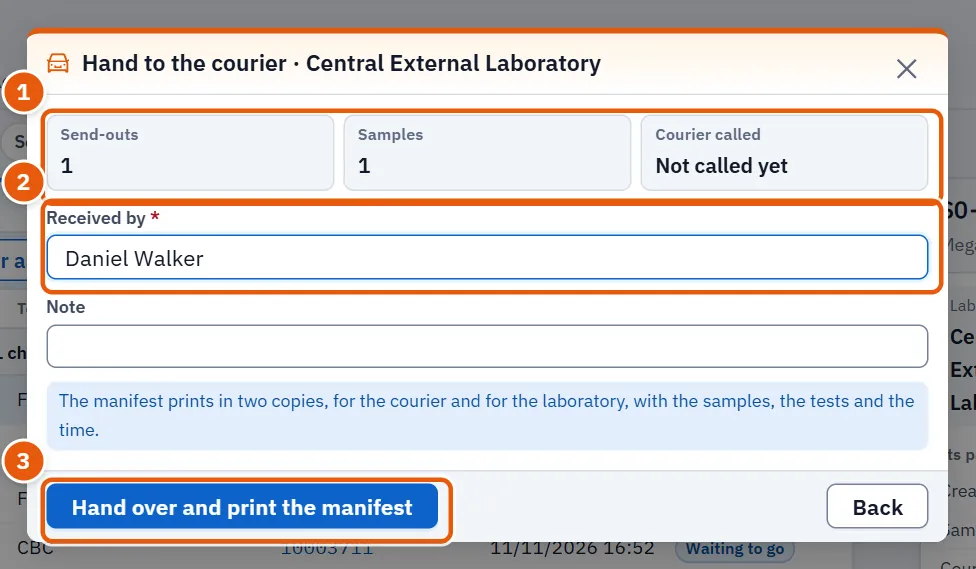
| Hand to the courier · … | Hands over to the courier. Shows send-outs, samples, the courier called, and the fields Received by and Note. The courier's name is required (it starts as the name of the courier called); Hand over and print the manifest stays dimmed until it is filled. It makes a batch and prints the manifest in two copies (courier and laboratory). With several laboratories, each is its own batch with its own manifest. |
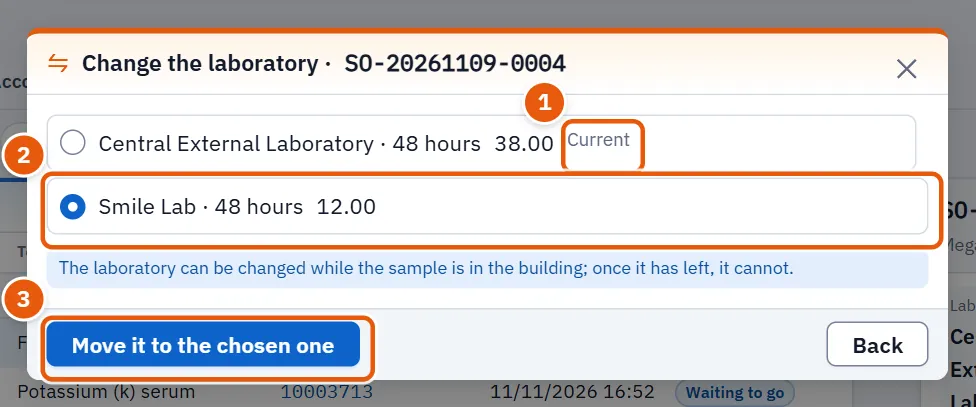
| Change the laboratory | Moves a send-out to another laboratory with Move it to the chosen one. It offers only the active laboratories that are listed for that test, and the button stays dimmed until you choose a different one. Possible only while the sample is in the building. |
| Keep it in the house | Cancels the sending: the test is done in the house. A Reason is required; the button stays dimmed until you write it. |
| Waiting for a laboratory · 1 test | Lists tests that have no default laboratory. Choose a laboratory for each (that test's laboratories come first, with cost and turnaround, then the other active ones), then press Send the chosen (1). |
11.5 Page: Batches
A batch exists from the handover. The list is ordered Drafts first, then the latest handed over, 50 lines at a time, and the page opens on Open. Filter by Batch state: Open, Draft, Overdue, Sent, Received, Results entered, Reported; and by Laboratory sent to.
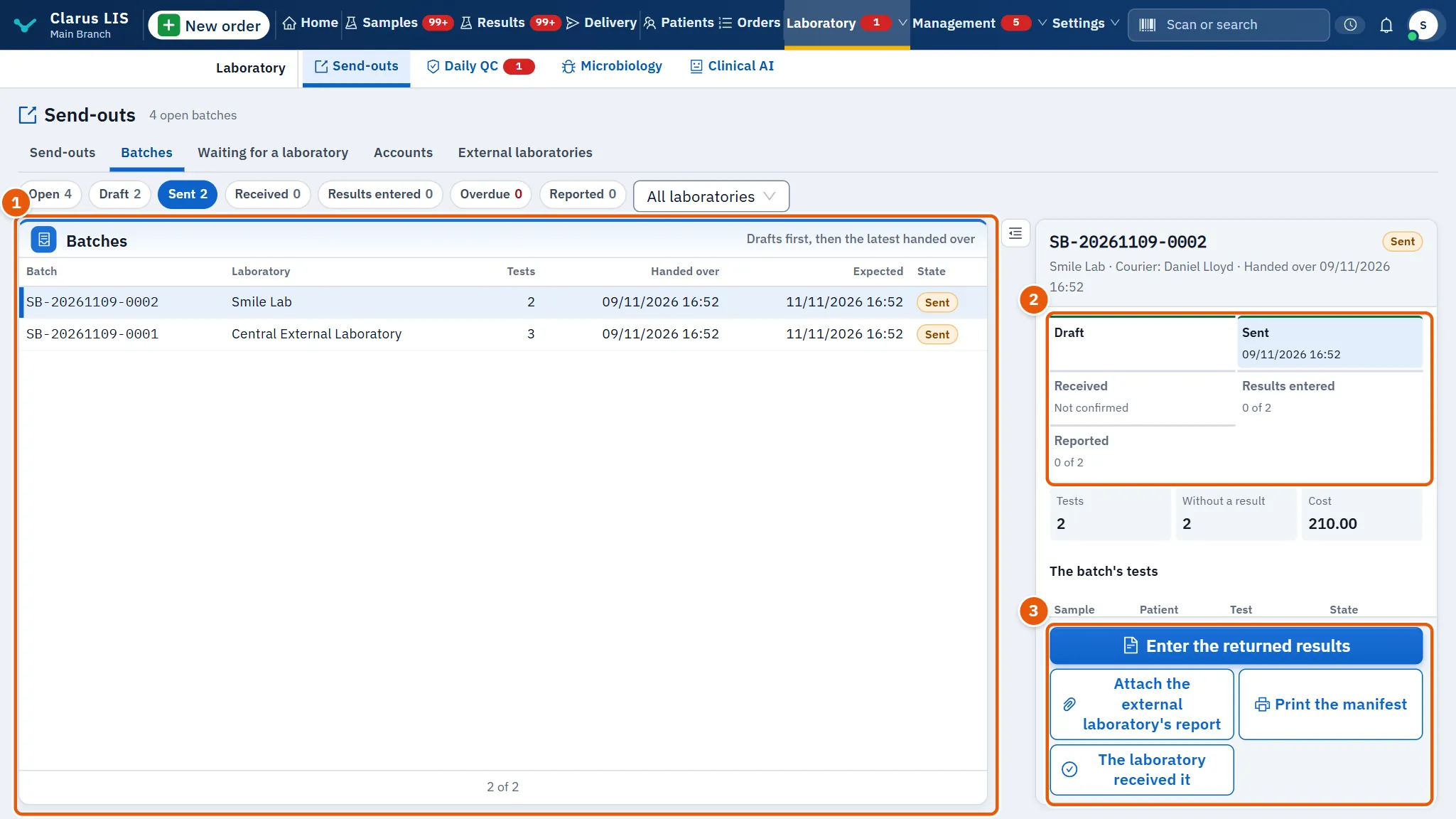
| Control | What it does |
|---|---|
| Batch, Laboratory, Tests, Handed over, Expected, State | The list columns. |
| Batch stages | The stages of the chosen batch; the courier and the time of handover. |
| The laboratory received it | Records that the external laboratory received the batch. Shown only to a role with Create orders, and only while the batch is sent and not yet marked received. |
| Enter the returned results | Shown only to a role with Enter results, and not once the batch is reported. Opens The batch's results: a table of the batch's tests with Result, Unit, Reference. A field left empty stays without a result. Save the results (…) saves them as Results does; approval is still there. |
| Attach the external laboratory's report | Attaches the external laboratory's report (PDF, PNG, JPEG or WebP, up to 10 MB) to an order (you choose the order when the batch holds several) with an optional note of up to 200 characters; a file of another type or over the size is refused in the window. It is kept with the order and never printed with your report. |
| Print the manifest | Prints the manifest again. Shown only to a role with Print reports, receipts and labels, and when the batch has a manifest. |
| Open in send-outs | Shown on a draft instead of the other buttons: goes to the send-outs page, on that laboratory. |
A draft only gathers what goes to a laboratory; it becomes a batch at the handover, which is done from Send-outs. An overdue batch says when its oldest test was expected.
11.6 Page: Accounts
Shows, for each external laboratory and for the chosen month, Sent, Cost due, Patients' price, Margin, Paid and the balance over all time: owed to it, paid ahead, or settled. The cost is the external laboratory's price to you, not the patient's price. Previous month and Next month change the month; Excel file downloads the table; Samples statement opens the statement of all samples sent. Those last two, the payment buttons and the month's statement are hidden from a role without the permissions in the table above.
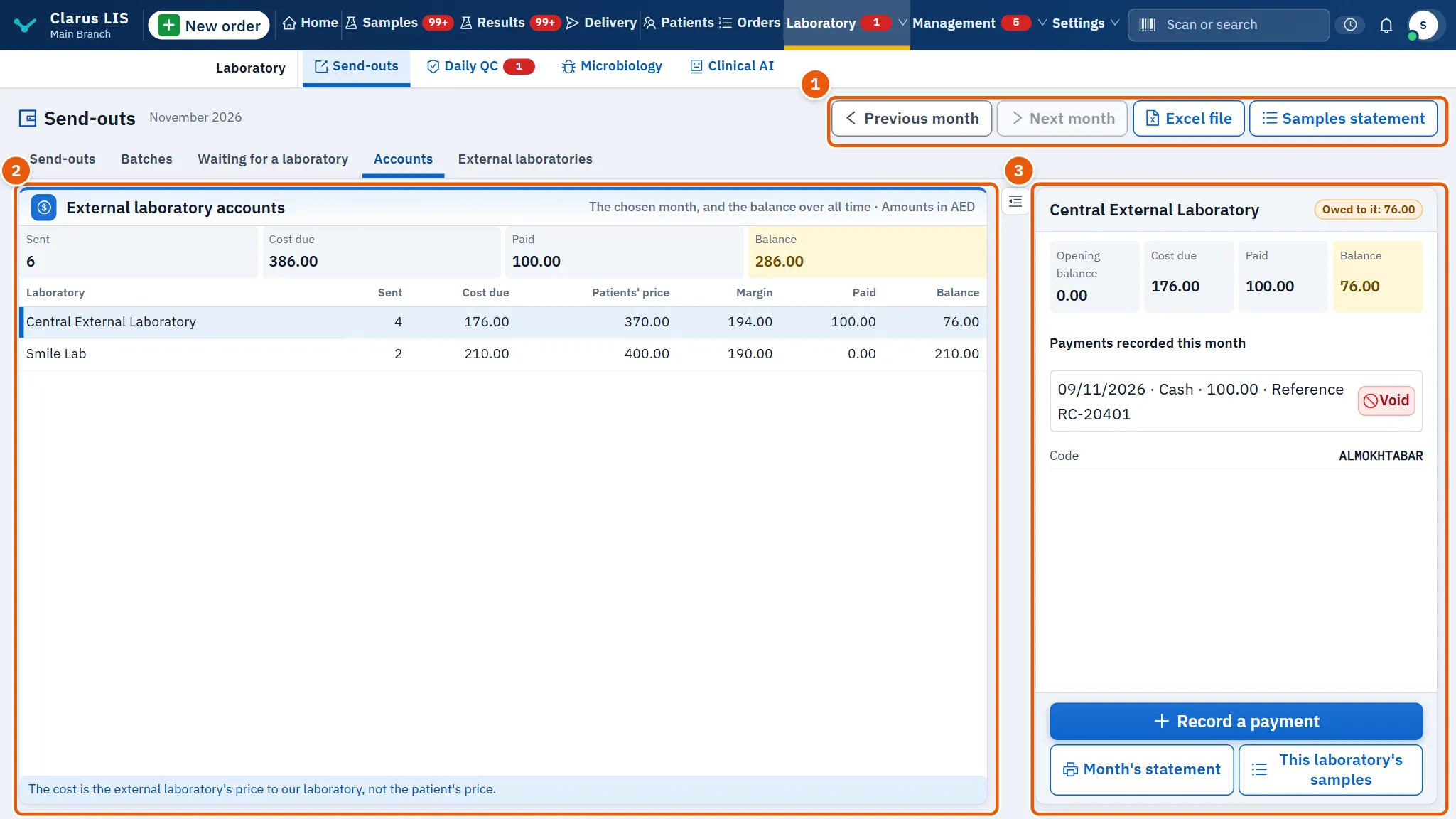
For a chosen laboratory the details show the opening balance, the payments recorded this month (reference, method, notes) and the month's statement (This laboratory's samples).
| Window | What it does |
|---|---|
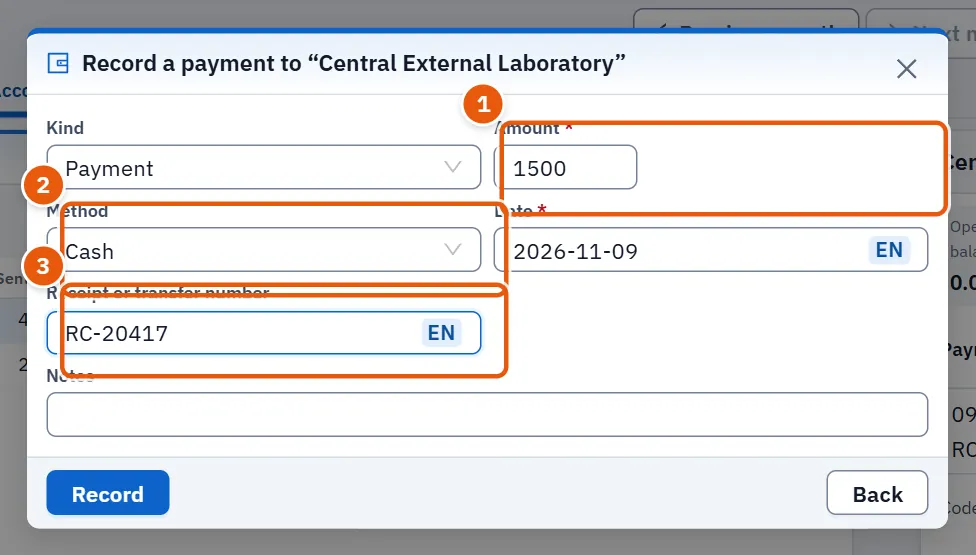
| Record a payment | Fields: Kind (payment or opening balance), Amount, Method (cash, card, bank transfer, e-wallet, InstaPay and others), Date, Receipt or transfer number, Notes. The amount and a date written as YYYY-MM-DD are required; Record stays dimmed until both are right. The method is asked only for a payment. The opening balance is recorded once per laboratory. |
| Void the payment | A payment is never deleted: it is voided with a Reason for voiding (required), which stays on the statement. The void button sits beside each payment not yet voided. |
| Samples sent out | Each sample: date, patient, order, test, laboratory, whether the result arrived, our price, our cost and the difference. Export to Excel or PDF. |
11.7 Page: External laboratories
The list External laboratories is ordered Active first; search by name, code or courier. Columns: Laboratory, Courier, Turnaround, Tests, State. The details show the contact, default turnaround, address, notes and the laboratory's tests with their code at the laboratory, cost and default.
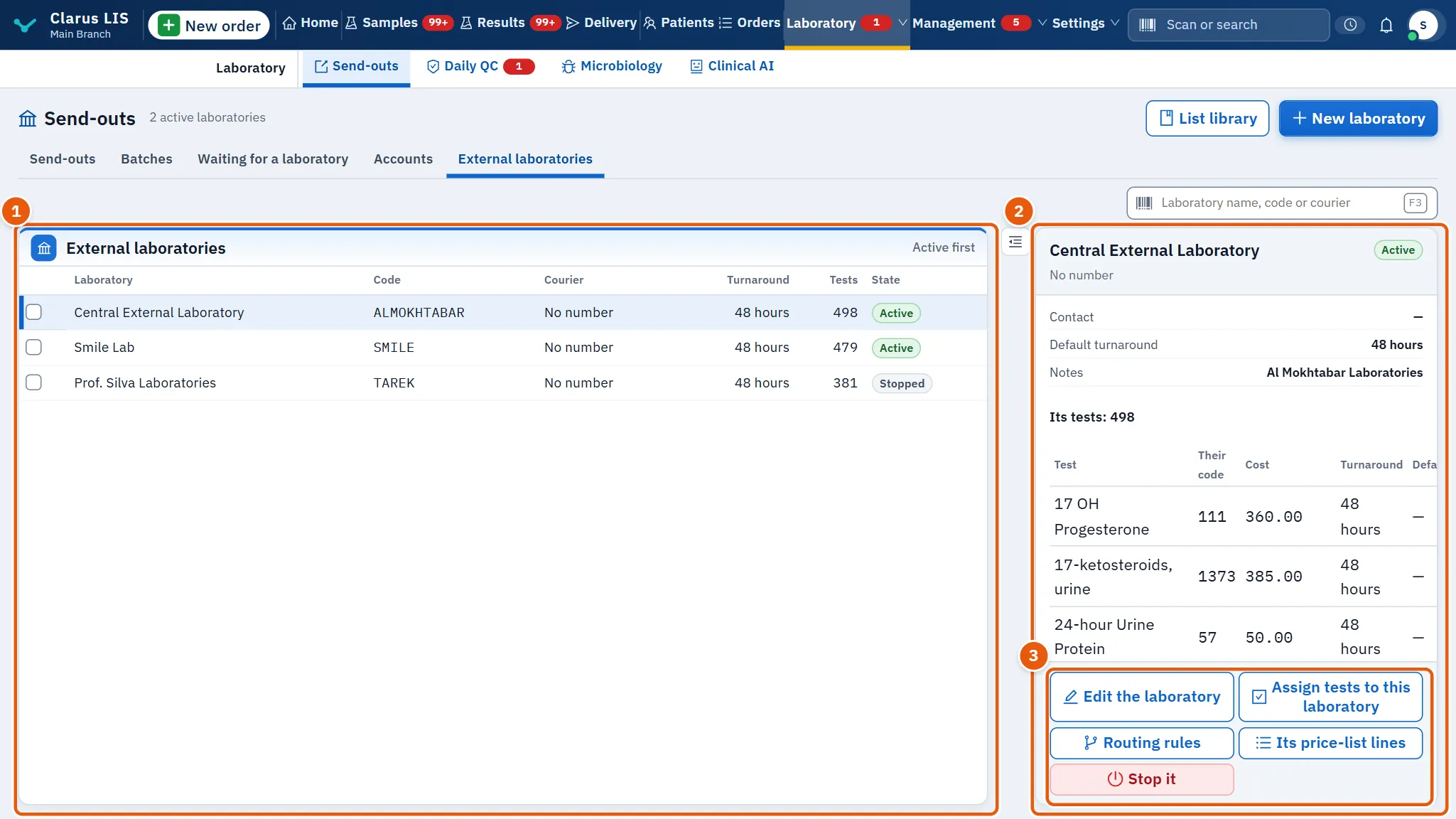
| Control | What it does |
|---|---|
| New laboratory | Opens the form: code, laboratory name, courier's name and number, contact person, phone, default turnaround in hours, email, address, notes. The code and the name are required. The courier's number is what WhatsApp uses. |
| Edit the laboratory | The same form for the chosen laboratory. |
| Assign tests to this laboratory | Window Tests for …: choose the tests sent here, the cost (it starts at the printed price when there is one), the turnaround, and whether this laboratory is the test's default. Filters: All, Sent here, Not sent here; search; section. For a stopped laboratory this button (like the routing one) is dimmed: activate it first. |
| Routing rules | Window Routing rules of …. Rules send tests to this laboratory by test, payer or branch. The more specific rule wins (test, then payer, then branch); a rule never sends a test the laboratory does not take; the order's own choice outranks every rule. The option Sent out where the rule applies, even if it is done in house sends even what is done in house. The test list offers only the tests assigned to this laboratory. Add the rule stays dimmed until at least one of test, payer or branch is chosen; Stop it stops a rule and it stays in the record. |
| Its price-list lines | Window Price-list lines of …: the lines of the laboratory's printed price list, with printed price and price in use, filters (All, Need a choice, Priced by the laboratory, Switched off, Unbound). For a line you may Bind it to a test, set Laboratory's price with Save the price, Back to the printed price, or Add to the catalogue. The button appears only for a laboratory whose printed list was taken from the library; Add to the catalogue appears only on a line bound to no test, and only for a role holding both Manage the laboratory's structure: branches, numbering, first run, external laboratories and Manage settings. |
| Stop it / Activate it | Switches the laboratory off or on. Stopping tells you how many send-outs remain open there; move them from the list. |
| List library | Opens the library of lists. |
| Delete the chosen | Tick laboratories (a tick box in the list), then confirm. A laboratory nothing was ever sent to is deleted; one with send-outs is only stopped and its name stays on its send-outs and accounts. |
11.8 Tasks, step by step
11.8.1 Task 1 — Call the courier and hand over the samples
- Open Send-outs and filter Waiting to go.
- Tick the send-outs, or choose one and use its buttons.
- Press Call the courier, then Open WhatsApp. Send the message in WhatsApp.
- When the courier arrives press Hand to the courier and print the manifest (or Hand to the courier). Write who received in Received by; it is required.
- Press Hand over and print the manifest. The manifest prints in two copies.
11.8.2 Task 2 — Change the laboratory or keep a test in the house
- Choose the send-out; it must still be in the building.
- Change the laboratory: choose the laboratory and press Move it to the chosen one. Or Keep it in the house: write the reason and press Keep it in the house.
11.8.3 Task 3 — Receive the results of a batch
- In Batches choose the batch.
- Press The laboratory received it when the laboratory confirms receipt (the button is there only for a batch that is sent and not yet received).
- When results return, press Enter the returned results, type them and press Save the results (…).
- Optionally Attach the external laboratory's report.
- Approve the results in Results.
11.8.4 Task 4 — Add an external laboratory and its tests
- In External laboratories press New laboratory, fill the form and press Save the laboratory.
- Choose it and press Assign tests to this laboratory; tick the tests, check the cost, then Save.
- Add Routing rules if payer or branch should decide.
11.8.5 Task 5 — Record a payment to a laboratory
- In Accounts choose the laboratory and the month.
- Press Record a payment; fill the amount, method, date and receipt number; press Record.
- To correct a mistake press Void on the payment and give a reason.
11.9 Messages and what to do
| The screen says | Meaning | What to do |
|---|---|---|
| WhatsApp did not open: no usable courier number, or the browser blocked the window. | The call was recorded but WhatsApp did not open: no usable courier number, or the browser blocked the window. | Allow pop-ups or use Copy the text. |
| The message is written; send it another way. “Courier called” is recorded only once WhatsApp is opened. | The laboratory has no courier number, so there is no WhatsApp button and the call is not recorded. | Send the text another way. |
| This laboratory is switched off: switch it on, then assign tests to it. | The laboratory is stopped. | Activate it first. |
| No active laboratory yet. Add one in the «External laboratories» tab. | No active laboratory. | Add one in the laboratories page. |
| The laboratory can be changed while the sample is in the building; once it has left, it cannot. | Too late to change. | Contact the laboratory. |
| Choose at least a test, a payer or a branch. | A rule needs a scope. | Choose a test, payer or branch. |
11.10 See also
- Results
- Orders