Chapter 33Users and permissions
Menu: Users and permissions. Address: /setup/users.
33.1 What this screen is for
This is where the laboratory decides who can sign in and what each person may do. You create an account, give it a role, and the role carries a set of permissions. When one person needs a little more or a little less than their role gives, you grant or withdraw a single permission for that person in one branch, without changing the role for everyone.
The screen also holds the payment policy of each role (how large a discount, how small an upfront payment), and the page where the manager's phone app is switched on and the program's screens are named.
33.2 Who sees it
The screen opens for whoever holds Manage user accounts or Manage settings. It has two faces.
| You are… | …what you see |
|---|---|
| The general manager (holds Manage settings) | Five tabs: Users, Roles and permissions, Exceptions, Payment policy and, with Manage user accounts, Phones and screens. You create and edit accounts. Roles and permissions and Payment policy need Manage settings; a person with only Manage user accounts sees Users (without the New user button) and Phones and screens. |
| A branch manager (named by the general manager) | Two tabs only: My branch's staff and My branch's exceptions. A badge shows your branches. You grant and withdraw only what you hold yourself, for your branch's staff alone; accounts and roles are not yours to change. |
If you run more than one branch, a row of branch buttons appears above the tabs. Choose a branch there and the changes column, the exceptions and the user window all speak about that branch.
33.3 The screen at a glance
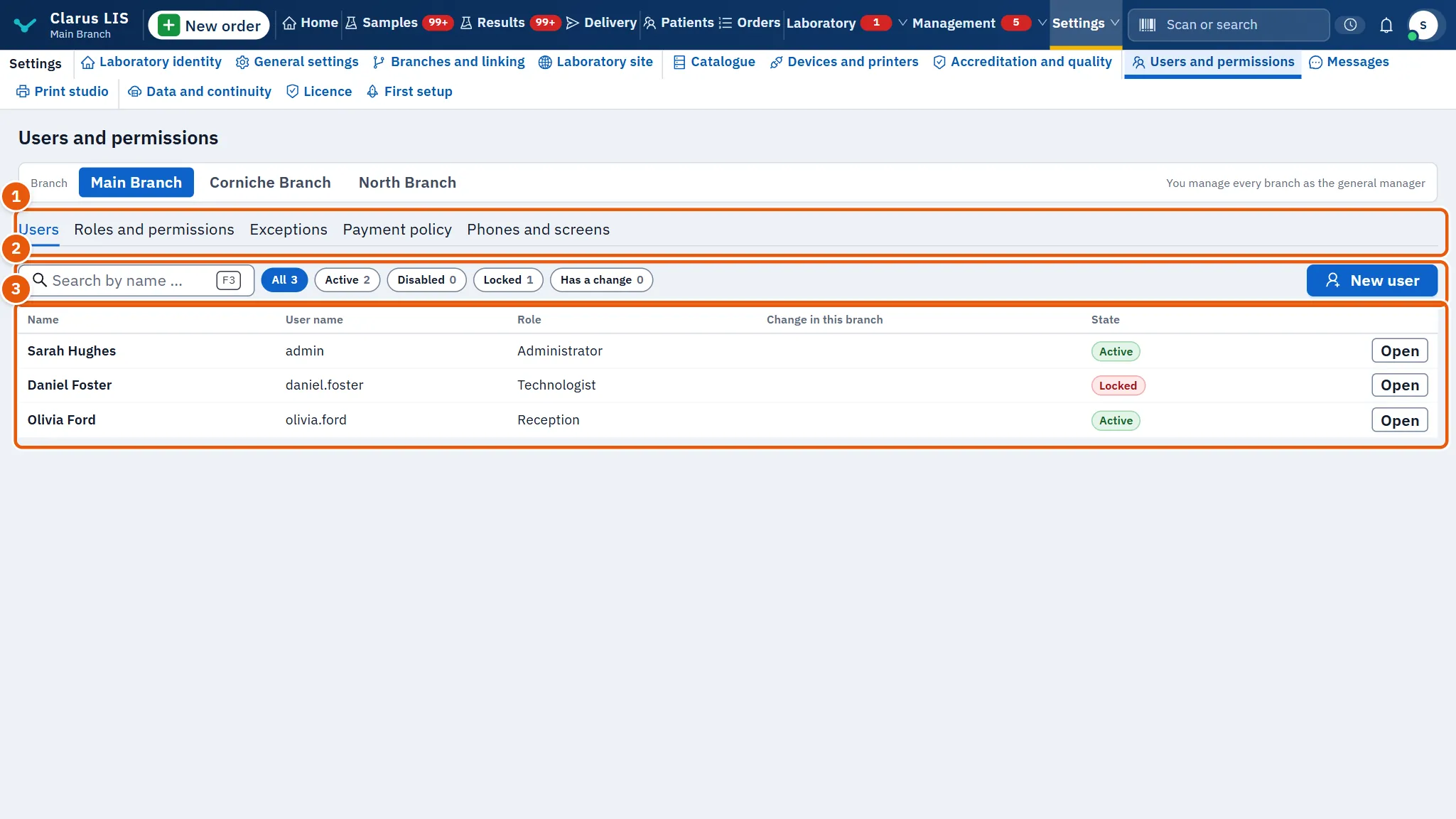
- The tabs, as listed above.
- The search box and the filters, with the New user button.
- The staff table, one line per account, with the Open button.
33.4 The tab Users
| Item | What it does |
|---|---|
| Search by name or user name (key F3 jumps here) | Finds accounts by name or user name. Marks on Arabic letters are ignored. |
| Filters All, Active, Disabled, Locked | Narrow the table by account state; each shows how many it holds. A branch manager sees All only. |
| Has a change | Shown when the branch's exceptions are available: keeps the people who have a grant or a withdrawal in the chosen branch. |
| New user | Opens the user window for a new account. Only the general manager has it. |
| Column Name, User name, Role | The person, how they sign in, and their role. |
| Column Change in this branch | A green badge +n for permissions granted to this person in the branch, an orange badge −n for permissions withdrawn. |
| Column State | Active, Disabled or Locked. Not shown to a branch manager. |
| Open | Opens the user window for that line. |
When nothing matches, the table says «No user matches.».
33.5 The tab Roles and permissions
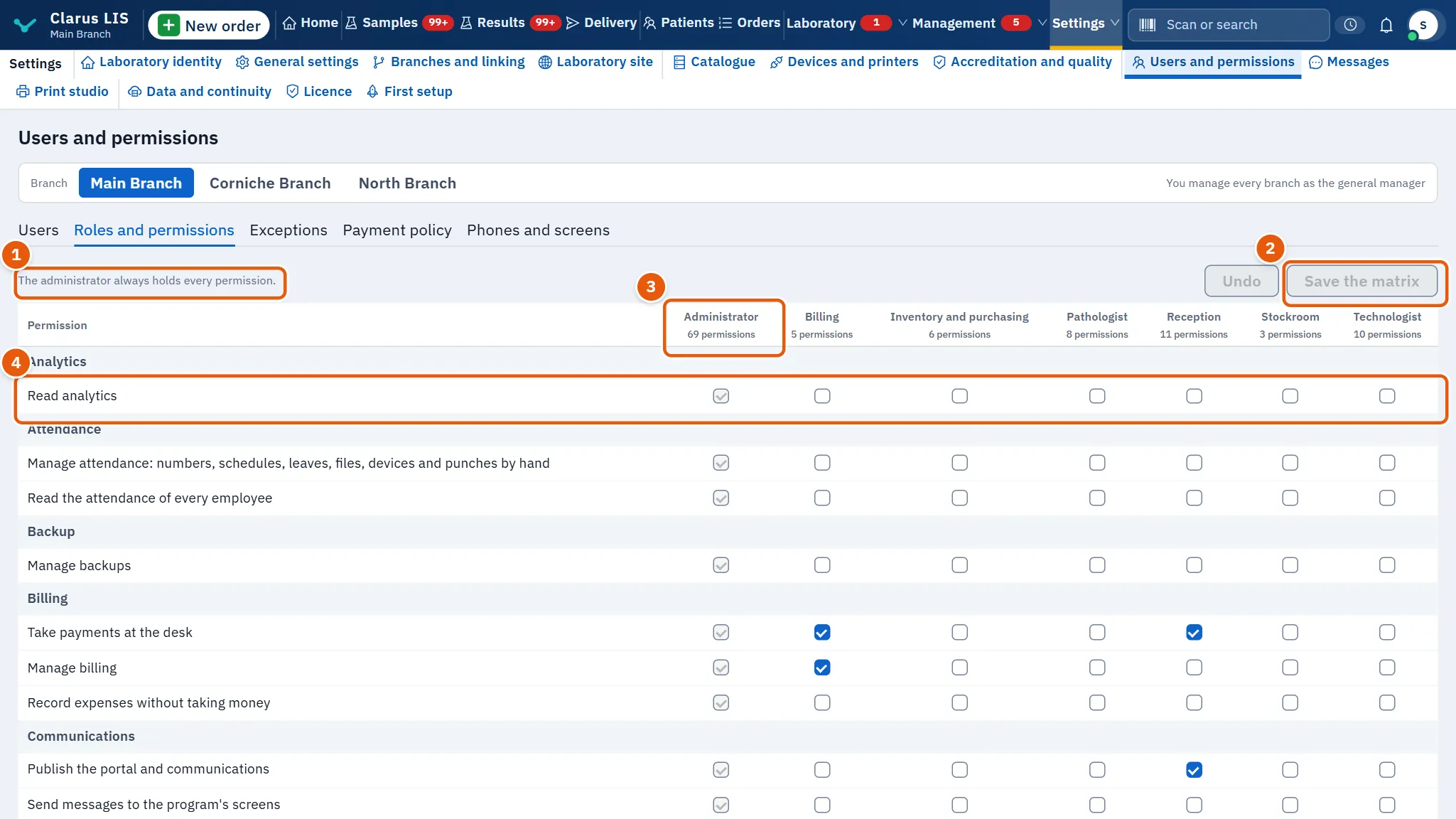
A table with every permission down the side, grouped by its module (Results, Billing, and so on), and every role across the top. A role's heading shows how many permissions it holds. A tick means the role holds that permission.
| Item | What it does |
|---|---|
| Tick boxes | Give or take a permission from a role. This changes it for everyone who holds the role. |
| Administrator column | Always on and locked. The administrator holds every permission, whatever is saved. |
| Orange tag | Names the roles you have changed and not yet saved. |
| Undo | Throws away all unsaved changes. Dim until a role has changed. |
| Save the matrix | Saves the roles you changed, one after another; roles you left alone are not touched. Dim until a role has changed. |
33.6 The tab Exceptions
A list of every grant and withdrawal made for single people in the chosen branch: User, Permission, Type (Grant or Withdrawal), Branch, Changed by and When. A line in grey, marked «Not in force: its giver no longer holds it», is kept for the record but has no effect. With no exceptions the tab says «No exception: every member of staff has the role's permissions.». For a branch manager the same list is called My branch's exceptions.
33.7 The tab Payment policy
One line per role. Each line saves alone.
| Item | What it does |
|---|---|
| Largest discount | The largest discount, in percent, a person with this role may give. |
| Least upfront | The least a patient must pay up front, in percent. |
| May override the discount | Lets the role go beyond the discount limit. |
| May override the upfront | Lets the role go below the upfront minimum. |
| Note | A free note about the role's policy. |
| Save | Saves that line. It is dim until something on the line has changed. |
33.8 The tab Phones and screens
Needs Manage user accounts. It has three cards.
| Card and item | What it does |
|---|---|
| The manager's app: The app is on | Switches the manager's app on or off. Saved at once. |
| How phones reach the laboratory | Directly, Clarus Link or Both. Saved at once. |
| A silent phone, and an unnamed screen, is removed after | The number of days (1 to 365) after which a silent phone and an unnamed screen are removed. Saved when you leave the box. |
| Paired phones | The paired phones, with their owner and device name. Remove deletes one. With none paired the card says how many people may carry the app. |
| The program's screens | The browsers the program was opened in. Shows This screen first, then Named screens with Screen name, Branch, Last signed in, Device and Last seen. Unnamed screens are counted, and Show the most recently seen lists them (more load in pages; Hide them folds them away). |
Which permissions the phone app grants to a role is set in the roles matrix (the Manager app group), not here.
33.9 The user window
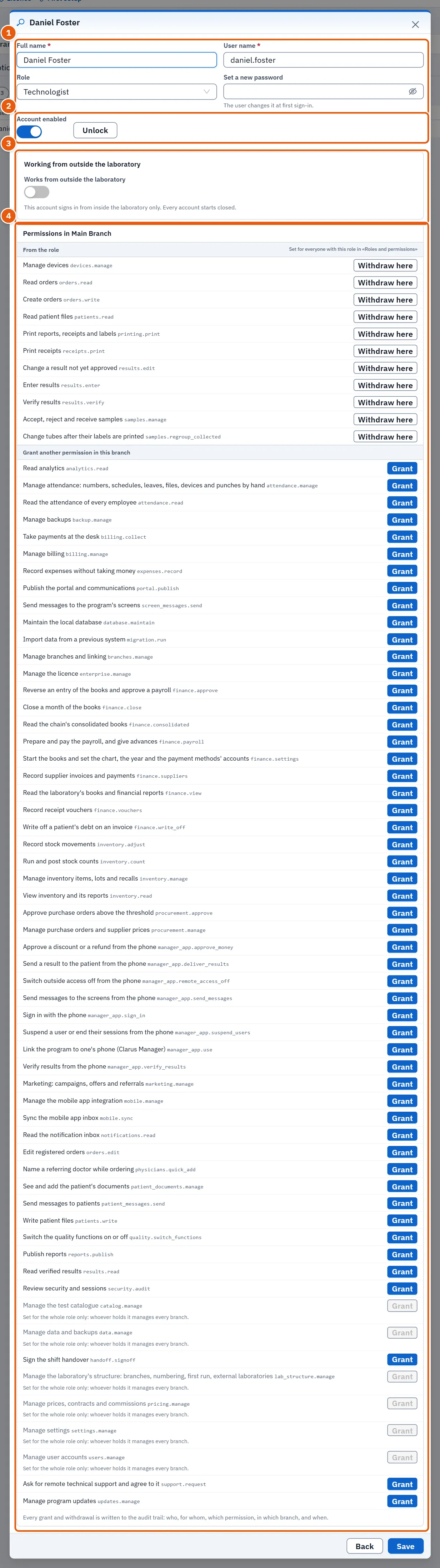
Opens from Open or New user. The account part is shown to the general manager only; a branch manager sees just the permissions part.
| Item | What it does |
|---|---|
| Full name, User name | Both required. |
| Role | Choose a role; typing filters the list by the role's name. |
| Password (new account) / Set a new password (existing) | Required for a new account; for an existing one, fill it only to change the password. The person changes it at first sign-in. |
| Account enabled | Enables or disables the account. Applied at once. |
| Unlock | Appears only while the account is locked. Applied at once. |
| Save | Saves the account (and the new password, if you typed one) and closes the window. Dim until name and user name are filled (and a password, for a new account). |
| Back | Closes the window. |
33.9.1 Working from outside the laboratory
Shown for an existing account, when the server supports it. Every account starts closed.
| Item | What it does |
|---|---|
| Works from outside the laboratory | Lets the account sign in from outside. Applied at once. |
| Second factor when signing in from outside | The Clarus Manager app (the default), An authenticator app or The trusted device. A note below says what the chosen factor still needs: a phone to pair, an authenticator to set up, or a trusted branch device. |
33.9.2 The permissions in a branch
Under Permissions in … three groups appear. Every grant and withdrawal is written to the audit trail: who, for whom, which permission, which branch, and when.
| Group | Buttons |
|---|---|
| From the role (set for everyone with the role) | Withdraw here withdraws it from this person in this branch. A withdrawn one is struck through and tagged Withdrawn here, with Restore. |
| Granted above the role in this branch | Cancel the grant. |
| Grant another permission in this branch | Grant. |
A button the server does not allow you to use is dim, with the reason beside it: one set only for the whole role («Set for the whole role only: whoever holds it manages every branch.»), or one you do not hold yourself («You do not hold it…»).
33.10 Tasks step by step
33.10.1 Task 1 — Create a user
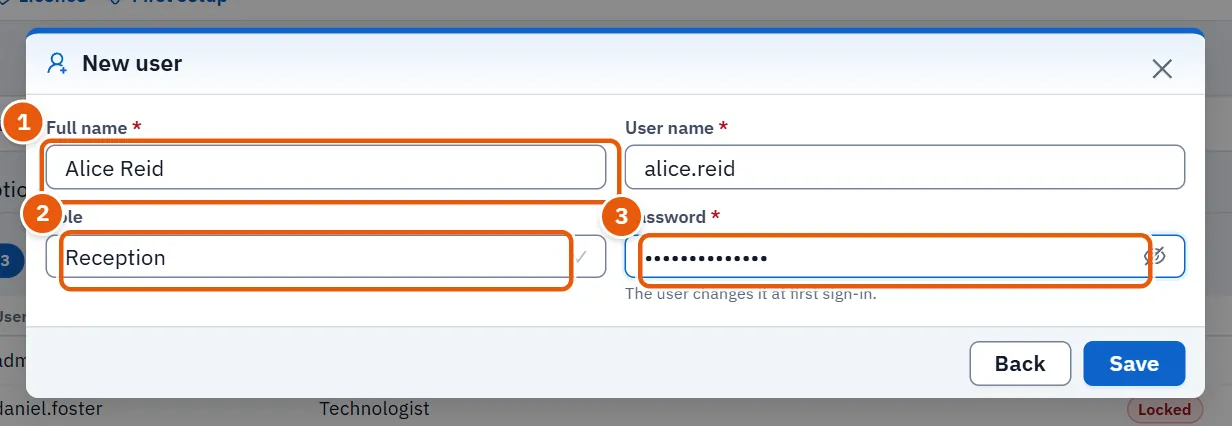
- Open Users and permissions, tab Users.
- Press New user.
- Fill Full name and User name, choose the Role, and type a first Password.
- Press Save. The program says «User created.».
33.10.2 Task 2 — Edit a user, unlock or disable
- Find the person with the search box or a filter, and press Open.
- Change the name, user name or role, or type a new password in Set a new password, then press Save.
- To stop the account working, switch off Account enabled.
- If the state is Locked, press Unlock. The program says «Unlocked.».
33.10.3 Task 3 — Grant or withdraw a permission for one person
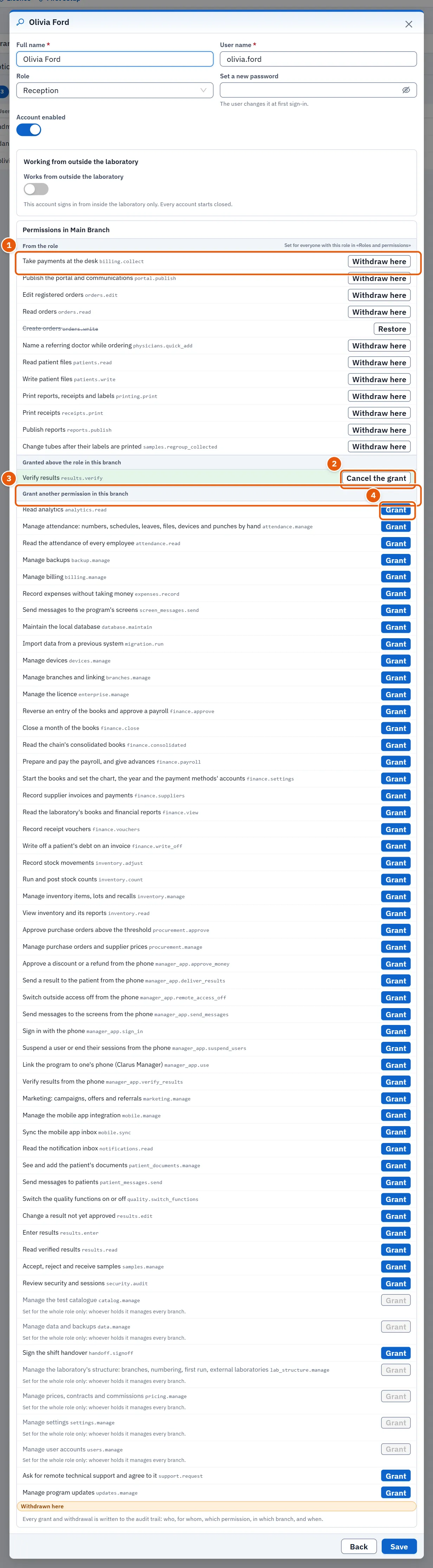
- Choose the branch if you run several, open the person.
- To take a role permission from this person here, press Withdraw here. To give it back, press Restore.
- To add one the role lacks, find it under Grant another permission in this branch and press Grant. To cancel such a grant, press Cancel the grant.
- Each press is applied at once. The change shows in the table's Change in this branch column and in the Exceptions tab.
33.10.4 Task 4 — Change what a role may do
- Open the tab Roles and permissions.
- Tick or untick the boxes in the role's column. The orange tag names the role as changed.
- Press Save the matrix. The program says «The matrix was saved.». Press Undo instead to drop the changes.
33.10.5 Task 5 — Set a role's payment policy
- Open the tab Payment policy.
- On the role's line set the two percentages (0 to 100), the two switches and the note.
- Press Save on that line. The program says «The role's policy was saved.».
33.10.6 Task 6 — Name a screen
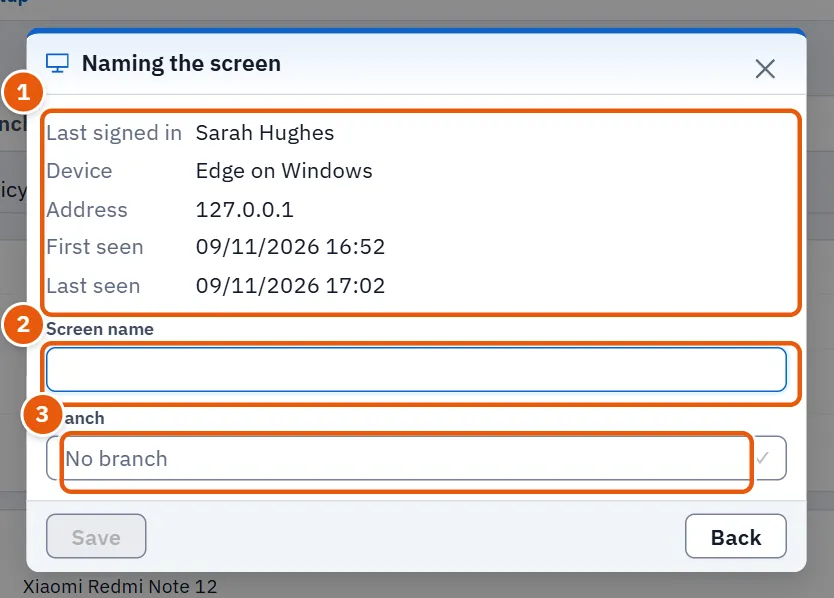
- Open the tab Phones and screens. Under The program's screens, find the screen: This screen is the one you are on.
- Press Name it (or Edit for a named one). The window Naming the screen shows who last signed in on it, its browser, address and times.
- Type the Screen name (up to 80 characters) and, if you wish, choose its Branch.
- Press Save. The program says «Screen name saved.». Remove the screen (asks first) takes a named screen off the list; it returns unnamed if the program is opened on it again.
You need not name every screen: name those in use.
33.11 Messages and what to do
| The screen says | It means | What to do |
|---|---|---|
| Could not save. Try again. | The save did not reach the server and gave no reason. | Press the button again; if it repeats, check the connection. |
| Could not load. | The page's data did not arrive. | Use the retry button shown with it. |
| A red note at the top of a window (the server's own words) | The server refused: for example a user name already used. | Read it, correct the field, save again. |
| You do not hold it, so you cannot grant or withdraw it. | The permission is not yours to hand on. | Ask a manager who holds it. |
| Set for the whole role only… | This permission cannot be given for one branch. | Change it in the roles matrix, as general manager. |
| Not in force: its giver no longer holds it | The grant's giver lost the permission, so the grant stopped working. | Grant it again from someone who holds it. |
33.12 See also
- Security and audit — the audit trail that records every grant and withdrawal.