Chapter 26General settings
Menu: General settings (the Setup group). Address: /setup/general.
26.1 What this screen is for
This is the program's settings reference for the whole laboratory: the language of the screens and of what is printed, the regional format, the front desk's habits, the rules for results and critical values, money, the connection, and a series of tables the laboratory keeps for itself (payment methods, numbering, patient titles, expense heads, STAT tests, storage places, document types, languages).
The page is one list of sections with an index and a search box. Some sections are plain settings that you change and save together; others are tables with their own windows, which save themselves when you press their Save. A section that holds a change you have not saved shows a dot in the index.
26.2 Who sees it
Whoever holds Manage settings. The menu hides the screen from everyone else.
At a branch linked to a laboratory centre, a setting that the centre decides for every branch is shown but cannot be changed there: the section says «The laboratory's centre sets this for every branch; it is changed there.»
26.3 The screen at a glance
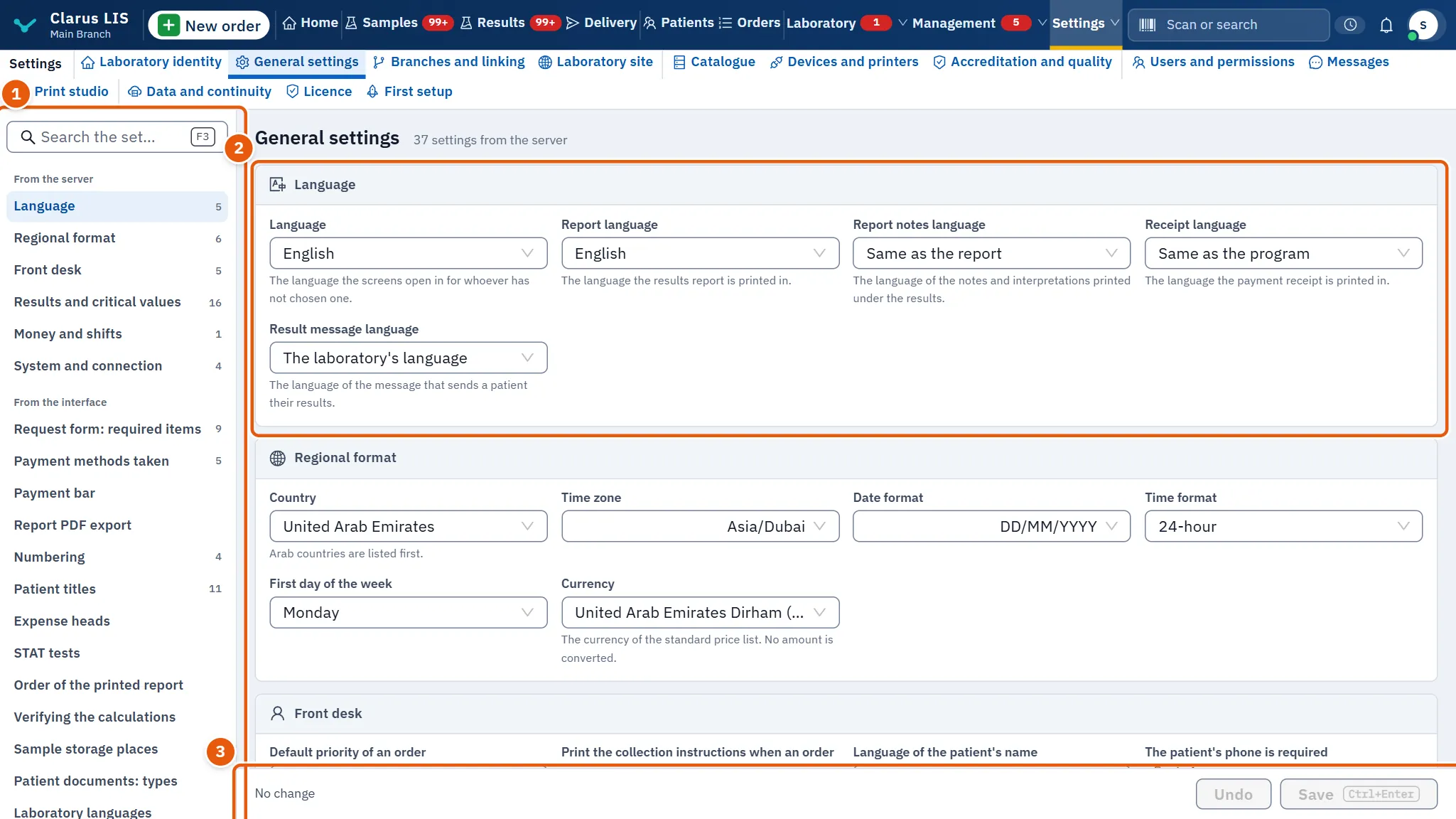
- The index and search: every section by name, with a dot beside any that holds an unsaved change. Typing in the search box keeps only the sections and settings that match.
- The sections, one after another. The first six come from the server (language, regional format, front desk, results and critical values, money, system); the rest are described below.
- The bar at the foot: how many changes are waiting and their names, Undo to drop them, and Save (also Ctrl+S) to keep them.
Changes in the plain-settings sections, the request form, the payment bar and the PDF export are kept together by one Save. Some settings are marked as asking for confirmation: pressing Save then shows each one with its old and new value, and asks for a written reason that the audit keeps.
26.4 Plain settings
26.4.1 Language
| Setting | What it changes | Choices |
|---|---|---|
| Language | The language the screens open in for whoever has not chosen their own. | Arabic, English, and the languages the laboratory installed |
| Report language | The language the results report is printed in. | Arabic, English, and installed languages |
| Report notes language | The language of the notes and interpretations under the results. | Same as the report, Arabic or English |
| Receipt language | The language the payment receipt is printed in. | Same as the program, or a named language |
| Result message language | The language of the message that sends a patient the results. | The laboratory's language, or a named language |
26.4.2 Regional format
| Setting | What it changes | Choices |
|---|---|---|
| Country | The country; Arab countries are listed first. | A list of countries |
| Time zone | The time zone used for times shown and printed. | A list of zones, or the computer's time |
| Date format | The order in which dates are written. | DD/MM/YYYY, MM/DD/YYYY, YYYY-MM-DD, DD-MM-YYYY, DD.MM.YYYY, YYYY/MM/DD, YYYY.MM.DD |
| Time format | How the time is written. | 12-hour, 24-hour |
| First day of the week | The first day in weekly views. | Saturday to Friday |
| Currency | The currency of the standard price list. No amount is converted. | A list of currencies |
26.4.3 Front desk
| Setting | What it changes | Choices |
|---|---|---|
| Default priority of an order | The priority a new order starts with. | Routine, Urgent, STAT |
| Print the collection instructions when an order is saved | On: the collection instructions open for printing by themselves after an order is saved. Off: they print only when you press their button. | On, Off |
| Language of the patient's name | The language the name field types in when a patient is registered. Names already stored do not change. | The interface's language, Arabic, English, Arabic and English (a button switches), or an installed language |
| The patient's phone is required | On: a new patient needs a phone number, or «No phone» with a reason (a child, an elderly person, a referred sample, or another written reason). Turning it off asks for a written reason that the audit keeps. | On, Off |
| Show the test name in the screen's language in the order's list of tests | Off: each test shows its English name alone. On: its name in each user's screen language appears under it. A test is found by either name in both cases. | On, Off |
26.4.4 Results and critical values
This section also opens from the gear on the Results screen.
| Setting | What it changes | Choices |
|---|---|---|
| The haemoglobin taken as 100% (Hb%) | The haemoglobin value counted as 100%; use the value printed for your instrument. | A list from 13.8 to 16.0 g/dL |
| Mean normal prothrombin time (PT reagent) | The mean normal PT of your reagent, the geometric mean of at least 20 fresh samples of healthy people of both sexes over three working days; repeat for every lot. | Not stated, or 8.0 to 20.0 seconds in steps of 0.1 |
| ISI of the PT reagent lot | The ISI printed on the thromboplastin lot; change it with the lot. | Not stated, or 0.80 to 3.00 in steps of 0.01 |
| Mean normal aPTT (seconds) | The mean normal aPTT, from at least 20 fresh samples of healthy people; repeat for every lot. | Not stated, or 20.0 to 50.0 seconds in steps of 0.1 |
| LDL equation | The equation that calculates LDL. | The equations the program offers |
| Iron-binding capacity measured | Whether the analyzer measures iron-binding capacity. | As offered |
| Upper limit of normal for AST (U/L) | The upper limit of your AST reference interval. | Not stated, or 20 to 80 U/L |
| Upper limit of normal for serum LDH (U/L) | The upper limit of your LDH reference interval. | Not stated, or 150 to 800 U/L |
| Critical escalation interval | A critical value not reported within this time is escalated. | 15, 30 or 60 minutes |
| Default notification channel | The channel a critical value is reported through by default. | Phone, WhatsApp, Email |
| Assign a critical value on notification | Assigns the critical value automatically when it is reported. | On, Off |
| Released by someone other than the one who entered it | On: only a second qualified person releases a result, as accreditation asks; every self-release is recorded. If a branch would be left with fewer than two people who may release, the confirmation names it first. | On, Off |
| The bulk approval includes high and low values that are not critical | Off: the plain-ones approval takes only fully normal tests. On: it takes high and low values too, recording who approved them. A critical value never goes into a bulk approval. | On, Off |
| Type a critical value twice | Asks for every critical value to be typed a second time before saving. | On, Off |
| The doctor may approve his own interpretation text | On: in a laboratory with one doctor, the writer or reviewer of an interpretation text may approve it. Off: a third person must. | On, Off |
| Susceptibility breakpoint standard | The standard printed under every susceptibility table; nothing is printed until you choose. | The standards offered |
26.4.5 Money and shifts
| Setting | What it changes | Choices |
|---|---|---|
| No collection without an open shift | On: a payment or refund is refused unless the person has an open shift in their branch, so every pound is in a counted drawer. Off: a shift is used by whoever opens one, and money is taken without one. | On, Off |
26.4.6 System and connection
| Setting | What it changes | Choices |
|---|---|---|
| Automatic refresh of the screens | How often the screens refresh themselves. | No refresh, 30 seconds, 60 seconds, 5 minutes |
| Idle session timeout | How long an idle session lasts before it ends. | 15, 30, 60 minutes, 4 hours, or Never |
| Check for updates online | The program asks the Clarus server every six hours for updates, sending the installation code, the computer's fingerprint, the licence, counts of the laboratory's work and its hours of operation. No patient's name or data is sent. | On, Off |
| I agree to send the laboratory's name and phone number to the supplier | Sends the laboratory's name and phone to the supplier. Nothing about patients, users or doctors is sent. Turning it off asks the supplier to delete what it holds. | On, Off |
26.5 Request form: required items
A switch for each item the request form must carry; the switch is on when the item is required. The items are: Patient identification, Patient sex and date of birth, Requesting clinician and contact, Tests requested, Specimen type and site, Date and time of collection, Clinical indication, Priority and Requester's authorisation. It also opens from the New order gear.
26.6 Payment bar
| Setting | What it changes | Choices |
|---|---|---|
| The amount starts at | What the order screen's amount starts at. | Empty, The full due, The least |
| Manual discount ceiling at the order | The ceiling on a manual discount at the order. | The role's limit only, A percent of the bill, An amount; then Ceiling |
| The receipt's fixed words | The receipt's fixed words. | Free text |
26.7 Report PDF export
| Setting | What it changes |
|---|---|
| Write every released report as a PDF to a folder on this computer | Turns the export on. Only reports released after it is turned on are written; an amended report is a new file and the earlier file is never deleted. Off: no new files are written and the old ones stay. |
| Folder | Where the files go. Empty means the default folder inside the program's data folder; use Default folder to return to it. Each report goes in a folder for its year and month. |
| Folder status, Last file | Read-only: the state of the folder, the last file written, how many reports were written, and how many failed three times and wait for review. |
26.8 Tables the laboratory keeps
| Section | What it holds | Columns and choices |
|---|---|---|
| Numbering | The counters for invoice, order, patient file and sample barcode. | Counter, Next number, Starts again (never, every day, every month, every year), Modes |
| Patient titles | Mr, Mrs and the like. Also opens from the Patients gear. | Title, Used for, Age, State, Patients |
| Expense heads | The heads the expenses are booked under. A head is stopped, never deleted. | Head, State; window fields Name in Arabic, Name in English, Order, Active |
| STAT tests | The tests accepted as STAT, each with its reporting time. With none listed, a STAT order is measured against the test's usual time, capped at an hour. | Test code, Test, Reporting time (minutes) |
| Order of the printed report | The order of families inside a department and of tests inside a family. | See below |
| Verifying the calculations | Every equation with its source and version, and fixed examples worked beside their expected values. Sign it at installation and after an update that changes an equation. | Equation, Version, Example, Expected, Calculated, Result; button Sign as verified |
| Sample storage places | The fridges and shelves, with temperature limits and retention. | Place, Shelves (one per line), Temperature limits (°C), Kept for (days) |
| Patient documents: types | The kinds of document a patient's file keeps. A type with documents is turned off, not deleted; a type the program ships is never deleted. | Name, Documents, In use |
| Laboratory languages | The languages installed beyond English. | Language, Version, In use for |
| Operating health | Facts about the installation, read-only: Last backup (on time or overdue, and whether a restore was rehearsed), Licence (its state and days left), and Sealed secrets (whether everything this copy sealed opens with its key; if not, the places that hold unreadable items are listed). | None |
26.8.1 The calculation check
If the check shows «An example does not give its expected value», do not sign: contact support. If an equation has changed since the last signature, the section says so and asks you to sign again. When the prothrombin concentration is read from a curve (Prothrombin concentration curve), enter its points as PT (seconds) against Concentration (%), press Add a point, then Save the curve; enter it again with each new reagent lot. Without a curve, the concentration is typed with each PT.
26.8.2 The order of the printed report
A panel or a package always prints on a page of its own, and a single test always stays with its family. You order the families inside a department and the tests inside a family; the order screen follows the same order. Choose the Department, move a family or a test up or down with its arrows, and press Save the order. Back to the program's order returns to the program's order.
26.9 Tasks step by step
26.9.1 Task 1 — Set a numbering format
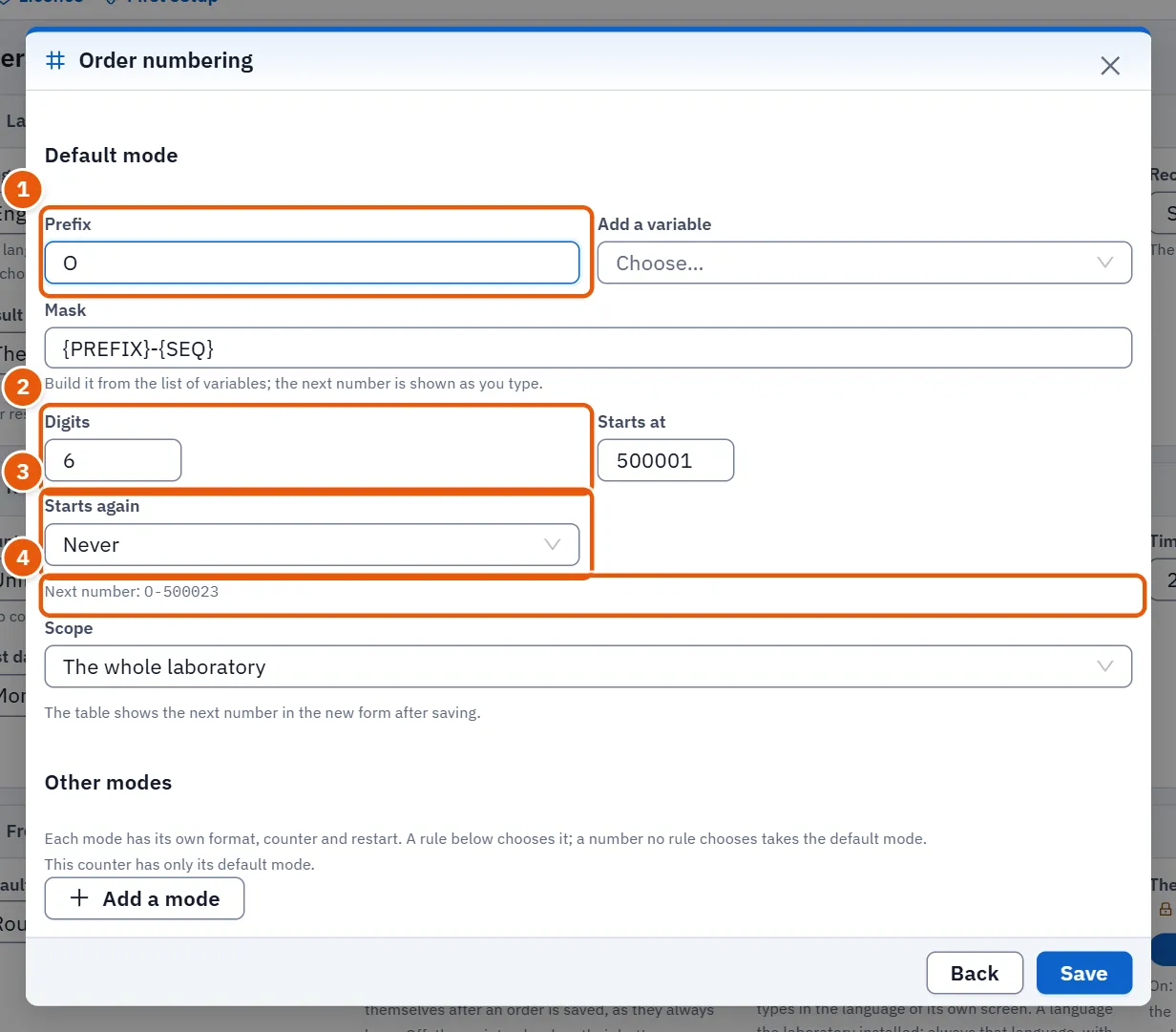
- In Numbering, press Edit on the counter's row. The window … numbering opens.
- Write the Prefix.
- Build the Mask from the variables: choose one in Add a variable. Examples of variables: the year in two or four digits, the month, the day, the branch code, the counter. The line Next number: shows the next number as you type.
- Set Digits, Starts at and Starts again.
- Choose the Scope: Each branch on its own or The whole laboratory.
- For the invoice counter only, optionally choose A series of its own for each one of the fields, or keep One series for all. The other counters do not offer it.
- Save. The table shows the next number in the new form. While you type, if the barcode of the number is too wide for the label, a red note appears under the preview; shorten the format. A counter whose Edit button is dimmed is locked and cannot be changed.
For numbers that must be written differently in some cases, the same window offers Other modes. Each mode has its own format, counter and restart. Add a mode, give it a Mode name, and under Rules add rules: when a field is one of some values, use the mode. The first rule a number answers chooses its mode; a number no rule chooses takes the default mode. Move rules with Up and Down, then Save the rules. A mode is never deleted: switched off, it keeps its counter. The codes the variables write for a referrer or a contract party are set in Numbering codes: one to eight capital letters or digits for each choice.
26.9.2 Task 2 — Add a patient title
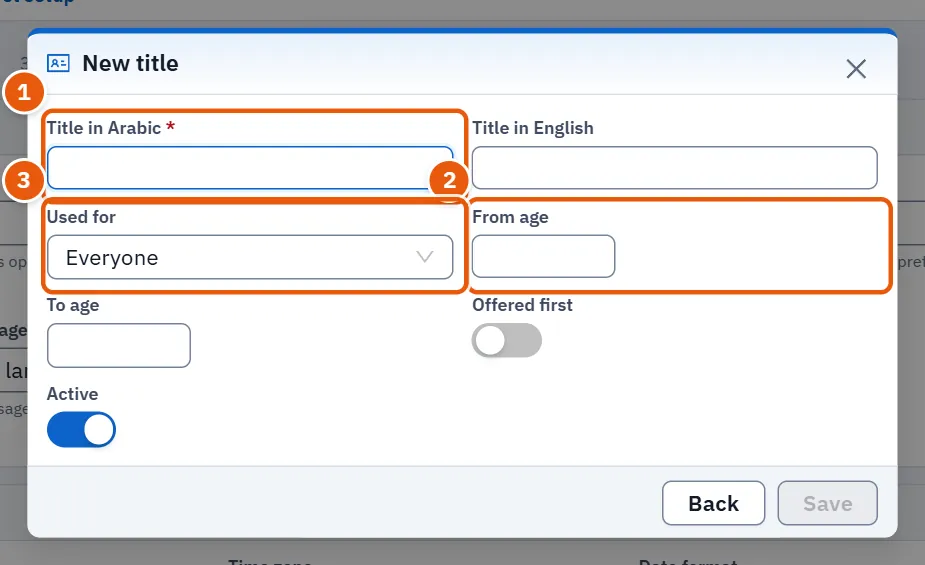
- In Patient titles press Add a title.
- Write Title in Arabic (required; Save stays dimmed until it is filled) and Title in English.
- Choose who it is Used for: Everyone, Females or Males.
- Optionally set From age and To age; empty means every age.
- Keep Active on and save. The table shows the age band and, with the first-offered mark, which title is suggested first.
The Remove button appears only when you open an existing title. A title worn by patients is switched off, not deleted, when you remove it.
26.9.3 Task 3 — Add a payment method
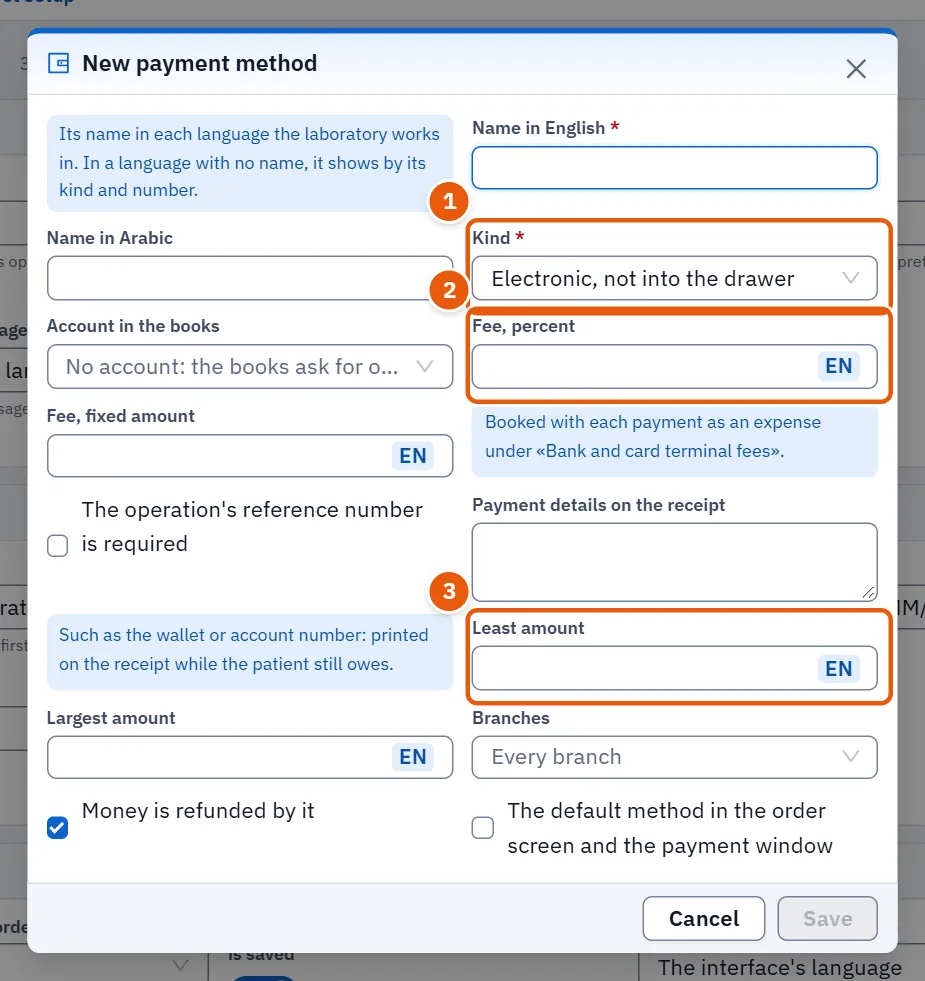
- In Payment methods taken press Add a payment method.
- Write the Name in each language shown (at least one; Save stays dimmed until a name is written).
- Choose the Kind: cash into the drawer, electronic not into the drawer, or insurance and deferred. The kind of a method the program ships, or one already used in a payment, does not change.
- For a non-cash method set the Account in the books in the books (without one, the books ask for it before posting), and the fee as Fee, percent or Fee, fixed amount; the fee is booked with each payment as an expense.
- Tick The operation's reference number is required if the cashier must type the operation's reference. Write Payment details on the receipt, such as a wallet number, to print on the receipt while the patient still owes.
- Optionally set Least amount and Largest amount, the Branches, and Money is refunded by it.
- Tick The default method in the order screen and the payment window if it should be preselected, then Save.
Use Move up and Move down to order the methods, and the Taken switch to stop taking one. A method used in a payment cannot be deleted, only turned off. Some methods show «Always taken».
26.9.4 Task 4 — Add a sample storage place
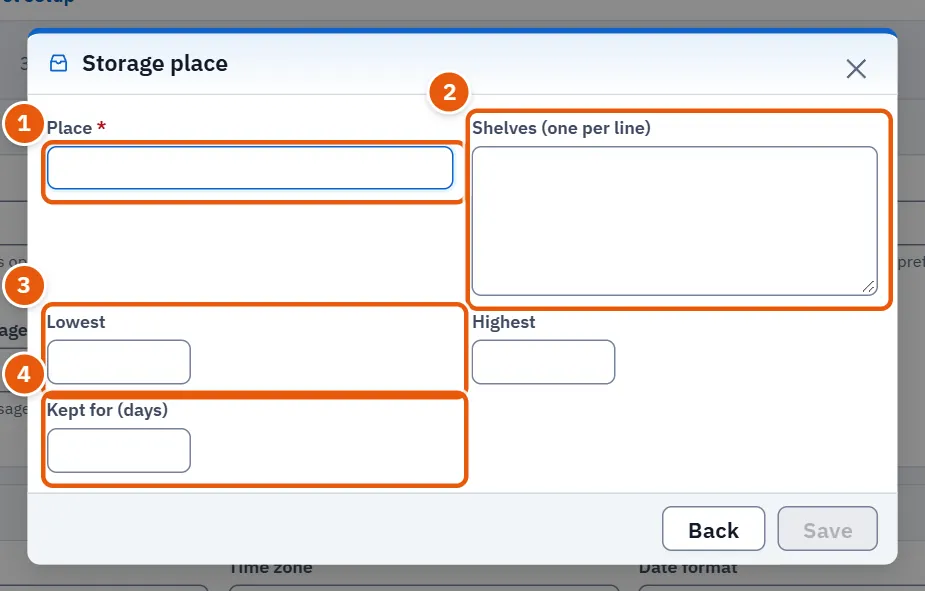
- In Sample storage places press Add a place.
- Write the Place name.
- Write the Shelves (one per line), one per line.
- Fill the temperature limits: Lowest and Highest.
- Fill Kept for (days) (1 to 3650 days), then Save. The name is required; Save stays dimmed without it.
The place is saved at once by its own Save, not by the page's Save. Remove the place on a row deletes the place immediately, without asking for confirmation.
26.9.5 Task 5 — List a STAT test
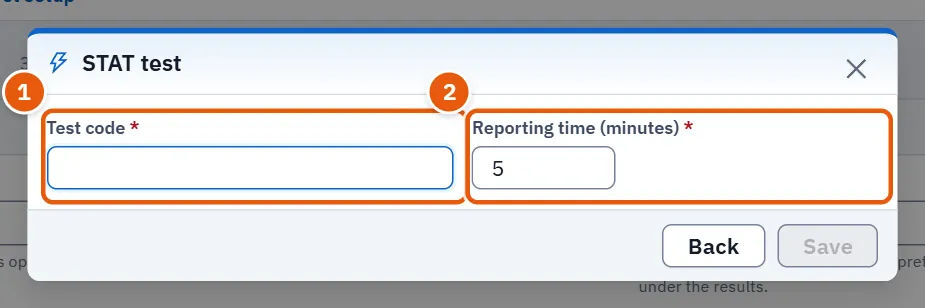
- In STAT tests press Add a test.
- Type the Test code; if it is not in the catalogue the row says so.
- Type the Reporting time (minutes), counted from the sample's reception; the window accepts only values between the lowest and highest the server allows.
- Press Save (dimmed until a code is typed). The list is saved at once. A STAT order for this test is now measured against that time. Remove from the list on a row takes it off immediately, without confirmation.
26.9.6 Task 6 — Install a language
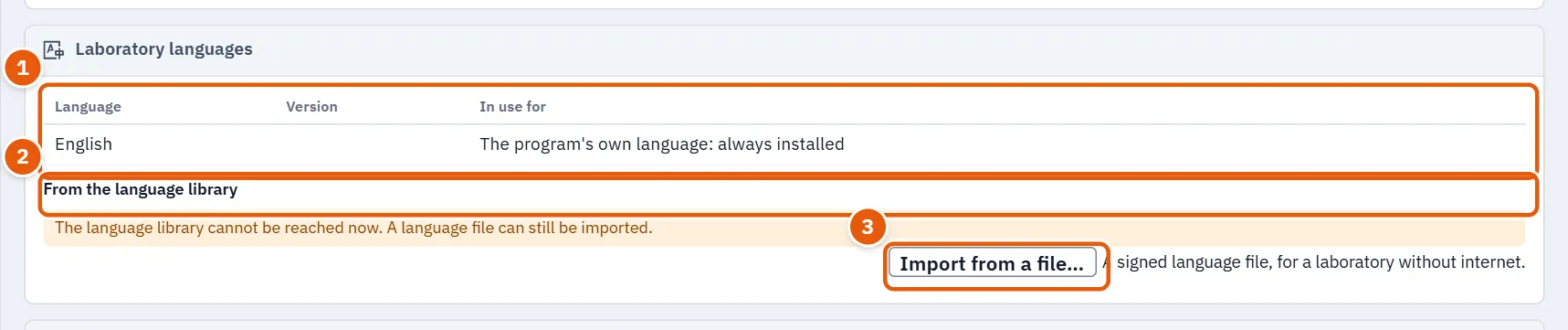
- Open Laboratory languages. The table lists the installed languages; English is always installed.
- Under From the language library find the language and press Install (or Update to version … for a newer version). A language marked as needing a newer program version cannot be installed until the program is updated.
- A window shows the language, its version, how many texts changed, were added or removed, and notes (texts that will show in English, experimental). Press Apply. A first installation offers the language to everyone.
- Without internet, press Import from a file and choose a signed language file.
- To remove a language press Remove and confirm: anyone working in it returns to English and nothing is deleted. A language used for the laboratory, the report, its notes, the receipt or the result message cannot be removed until you choose another there first.
26.9.7 Task 7 — Add an expense head or a document type
- In Expense heads press Add a head; fill Name in Arabic, Name in English and Order; one name is enough (the one in the language you work in is the required one); save with the window's Save, which keeps it at once. To stop a head, switch Active off.
- In Patient documents: types type the name in A new type's name and press Add a type.
26.10 Messages and what to do
| The screen says | Meaning | What to do |
|---|---|---|
| The settings could not be loaded. | The server did not answer. | Press the retry button. |
| The settings could not be saved. Try again. | The save failed. | Try again; if it repeats, check the connection. |
| Settings saved. | All pending changes were kept. | Nothing. |
| An example does not give its expected value. Do not sign; contact support. | A calculation check failed. | Do not sign; contact support. |
| This number's barcode does not fit the label: shorten the format. | The numbering format is too long to print as a barcode. | Shorten the mask or the digits. |
| The title was switched off, not deleted. | Patients wear the title. | Nothing; it stays for them. |
| In these branches fewer than two people may release a result… | Turning on separate release would block those branches. | Give a second person the right first. |
| The language library cannot be reached now. | No internet. | Import a language file. |
26.11 See also
- Laboratory identity for the laboratory's name, contacts, logo and colours.
- Results and Orders for the screens these settings act on.