Chapter 38Licence
Menu: Licence. Address: /setup/licence.
38.1 What this screen is for
This is the one page for the licence of this computer and for the program's updates. It tells you whether the licence is working, when it was activated, when it ends and how many days are left, and it gives you the installation code that your supplier asks for. From here you can check the licence again, move it to another computer, activate it, and look for a newer version.
A laboratory that has not yet activated the program also finds here the ways to do it: with the card number over the internet, with a file when there is no internet, and a card to report a payment made by InstaPay. A copy that already holds a working paid licence is not offered these cards at all. Nothing is paid from the program itself: sales are on WhatsApp.
38.2 Who sees it
Whoever holds Manage the licence. The menu hides the screen from everyone else.
| You can… | …if your role holds |
|---|---|
| See the licence, check it, activate it, report a payment, look for an update and move the licence | Manage the licence |
38.3 The screen at a glance
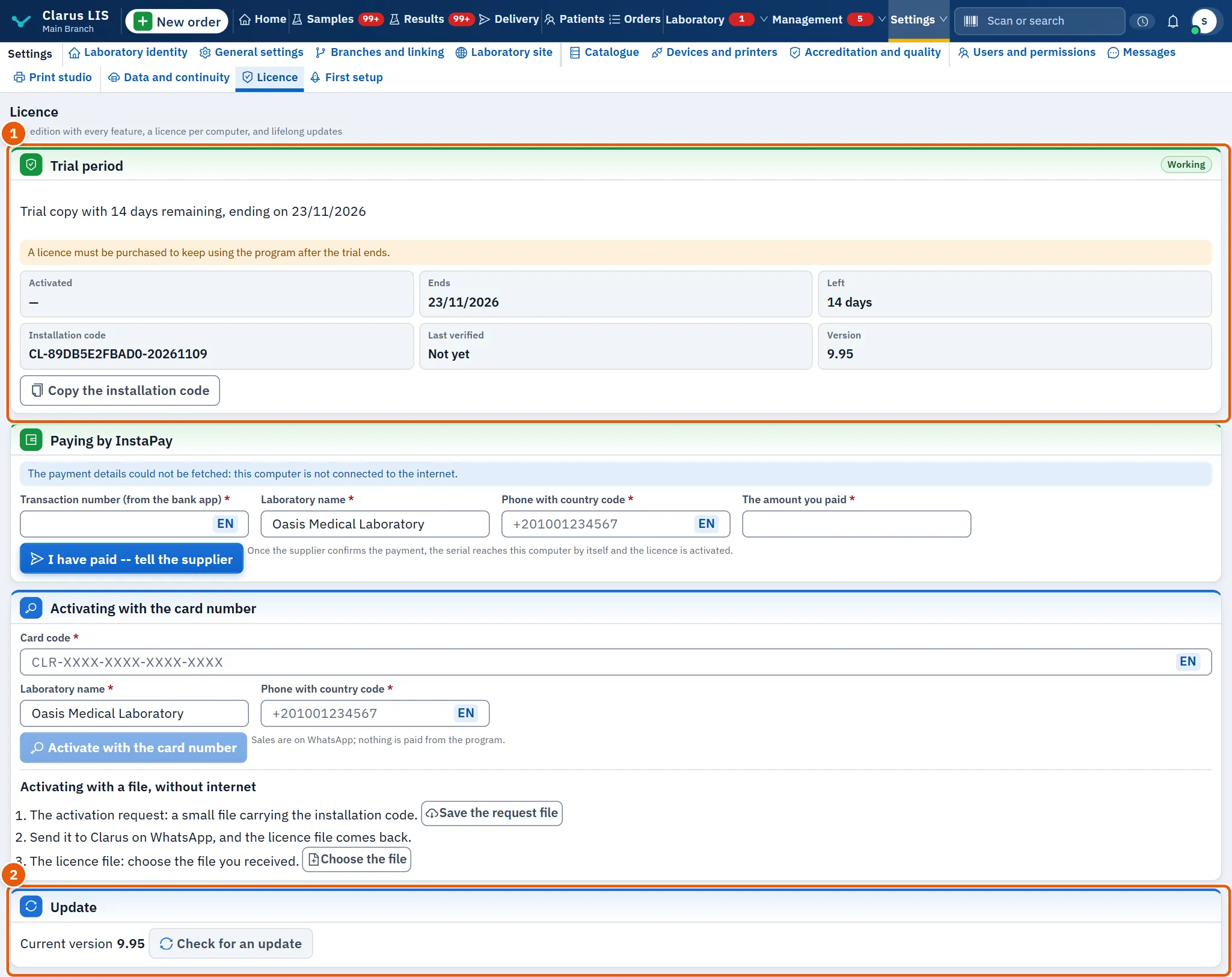
From the top:
- The licence card: its state, the facts about the licence, and its buttons.
- The payment card, then the activation card: each is shown only when this copy is still offered it; the program decides this for each card separately.
- The update card: the current version and the button to look for a newer one. When the check has found a version that has not been downloaded yet, the card also offers to download and prepare it.
- The licence record: the serial numbers applied before, shown only if there are any.
38.4 The licence card
The card's title says the state of the licence, and a tag beside it says Working or Stopped. Under it the program states the licence in a sentence, with a warning line when something needs your attention.
| Item | What it shows |
|---|---|
| Activated | The date the licence was activated. |
| Ends | The date it ends (for a trial, the end of the trial). |
| Left | The days remaining, as N days. |
| Installation code | The code that identifies this installation. Give it to your supplier when asked. |
| Last verified | When the licence was last verified, or Not yet. |
| Version | The version of the program. |
| Copy the installation code | Copies the installation code. It appears when the code exists. |
| Check the licence now | Asks the activation site to sign the licence again. Shown when the licence is working and is not a trial. |
| Move it to another computer | Opens the window that moves the licence away. Shown under the same condition. |
| Hand-back code | Appears with a note, instead of nothing, when the licence of this computer was already handed back. It is the code your supplier asks for. |
38.5 Activating
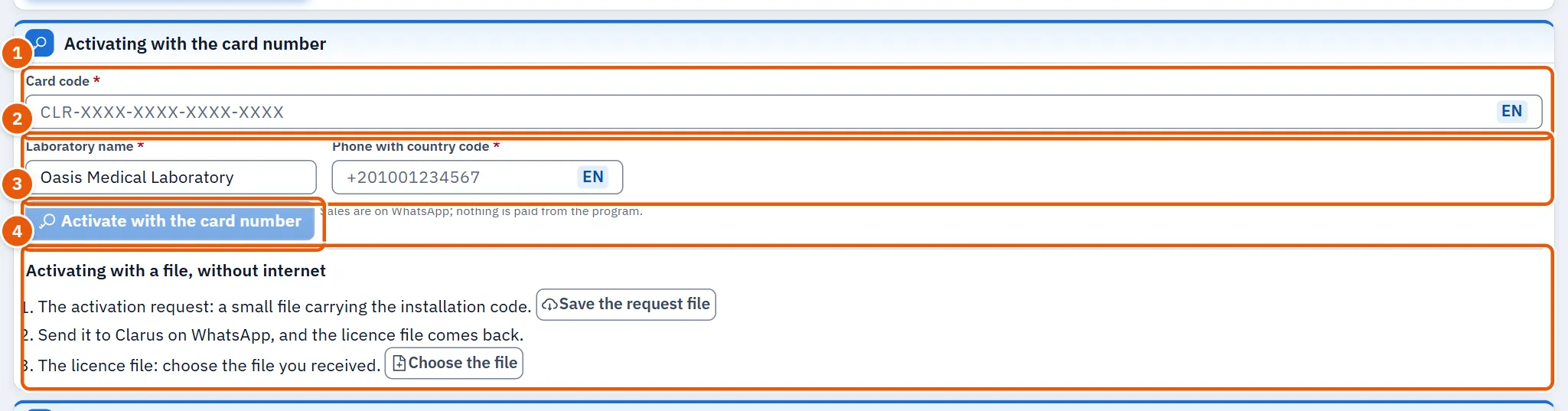
The card Activating with the card number has these controls.
| Control | What it does |
|---|---|
| Card code | The number printed on the card. The program reads it and checks its last character before sending. |
| Laboratory name | The laboratory's name; it starts as the name already stored for the laboratory. Required. |
| Phone with country code | A phone number with the country code. Required. |
| Activate with the card number | Sends the activation. It stays dim until the card code reads correctly. |
| Save the request file | Saves a small file that carries the installation code. |
| Choose the file | Lets you choose the licence file you received. |
38.5.1 Task 1 — Activate with the card number
- Open Licence.
- Type the card number in Card code.
- Check Laboratory name, and type Phone with country code with the country code.
- Press Activate with the card number.
- A message says the licence was activated. The cards on the page update by themselves.
38.5.2 Task 2 — Activate with a file, without internet
- In the part Activating with a file, without internet, press Save the request file and keep the file the program saves.
- Send that file to Clarus on WhatsApp. The licence file comes back to you.
- Press Choose the file and pick the file you received.
- A message says the licence was activated.
If the file is not a valid activation file, the screen says so and nothing changes.
38.6 Paying
The card Paying by InstaPay reports to the supplier a payment you made from your bank's InstaPay application. The program sends no money.
| Item | What it does |
|---|---|
| InstaPay address: and Wallet number: | Where to pay, with the code to scan. They are shown only when the supplier has published them; otherwise the card says that the details are not available now. |
| Open in InstaPay | Opens InstaPay, when a link is published. |
| Copy the message / Open it in WhatsApp | Copies a ready message for whoever pays, or opens it in WhatsApp. |
| Transaction number (from the bank app) | The transaction number as the bank application shows it. Required. |
| Laboratory name and Phone with country code | As in activation. Required. |
| The amount you paid | The amount you paid, as a number above zero. Required. |
| I have paid -- tell the supplier | Sends the notice to the supplier. |
38.6.1 Task 3 — Report a payment
- Pay from your bank's InstaPay application to the address shown, or scan the code.
- Write the transaction number in Transaction number (from the bank app).
- Check the laboratory name and the phone, and write the amount you paid in The amount you paid.
- Press I have paid -- tell the supplier.
- After the supplier confirms the payment, the serial reaches this computer by itself and the licence is activated.
38.7 Checking the licence and the update
38.7.1 Task 4 — Check the licence now
- Press Check the licence now on the licence card.
- Read the note that appears under the buttons, and the date in Last verified.
38.7.2 Task 5 — Look for an update
- On the update card, read Current version.
- Press Check for an update.
- The card answers that a newer version was found, that this is the latest version, or that the update service could not be reached.
- When the check found a version that has not been downloaded, a note under the answer says that the version is available to download and has not been downloaded yet, and shows what the vendor wrote about the release, if anything.
- If you hold Manage program updates, the note carries Download and prepare. Press it: the program downloads the version and verifies it without installing it, and the button reads «Downloading and verifying…» meanwhile. If it cannot, the card gives the reason or says «The update could not be downloaded and prepared.»
- When the version is prepared, the card shows a tag with its number and says it is ready; it is installed from the update window at the head of the program, whenever you choose, not from this card.
38.7.3 The notice of a found update
Besides the card, the program tells the manager once. For whoever holds Manage program updates, a message appears in the bottom corner of the screen: «An update was found: version …», with the line «Open the Licence screen, then the update card, and press “Download and prepare”; install it when you choose.» It stays until you close it. Closing it silences that version only: a newer version is announced again. It does not appear once a version is prepared, nor while a required update is counting down, because the update window speaks then.
38.8 Installing an update, and a required update
An update is installed in the update window at the head of the program, not on the Licence screen. The window opens by itself, for whoever holds Manage program updates, when an update is prepared or when the vendor has made one required. Once an update is prepared it shows Installed now and Will become, then What this update changes (or says that the release did not say what it changes) and a warning that installing closes the program and opens it again. Its buttons are Update now, Later and, while nothing is prepared yet, Download and prepare. Update now downloads and prepares the version if that is not done yet, then installs it: the screen says that the program is closing and will reopen on its own, and that the computer must not be turned off, and the page reloads when the program is back. Later closes the window for this session; after the deadline of a required update it is not offered.
38.8.1 A required update
The vendor can require a copy to reach a minimum version before a deadline. The window is then titled A required update: it says that CLARUS must be updated to that version before the deadline, and it counts down Time left. Until the deadline the program works as usual, and Later hides the window for the session.
After the deadline the program opens only to update. Everything that reads stays open, and so does what the day's work needs to finish: verified results can still be read, printed and delivered, you can sign in and out, take a backup, open the Licence screen and update. New work is refused: a new patient cannot be created, for example, and the program answers «This laboratory must update CLARUS to version … before it continues working. Results already verified can still be printed and delivered. Open the update window and update now.»
If a required update was tried and failed, the program keeps working, says so, and tells the supplier's support. Someone who may not update is told «Ask the laboratory's system administrator to update it.»
38.9 The licence record
The card Licence record lists, newest first and at most ten, the serial numbers applied to this computer: each with its kind (Annual, Five years, Perpetual or Trial), the serial with part of it hidden, and the date. It does not appear when nothing has been applied.
38.10 Moving the licence to another computer
38.10.1 Task 6 — Move the licence
- If the new computer will work with the current data, first copy the data from Data and continuity.
- On the licence card press Move it to another computer.
- In the window Move the licence to another computer, type the laboratory's name exactly as the window shows it.
- Press Move the licence. It stays dim until the name matches. Back closes the window without moving anything.
- The window The licence has left this computer shows the hand-back code. Press Copy the code and keep the code before you press Done; that button reloads the page.
- Give the code to your supplier. Then activate the same number on the new computer.
If the laboratory has no name in Laboratory identity, the box stays disabled: write the name there first. The code also stays on the licence card under Hand-back code, in case you closed the window.
38.11 Messages and what to do
| The screen says | Meaning | What to do |
|---|---|---|
| This is not a valid activation file. | The chosen file is not an activation file. | Choose the file Clarus sent back. |
| We could not read that file. Please check it and try again. | The file was refused. | Check that it is the right and whole file, and try again. |
| The request could not be completed. Please try again. | Activation by number failed without a more specific reason. | Check the connection and the card code, and try again; use the file way if there is no internet. |
| The request file could not be made. | The request file was not saved. | Try again. |
| The licence could not be checked. | The check did not complete. | Try again later. |
| The update service could not be reached. | No answer from the update service. | Check the connection and try again. |
| The required update's deadline has passed. The program now opens only to update; verified results can still be read, printed and delivered. | The vendor's deadline for a required update has passed. | Update from the update window; reading, printing and delivering verified results still work. |
| This laboratory must update CLARUS to version … before it continues working. | New work was refused after the deadline of a required update. | Open the update window and press Update now. |
| The update could not be downloaded and prepared. | The download or its verification failed. | Check the connection and press Download and prepare again. |
| The notice could not be sent. | The payment notice did not reach the supplier. | Check the connection and try again. |
| Write the transaction number as the bank app shows it. | The transaction number is missing or too short. | Copy it from the bank application. |
| The licence could not be moved. | The move failed and nothing was handed back. | Try again; the program keeps working. |
38.12 See also
- Data and continuity: copy the data before moving the licence.
- Laboratory identity: the laboratory's name, which the move asks you to type.