Chapter 28Linking branches and computers
This chapter is about the procedure and the idea: how a computer joins its laboratory, how branches exchange work, and what to read when something does not connect. The branches screen itself, button by button, is in Chapter 27: Branches and linking.
28.1 What linking is for
A laboratory can run on one computer, or on several: more than one computer in a branch, and more than one branch. Linking is what lets those computers work as one laboratory. Computers of the same branch share the branch's records; branches exchange what each needs from the others, such as the patient's file and the tests sent from one branch to another.
Nobody types a key or an invitation to link. The licence number is the identity. Every computer has its own number, issued by the vendor, and the number tells the program the laboratory, the branch and the role of that computer. Linking follows from the number.
28.2 The words you will meet
| Word | What it means for your computer |
|---|---|
| The laboratory | Everything issued to you under one laboratory account: its branches and its computers. |
| A branch | One place of the laboratory. It has one server and may have member computers. |
| The branch server (the branch server) | The computer that holds the branch's records. Its licence number is a server number. |
| A member (a member computer) | A computer that works on its branch server's records. Its licence number is a member number of that branch. It does not keep a database of its own. |
| The laboratory's centre (the centre) | A computer with a centre number. Branches send to it, and it passes what each branch sent to the others. |
| The relay ("Clarus Link") | Our server, which joins two computers that cannot see each other. The connection is encrypted between the two ends; our server reads nothing of it. |
The screens show the role as the branch server, a member computer or the centre, together with the laboratory and the branch, in the first line of Linking status.
28.3 Before you start
- Each computer needs its own licence number, and it must be the right role: a server number for the branch server, a member number of that same branch for each member, a centre number for the centre. If you hold the wrong kind, ask for the right one; do not try the number on a computer of another role.
- The computers of a branch should be on the same network of the laboratory, with the branch server switched on. If they cannot be, the relay is the alternative described below.
- The branch server must be open to the laboratory's computers. That is a step on the server itself (28.4.3 Task 1 — Open the branch server to the laboratory's computers); installing the program does not do it for you. Setup only rewrites the firewall rules of a server that was already opened.
28.4 Linking the computers inside a branch
28.4.1 How a member finds its server
A member does not need the server's address. After its number is entered, it looks for its branch's server by itself. There are three ways, tried in this order of preference:
| Way | When it is used |
|---|---|
| On the laboratory's network | The branch server announces itself on the network with its branch's code, and the member looks for exactly that branch. A change of the server's address is found again without anyone typing. |
| Through Clarus Link | When the member does not find its server on the network, it goes through the relay over the internet. It tries the network for about ten seconds in all before it takes the relay. While it works through the relay it tries the network again about every thirty seconds, and when the server answers there it goes back to it, because the road inside the branch wins. |
| An address typed | When the network does not announce the server (some routers block it), the window asks for the server's name or address with its port. This is the last way and not a condition. |
All three ways check the same thing, the identity in the licence numbers, so a computer that merely poses as the server is not accepted.
28.4.2 Firewall and the network type
Windows classes each network as private or public. A server on a public network keeps the branch's computers out with its firewall. The program says so in words: on the server in Linking status, and on a member in its own window. The remedy is on the server: press Make this network private in the card The laboratory's network. Until then a member can still work through Clarus Link.
28.4.3 Task 1 — Open the branch server to the laboratory's computers
- On the branch server computer itself, open Branches and linking.
- Find the card The laboratory's network and press Open it, then confirm.
- When Windows asks on that computer, choose Yes.
- If the program asks to start again, let it; the page moves to its new address by itself.
- Check the line under the card: it shows the address the devices use.
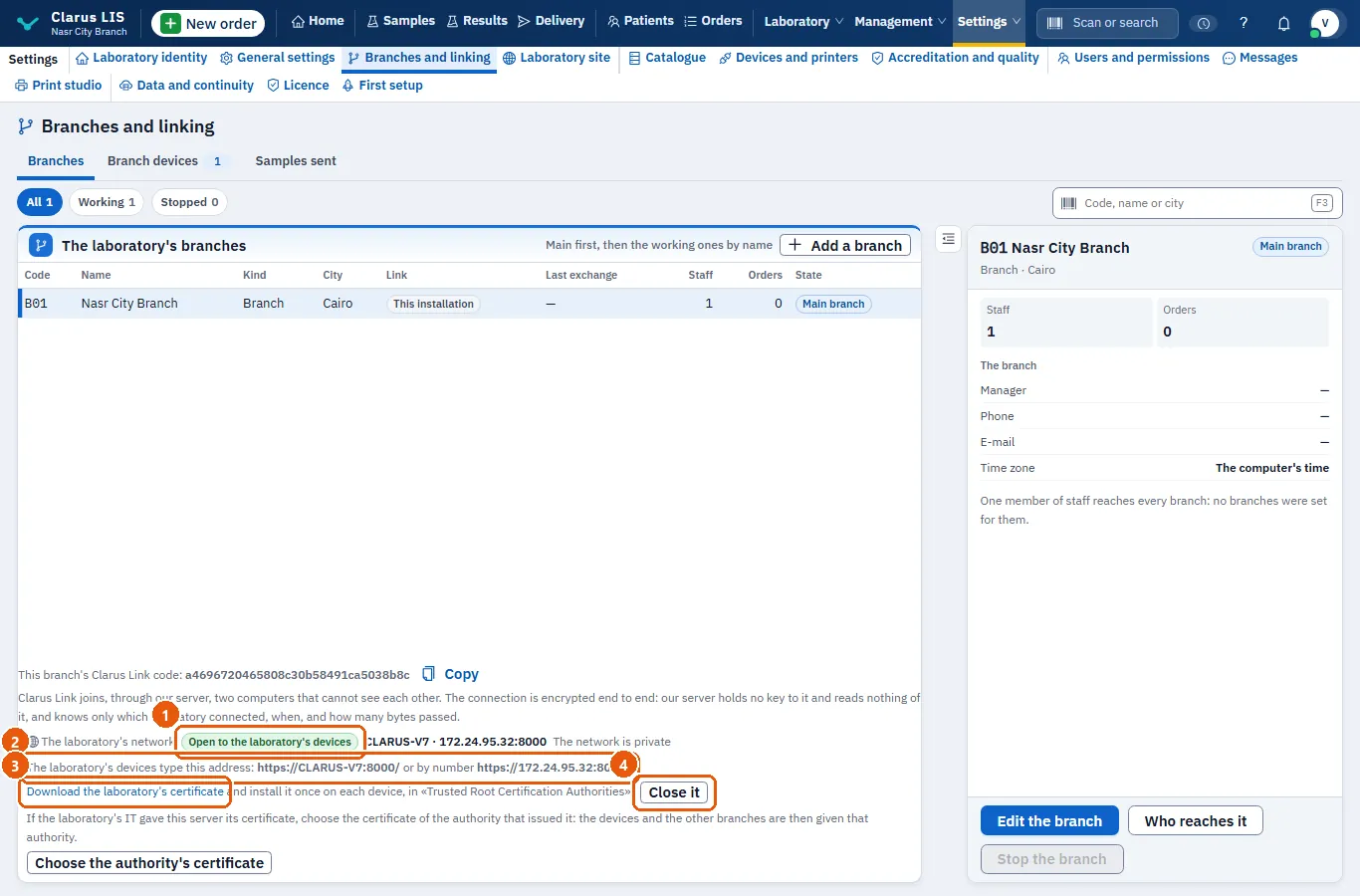
Opening and closing can only be done on the server computer. On another computer, the card tells you to open the page there.
28.4.4 Task 2 — Join a computer to its branch
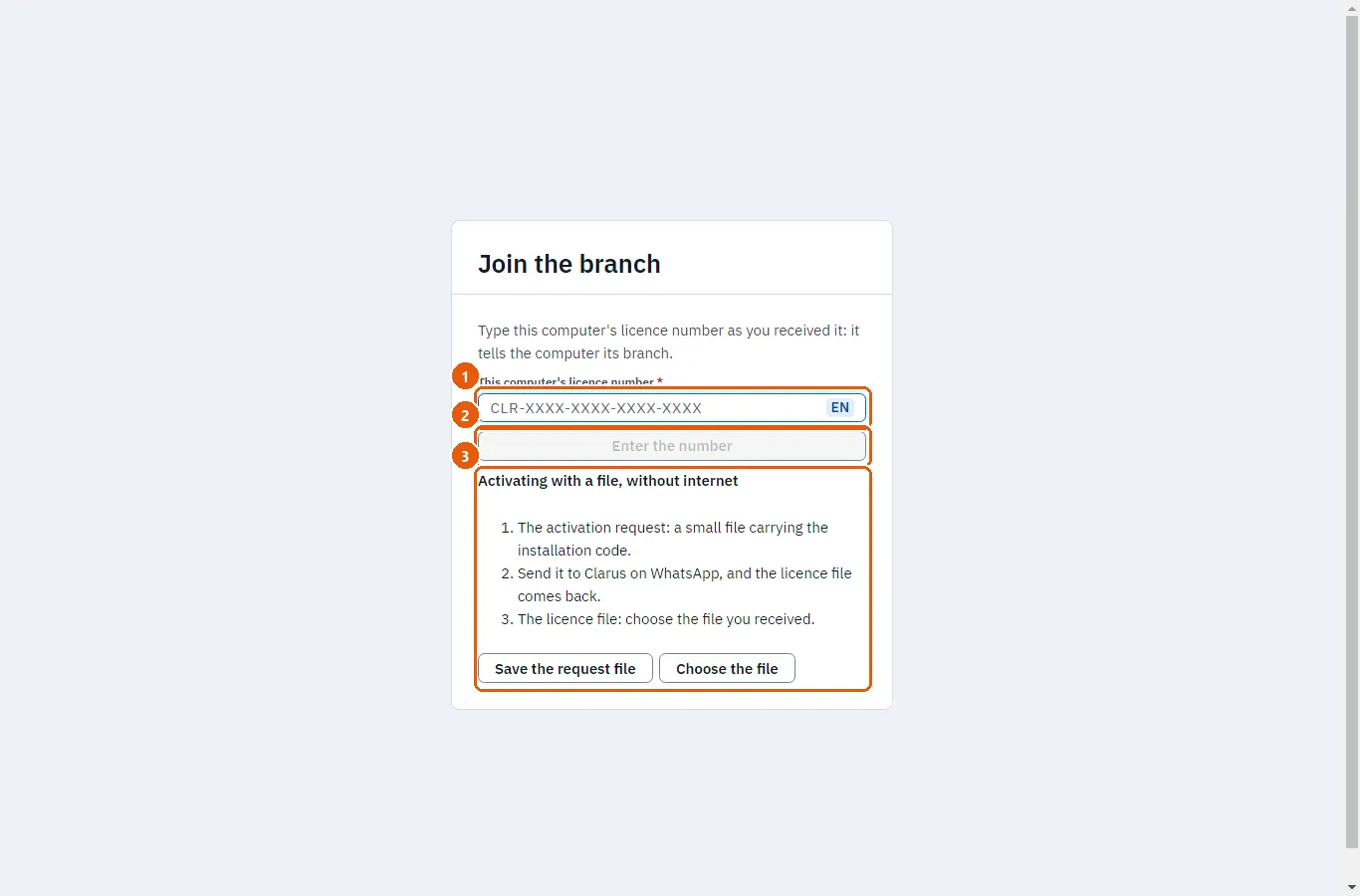
- On the new computer, start the program. When it is not yet a member, its window is Join the branch.
- Type the computer's own number in This computer's licence number and press Enter the number. The button does not work until the number is readable in its right form. Without internet, use the activation by a file shown in the same window (Activating with a file, without internet): save the request file, send it to Clarus, then choose the licence file it sends back.
- The window now says the branch the number belongs to, and the computer starts looking for the branch's server at once and by itself, with no press (Looking for the branch's server). Wait; the button stays for a second try.
- If the server is not found on the network, the window asks for The branch server's name or address. Type its name, or its address with its port, for example
192.168.1.10:8000, and press Join. - When the join succeeds, the window becomes This device. Press Open the program to work (the button is not shown while the device is still pending).
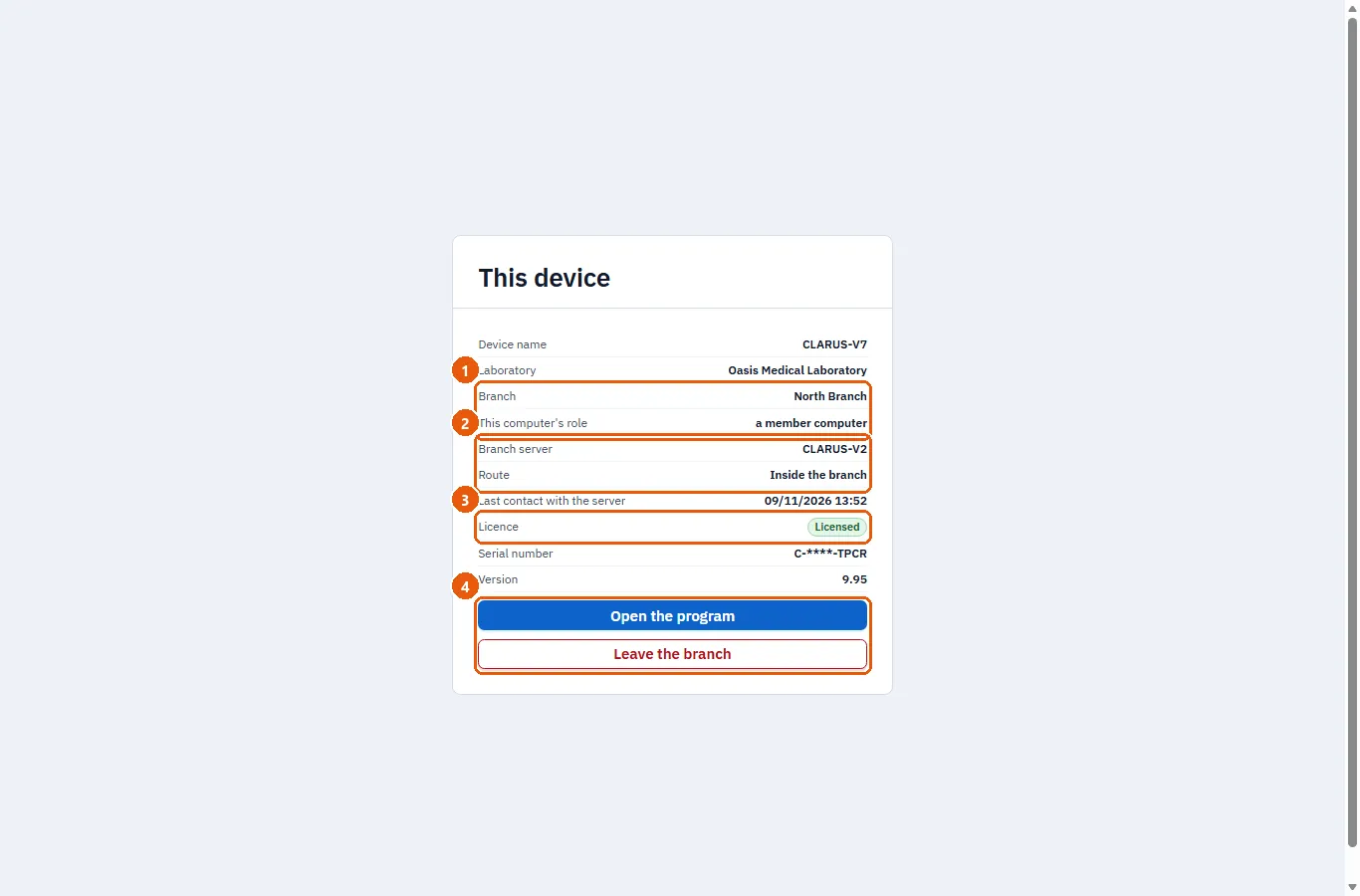
A member whose licence is not yet received from the server is shown Not heard from the server yet. If the licence is missing, the window shows a box to enter the serial number or choose a licence file (This device does not work until it is licensed: enter its serial number, or choose the licence file the laboratory received.).
28.4.5 What a member shows
| Line | What it says |
|---|---|
| Laboratory, Branch, This computer's role | Where this computer belongs, as its own number says. |
| Branch server | The branch server's name. |
| Route | Inside the branch, Through Clarus Link or Through another address. |
| Last contact with the server | When the server last answered. |
| Licence | The licence as the server heard it: Licensed, Follows the trial, Read only, Licence expired or No licence. |
28.4.6 When the branch server is switched off
A member whose server cannot be reached by any road shows a page: «The branch's server could not be reached». It names the server's computer, tells you to switch it on or to restart the program on it, and tries again by itself every ten seconds. No new work is recorded until the server is back. When the server returns, the member returns to its work without anyone touching it.
28.4.7 Leaving the branch
On a member, Leave the branch stops the device until it joins again with its licence number. Confirm the question. The records of the branch are not on this computer, so nothing of them is lost by leaving.
28.5 Reading the linking status
On the branch server, the page Branch devices in Branches and linking carries Linking status. It answers the questions you would ask when something does not connect.
| Line | What it tells you |
|---|---|
| This computer: role, laboratory, branch | What this computer is, from its number. |
| Its computers reach it: …. | The road its computers reach it by: on the laboratory's network, through Clarus Link, by an address typed, or not reachable now. |
| The identity from the vendor | Whether this site's identity is valid, and until when; the program asks again by itself when the computer is on the internet. |
| The branches this computer exchanges with | For each branch it exchanges with: the last exchange, what waits to be sent, what arrived and waits to be applied (by kind: patient files, orders, users, catalogue and prices, branch links, other records), and whether that site's clock agrees. |
| The clock | The difference between that site's clock and this computer's is said in words (ahead, behind, or agreeing); from two minutes up the remedy is added: set the date and time of the computer that is off to be set automatically from the internet. |
| Phones paired: … | How many phones are paired. |
| Clarus Link | Whether Clarus Link is on for this laboratory. |
Beside the title of Branches and linking, small tags say how many branches are linked, how many are late to exchange and how many links are failing.
28.5.1 Joins that failed
Joins that failed (seven days) lists each failed join of the last seven days (the newest twenty at most), with its cause and what to do.
| The page says | What to do |
|---|---|
| Too many attempts came from this computer's address in a few minutes. | Wait ten minutes, then join again from that computer. |
| The computer does not hold this branch's number. | On that computer, enter a member's licence number of this branch, then join. |
| The join was not signed with this branch's secret. | On that computer, enter its licence number again, then join. |
| The computer's number is for another branch. | Give that computer a member's number of this branch. |
| The computer did not prove it holds the key it presented. | Join again from that computer; if it repeats, contact support. |
| This computer had already joined. | Nothing to do; to join it afresh, remove it here first. |
| The join failed. | Join again from that computer; if it repeats, contact support. |
28.6 A trial computer that receives a number
A computer that has been used in trial follows the number typed on it. When the number is typed (in the licence screen, see Chapter 38: Licence), one window asks what to do with the trial's records and shows their count (patients and orders).
| The number is… | The window offers | What happens |
|---|---|---|
| A branch server number | Continue with the records or Start again | The computer becomes the branch server. Starting again keeps a copy of the trial's records in the backups folder first, then starts on a new database. |
| A member number | Save a copy of the trial's records (chosen first) or Ignore them | The computer becomes a member. The saved copy is for the archive, or is restored on the server if the server is empty; it is never merged into the server's records. |
Letting the records go (starting again, or ignoring them) asks a second time with a clear button, never by typing a word. A computer with a member number becomes a member only once it has reached its branch's server; until then it stays a trial computer and says that it will become a member, and tries again by itself.
28.7 Linking the branches
Branches link by themselves from the licence numbers. When a branch server or a centre is activated, it knows from its numbers who its brother branches are, and connects to them through Clarus Link: out from each server, encrypted between the two ends. There is no invitation and no key to type.
- A star around the centre. Each branch sends to the centre and the centre passes it to the rest.
- When the laboratory has no centre number, the server of branch B01 acts as the centre. The branch acting as the centre: says which branch does.
- When a centre number is later issued, the role moves from B01 to the centre once the centre has everything. Linking status follows the move: The centre's role is moving from branch B01 to the laboratory's centre: … of … copied. and, at the end, The centre's role moved to the laboratory's centre on …. B01 then works as a normal branch with its server whole, and nothing of its data is deleted.
- If the internet is cut between branches, each branch goes on working with its own server. What it changes waits in its outbox and is sent when the connection returns.
The invitation box in Chapter 27: Branches and linking appears for whoever may manage branches, and only while an invitation made earlier is open or waiting for your approval; with neither, nothing shows. The The laboratory's network card shows for whoever may change settings, and the Branch devices page needs that same permission. Older ways of linking by a key or an invitation are closed; the screen says that linking now happens by the licence number.
28.7.1 Pausing and resuming a link
For a branch linked from another installation, Branches and linking shows Pause the link under The link while the link runs; once it is paused or ended, Resume the link takes its place. End the link (it asks to confirm) stays visible until the link has ended. Reading the link and its buttons needs the permission to manage branches. Nothing travels between the two while the link is paused or ended. The steps are in Chapter 27: Branches and linking.
28.8 Messages and what to do
| The screen says | Meaning | What to do |
|---|---|---|
| This device's state could not be read. Restart the program on it. | The member's window could not read the device's state. | Restart the program on that computer. |
| The number could not be entered. | The number could not be entered. | Type it as you received it, or use the offline activation. |
| Joining the branch failed. | Joining the branch failed. | Read the sentence under it; it names the cause. |
| «The branch's server was not found on the laboratory's network…» (the member's window) | The network did not answer. | Switch the server on, put both on the same network, make the server's network private, or type the server's address with its port. |
| «The branch's server could not be reached…» | No road reached the server. | Switch the server computer on or restart the program on it; the page tries again every ten seconds. |
| Windows on the branch server classes its network as public, so this computer cannot reach it inside the laboratory and works through Clarus Link, over the internet. On the server, make the network private from «The laboratory's network» card. | The server's network is public, so the member works through Clarus Link. | On the server, make the network private from The laboratory's network. |
| This server was opened to the computers before its number was activated, so the branch's computers cannot find it on the network yet. | The server was opened before its number was activated. | Open the server to the computers again, and accept Windows' question. |
| This site has not received an identity from the vendor yet; it asks again by itself whenever the computer is connected to the internet. | The site has no identity from the vendor yet. | Keep the computer connected to the internet; it asks again by itself. |
| Clarus Link refused this branch's connection. | Clarus Link refused this branch. | Read the reason under it; it says what to do. |
| Messages of results waiting for the server (the member's window) | Results wait on the member for the server. | Nothing: they go by themselves when the server answers. |
28.9 See also
- Chapter 27: Branches and linking: the branches screen, its tabs, and the controls of a link.
- Chapter 38: Licence: the licence and its activation.
- Chapter 39: First setup: the first setup.
- Chapter 37: Data and continuity: where the data and the backups are.