Chapter 16Prices and contracts
Menu: Prices and contracts. Address: /admin/prices.
16.1 What this screen is for
This is where the laboratory decides what each test costs and what changes that cost for a particular payer. Two price systems meet here: the base price each test carries in the catalogue, and the commercial directory that bends it: price lists, payers (insurers, companies, doctors), contracts with their rules, membership plans, and the commissions paid to referring doctors.
The screen has nine pages, one per kind of thing. The first page shows every test with its base price and can show, for any test, how an order would reach its final price for a chosen payer. The other pages are lists you read, search and edit; most hold a short list on one side and the details of the chosen row beside it.
16.2 Who sees it
| You can… | …if your role holds |
|---|---|
| Open the screen and use the pages: tests, lists, payers, contracts, plans, commissions, types, and the payers' printed lists | Manage settings |
| Add, change or remove a branch's own price on the page Branch prices (the page itself opens with the first permission; without this one the buttons are not offered) | Manage prices, contracts and commissions |
| Open the Payer list library (the button on the page Payers' printed lists) | Manage prices, contracts and commissions |
The menu hides the screen from everyone who lacks the first permission. A button you may not use is not offered.
16.3 The screen at a glance
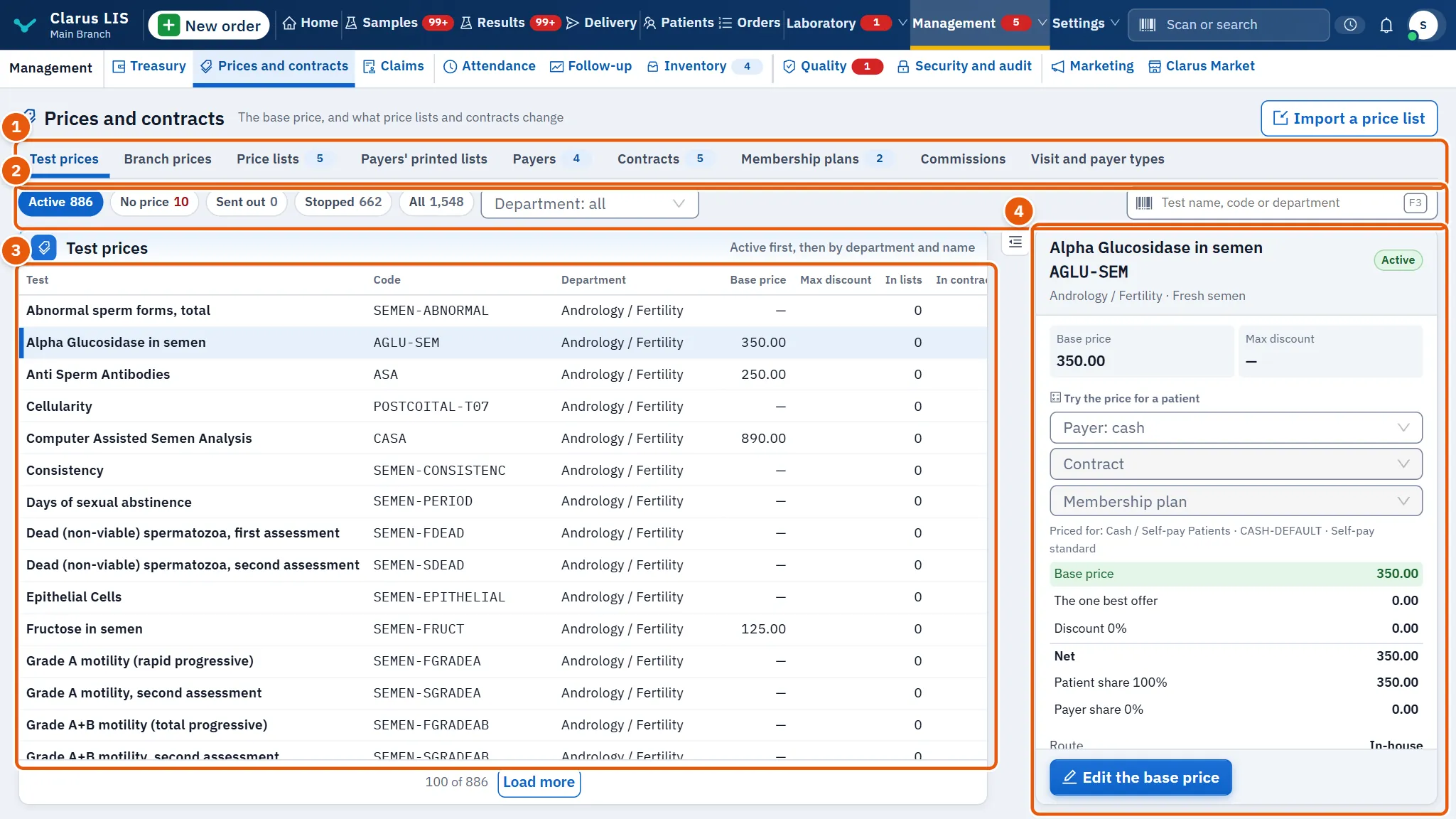
- The pages: a row of nine tabs under the name Prices and contracts pages. The count of rows is shown on the tabs that have one (lists, Payers, contracts, plans, commissions).
- Filters and search: they narrow the list below.
- The list: one row per item. Choosing a row shows it in the details.
- The details: the figures of the chosen row, its action buttons and, on the first page, the price trial.
Each page starts with its own title, and every list says plainly when it is empty (for example No contracts yet.) or when a search finds nothing (Nothing matches “…”.).
16.4 Page 1: Test prices
The list note says: Active first, then by department and name. The page opens on the filter Active. The list shows 100 tests at a time; a bar at its foot loads the next hundred.
| Element | What it does |
|---|---|
| Filter the list | Chips: All, Active, Stopped, Sent out, No price. Each shows its count when the whole catalogue has been read. |
| Department: all | Limits the list to one department. |
| Test name, code or department | Searches by name, code or department. |
| Import a price list | Opens the import window (see 16.13.5 Task 5 — Import a price list from a file). |
| Columns | Test, Code, Department, Base price, Max discount, In lists, In contracts. |
A test with no price shows the red mark No price, and the row is highlighted if the test is active: a test that nobody can price should not be on sale. A field that belongs to a larger test shows a dash, since it is not sold alone.
The details of the chosen test (Price details):
| Element | What it does |
|---|---|
| Figures | Base price, Max discount and, for a test sent out, Send-out cost. |
| Edit the base price | Opens the form of the base price (16.13.1 Task 1 — Change a test's base price). |
| Try the price for a patient | Pick a payer, then its contract and its plan; the program prices the test as an order would (16.13.2 Task 2 — See where a price comes from). |
| Rows | Route (In-house or Sent out with the outside laboratory's name), In lists, In contracts, Current offer when one is running, and Ordered (how many times the test was ordered). |
16.5 Page 2: Branch prices
A branch can charge its own price for a test in place of the centre's price. A branch with no price of its own charges the centre's price for every test (This branch has no price of its own; it charges the centre's price for every test.).
| Element | What it does |
|---|---|
| Branch | Chooses the branch whose prices you see. |
| Add a branch price | Opens the window Branch price: …: choose the Test and type the Branch price, then Save. Needs Manage prices, contracts and commissions. |
| Columns | Code, Name, Centre price, Branch price. |
| Edit | Changes the branch price of the chosen test (the test itself cannot be changed). |
| Back to the centre's price | Removes the branch's own price; the branch charges the centre's price again. |
| Linked branch | A mark shown when the branch is linked from another site. |
16.6 Page 3: Price lists
A price list gives selected tests a price other than the base price. It is chosen by a payer or a contract.
| Element | What it does |
|---|---|
| Columns | Name, Code, Items, Valid (Open-ended when it has no dates), State. |
| Filters | Active, Stopped. |
| New price list | Opens the form: Name, Code, Kind (Standard, Cash, Insurance, Corporate), Starts, Ends, Active. |
| Edit | The same form on the chosen list. Its code cannot be changed once it exists. |
| The list's items | Opens the items of the list (16.13.3 Task 3 — Price tests in a price list). |
16.7 Page 4: Payers' printed lists
These are the payers' own price lists, kept exactly as the payer printed them, every line. A list arrives switched off; you switch on the one your laboratory's contract names, and both lists of a payer may be on together (A list arrives switched off. Switch it on when the laboratory's contract with the payer is on it; both lists may be on together.).
| Element | What it does |
|---|---|
| Columns | List, Payer, Lines, Tests on more than one line, Unbound lines, State. |
| Filters | On, Off. |
| Switch the list on / Switch the list off | Switches the list; the screen confirms with a short message. |
| Show the lines | Opens the lines window (16.13.7 Task 7 — Edit a line of a payer's list). |
| Details | The three counts, then Services (not tests), Lines at the laboratory's price, Contract, Source, List version. |
| Switch them on | Appears in a warning when the list prices tests that are switched off in the catalogue (Tests the list prices that are switched off in the catalogue: …. An order cannot reach them until they are switched on.); an order cannot reach them until they are switched on. |
| Payer list library | The payer library (16.13.8 Task 8 — Use the payer library). It shows the number of updates when the library offers any. Offered only with Manage prices, contracts and commissions. |
16.8 Page 5: Payers
A payer is a party that pays instead of, or beside, the patient: an insurer, a company, a doctor's clinic.
| Element | What it does |
|---|---|
| Columns | Payer, Code, Payer type, Price list, Discount, State. |
| Search | By code, name or phone. |
| New payer | The form: Payer name, Code, Payer type, Price list, Discount, Payment terms in days, Credit limit, Billing cycle (Per order, Weekly, Monthly consolidated, Quarterly), Phone, Active. |
| Details | The discount, credit limit and payment terms, the price list, and how many contracts (Its contracts) and plans (Its membership plans) it has. |
16.9 Page 6: Contracts
A contract states what a payer covers and what the patient pays. The state chip shows when the contract is about to end: the days left within a month, in red within a week, and Contract ended once it has passed.
| Element | What it does |
|---|---|
| Columns | Contract, Payer, Price list, Coverage, Patient share, Valid, State. |
| Filters | In force, Not in force. |
| New contract | The form, with the fields in 16.13.4 Task 4 — Add a payer and a contract. |
| Contract rules | Opens the rules of the contract (16.13.6 Task 6 — Set rules for a contract). |
| Details | Coverage, patient share and discount; the price list, Invoicing, Pre-authorisation, the validity, and the number of rules. |
16.10 Page 7: Membership plans
A membership plan is a class of members under a payer, such as a premium tier, with its own discount and coverage.
| Element | What it does |
|---|---|
| Columns | Plan, Payer, Contract, Discount, Coverage, State. |
| New membership plan | The form: Payer, Contract (only that payer's contracts are offered), Plan, Code, Kind (Standard, Insurance, Syndicate, Corporate, Cash), Discount, Coverage, Patient share, Active. |
Leave the plan's coverage empty and it follows the contract's coverage; an explicit 0 stays 0.
16.11 Page 8: Commissions
A commission rule says what a referring doctor earns on the tests they send.
| Element | What it does |
|---|---|
| Columns | Doctor, On (a test, a department, or All tests), Commission, State. |
| New commission rule | The form: Doctor, Department, Test, Kind (Percent or Fixed amount), Commission, Computed on (The price after discount or The price before discount), Starts, Ends. |
| Stop the rule / Resume the rule | Switches the chosen rule off or on. |
A rule is never edited in place. To change one, stop it and add a new rule. With no department and no test, the rule applies to every test (No department and no test: every test.).
16.12 Page 9: Visit and payer types
Two short lists on one page. The chips Payer type and Visit type choose which you see.
| Element | What it does |
|---|---|
| Columns | Name, Kind, Asks at registration (what reception must ask for: Payer, Contract, Member number, Address, or Nothing). |
| New payer type | The form: Name, Code, Kind (self-pay, insurance, corporate, syndicate, government, doctor, credit, charity), Order, three switches for what reception asks (Payer, Contract, Member number), Active. |
| New visit type | The form: Name, Code, Description, Order, Address, Visit fee, Active. The visit fee is what a visit of this type adds to the patient's invoice, such as a home visit; leave it empty for none. |
| Edit | Edits the chosen type. |
16.13 Tasks, step by step
16.13.1 Task 1 — Change a test's base price
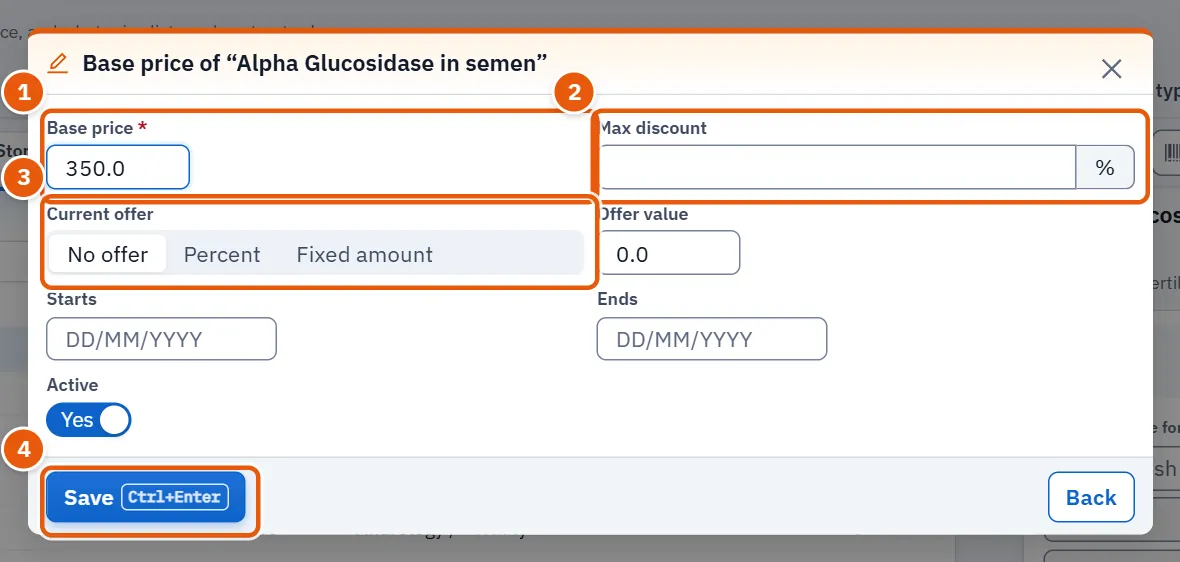
- On the page Test prices, find the test and choose its row.
- Press Edit the base price.
- Type the Base price (required). Optionally set the Max discount.
- To run an offer, choose Current offer as Percent or Fixed amount, type the Offer value, and give Starts and Ends. An offer in percent cannot exceed 100% (An offer's percent cannot exceed 100%.). Choose No offer for none.
- Press Save. The screen says Saved..
The switch Active on the same form puts the test on or off sale.
16.13.2 Task 2 — See where a price comes from
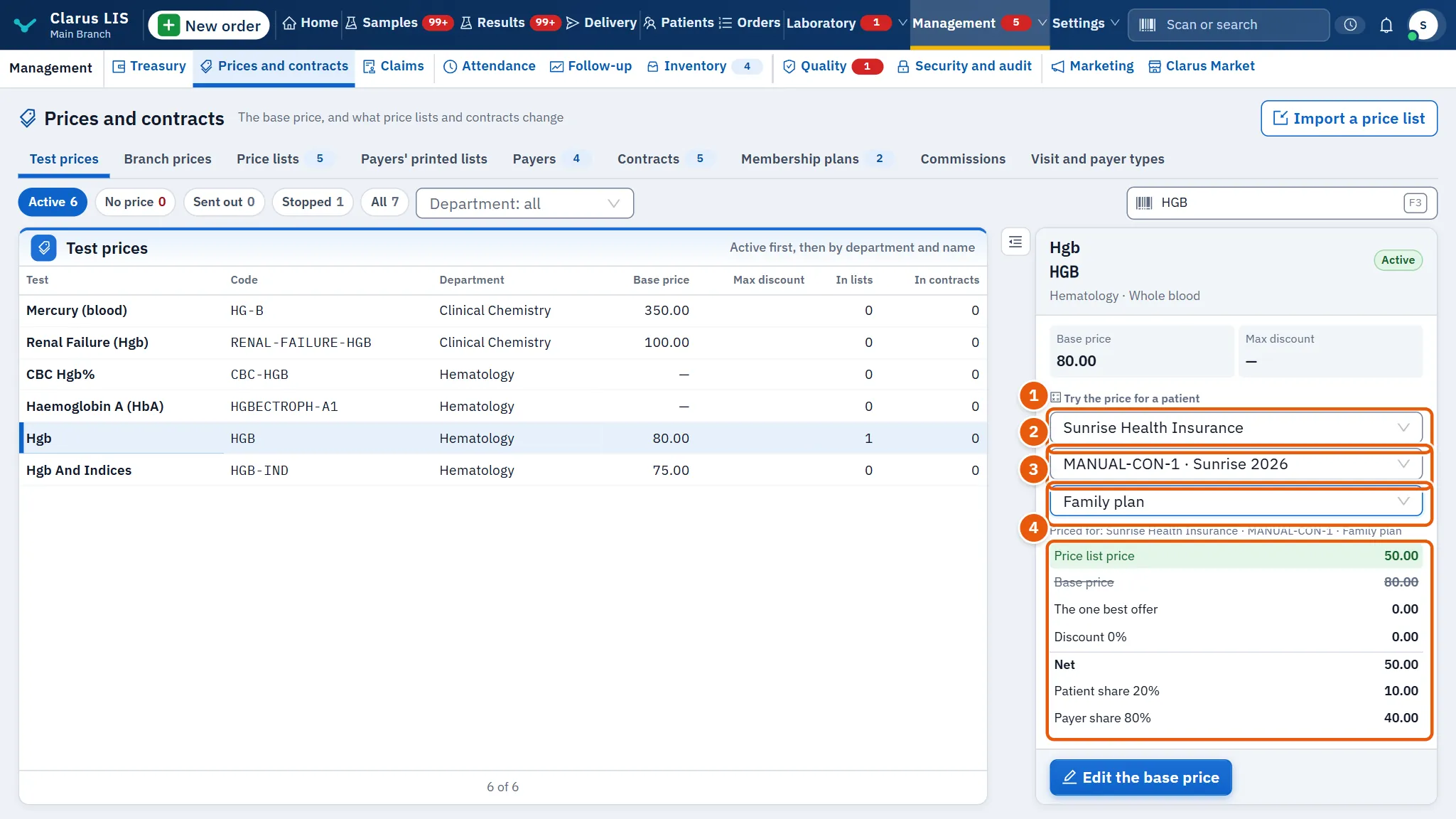
- Choose the test on the first page.
- In Try the price for a patient, choose the payer (the default is Payer: cash). Then, if it has any, choose its contract and its plan.
- Read the steps from the base price down to the net: the base price, the price list price or the negotiated price in the contract rule, the discount, the one best offer, the payer share and the patient share.
- A line says what the program priced against (Priced for: …). If the test needs pre-authorisation under these terms, a warning tells you to record its number on the order.
The trial changes nothing; it only asks the server the price an order would get.
16.13.3 Task 3 — Price tests in a price list
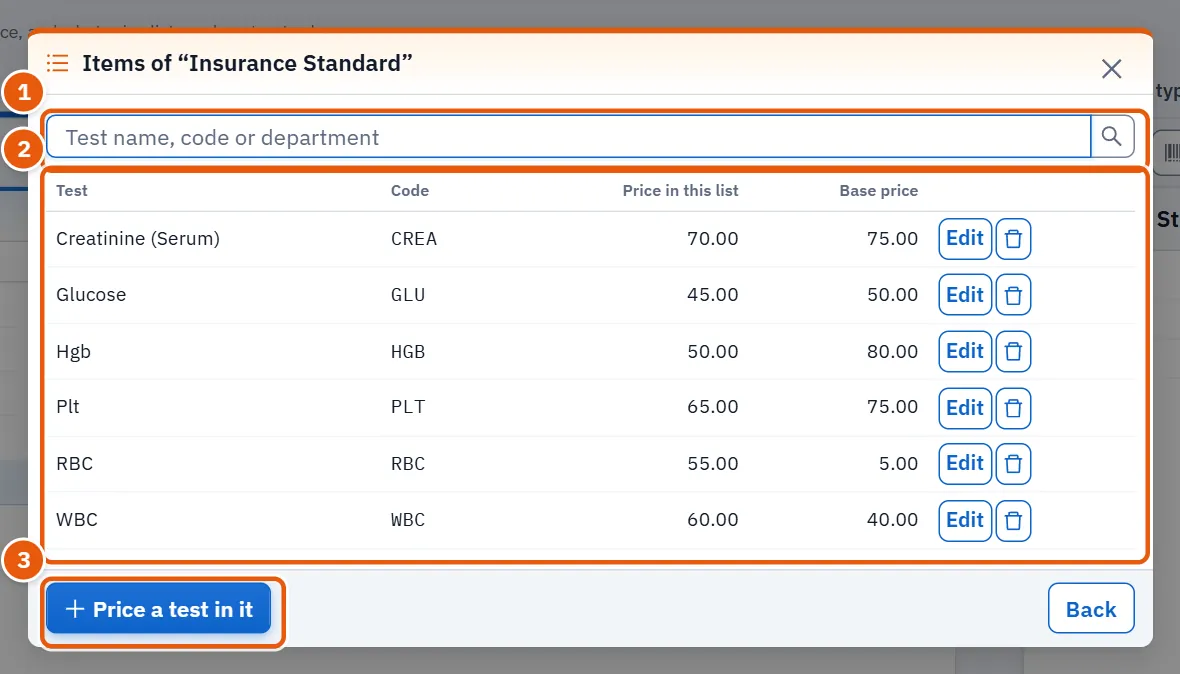
- On the page Price lists, choose the list and press The list's items.
- Press Price a test in it, choose the test, type the Price in this list, and Save. The base price is shown beside it for comparison.
- To change an item, press Edit on its row. To remove it, press its bin button (Take it out of the list) and confirm; its price in the list goes back to the base price.
- A long list loads in parts: press Load more, or narrow the search.
16.13.4 Task 4 — Add a payer and a contract
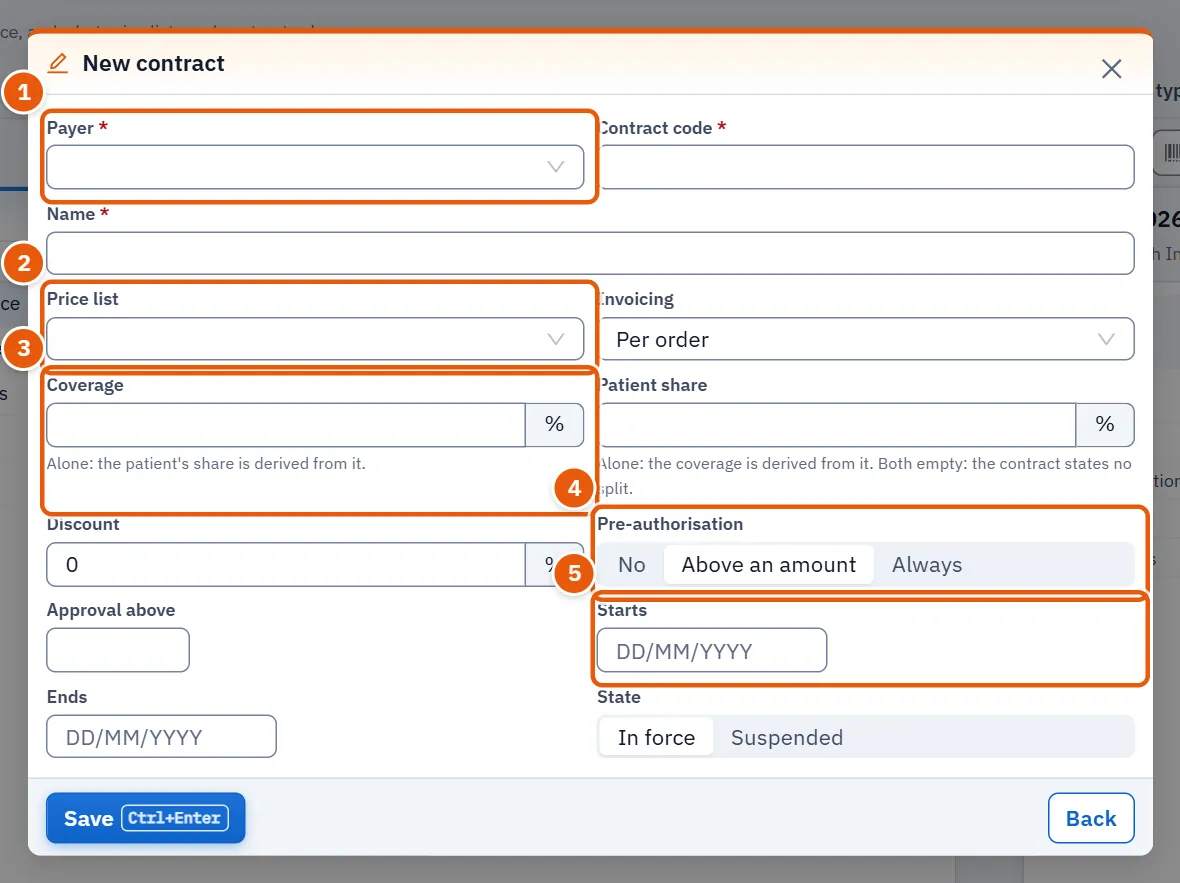
- On the page Payers, press New payer. Fill the name, code and payer type (required), then Save.
- On the page Contracts, press New contract.
- Choose the payer, type the Contract code and the Name.
- Choose the Price list and the Invoicing.
- Set the shares. Give Coverage alone and the patient's share is derived from it; give Patient share alone and the coverage is derived. Give both and they must make 100% (Coverage and patient share together must make 100%.). Give neither and the contract states no split.
- Choose Pre-authorisation: no, above an amount (then type the Approval above; Enter the amount above which pre-authorisation is needed.), or always.
- Set Starts and Ends; the end cannot be before the start. Choose the state: in force or suspended.
- Press Save.
A code is fixed once the row exists. You can edit everything else later with Edit.
16.13.5 Task 5 — Import a price list from a file
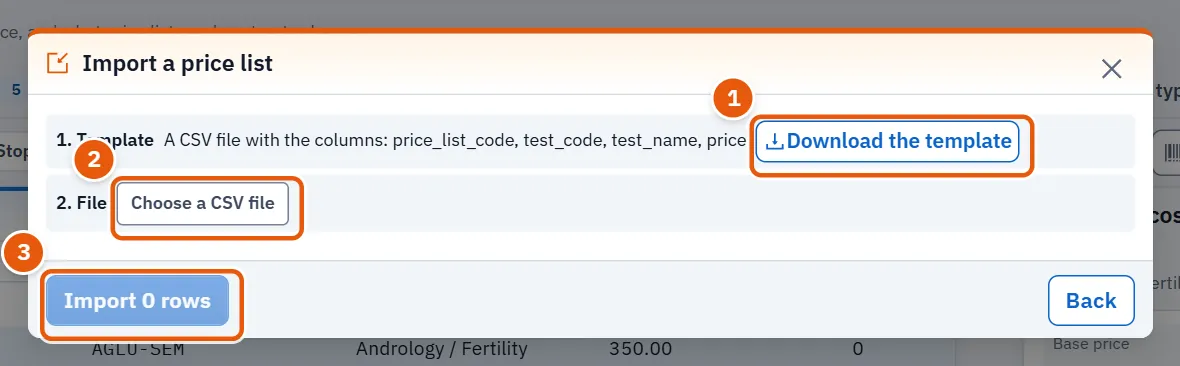
- On the first page, press Import a price list.
- Step 1: press Download the template to save a CSV file with the columns the program expects.
- Fill the file, keeping its columns, then step 2: Choose a CSV file.
- Step 3: the program checks every row before sending anything and says how many are sound and how many will not be imported. A row can be refused for an invalid price, an empty list code, an empty test code, a list the program does not know, or a code not in the catalogue. Codes are read in capitals, so
gluandGLUare the same; an empty price counts as 0, and a negative one is refused. - If some rows are refused, press Download the rejected rows to get them in a file with the reason beside each, and correct them. A test is never guessed from its name.
- Press the import button (its label carries the number of rows). When it finishes the window says how many were imported and how many the server refused. Press Close.
Only the sound rows are sent. The import writes the prices into the lists at once.
16.13.6 Task 6 — Set rules for a contract
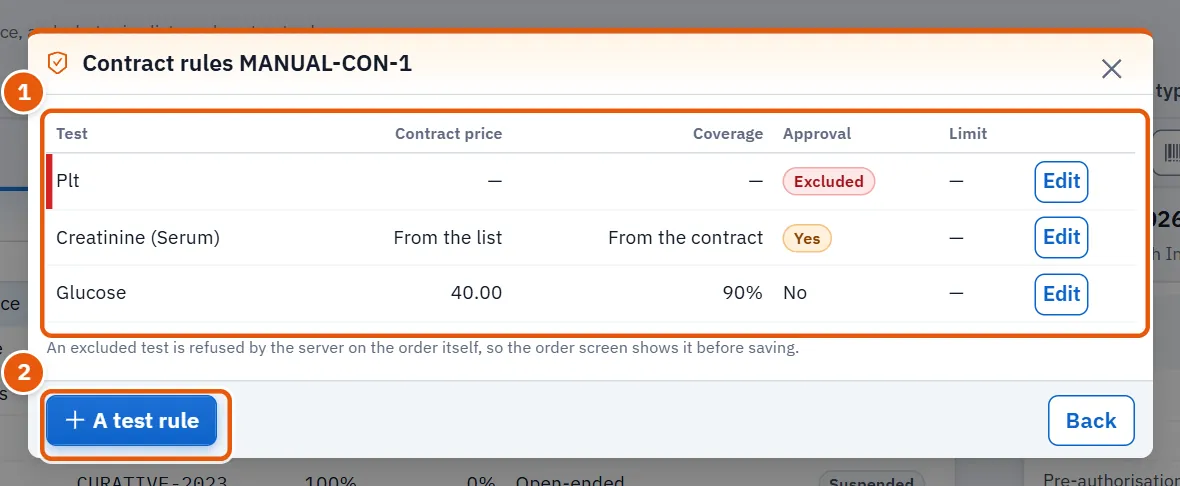
- On the page Contracts, choose the contract and press Contract rules.
- The window lists the tests that have a rule, with Coverage, Approval, Limit (for example Once a day), Excluded for excluded tests, and where the price comes from (From the contract or From the list). With no rules: No rules for this contract: every test on its general terms..
- Press A test rule. Choose the test, then set what applies: Covered by the contract (switch it off to exclude the test), the Contract price (empty means the contract's list price), coverage, patient share, Pre-authorisation, and Once every (days) (empty means no limit).
- Press Save.
An excluded test is refused by the server on the order itself, so the order screen shows it before saving.
16.13.7 Task 7 — Edit a line of a payer's list
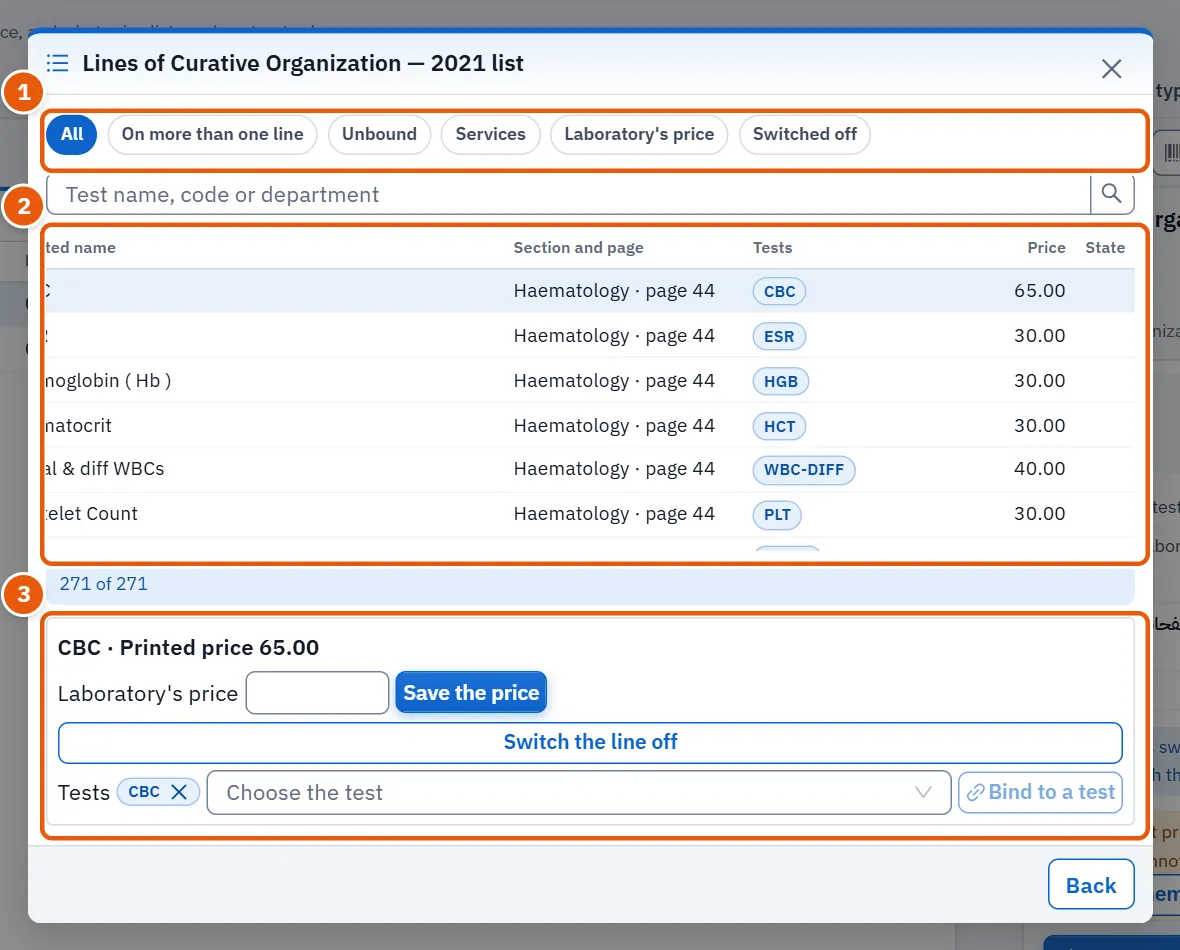
- On the page Payers' printed lists, choose the list and press Show the lines.
- Narrow with the chips (All, Laboratory's price, Switched off, Services, On more than one line, Unbound) or by search.
- Choose a line. Under the table you see its printed name and printed price.
- To charge your own price, type the Laboratory's price and press Save the price. Back to the printed price drops your price.
- To stop using the line, press Switch the line off (and Switch the line on to bring it back).
- For a test line, bind it to a catalogue test: choose the test and press Bind to a test. The small cross on a test's code takes it off the line. The button Bind to a test stays dim until you have chosen a test.
A line is Not bound when the program could not find its test; until you bind it, no order is priced from it.
16.13.8 Task 8 — Use the payer library
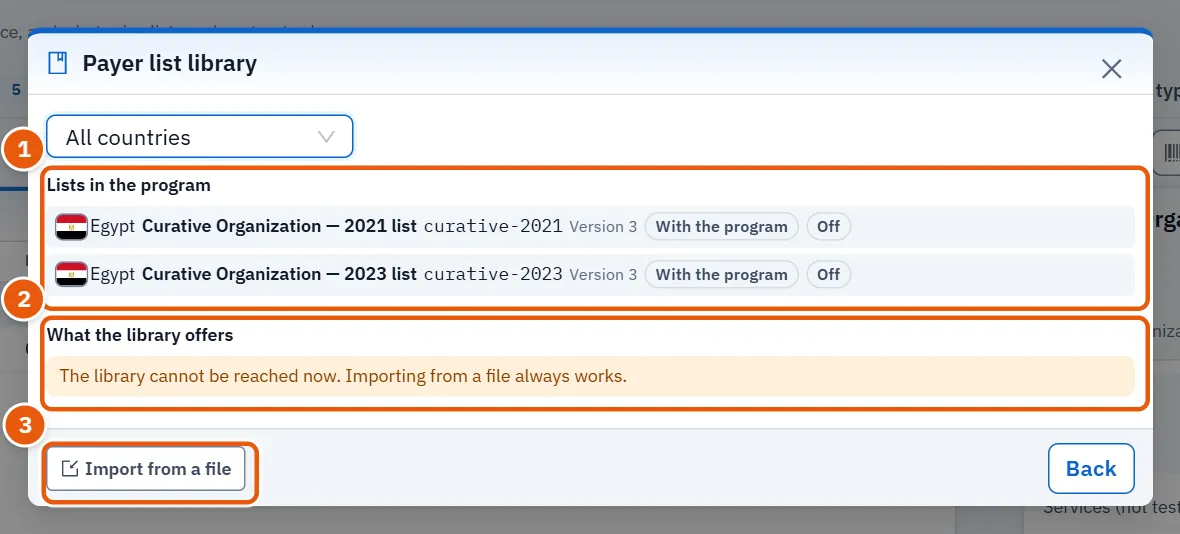
- On the page Payers' printed lists, press Payer list library.
- Lists in the program shows each list with its version, its source (With the program, From the library or From a file) and whether it is on. Remove the list stops the list's contract; the lines and your edits stay.
- What the library offers lists what the library offers, with a Country filter. A list with a newer version is marked Update available; one that needs a newer program says so and has no button. A list already installed at the same version has no Show what would change button either, and Remove the list appears only on lists that are on.
- Press Show what would change on the list you want. The window shows what would change: new lines, changed lines, lines leaving the list and your own edits that stay. Your own prices and switched-off lines are kept; an update writes only what the payer printed.
- Press Apply this version. A first install comes in switched off: switch it on from the page Payers' printed lists when your contract is on it.
- If the library cannot be reached, Import from a file still works with a file.
16.14 Messages and what to do
| The screen says | Meaning | What to do |
|---|---|---|
| The prices could not be loaded. | The prices could not be read | Check the connection and press retry |
| This field is required. | A required field is empty | Fill it |
| Coverage and patient share together must make 100%. | Coverage and patient share given together do not make 100% | Correct one, or give one alone |
| The end date is before the start date. | The dates are reversed | Correct them |
| Enter the amount above which pre-authorisation is needed. | Pre-authorisation above an amount without the amount | Type the amount |
| An offer's percent cannot exceed 100%. | An offer in percent is above 100 | Lower it |
| Could not save. | The server refused the save | Read the reason that follows and correct |
| The library cannot be reached now. | The library cannot be reached | Import from a file instead |
| The library is closed to this copy now. | The library is closed to this copy | Import from a file instead |
16.15 See also
General settings and Users and permissions (the permissions above), Catalogue (the tests and their departments), Orders (where these prices are applied).