Chapter 24Clarus Market
Menu: Clarus Market. Address: /admin/market.
24.1 What this screen is for
Clarus Market lists the price lists and offers that Clarus publishes, signed. They are only downloaded: nothing leaves the laboratory. A list is a suggestion. No price changes except by your hand, every change can be taken back, and the patient's price is never touched.
You can update the Market, or install a document from a file. Then open a document, choose the rows you want, apply them, and later take any of them back.
24.2 Who sees it
| You can… | …if your role holds |
|---|---|
| See the screen and its documents | View inventory and its reports, Manage billing, Manage settings or Manage purchase orders and supplier prices |
| Update the Market, install from a file, switch the offers on or off | Manage settings |
| Apply rows of a price list, and take them back | Manage settings or Manage purchase orders and supplier prices |
24.3 The screen at a glance
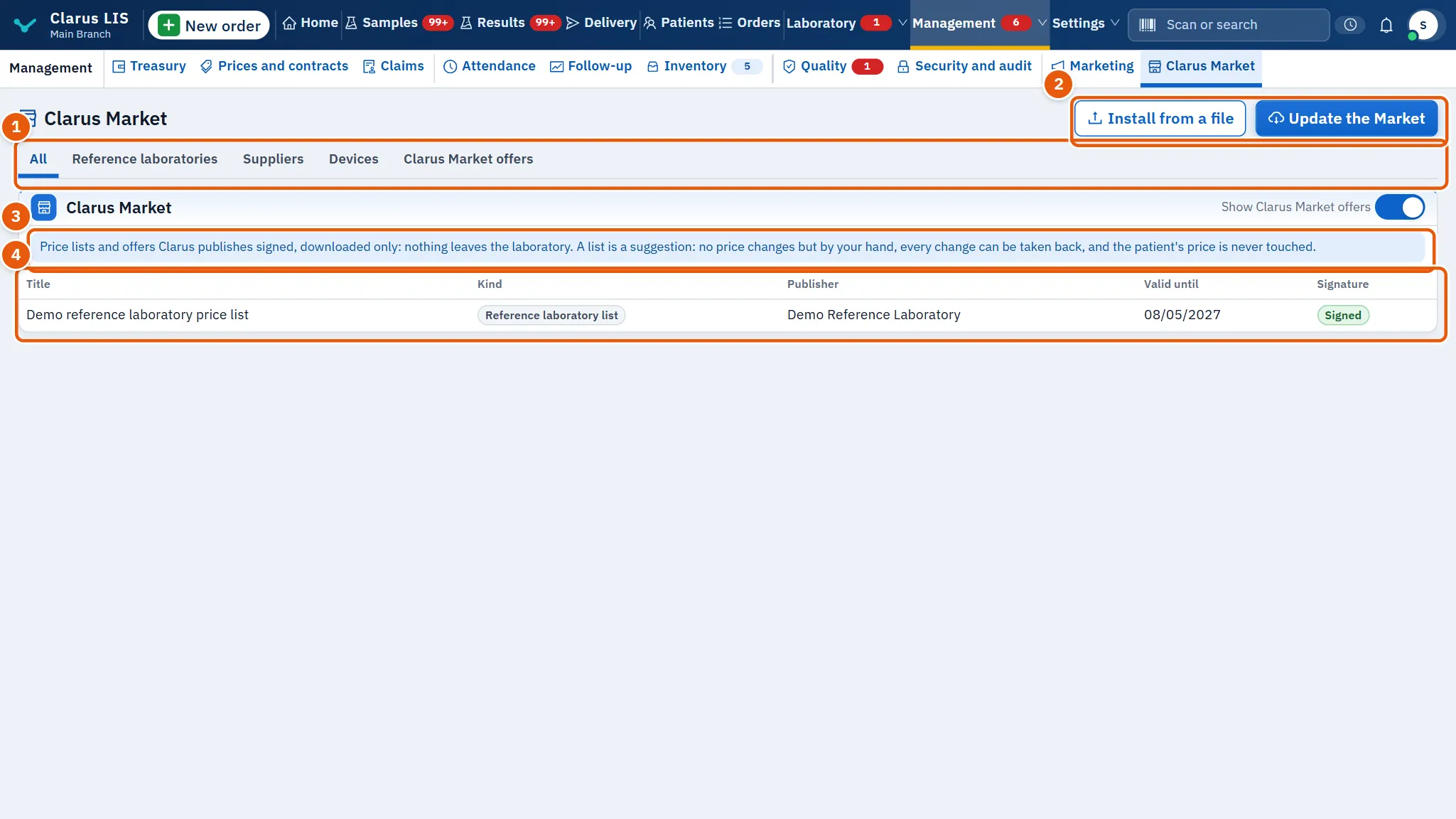
- The kinds: All, Devices, Reference laboratories, Suppliers and Clarus Market offers.
- The buttons: Install from a file and Update the Market.
- The note about how the Market works, with the switch Show Clarus Market offers.
- The documents, one row each.
| Element | What it does |
|---|---|
| Install from a file | Installs a document from a file on this computer. |
| Update the Market | Downloads what Clarus has published and installs it. |
| Show Clarus Market offers | Shows or hides the offers everywhere they appear. |
| Table columns | Title, Kind, Publisher, Valid until and Signature. |
Under the table, when the kind is All or Clarus Market offers, each current offer appears as a card with Contact the supplier and Hide. Both buttons are always there and need no permission: any signed-in user sees the offer cards. Contact the supplier shows the publisher's telephone and code on the card and opens nothing. Hide hides that offer for you personally, for good; others still see it.
24.4 The document window
Press a row to open its window. It shows the version, the date it is valid until and when it was installed. For a reference laboratory list or a supplier list, and if you may apply, it has three pages:
| Page | What it shows |
|---|---|
| Items | The document's rows as published. |
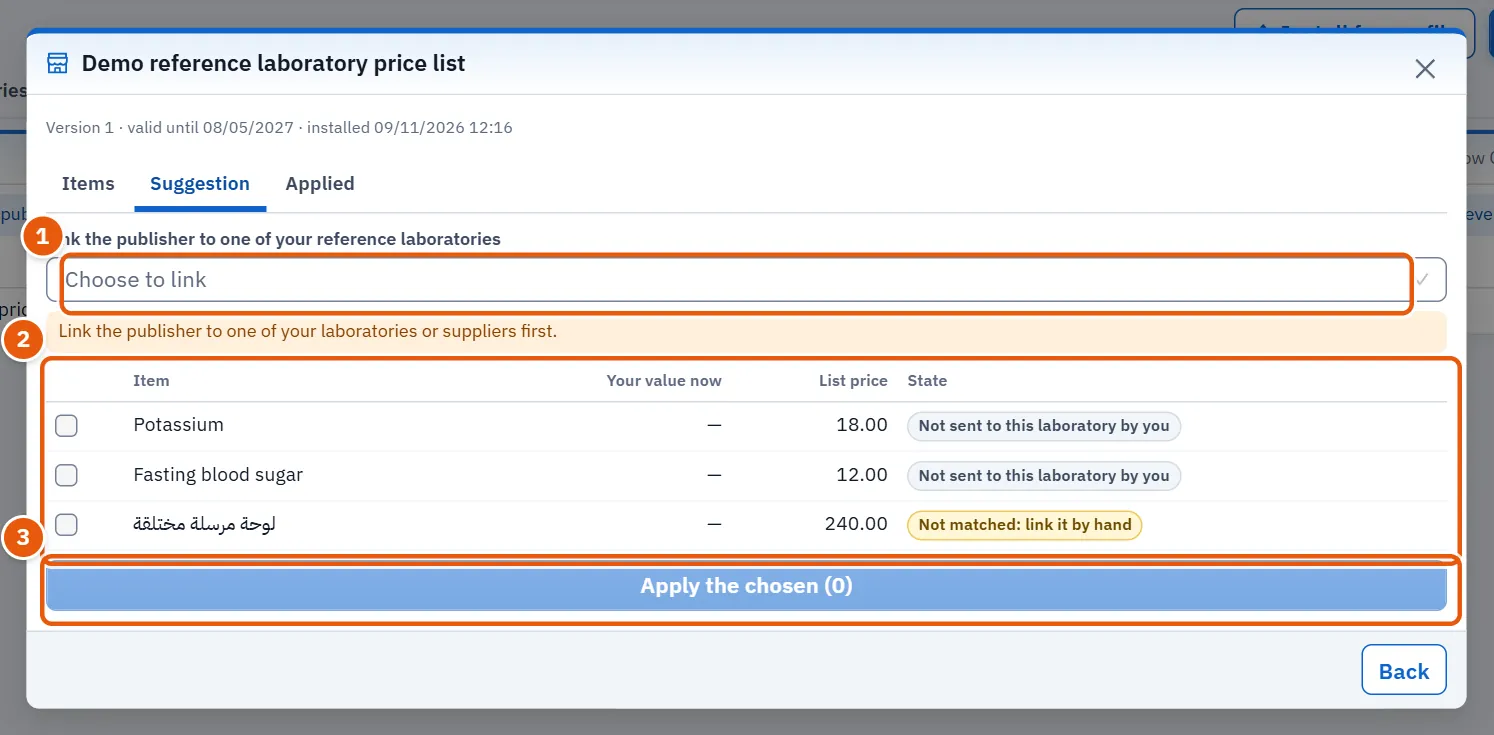
| Suggestion | Each item, Your value now, List price and State. |
| Applied | Item, Before, After, Applied at and a Take back button. |
24.5 Tasks
24.5.1 Task 1 — Update the Market
- Press Update the Market.
- Read the line that follows. It says how many documents were installed and how many were refused, with the reason for the first few.
If Clarus has published nothing yet, the screen says so, and your connection is fine.
24.5.2 Task 2 — Apply a price list
- Press the list's row.
- Open the page Suggestion.
- If the publisher is not yet linked, choose one of yours in Choose to link.
- Tick the rows you want. A row that is not matched, or that you do not send to this laboratory, cannot be ticked.
- Press Apply the chosen (…).
24.5.3 Task 3 — Take a change back
- Open the document, then the page Applied.
- Press Take back on the row. The earlier value returns and the row shows Taken back.
24.6 Messages and what to do
| The screen says | Meaning | What to do |
|---|---|---|
| This release does not carry the Market's content key yet, so no document is accepted until an update brings it. | This release cannot yet accept documents. | Wait for an update that brings the key. |
| Clarus has published nothing in the Market yet: there is nothing to install for now, and your connection is working. | Nothing to install now. | Nothing; try later. |
| The request could not be completed. | The request did not complete. | Check the connection and try again. |
| Nothing of this list was applied. | No row of this list was applied. | Nothing. |
24.7 See also
The offers can also appear on the manager's home screen, as one card placed last. The server allows two more places, low stock in the inventory and purchasing, but this release's screens do not show an offer there. Offers never appear on clinical screens. When the switch is off, no offer appears anywhere.