Chapter 8Delivery
Menu: Delivery. Address: /delivery.
8.1 What this screen is for
This is where an approved report leaves the laboratory. The desk finds the order, sees what is approved and what money is left, then hands the report over on paper, as a PDF file, on WhatsApp, or as a link the patient opens. Every hand-over is written in a log: who received it, how, which tests, and what was owed at the time.
The screen has three pages: the orders Ready to hand over; the Versions and amendments, where report versions are signed and amendments after approval are followed; and the Messages sent, where the messages sent to patients are watched and dispatched.
8.2 Who sees it
| You can… | …if your role holds |
|---|---|
| Open the screen and the page Ready to hand over; hand over, print, publish or stop a link | Publish reports |
| Open the page Versions and amendments and sign versions | Publish reports |
| See the page Messages sent, and use its two buttons | Publish the portal and communications |
| Collect the remainder from this screen | Take payments at the desk or Manage billing |
| Hand over when the laboratory's setting requires full payment | Manage billing |
A page you may not use is not shown at all. A hand-over button you may not use under the full-payment setting stays visible but dim, and its tooltip reads «The laboratory's setting lets only a billing manager hand over a report with money left».
8.3 The screen at a glance
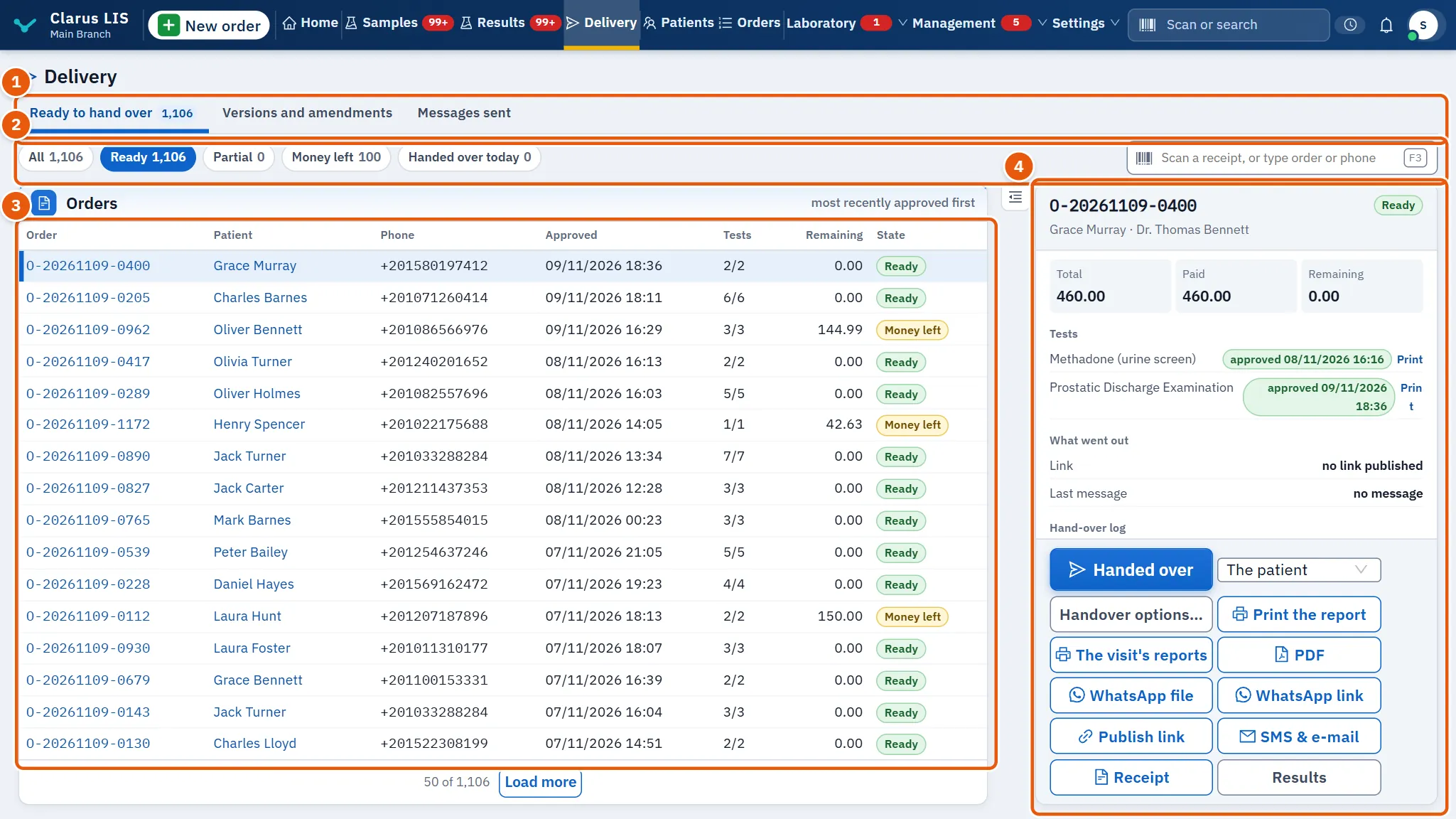
- The pages: Ready to hand over, Versions and amendments, Messages sent.
- Filters and search: the state of the order, and a box that takes the receipt scanned, an order number or a phone number.
- The list Orders: the most recently approved first.
- The chosen order: its buttons, its figures, its tests, what went out, and the hand-over log.
8.4 The page «Ready to hand over»
8.4.1 Filters and search
| Control | What it does |
|---|---|
| Order state | Chips with a count each: All, Ready, Partial, Money left, Handed over today. Choosing one clears the chosen order. |
| Search box | Scan a receipt, or type order or phone. Typing also clears the chosen order. If nothing matches the screen says «No order matches «…».». |
8.4.2 The list Orders
| Column | Meaning |
|---|---|
| Order | The order code. |
| Patient | The patient. |
| Phone | The patient's phone. |
| Approved | When the result was approved. |
| Tests | Approved tests over the order's tests, for example 3/5. |
| Remaining | The money left. |
| State | A chip: Ready, Partial, Money left or Held. |
Choose a row to open the order beside the list. When no row is chosen the screen says «Choose an order from the list.». An empty list says why, according to the filter (for example «No order with an approved result waits to be handed over.»).
8.4.3 The chosen order
At its head: the order code, the patient and physician, and a chip: Held when a release hold is on the order, else the money left, else the order's state. Then the buttons:
| Button | What it does |
|---|---|
| Collect the remainder, then hand over | Shown when money is left, the order has an invoice, the order is not held and you may collect. Opens the payment window; once the order is paid in full the hand-over follows by itself. |
| Handed over | Hands over, on paper at the desk, every approved test not yet handed over, to the receiver chosen beside it. Dim until a receiver is written (the tooltip says «Write the receiver's name, and where the doctor works when he receives it.»), and dim under the full-payment setting if you do not manage billing. |
| Receiver choice | Beside the button: The patient, A relative (then Name of who receives it) or The treating doctor (then Doctor's name and Where the doctor works). |
| Handover options | Opens the hand-over window to hand over part of the order, or by another way. |
| Print the report | Opens the print window (8.7.3 Task 3 — Print the report). |
| The visit's reports | Prints the patient's reports of the visit. |
| Downloads the report as a PDF file. If it fails: «The report's PDF could not be downloaded.». | |
| WhatsApp file / WhatsApp link | Prepares a WhatsApp message with the file, or with the result link. |
| Publish link | Publishes the result link; for an order whose link is already live the same button publishes it again. |
| SMS & e-mail | Queues the link to be sent by SMS and e-mail. |
| Stop link | Appears only when a link is live or a message was sent. Stops the link (8.7.7 Task 7 — Stop a patient's result link). |
| Receipt | Prints the receipt. |
| Results | Opens the order in the Results screen, for whoever may enter or approve results. |
While the order is held, the hand-over buttons and the collect button are not shown; the print, PDF, WhatsApp, publish and send buttons are dim with the tooltip «The order is held: it is not published until the hold is lifted», and a note explains: «This order's release is held (…): it is not published or sent until the person who approves results lifts it.».
Under the buttons:
| Part | What it shows |
|---|---|
| Figures | Total, Paid, Remaining. |
| Tests | Each test with a green chip «approved …» and a Print button, or In progress if it is not approved yet. |
| What went out | Link (live or none), Last message (channel, state and time of the last one, or «no message»), and Handed over when it was handed over. |
| Hand-over log | One entry per hand-over: when, who received it, the way (Paper at the desk, PDF file, WhatsApp or E-mail), who handed it, the tests, the money left then and the reason if one was written. Before any hand-over: «Nothing of this order has been handed over yet.». |
8.4.4 The hand-over window
Opened by Handover options.
| Element | What it does |
|---|---|
| Patient and Remaining | The patient and the money left. |
| Tests handed over | A tick for each approved test; those given before carry Handed over before. At least one must be ticked: «Tick at least one test.». |
| Received by | The same receiver choice as on the screen. |
| How it left | Paper at the desk, PDF file, WhatsApp or E-mail. |
| Reason for handing over before payment | Appears, and is required, when money is left, the laboratory's setting requires full payment and you manage billing. |
| Record the hand-over | Records the hand-over. |
| Back | Closes the window. |
| Collect the remainder | Shown in the refusal (below) when you may collect. |
8.4.5 The print window
| Element | What it does |
|---|---|
| The whole order / One test | Print the whole order or one test; for one test choose The test to print. |
| Each family on a page of its own | Puts each family of tests on a page of its own. |
| Report language | The language of the report; The laboratory's report language is the laboratory's own. |
| The report as it will print | The report as it will print, with «Preparing the preview» while it loads. |
| Print / Back | Print, or close without printing. |
8.5 The page «Versions and amendments»
Two tables, Report versions and Amendments after approval, each with its own filter chips, newest first.
| Element | What it does |
|---|---|
| Version state | All versions, Unsigned, Superseded, each with a count. |
| Version table | A tick (only on unsigned versions), Version, Order, Patient, No., Issued, State (signed with the signer's name, unsigned, or superseded). |
| Amendments | Chips: all amendments, or Awaiting re-approval. |
| Amendment table | Order, Test, From, To, Reason, State. |
| Sign the chosen (…) | Signs the ticked versions; dim until one is ticked. |
8.6 The page «Messages sent»
| Element | What it does |
|---|---|
| Message state | All, Queued, Sent, Failed, each with a count. |
| Period | Today, Week or Month. |
| Published links | A note with the number of links now published. |
| Table Messages | Time, Order, Patient, Channel, Message, Attempts, State. A failed message shows why it failed. |
| Retry the failed | Tries the failed ones again; dim when none failed. |
| Send the queue now | Sends at once what waits in the queue. |
The page and its two buttons appear only for a role holding Publish the portal and communications.
8.7 Tasks, step by step
8.7.1 Task 1 — Hand over a report with nothing left to pay
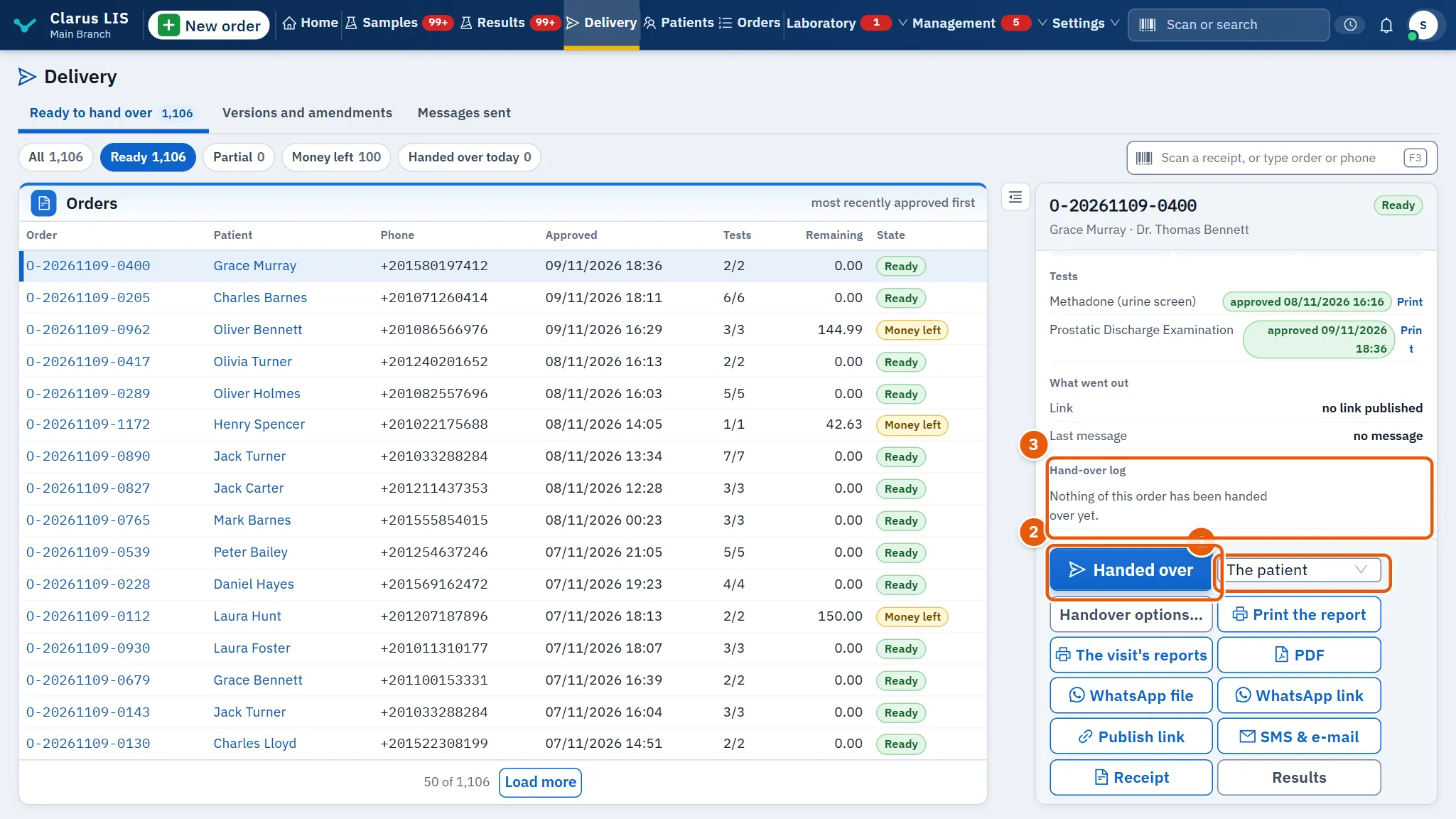
- On Ready to hand over, find the order: scan the receipt or type the order number or phone. The state chips narrow the list.
- Choose the row.
- Choose who receives: The patient, A relative (write the name) or The treating doctor (write the name and where he works).
- Press Handed over. The program confirms the hand-over and the order gets an entry in Hand-over log.
To hand over only some tests, or by another way, press Handover options, tick the tests, choose How it left and press Record the hand-over.
8.7.2 Task 2 — Hand over a report with money left
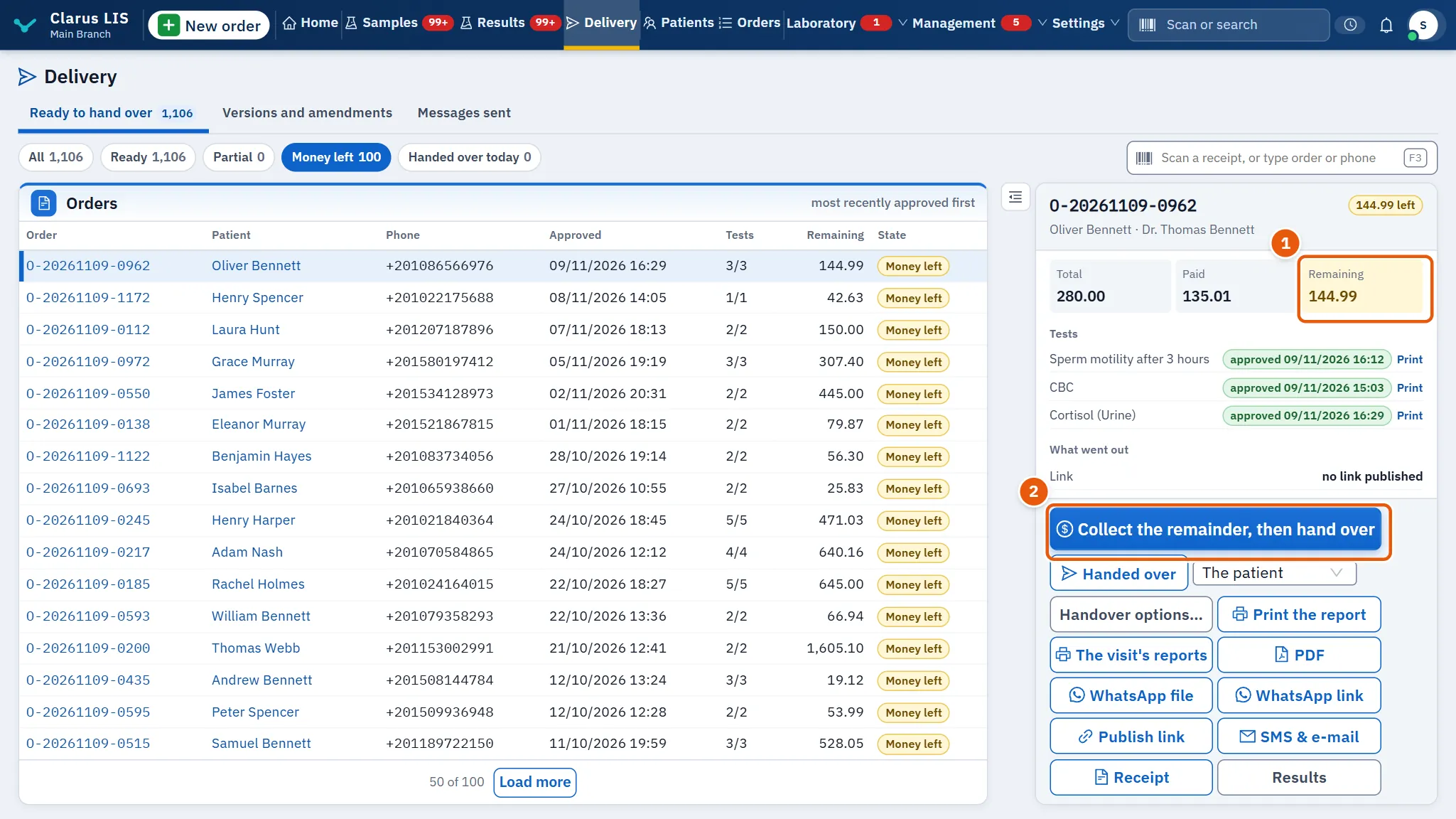
What the screen does depends on the laboratory's setting.
- Choose the order. The chip says how much is left.
- If you may collect, press Collect the remainder, then hand over, complete the payment in the window, and the hand-over follows once nothing is left.
- If the setting requires full payment and you do not manage billing, Handed over and Handover options are dim («The laboratory's setting lets only a billing manager hand over a report with money left»). The hand-over window, if opened, shows the refusal and offers Collect the remainder.
- If the setting requires it and you manage billing, Handed over opens the hand-over window: write the Reason for handing over before payment and press Record the hand-over. The screen then says the report is handed over and the debt stays in the patient's file, with the amount.
8.7.3 Task 3 — Print the report
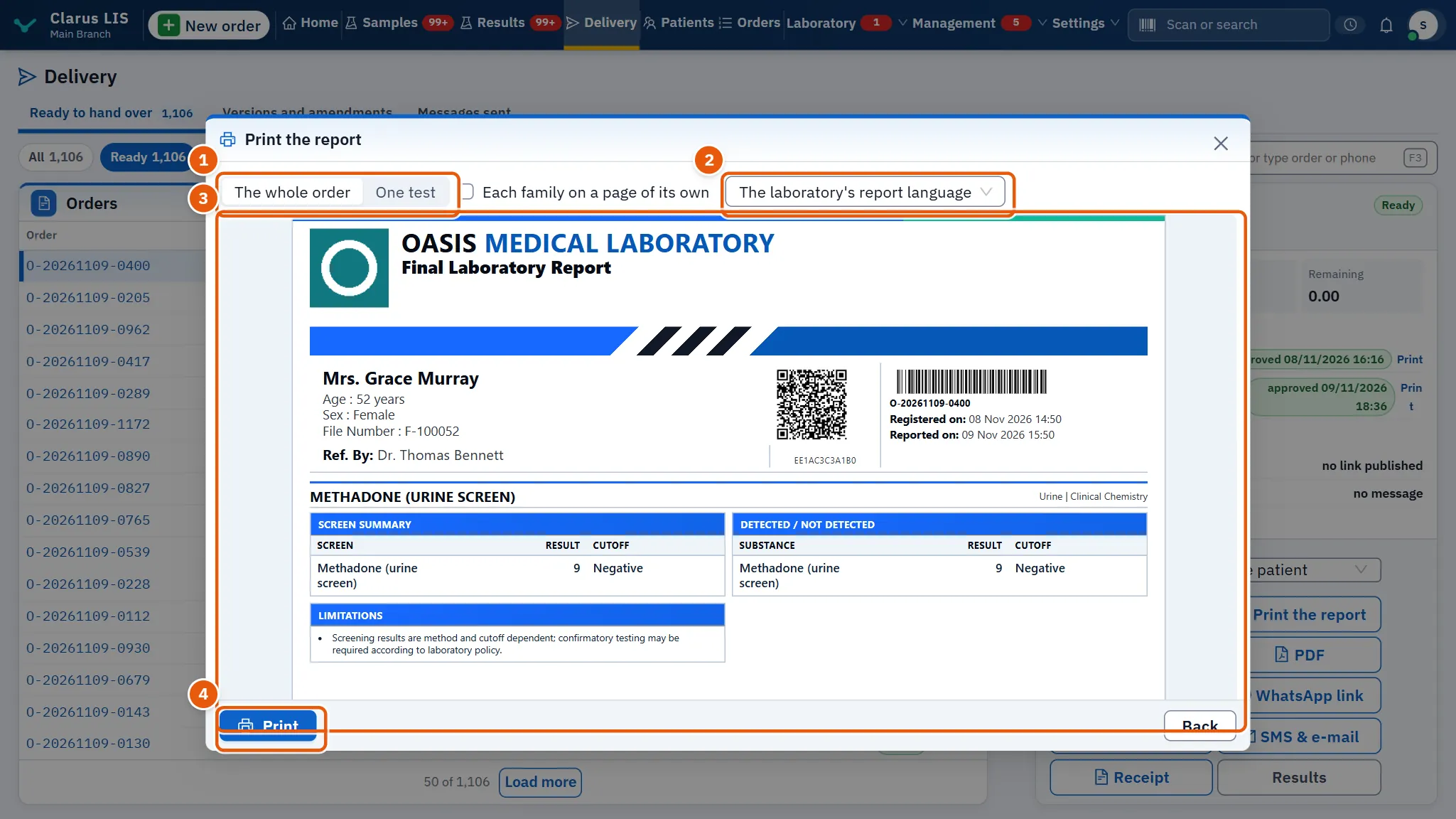
- Choose the order. If it is held, the print buttons are dim until the hold is lifted.
- Press Print the report, or Print beside one test.
- Choose The whole order or One test and, for one test, the test.
- Choose the Report language and, if wanted, Each family on a page of its own.
- Check the preview and press Print.
To print every report of the patient's visit press The visit's reports; for the receipt, Receipt.
8.7.4 Task 4 — Send the report as a link, PDF or WhatsApp
- Choose the order (it must not be held).
- For a link: press Publish link; the screen says the report is published and, when it has one, gives the address. Press SMS & e-mail to queue it for the patient by SMS and e-mail; the screen names the channels used. If the file has neither phone nor e-mail it says nothing was sent.
- For a file: press PDF.
- For WhatsApp: press WhatsApp file or WhatsApp link. Depending on the laboratory's connection, the program either sends the message itself, or opens the chat with the message ready and asks you to press Send in WhatsApp (and, for a file, to drag the saved PDF into the chat).
8.7.5 Task 5 — Sign report versions
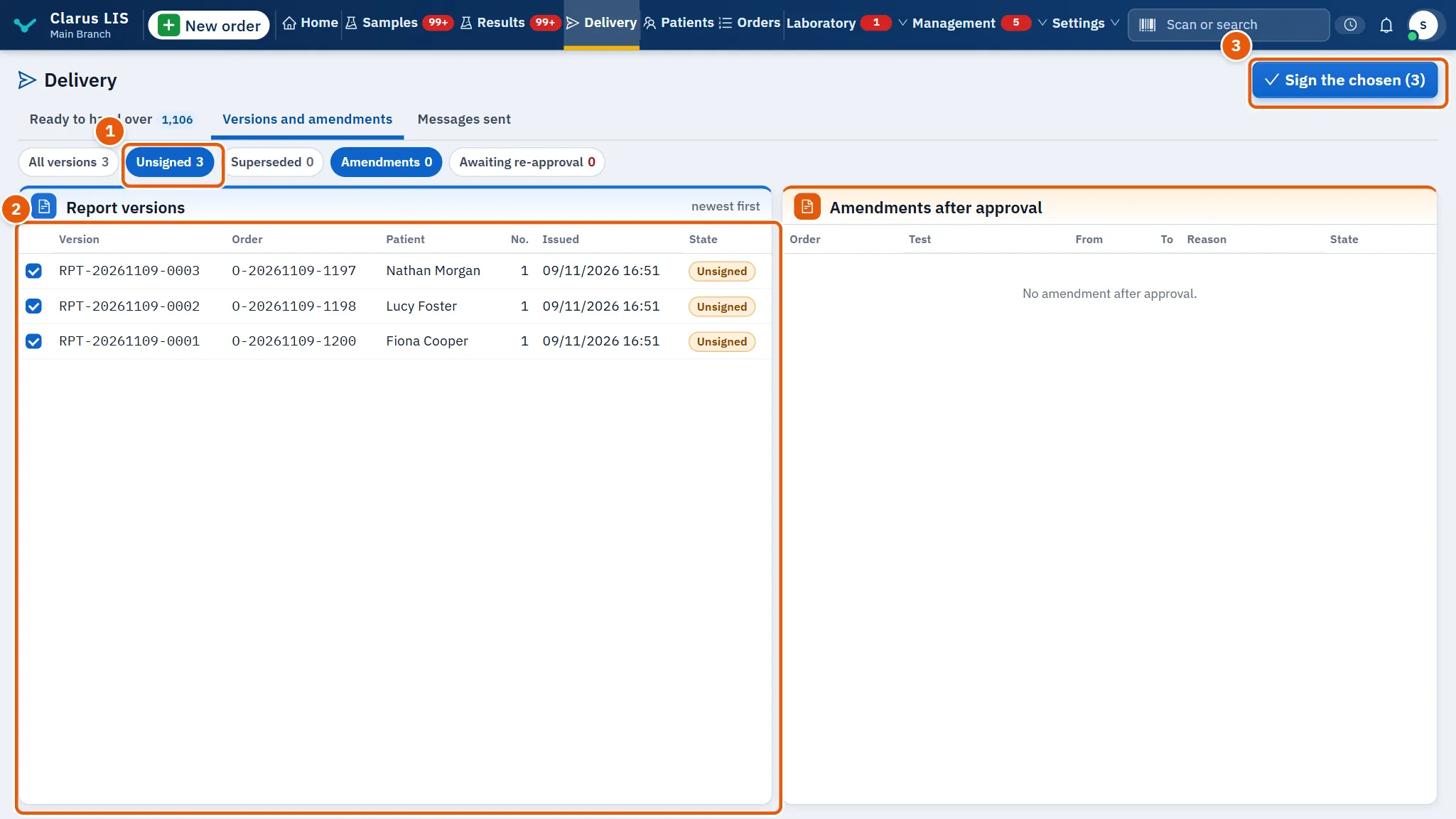
- Open Versions and amendments.
- Choose Unsigned to see what waits.
- Tick each version to sign.
- Press Sign the chosen (…). The screen says how many were signed.
8.7.6 Task 6 — Follow amendments after approval
- On Versions and amendments, look at Amendments after approval.
- Choose Awaiting re-approval to see those not yet approved again. Each row shows the old and new value and the reason.
Amendments are made on the Results screen; this page only follows them.
8.7.7 Task 7 — Stop a patient's result link
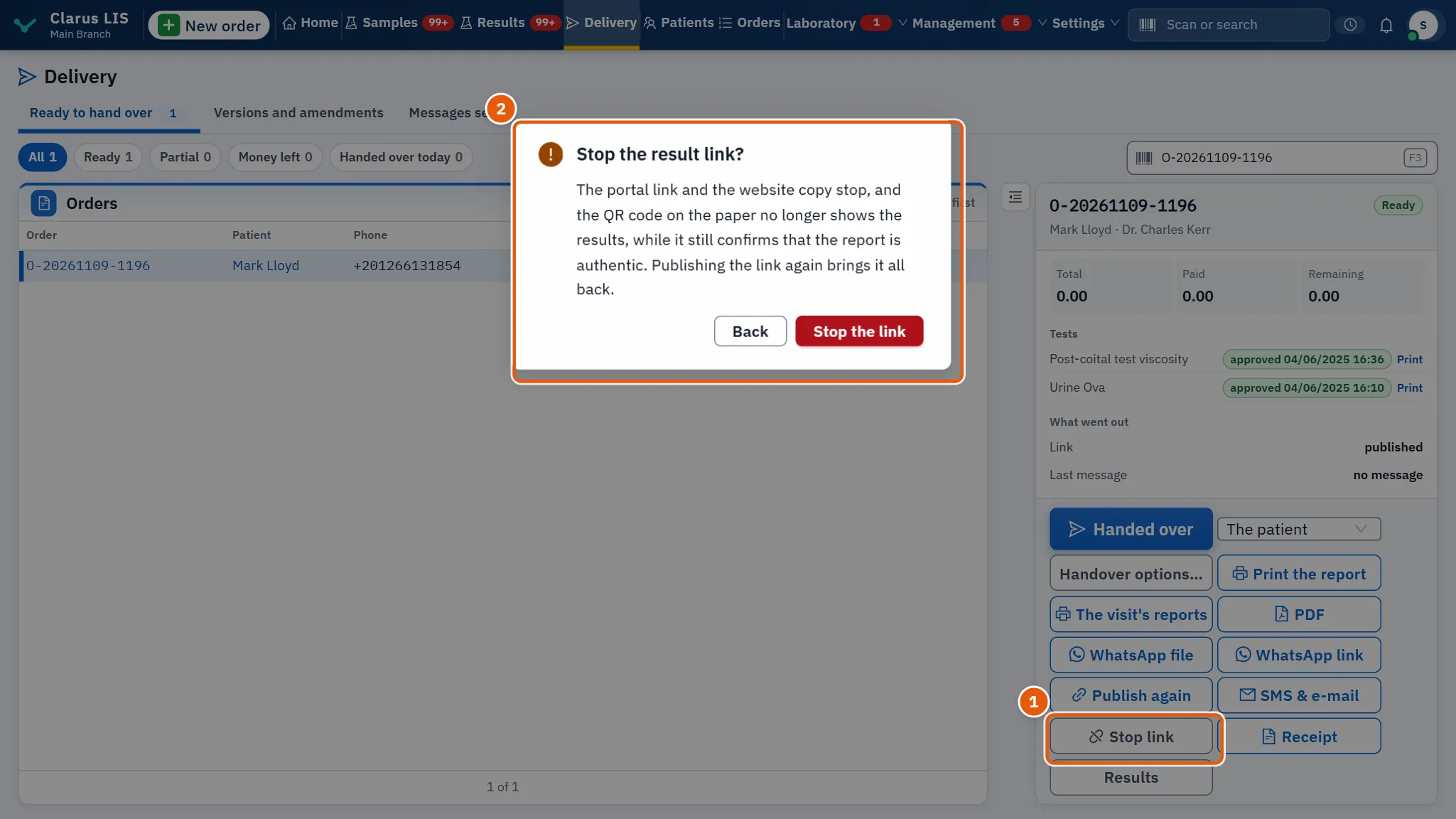
- Choose the order. Stop link appears when its link is live or a message was sent.
- Press it. The window Stop the result link? explains: the portal link and the website copy stop, and the QR code on the paper stops showing results while still confirming that the report is authentic.
- Press Stop the link (or Back). The screen says the link is stopped.
- To restore it, press Publish link again.
8.7.8 Task 8 — Dispatch messages
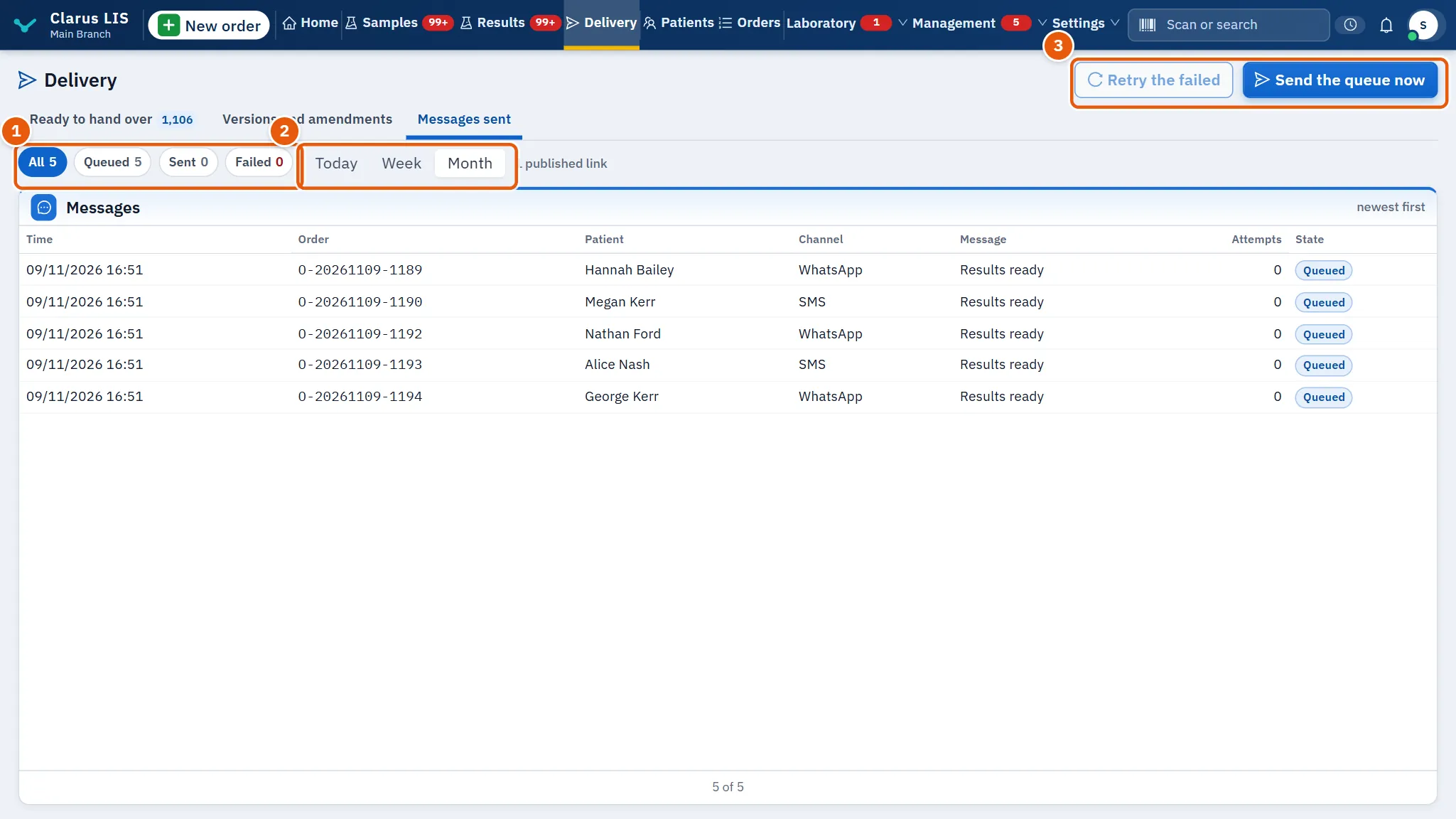
- Open Messages sent.
- Choose the state and the period.
- Press Send the queue now to send now what waits in the queue.
- Press Retry the failed to try the failed ones again. Read the reason shown on a failed message before you retry.
8.8 Messages and what to do
| The screen says | Meaning | What to do |
|---|---|---|
| The orders ready to hand over could not be read. | The list could not be read | Press retry; check the connection |
| This order's release is held (…): it is not published or sent until the person who approves results lifts it. | A release hold is on the order | Wait until the hold is lifted |
| The laboratory's setting lets only a billing manager hand over a report with money left | The setting reserves this to billing managers | Collect the remainder, or ask a billing manager |
| Write the receiver's name, and where the doctor works when he receives it. | No receiver is written | Write the name |
| The hand-over could not be recorded. | The hand-over was not recorded | Try again |
| This server does not record hand-overs yet; nothing was recorded. | This server cannot record hand-overs | Nothing was recorded; contact support |
| Nothing was sent: the patient's file has no phone number and no e-mail. | The file has no phone and no e-mail | Complete the patient's file |
| This patient's phone number needs confirming: it may now belong to someone else. Open the patient's file, confirm or correct the number, and send again. | The number may belong to someone else now | Confirm it in the patient's file, then send |
| The patient has no WhatsApp number on file. | No WhatsApp number | Add it to the patient's file |
| No link a patient can open exists yet. Send «WhatsApp with the file» so the report arrives as a file, or publish the laboratory's website. | No link exists yet | Send the file instead, or publish the link first |
| The report's PDF is saved and the chat is open: drag the saved file into the chat, then press Send in WhatsApp. | The chat is open but the file is not attached | Drag the saved file in and press Send |
| The report could not be published. | The link was not published | Try again |
| The result link could not be stopped. | The link was not stopped | Try again |
| The version could not be signed. | A version was not signed | Try again |
| That could not be done. | The action on messages failed | Try again |
8.9 See also
Results and approval (what arrives here, and amendments), Orders and payment (the money collected), Patients (phone and WhatsApp number), Settings and users (the permissions above and the full-payment setting).