Chapter 1Installing Clarus on a computer
This chapter is for the person who puts CLARUS Prime on a laboratory computer for the first time. It follows what you see, in the order you see it: the check of the computer, the installer's pages, the end of the installation, and then updating and removing. The installer is called Setup in what follows.
1.1 What this chapter is for
Everything CLARUS Prime needs is inside Setup: the program, the runtime it runs on and the database. Nothing is downloaded during the installation and no internet connection is required to finish it. Setup is the file you get from the download or from the USB stick; run it and follow its pages.
Setup does four things, in this order: it looks at the computer before copying anything, asks you the few questions that matter, copies the program and creates the laboratory's own database, and then starts the activation. What happens after the last page is the subject of other chapters: Chapter 39: First setup and Chapter 38: Licence.
1.2 What the computer needs
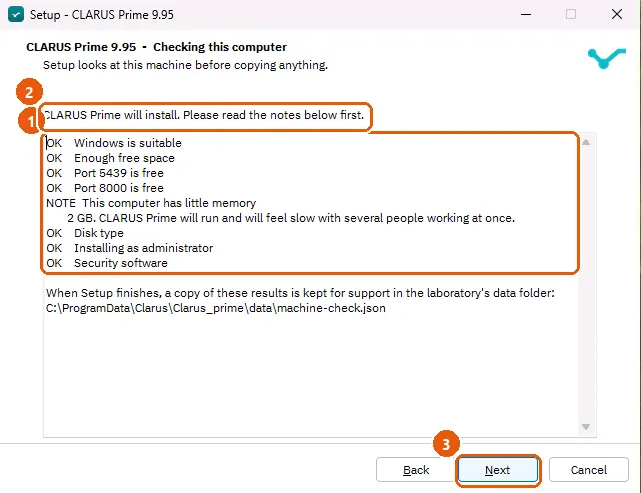
Setup runs a check of the computer before it copies a single file. The check is the script check-this-computer.ps1, and the page that shows it is titled «Checking this computer». What it looks at is the following, and nothing else.
| It looks at | A stop (Setup cannot go on) | A note (it will work, but...) |
|---|---|---|
| Windows | A 32-bit Windows, or a Windows older than Windows 10. | None. |
| Free space on the system drive | Less than 5 GB for a server (2 GB for a computer in an existing branch). | Less than twice that amount: it installs, but the database and the backups grow. |
| Memory | None. | Less than 4 GB for a server (2 GB for a computer in an existing branch): it works, but slowly when several people work at once. |
| The disk | None. | A spinning hard disk: it works, and a solid-state disk makes the database faster. |
| Port 5439 (the database) and port 8000 (the program) | None. | None. A port used by another program is not a stop: Setup takes the next free one and records it. A port used by CLARUS Prime itself means this will be an update. |
| Administrator rights | None. | Not running as administrator: the program installs for the current user only, and the database starts when somebody signs in, not when the computer starts. |
| Other security software | None. | Security software other than Windows Defender: if the database fails to start, allow the CLARUS Prime folder in that program and install again. |
A computer that joins an existing branch is checked as a member: it has no database port, needs less room, and its administrator-rights line only says that none are needed.
If anything is a stop, Setup shows a message that the computer does not meet the requirements, and Next does not go on. Correct the cause and run Setup again. Notes never stop you; you read them and decide. A copy of the result is kept for support in the laboratory's data folder when Setup finishes, so whoever answers your call can see what the check saw.
1.3 Getting Setup
Setup is one file, downloaded from the supplier's site or copied from the USB stick. Run it by double-clicking. Setup is built to ask for administrator rights, but it lets you choose between installing for all users and installing for you only; see 1.6 Without administrator rights. If you choose all users, Windows asks whether you may make changes to the computer: answer yes.
1.3.1 The language comes first
Before any page, Setup asks which language to use. The choice governs everything after it: the wizard's own text, the licence agreement, the data statement, and the language CLARUS Prime itself opens in. Setup asks even when Windows is in a language Setup knows, so a laboratory is never given a language it did not choose. It offers the program's languages: English, Arabic, French, German, Spanish, Portuguese (Brazil), Portuguese (Portugal), Turkish, Kurdish and Kabyle.
The licence agreement is written in Arabic for the Arabic Setup. Every other language shows the English agreement, and each page says so in its own words: the English agreement is the one that binds.
1.4 The pages of Setup
The pages come in this order. A page that does not apply to your case is not shown.
| Page | What it asks or says |
|---|---|
| Welcome | Introduces Setup. When you press Next the computer check runs. |
| Licence agreement | The terms of use. You must accept them to continue. |
| Installation type | What this computer will be in the laboratory. See 1.4.1 The installation type. |
| Data and privacy | How the program handles the laboratory's data, in a text you read. Tick the agreement box to go on; without it Setup says «Please tick Agree to continue». |
| Checking this computer | The check described above. |
| Ready to install | A summary of what Setup will do: the program folder, the laboratory's data folder, its backups, and the country and currency. Two choices: install this way (recommended), or let me choose the folders, the languages and the country. Shown only for a new branch server, not for an update or for a computer in an existing branch. |
| The folder | Where the program goes. Shown on the second choice and for a computer in an existing branch; not asked on an update, which keeps the existing folder. Not shown on the first choice. |
| A laboratory already on this computer | Shown only when Setup finds the data or the backups of an earlier installation in the chosen place. |
| Where the backups go | The folder of the daily backups. Shown on the second choice and on an update, and not for a computer in an existing branch. |
| The laboratory's languages | Which languages besides English are installed with the program. Shown only on the second choice, and not for a member or an update. |
| The laboratory's country and this computer's settings | The country, its currency, the time zone, the paper and the printers Windows reports. Shown only for a new laboratory with no data in the chosen place (on the second choice), and not for a member or an update; if Windows did not say which country the computer is in, it is shown on the first choice too. |
| Activation | The serial number, optional. |
| Review before copying | Setup's standard «Ready to install» page, which shows everything you chose before any file is copied. Shown only on the second choice. |
| Installing | The progress, stage by stage. |
| Finished | The result of the activation and the details of this copy. |
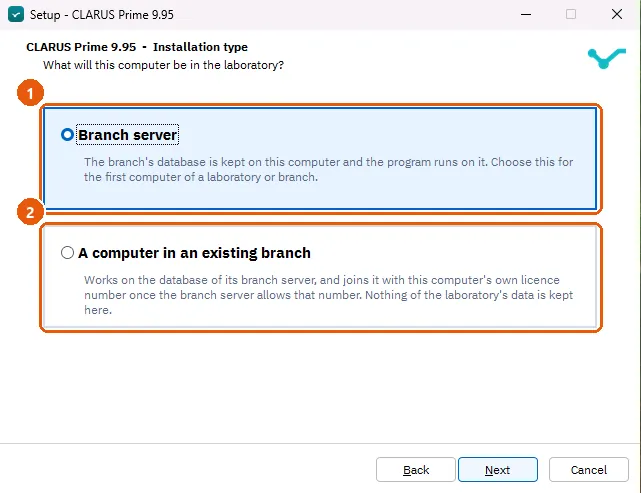
1.4.1 The installation type
This page asks what the computer will be in the laboratory. It is skipped when Setup finds the program already on the computer, because an update keeps the role it has.
| Choice | What it means |
|---|---|
| Branch server | The branch's database is kept on this computer and the program runs on it. Choose this for the first computer of a laboratory or of a branch. This is the usual choice and the one for a single computer. |
| A computer in an existing branch | The computer works on the database of its branch server, and joins it with its own licence number once the branch server allows that number. Nothing of the laboratory's data is kept on it. |
A computer in an existing branch gets a shorter Setup: no data and privacy page, no backups page, no languages page, and the computer check page only if it found something to mend. How the computer then joins its branch is the subject of Chapter 28: Linking branches and computers.
1.4.2 Data and privacy
The page shows the data statement in the language you chose. Its short form: CLARUS Prime runs entirely on the laboratory's own computer, and patient data never leaves it. Read the statement itself for the exact list of what the program sends to the supplier when it looks for updates. Tick the agreement box to continue.
1.4.3 The folders
Setup chooses the drive D for the program, its data and its backups when the computer has a fixed drive D, so a copy survives if the drive C has to be rebuilt. Without a drive D it uses the Program Files folder for the program and ProgramData for the data and the backups. The recommended way shows you these choices on the summary page and asks nothing more. The other way shows the folder page and the backups page, where you may choose other folders.
| What | With a fixed drive D | Without a drive D |
|---|---|---|
| The program | D:\Clarus\Clarus_prime | C:\Program Files\Clarus\Clarus_prime |
| The laboratory's data | D:\Clarus\Clarus_prime\data | C:\ProgramData\Clarus\Clarus_prime\data |
| The daily backups | D:\Clarus\Clarus_prime-backups | C:\ProgramData\Clarus\Clarus_prime-backups |
If the program is installed «for you only» (see 1.6 Without administrator rights), its folder is %LOCALAPPDATA%\Programs\Clarus\Clarus_prime instead of Program Files. The laboratory's data is never placed inside Program Files: if Setup finds earlier data in ProgramData, or an existing installation has recorded its data folder in its settings, the data stays where it is and an update does not move it.
A folder inside another project's folder is refused, with the folder named, and you choose another one. Setup is never installed inside another program's folder.
1.4.4 A laboratory already on this computer
This page appears only when Setup finds the data or the backups of an earlier installation for the folder you chose. It offers three ways to start, and it deletes nothing whichever you choose.
| Choice | What happens |
|---|---|
| Use the laboratory's data in the folder named | The installation starts from the data that is already there. |
| Restore the newest backup, named with its date | The newest backup is restored. If it cannot be restored, the laboratory starts from the data that is there and the backup file is not touched. |
| Start a new laboratory; the earlier data stays where it is | A new, empty laboratory. The earlier data remains in its old place. |
1.4.5 The laboratory's languages
The program always works in English. This page lets you tick the other languages the laboratory needs. Every language is already inside Setup, so ticking one installs it with the program and needs no internet connection. A language marked experimental is offered with that word beside it. Languages can be added or removed at any time from the laboratory's languages screen under general settings.
1.4.6 The country and the settings
Setup shows where Windows says the computer is: the country, its currency, the time zone, the paper, the printers (the default one marked with an asterisk; each printer is given its role later, on the station's card) and the data and backup folders. Confirm the country and the currency or change them; the laboratory can change them later in Settings, under the regional format. If Windows did not say which country the computer is in, the page is shown on every path and Next waits until you choose one. No accreditation standard is chosen here: the laboratory chooses its own in the program.
1.4.7 Activation
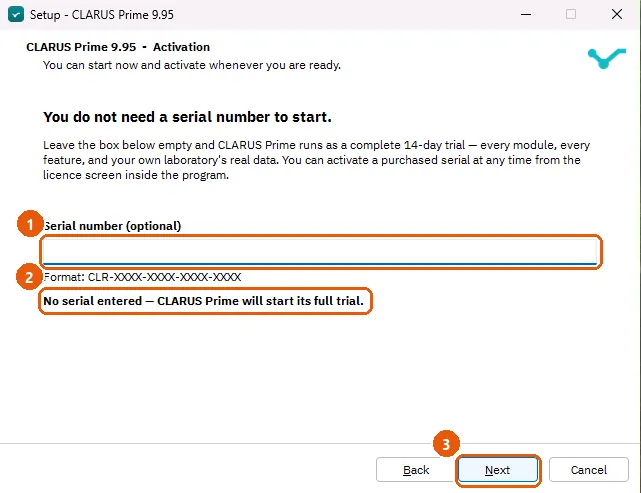
You do not need a serial number to start. Leave the box empty and CLARUS Prime runs as a complete 14-day trial with every module and the laboratory's own real data. A purchased serial is typed in the box; it has the form CLR-XXXX-XXXX-XXXX-XXXX. You do not type CLR or the dashes: the box adds them as the groups fill, and dashes and spaces you type are ignored. The sixteen characters are digits and letters, but never the letters I, L, O and U; the box turns I and L into 1, O into 0 and U into V, and drops any other character. Arabic-Indic digits are turned into ordinary digits. A line under the box tells you what it has read: how many characters have been typed, that the serial is complete and reads correctly, or that one character does not match the rest, in which case check it against the card. The usual pairs of confusion are 1 and I, and 0 and O.
Next does not go on with a serial that is incomplete or has a mismatching character; Setup says so and waits. An empty box always goes on: that is the trial. For a computer in an existing branch the same page asks for the licence number of this computer instead, and does not offer a trial; if you do not have the number now, leave it empty and type it in the computer's window after installing.
The details of the licence are the subject of Chapter 38: Licence.
1.4.8 Installing
While Setup works it names each stage: placing the program files, registering the laboratory tools, creating the laboratory database (the longest step), building the laboratory tables and loading the test catalogue, checking the licence, installing the languages, and registering the program's services with Windows. A computer in an existing branch has a stage for joining its branch.
1.4.9 The last page
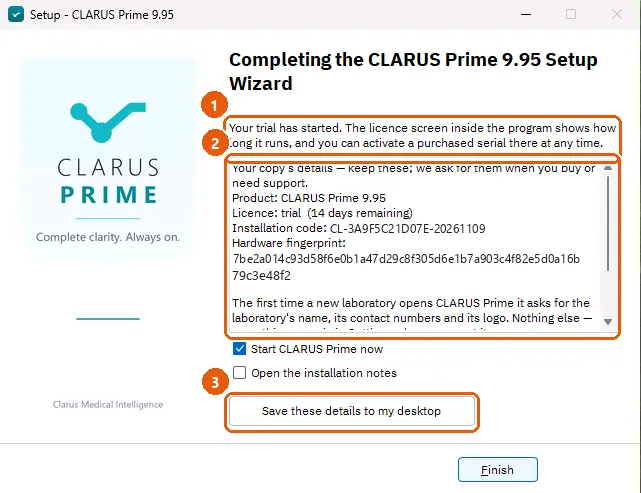
The last page says what became of the activation, and shows the details of this copy: the product, the licence, the installation code, the hardware fingerprint, the serial, where it is installed and where the data is kept. Keep these details; the supplier asks for them when you buy or need support. A button saves them as a file on the desktop. A computer with no internet can use the installation code and the fingerprint to activate from a phone: open claruslis.com/activate, enter the two values and the serial, and bring the downloaded file back on a USB stick.
| The page says | Meaning |
|---|---|
| CLARUS Prime is activated and ready. | The serial was accepted. |
| Your trial has started. | No serial was typed. The licence screen inside the program shows how long it runs. |
| The serial was not accepted, but it is installed and your trial keeps it fully usable. | Open the licence screen in the program to try again. |
| Your serial is recorded, but it is not activated yet. | Open the licence screen in the program and press activate. |
If the computer could not reach the supplier's server during Setup, the page says the trial starts with the supplier's signature, which did not arrive: connect the computer to the internet, open the program and press «Try now» on the trial screen; without the internet the same screen shows a code to scan with your phone, to download the trial file and bring it across.
Two buttons are offered: start the program now, and open the installation notes.
1.5 After the installation
- Open CLARUS Prime from the desktop shortcut or from the Start menu. The program opens in the browser.
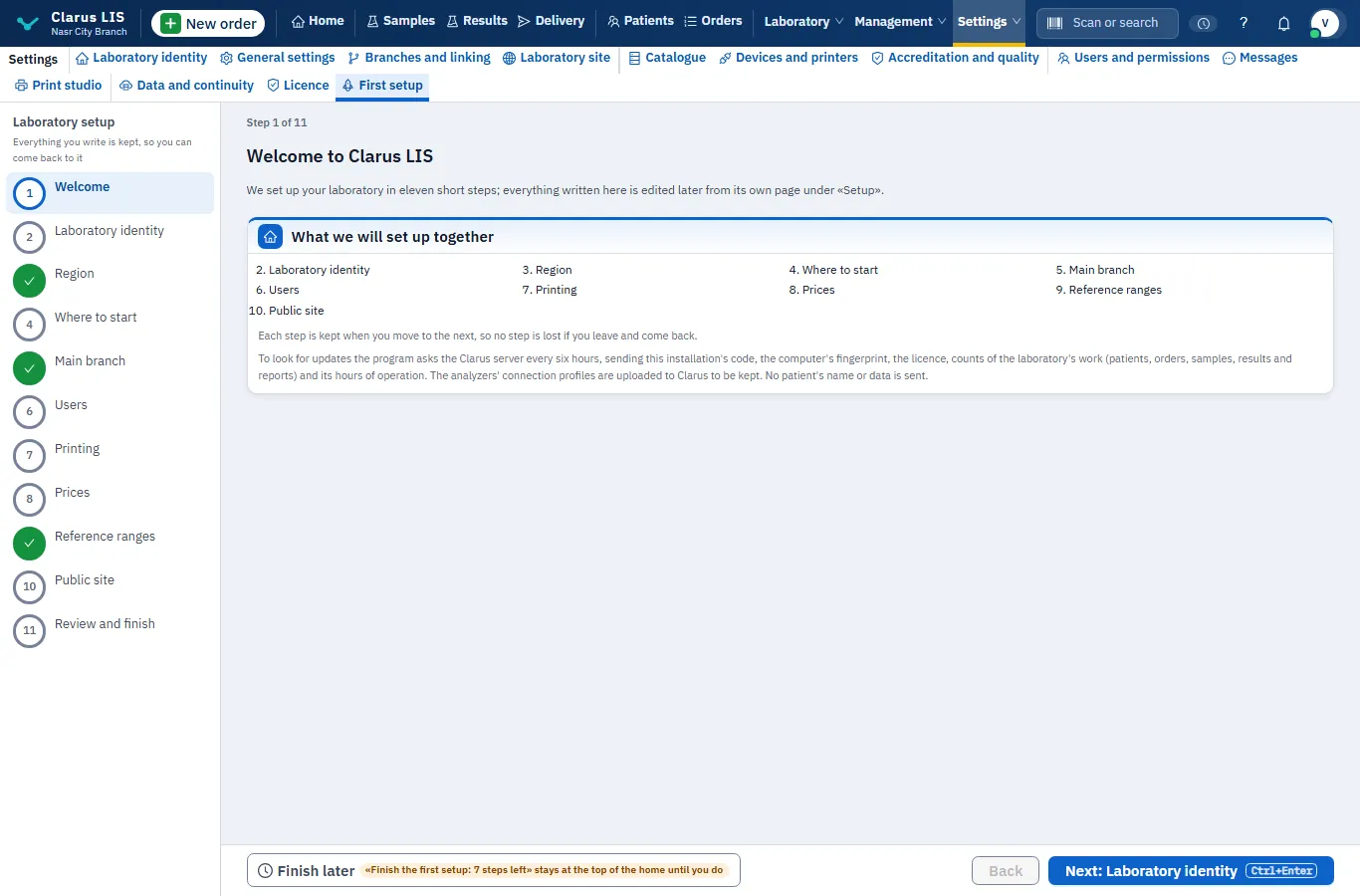
- The first time it asks for the laboratory's name, its contact numbers and its logo, and then walks you through the first setup. Fill it in before you register the first patient, because it is what prints on every report. See Chapter 39: First setup.
- To activate a serial, or to see how long the trial has left, open the licence screen. See Chapter 38: Licence.
- Check where the data and the backups are, and arrange the copy to another disk. See Chapter 37: Data and continuity.
The database is registered as a Windows service of the «automatic» type, so it starts with the computer and comes back by itself after a power cut, without anyone signing in. As for the program itself, Setup registers a hidden task that starts it at every Windows sign-in with no window (for an install «for you only», an entry in your account's sign-in startup instead), so the laboratory's analyzers are heard after a restart without waiting for someone to open it; if the task could not be registered, the program starts when its window is opened. To open the window after a restart use the desktop shortcut or the Start menu, which opens the window on the running program. Registering the service needs administrator rights and a folder that only administrators can change (the proposed Program Files folder, for example); otherwise a task that starts the database when a user signs in to Windows is registered in place of the service.
1.6 Without administrator rights
The installer is built to ask for administrator rights, and offers a choice between all users and your account only. That choice is shown when Setup is run interactively without the command-line options that fix it in advance (/ALLUSERS or /CURRENTUSER); this comes from Setup's settings, and was not tried on screen. Setup's words: «CLARUS Prime can be installed for all users (requires administrative privileges), or for you only. Installed for you only, the program runs only while you are signed in to Windows: the branch's computers and the phone cannot reach it while you are signed out.» Then the program runs only while you are signed in to Windows, and the branch's other computers and the phone cannot reach it while you are signed out. The database starts when somebody signs in, not when the computer starts. For a laboratory, install as administrator.
1.7 Updating
Run the new Setup on the computer where CLARUS Prime is. Setup recognises it: the computer check says that CLARUS Prime is already on the computer and that this will be an update, the installation type page is skipped, and the folder page is not shown, because the folder of the existing installation is kept (this is the installer's standard behaviour for an update; Setup does not change it). If the running program is holding its files, Setup closes it first. If it still holds them, Setup stops and leaves everything as it was; close the program or restart the computer and run Setup again.
If the program is found installed for a different Windows account or privilege level, Setup warns that installing again creates a second copy with its own folder and database, so the laboratory's data would be in one of them and not the other, and asks whether to install a second copy anyway.
An update from the supplier can also come as two files, the update package and a small handoff file. A technician installs it from the install folder with update-clarus-lis.ps1; it checks the package against the recorded checksum and refuses anything that does not match, and keeps a copy of the version it replaced so it can be put back. The last two versions are kept. The laboratory's data is not touched in either direction.
1.8 Removing
Use Windows Add or Remove Programs, or the Uninstall shortcut in the Start menu folder. The uninstaller asks one question: remove everything, or keep the laboratory's data? In every case the removal stops the database service (or the sign-in task that starts it) and unregisters it, and removes the task that starts the program at sign-in, before it deletes the files. A silent removal asks nothing and keeps the data.
| Choice | What goes | What stays |
|---|---|---|
| Keep the laboratory's data (the usual choice) | The program. | The database, the settings and the backups. Installing again brings the laboratory back as it was. |
| Remove everything except the backups and the licence | The program, the database, the settings and the logs. | The backups, the keys they are read with and the licence information. |
1.9 Two common installations
1.9.1 Task 1 — A single computer
- Run Setup and choose the language.
- Accept the licence agreement.
- On the installation type page keep Branch server.
- Accept the data and privacy page.
- Read the computer check; stops must be corrected, notes weighed.
- On the summary page press Install this way (recommended).
- On the activation page type the serial, or leave the box empty to begin the trial.
- When Setup finishes, press the button to start the program and go on to the first setup, Chapter 39: First setup.
1.9.2 Task 2 — A computer that joins an existing branch
- Get from the branch server's administrator the licence number allowed for this computer.
- Run Setup, choose the language, accept the licence agreement.
- On the installation type page choose A computer in an existing branch.
- On the activation page type the licence number, or leave it empty and type it later in the computer's window.
- When Setup finishes, open the program. Its window joins the computer to its branch; the rest is in Chapter 28: Linking branches and computers.
1.10 What the screen says
| The screen says | Meaning | What to do |
|---|---|---|
| This computer is ready for CLARUS Prime. | Every check passed. | Go on. |
| CLARUS Prime will install. Please read the notes below first. | There are notes but no stop. | Read them, then decide. |
| CLARUS Prime cannot be installed on this computer yet. | There is a stop. | Correct what the stops name and run Setup again. |
| This computer does not meet the requirements above. | You pressed Next on a stop. | Same. |
| Not enough free space | Less free space than the check needs. | Free space on the system drive. |
| Not running as administrator | No administrator rights. | Run Setup as administrator if the computer is switched off at night. |
| The folder you chose is inside another project's folder | The folder is inside another program's folder. | Choose another folder. |
| Please tick Agree to continue. | The data statement is not accepted. | Tick the box. |
| One character does not match the rest of the serial | A typing mistake. | Compare with the card; 1 and I, 0 and O. |
| The serial must be 16 characters | An incomplete serial (16 characters after «CLR», not counting the dashes). | Complete it, or empty the box to start the trial. |
| The program already on this computer is still running and holding its files | An update was refused. | Close the program or restart, and run Setup again. |
| Setup did not finish | The step that prepares the database ended with an error code. Setup names a file with the record. | Send that file to the supplier, or correct the cause it names and run Setup again. |
| Windows blocked the database engine | Smart App Control in Windows refused to run the database engine. Administrator rights do not change this. | Turn Smart App Control off in Windows Security and restart; it cannot be turned back on without reinstalling Windows, so ask the supplier first if that is not acceptable. |
| The laboratory's tables could not be built | The database runs, but building or updating the tables stopped before it finished. | Run Setup again; if it stops again, send the file. |
| The laboratory database could not be prepared | The step that prepares the database did not finish. | Restart the computer and run Setup again as administrator; if it stops again, send the file. |
A technician who installs without the wizard runs Setup with /VERYSILENT /SUPPRESSMSGBOXES /NORESTART from an elevated prompt, and adds /LOG="C:\setup.log" to keep a record. Its exit code is the setup step's own code: 0 when the install finished, anything else when it did not. The reason is in install-transcript.log in the install folder.
1.11 See also
- Chapter 39: First setup: the first setup of a new laboratory.
- Chapter 38: Licence: the licence, the serial and the activation.
- Chapter 37: Data and continuity: where the data and the backups are, and the copy to another disk.
- Chapter 28: Linking branches and computers: a computer that becomes a branch server or joins one.