Chapter 23Marketing
Menu: Marketing. Address: /admin/marketing.
23.1 What this screen is for
This is where the laboratory keeps track of how people come to it and what that brings in. It holds the people who have shown interest but have not yet become patients (leads), the campaigns and offers the laboratory runs, the places customers come from, the doctors who refer, and the laboratory's own discount cards. Each page counts orders and revenue so you can see which source, campaign or offer is worth its cost.
The head of the screen carries one period that every figure is counted in. Pages are reached from the tabs under the title. Creating or editing a record always opens a window with a Save button; nothing is sent to anyone from the first six pages.
23.2 Who sees it
Whoever holds Marketing: campaigns, offers and referrals. The menu hides the screen from everyone else. Within the screen:
| You can… | …if your role holds |
|---|---|
| Open the six pages, create and edit leads, campaigns, offers and sources, and issue and stop discount cards | Marketing: campaigns, offers and referrals |
| See the Bulk sending tab, prepare a send and hand it over for sending | Manage settings, besides Marketing: campaigns, offers and referrals which opens the screen (the tab is not shown without it) |
23.3 The screen at a glance
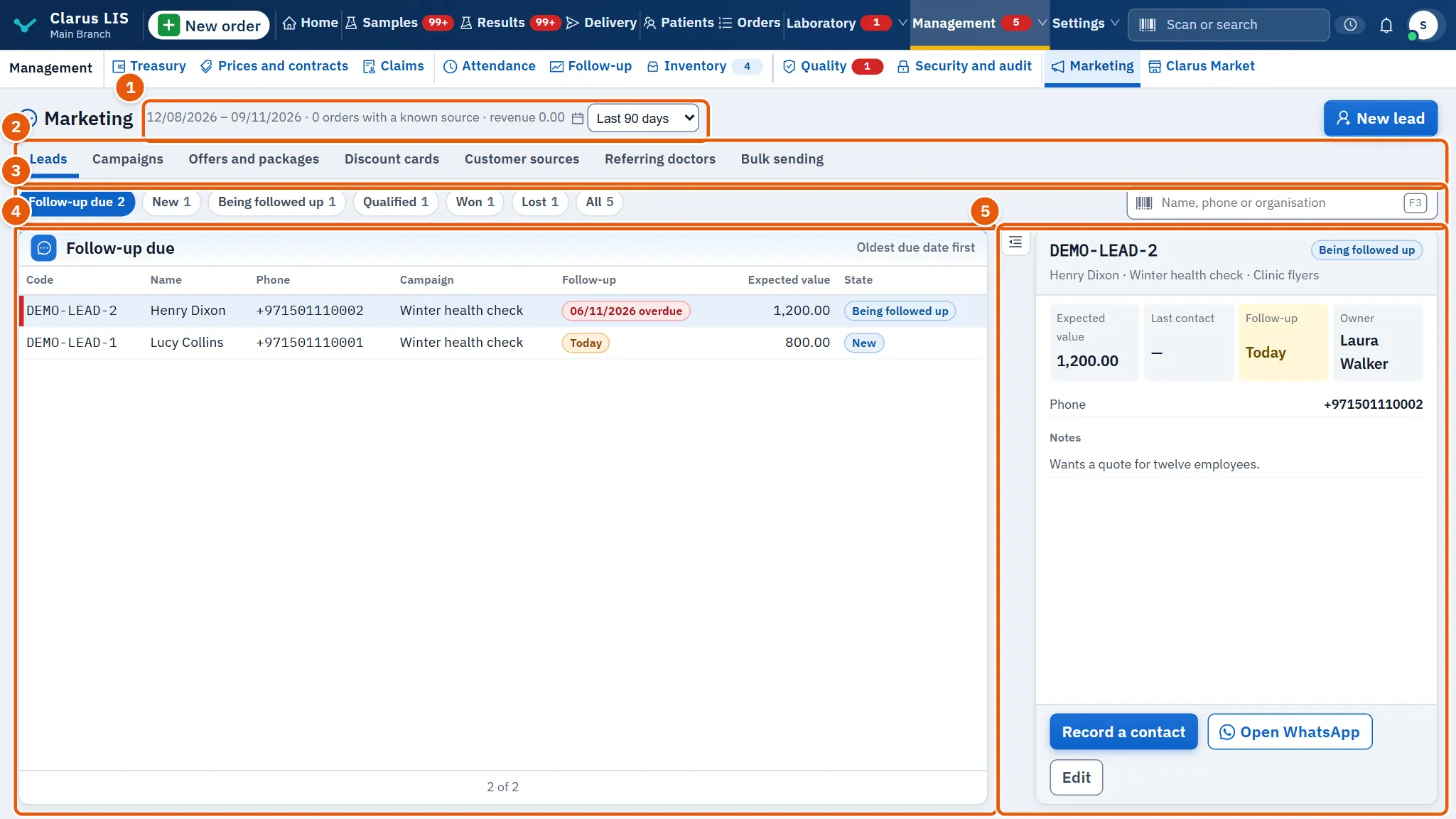
- The period in the head: the dates, the number of orders with a known source and their revenue, and a box Period of the figures to choose the last 30, 90 or 365 days. It opens on 90 days.
- The page tabs: Leads, Campaigns, Offers and packages, Discount cards, Customer sources, Referring doctors, and Bulk sending only for whoever manages settings.
- Filters and search: small state buttons with a count on each, and a search box.
- The list: one row per record. Choose a row to see it.
- The details: the chosen row, its figures and its buttons. The first row is chosen for you; it says «Choose a row from the list to see its details.» only when the list is empty.
The period applies to the figures of campaigns' revenue, offers, sources and referring doctors. A patient's consent to marketing messages is not here: it lives in the patient's file.
23.4 Leads
A lead is a person or organisation who may become a customer. The page opens on those whose follow-up is due, the oldest first.
| Element | What it does |
|---|---|
| Filters (Lead state) | Follow-up due (opens here), New, Being followed up, Qualified, Won, Lost, All. Each shows how many it holds. |
| Name, phone or organisation | Search box. |
| New lead | Opens the window to add a lead. |
| Columns | Code, Name, Phone, Campaign, Follow-up, Expected value, State. A follow-up that has come due is marked red when late («… overdue») or orange when it is today. |
| Details: figures | Expected value, Last contact, Follow-up, Owner; below them the phone, organisation, email and Notes. |
| Record a contact | Opens the window that records a contact. |
| Open WhatsApp | Shown when the lead has a phone. Opens WhatsApp with a greeting ready; the person sends it, nothing is sent by the program. |
| Edit | Opens the lead for editing. |
The window for a new or edited lead has these fields:
| Field | Meaning |
|---|---|
| Name | Required. |
| Phone, Email, Organisation | Contact details. |
| Expected value | What the lead is expected to be worth. |
| Follow-up | The day to follow up. |
| Owner | Who is responsible. |
| Notes | Free notes. |
The window for a contact has What happened (required), State after it and Next follow-up. Before you save, it tells you what will be recorded: last contact today, the state, and the next follow-up.
23.5 Campaigns
Each campaign shows what it brought: leads, converted leads, orders and revenue. The newest come first.
| Element | What it does |
|---|---|
| Filters (Campaign state) | Planned, Active, Paused, Completed, All. |
| Search by campaign code or name | Search box. |
| New campaign | Opens the window to add a campaign. |
| Columns | Code, Name, Channel, Budget, Leads, Orders, Revenue, State. |
| Details | The figures Budget, Leads, Converted and Revenue; then Channel, Dates, Owner and Description. |
| Edit | Opens the campaign for editing. |
The window has Name (required), Code (optional; fixed once the campaign exists), State (a new campaign starts as planned), Channel, Budget, Expected leads, Starts on, Ends on, Owner and Description.
23.6 Offers and packages
An offer is a discount or a package of tests. The page opens on the current offers, the ones with most revenue in the period first.
| Element | What it does |
|---|---|
| Filters (Offer validity) | Current (opens here), Not started, Ended, All. An offer that is switched off counts as ended. |
| Offer name or code | Search box. |
| New offer | Opens the window to add an offer. |
| Columns | Offer, Period, Tests, Discount, Orders, Revenue. |
| Details: figures | Catalogue price, Charged on the order, Advertised price, Orders in the period; then the discount and the list of tests with their prices. |
| Edit the offer | Opens the offer for editing. |
| Share on WhatsApp | Opens WhatsApp with the offer's name and price ready; the person chooses whom to send it to. |
If the advertised price is not what the order will really be charged, a warning says so («The advertised … differs from the … charged on the order.»).
The window has: Offer and Code (both required; the code is fixed afterwards), and Discount, which chooses how the offer works.
| Kind of discount | What it does | Extra fields |
|---|---|---|
| A package at a fixed price | The package price is charged when every test of the package is ordered, spread over them by their prices. If one is missing, the package does not apply. | Package price (required) |
| A share of each test | A percentage off each test. | Share % (required), Advertised price |
| A sum off the whole order | A sum off the whole order. | Sum (required), Advertised price |
| No discount, no price: tracks the source only | Tracks the source only; no price. | none |
Then Applies under contracts and payers (without it the offer never applies to an order under a contract or insurance), Starts on and Ends on. Below the fields, the tests: type in Search the catalogue and choose from the results; remove a test with the cross beside it. Where the laboratory has several branches, Branches limits the offer to the branches you choose (none chosen means Every branch). A line under the form sums the catalogue price and what will be charged.
23.7 Discount cards
This page has two lists: the laboratory's card programmes (family, loyalty or company) and the cards issued under them. A card's number typed on a self-pay order takes its programme's percentage off that order. There is no period on this page's figures.
| Element | What it does |
|---|---|
| Card number or holder | Search box for the cards list. |
| New programme | Opens the window to add a programme. |
| Issue a card | Opens the window to issue a card. It is dim until at least one programme is in force. |
| Card programmes | Columns Code, Programme, Kind (Family, Loyalty, Company), Discount, Card price (or «Free»), Active cards and State. Choosing a row opens it for editing. |
| Discount cards | Columns Card number, Holder, Programme, Discount, Valid until and State (Active or Stopped). |
| Details of a card | Its programme and kind, discount, patient file, validity dates, Issued (date and who), Stopped on when stopped, and Sold for. |
| Stop the card | Shown only on an active card. Stops it at once and says «The card … is stopped». |
The programme window has Code (required, fixed afterwards), Programme (the name, required), Kind (required), Discount (required), Card price (optional: what the holder pays when the card is issued; empty means a card given free), Programme ends on, In force and Notes.
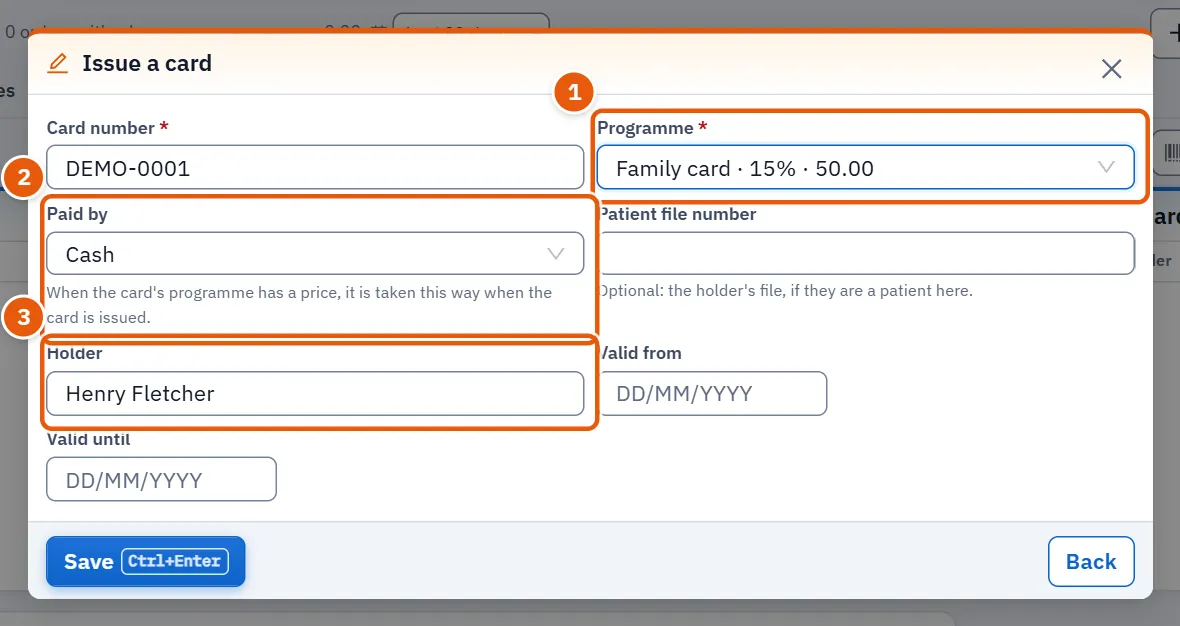
The card window has Card number (required), Programme (required; only programmes in force are offered, with their discount and price), Paid by (how the price is taken when the programme has one), Patient file number (optional), Holder, Valid from and Valid until.
23.8 Customer sources
The places customers come from, with the orders and revenue each brought in the period. There are few rows, so there is no paging and no search.
| Element | What it does |
|---|---|
| New source | Opens the window to add a source. |
| Columns | Code, Name, Type (Walk-in, Referral, Digital, Campaign), Orders, Revenue, State. |
| Edit | Opens the chosen source. |
The window has Code (required, fixed afterwards), Name (required), Type (a new source starts as walk-in), Description, Active and Display order.
23.9 Referring doctors
A read-only list of the doctors who sent orders in the period, the one with most revenue first. It has a search box (Search by doctor name or specialty) and the columns Doctor, Specialty, Organization, Orders and Revenue. Nothing here can be added or changed.
23.10 Bulk sending
Shown only to whoever manages settings. It sends one approved message to many patients, and works in two steps so that you see the numbers before anything goes out.
| Field | Meaning |
|---|---|
| Name of the send | Required. A name to recognise the send. |
| Channel | WhatsApp, Text message or Email. |
| Approved template | Required. Only approved templates of that channel are listed. If there is none the page says so; templates are approved in the Messages page of the settings. |
| Today's limit | The most messages that may be sent today. It opens on 200; the lowest value is 0. |
| Audience | All patients, By a test they had, Lapsed patients or Recent visitors. |
| Visited within (days) / No visit for (days) | The number of days, for the last two audiences: from 1 to 3650, opening on 90. The audience opens on «Recent visitors». |
| Test code | Required for the test audience. |
As you choose, a note counts the patients who match; only those who consented to messages will receive it. The button Prepare the send is dim until the name, the template and (for a test audience) the test code are filled, and says which one is missing. Preparing does not send: it shows The prepared send with Matched, Ready to send and Not sent, and how many had not consented or were over the day's limit. Only the send button, which names how many are ready (dim when none is), hands the messages over for sending; once done the button gives way to a note that counts what was handed over, what had no number and who withdrew consent in the meantime.
23.11 Tasks, step by step
23.11.1 Task 1 — Follow up a lead
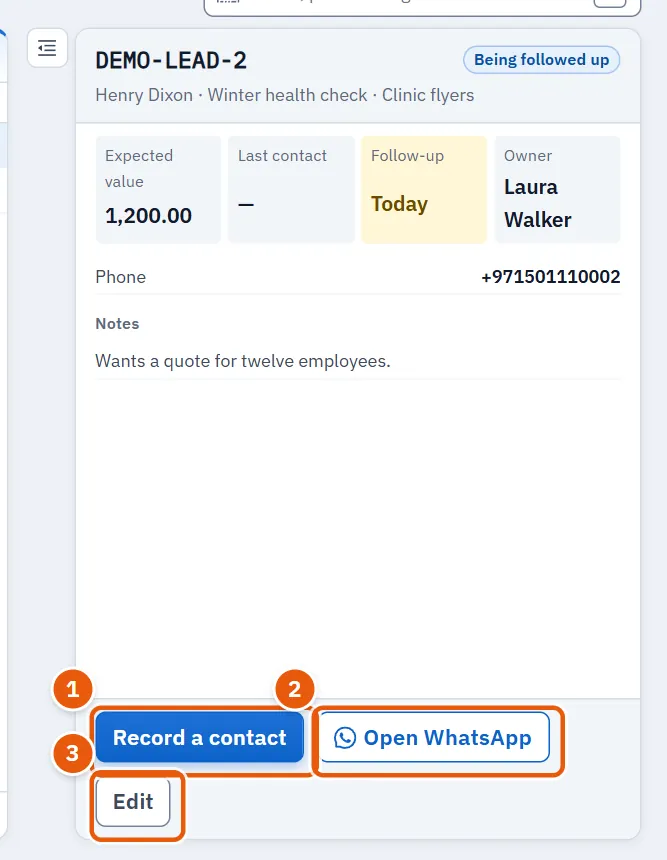
- Open the Leads page. It shows the leads whose follow-up is due.
- Choose the lead's row.
- Press Record a contact.
- Write What happened, choose State after it and, if there is one, Next follow-up. Read the line that says what will be recorded.
- Press Save. What you wrote is added to the top of the notes with the date and your name.
To contact the lead yourself instead, press Open WhatsApp; the message opens ready and you send it.
23.11.2 Task 2 — Add a lead
- On Leads press New lead.
- Fill Name and whatever else you know.
- Press Save. A new lead starts in the state «New».
23.11.3 Task 3 — Create or edit a campaign
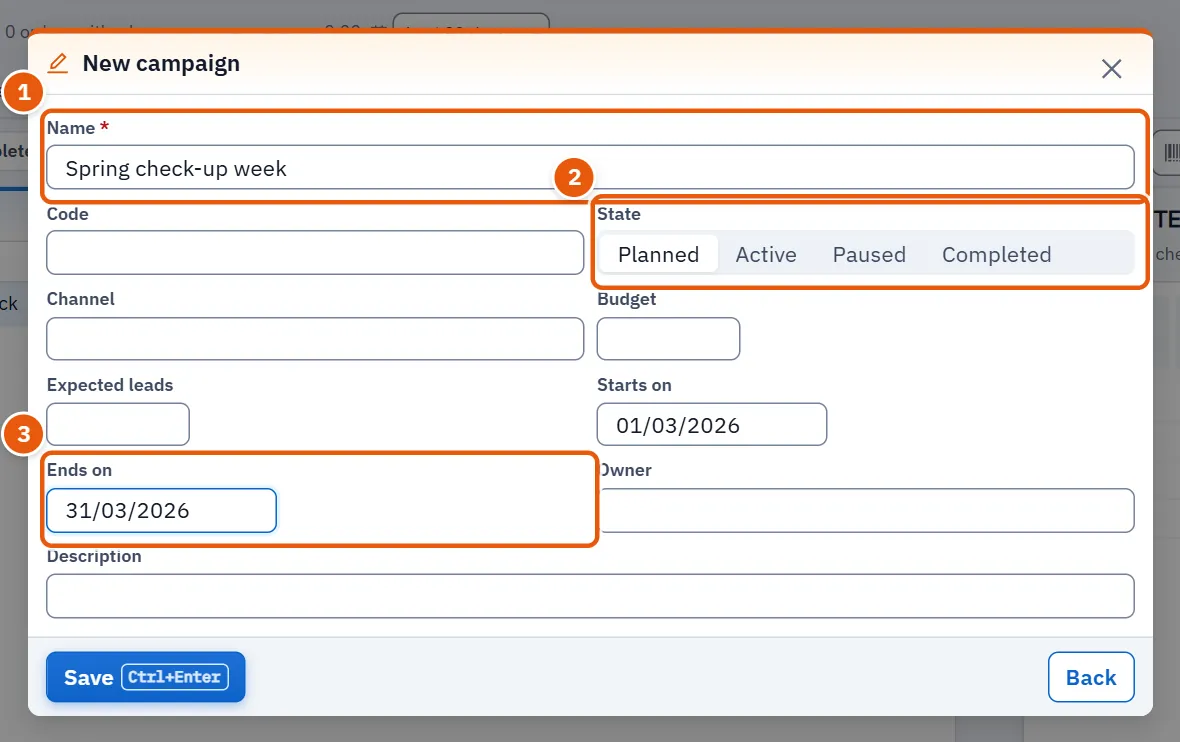
- On Campaigns press New campaign; or choose a campaign and press Edit.
- Fill Name (the only required field), the Code if you want one (new campaigns only) and the other fields.
- Press Save. Its leads, orders and revenue appear as they arrive.
23.11.4 Task 4 — Create an offer or a package
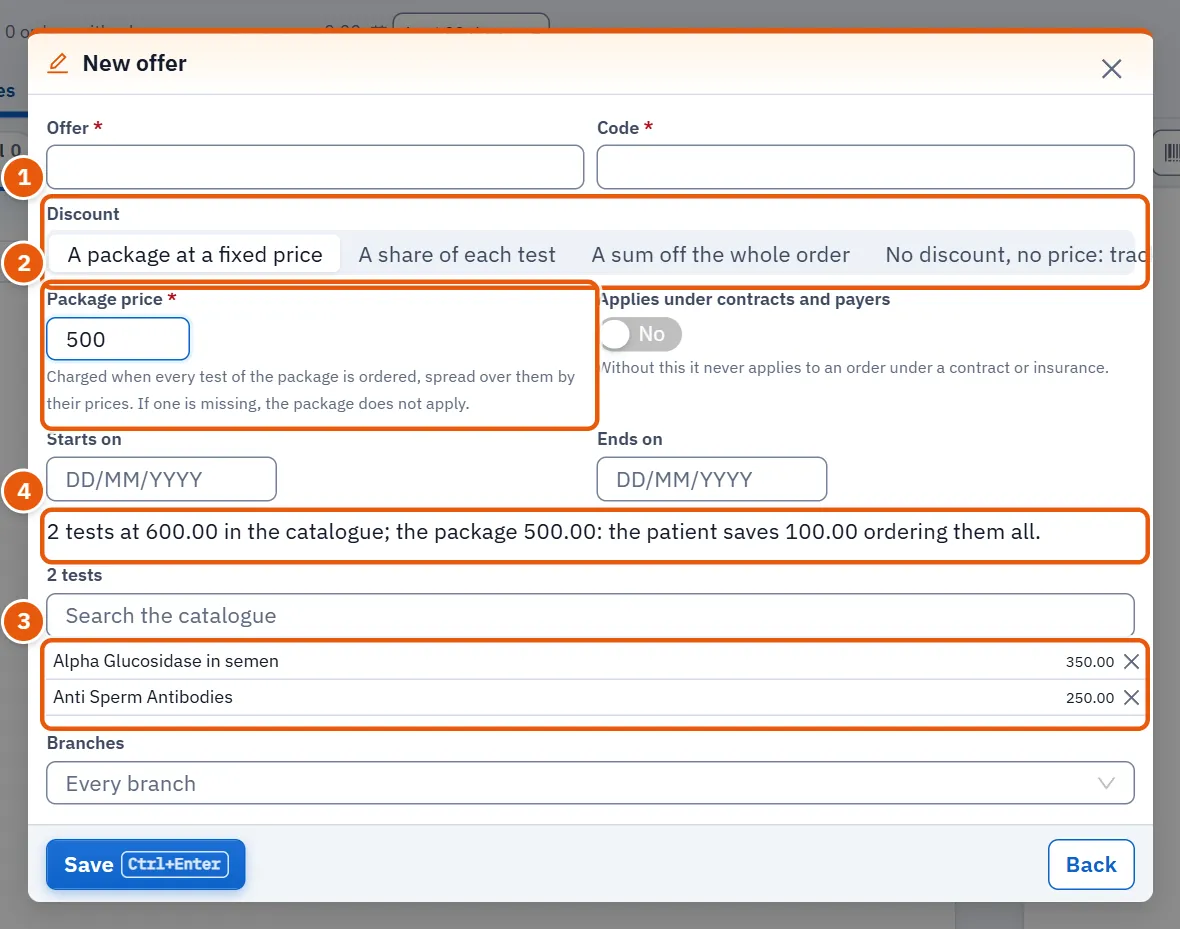
- On Offers and packages press New offer.
- Type the name and the code.
- Choose the kind of discount in Discount. The fields below change with it (see 23.6 Offers and packages).
- Search the catalogue and choose the tests. A package needs at least two, a price above zero, and a price no higher than the catalogue prices of its tests added up; any other kind of offer needs at least one test.
- Set the dates, and Applies under contracts and payers if the offer should apply under contracts too.
- Read the line that compares the catalogue price with what will be charged. Press Save.
If a message says the package costs more than its tests, lower the price; if it asks for a price or tests, fill them.
23.11.5 Task 5 — Create a discount programme and issue a card
- On Discount cards press New programme.
- Give it a code, a name, a kind and a discount percentage. Enter Card price only if the holder pays for the card. Press Save.
- Press Issue a card.
- Type the card number, choose the programme, and fill the holder, the patient file number if the holder is a patient here, and the validity dates.
- If the programme has a price, choose how it is paid in Paid by.
- Press Save. The card appears in the list; a priced card is sold as it is issued.
To end a card, choose it and press Stop the card. To change or end a whole programme, choose it in the programmes list and untick In force.
23.11.6 Task 6 — Add a customer source
- On Customer sources press New source.
- Type the code and the name, and choose the type.
- Press Save. Tick Active for it to be offered when a source is recorded.
23.11.7 Task 7 — Prepare and send a bulk message
This task sends real messages, so it has no picture and is not to be tried casually.
- Open Bulk sending (only if you manage settings).
- Name the send, choose the channel and an approved template, and set the day's limit.
- Choose the audience and read the count of patients who match.
- Press Prepare the send and read the three numbers and the note about consent and the limit.
- When sure, press the send button. The messages are handed over and a note counts them.
23.12 Messages and what to do
| The screen says | Meaning | What to do |
|---|---|---|
| Reading… / Could not be read. | The list is loading, or the server refused. | Wait, or press «Try again» beside the message, and check your connection. |
| Nothing matches «…». | The search found nothing. | Change the words, or choose «All». |
| No approved template for this channel | The channel has no approved template. | Approve one in the Messages page of the settings. |
| Name the send / Choose the template / Enter the test code | The button is dim for this reason. | Fill the named field. |
| A package has at least two tests. | A package was set with fewer. | Add tests. |
| A package cannot cost more than its tests in the catalogue | The price is above the total of the tests. | Lower the price. |
| The send failed. | The server refused the send. | Read the reason shown above the button and try again. |
| 3 messages handed over for sending | The send was accepted. | Nothing; read the count of those without a number or who withdrew. |
23.13 See also
Patients (a patient's consent to messages lives in the patient file), Prices and contracts (contracts, the catalogue prices an offer is measured against), Treasury (the sale of a priced card), Messages (approving the templates a bulk send uses), Users and permissions (the permissions above).