Chapter 4Home
Menu: Home (the first item in the bar). Address: /.
4.1 What this screen is for
Home is the page the program opens on. It shows what is waiting for you today, so that you start from the work and not from a search. Each number on it is live, and pressing a card opens the screen where that work is done.
It is built from your own permissions, not from the name of your role. Whoever runs the laboratory sees what waits for their decision; whoever approves results sees the critical values first; whoever enters results sees their own list; reception sees the latest orders. If your permissions change, your Home changes at once.
4.2 Who sees it
Everyone who is signed in sees Home. What is on it depends on what your role holds:
| You see… | …if your role holds |
|---|---|
| The quick buttons New patient, New order, Receive a sample | Write patient files for the first; Create orders for the other two |
| The cards To draw and To receive (not on the approving physician's Home) | Read orders |
| The cards To enter and the one for results to approve; the list of your pending results | Enter results |
| The critical values by name | Verify results with Enter results |
| The laboratory at a glance (the figures of the laboratory) | Read analytics |
| The panel Waiting by department | Enter results |
| Waiting for my decision, Today so far and Clarus services | Manage settings (Today so far also needs Read analytics) |
| The money-requests card in Waiting for my decision | Manage billing with Approve a discount or a refund from the phone |
| The card Awaiting a price | Read orders with Edit registered orders, on the managers' and reception Homes |
| The line to finish the first setup | Manage the laboratory's structure: branches, numbering, first run, external laboratories |
A card still counts when your role cannot open the screen behind it; whether it leads there depends only on that screen being in the program. A place the server refuses to read is left out.
4.3 The screen at a glance
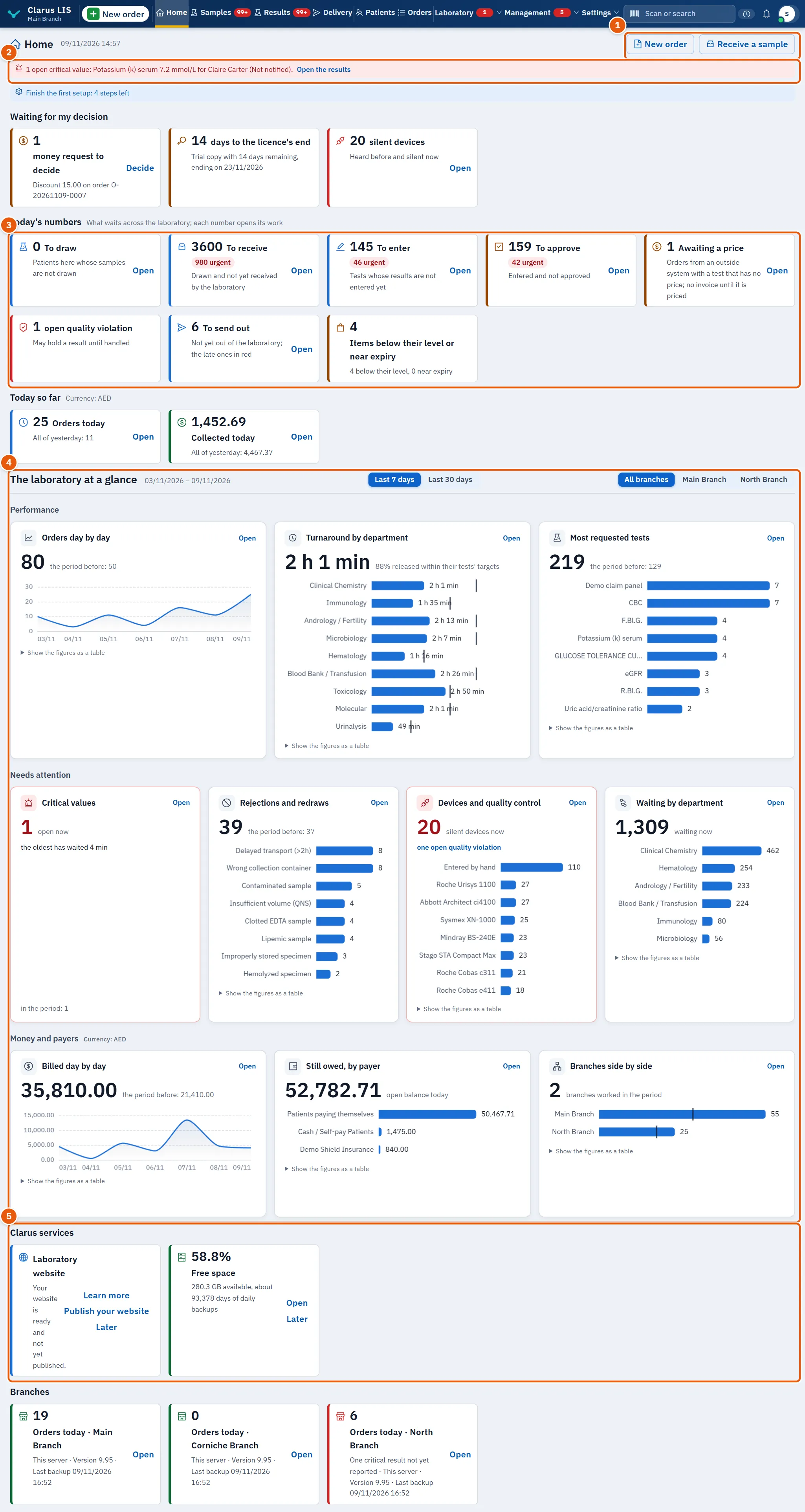
The page is made of these parts, from top to bottom:
- The title and the quick buttons: the title shows the date and time the page was opened, and, on the approval, bench and reception Homes, the word naming your kind of Home.
- The critical-values alert: drawn only when some critical value is open.
- The list of work: the latest orders, or your first pending results.
- The cards of what waits: counts that open their screens.
- The laboratory at a glance: charts and figures for a period.
- Clarus services: the state of the services of the program.
Which parts appear depends on the permissions in the table above.
4.4 Your kind of Home
Your Home is chosen from your permissions, checked in this order (the first that applies wins). The approval, bench and reception kinds put their word beside the date in the title; the managers' and the plain Home show none.
| Home | For whoever… | What comes first |
|---|---|---|
| Waiting for my decision | holds Manage settings | The section Waiting for my decision, then the day's numbers |
| Waiting for my approval | holds Verify results and not Create orders | The open critical values, then the cards of approval |
| My work | holds Enter results | The list of your pending results |
| Reception queue | holds Create orders | The list Latest orders |
| Home | anyone else | The counts that their permissions open |
4.5 The top of the page
| Element | What it does |
|---|---|
| New patient | Opens the form to register a patient. |
| New order | Opens a new order. |
| Receive a sample | Opens the samples screen. |
| Finish the first setup: … | A line that appears while the first setup is not finished, with how many steps are left (… steps left). Pressing it opens the setup. When no step is left but the setup is not yet marked complete the line says Finish the first setup; once it is complete the line goes. For a laboratory that has neither started the setup nor put it off, the setup opens by itself the first time Home loads, and the line is not drawn at that moment. |
A quick button appears only to whoever may use it, and only if its screen is in the program.
4.6 The critical-values alert
When a critical value is open, a red alert comes before everything else.
| Element | What it does |
|---|---|
| The alert for a user who both enters and approves results | Names up to two open values with the test, the value, the patient and where the call stands, and says how many more there are. |
| The alert for others | Gives only the count and the age of the oldest, with the number past the escalation time, and says the approving physician follows them and that a calling doctor should be put through. |
| Open the results | Goes to the results screen. |
| Open critical values (a table on the approving physician's Home, replacing the alert) | Columns Patient, Test, Value, State; an overdue row is marked urgent. Opening a row goes to the results screen. |
The state of a critical value is one of: Not notified, Notified, not acknowledged, Notified and acknowledged, or Past the time (the escalation time has passed, and the row is marked urgent).
4.7 The list of work
| List | Who sees it and what it holds |
|---|---|
| Latest orders | The reception Home. Columns Order, Patient, Physician, Tests (approved over total) and Time. |
| The first pending results | The bench and approval Homes: at most ten rows, from the results list itself, with a first column (Sample on the bench list, Order on the approval list), Patient, Test and State; the bench list adds Department. The approval list keeps only results that already have a value. The state says Enter or Approve, and Urgent · … when the order is urgent. |
| All results | A link above the list to the results screen. |
While the list loads it says Loading the list; if it fails, The list could not be loaded.. An empty list says Nothing waits now., or No orders yet. for orders.
4.8 The cards of what waits
Each card shows a number, a short note and, when its screen exists, leads to it. Cards for urgent work show how many are urgent.
| Card | What it counts |
|---|---|
| To draw | Patients here whose samples are not drawn |
| To receive | Drawn and not yet received by the laboratory |
| To enter | Tests whose results are not entered yet. |
| The card of results to approve | Entered and not approved |
| Awaiting a price | Orders from an outside system with a test that has no price; no invoice until it is priced |
| May hold a result until handled | Open quality violations. Opens the quality screen. |
| Heard before and silent now | Silent devices. Opens the devices screen. Not drawn here on the managers' Home, where it sits in Waiting for my decision. |
| To send out | Not yet out of the laboratory; the late ones in red |
| Items below their level or near expiry | … below their level, … near expiry (managers' Home). |
| Contracts ending soon | An ended contract no longer prices; a week or less left in red (managers' Home). |
| Site bookings today | The bookings made through the website for today that are not cancelled or already turned into orders: The nearest at …, or No booking waits today (reception Home, for whoever may read orders). |
The four cards of the daily work (draw, receive, enter, approve) show even at 0 once their figures have been read. The others appear only when something waits there. Awaiting a price appears on the managers' and reception Homes only.
4.9 What waits for my decision (managers)
The section Waiting for my decision gathers the cards that need a decision. When nothing waits it says Nothing waits for your decision now..
| Card | What it shows |
|---|---|
| money requests to decide | Requests for a discount or a refund; the note gives the amount and the order of the first two. Decide opens the requests page of the treasury. Shown only to whoever holds Manage billing with Approve a discount or a refund from the phone. |
| days to the licence's end | Appears only in the last two weeks of the licence; red when three days or less remain. |
| silent devices | Devices heard before and silent now. |
| Working on paper now | Appears while the laboratory works on paper; says Downtime declared at …. |
Below the cards, the section Today so far counts Orders today and Collected today against All of yesterday: …, in the currency named in Currency: ….
4.10 The laboratory at a glance
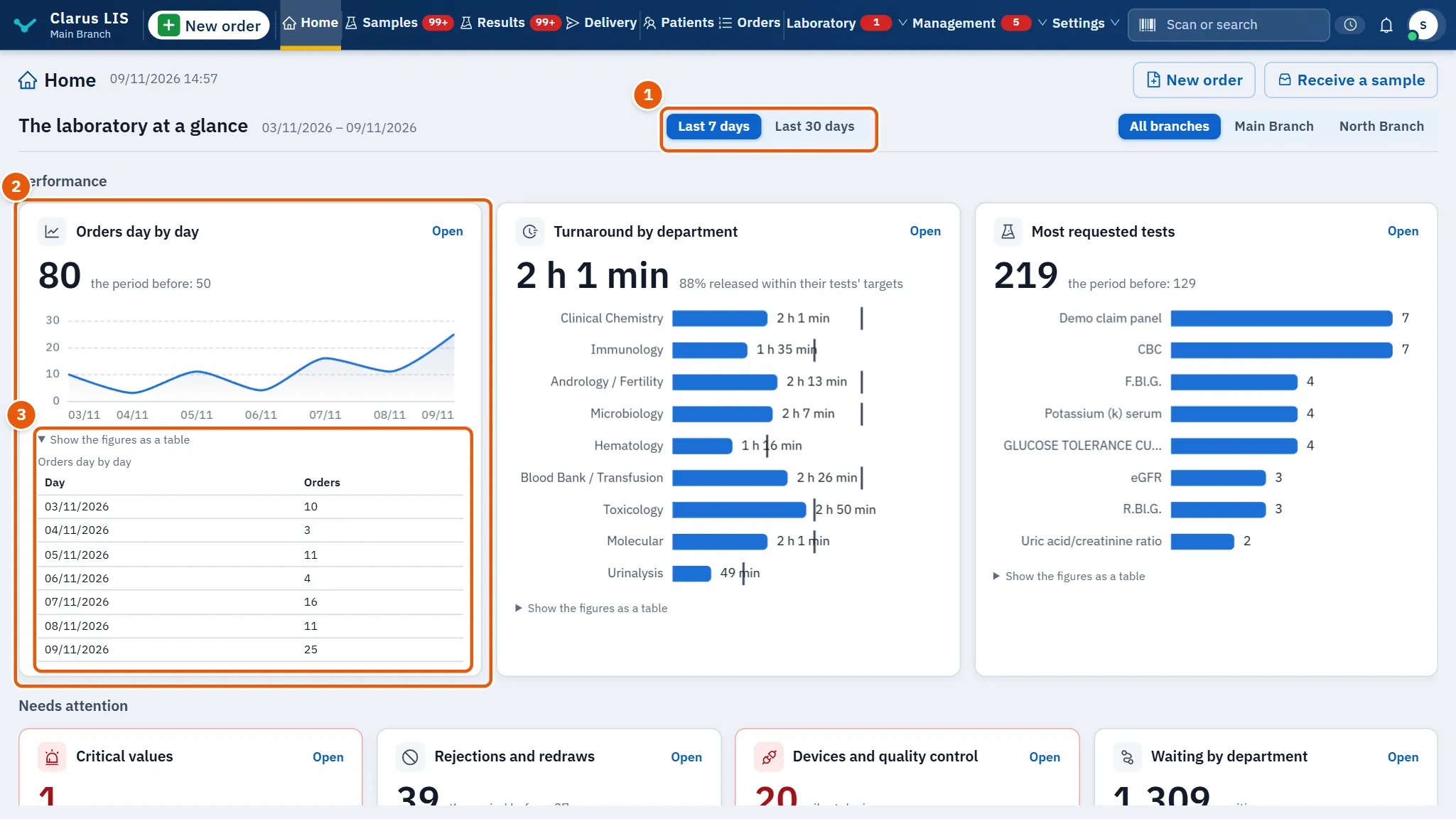
The laboratory at a glance is drawn for whoever may read analytics. Choose the Period (7 days or 30 days; it starts at 7); when your figures count more than one branch you can also choose the Branch, or All branches. The dates of the period are written beside the choice.
The panels are in three rows:
| Row | Panels |
|---|---|
| Performance | Orders day by day, Turnaround by department, Most requested tests |
| Needs attention | Critical values, Rejections and redraws, Devices and quality control, Waiting by department |
| Money and payers | Billed day by day, Still owed, by payer, Branches side by side |
The row Money and payers is drawn only when the money may be shown to you or when branches are listed, and Billed day by day and Still owed, by payer are left out when it may not.
A panel shows a big figure, a note, and a chart. the period before: … compares with the period before. Open appears only when you may open the screen behind the panel, and goes to it. Under each chart Show the figures as a table shows the same figures as a table. The overview is read again every five minutes.
Where a panel has nothing yet, it says so and may offer the first step, such as Register the first order, Open the results or Connect a device. While the figures are read the screen says Reading the laboratory's figures.
4.11 Clarus services and branches
The section Clarus services is drawn on the managers' Home. It shows cards for the services in use, the backup and the disk space, a service waiting for your attention, and at most one offer of a service not yet switched on. A service you do not use says it is not switched on and what it would give you, and has Buy the service when it is for sale.
Each card has Later: it hides the card from your page for seven days (This card leaves your page for seven days.).
| Card | What it says |
|---|---|
| The licence | Shown here only while its card is not already in Waiting for my decision (that card takes over in the last two weeks): the days left, and either the end date or that it stopped. |
| The backup | Last copy … (…), or No copy yet, and where else a copy is kept (and a copy in the cloud, and a second copy off this computer, or Your only copy is on this computer). |
| The disk | … available, about … days of daily backups. |
| The link between branches | Not switched on, Connected since …, or Switched on, not connected now. |
| The phone application | Last seen … or No phone paired. |
| The clinical assistant | Not switched on, or the use per day and the balance. |
| The updates | Current version …; shown only when an update is ready to install. |
| The laboratory's website | Your website is ready and not yet published. until it is published, then its address and the date of the last update. |
When a card cannot be read it says This card cannot be read right now.; if the services as a whole cannot be read, the section says The services cannot be read right now..
The section Branches appears when there is more than one branch or when a computer needs attention. For each site it says whether figures arrived (This server, Figures received …, Nothing received since … or Nothing received yet), its Version …, its last backup (Last backup … or No backup recorded), the computers without a licence and those on an older version, then Orders today · … and the critical results not yet reported.
4.12 Tasks, step by step
4.12.1 Task 1 — Start your day from Home
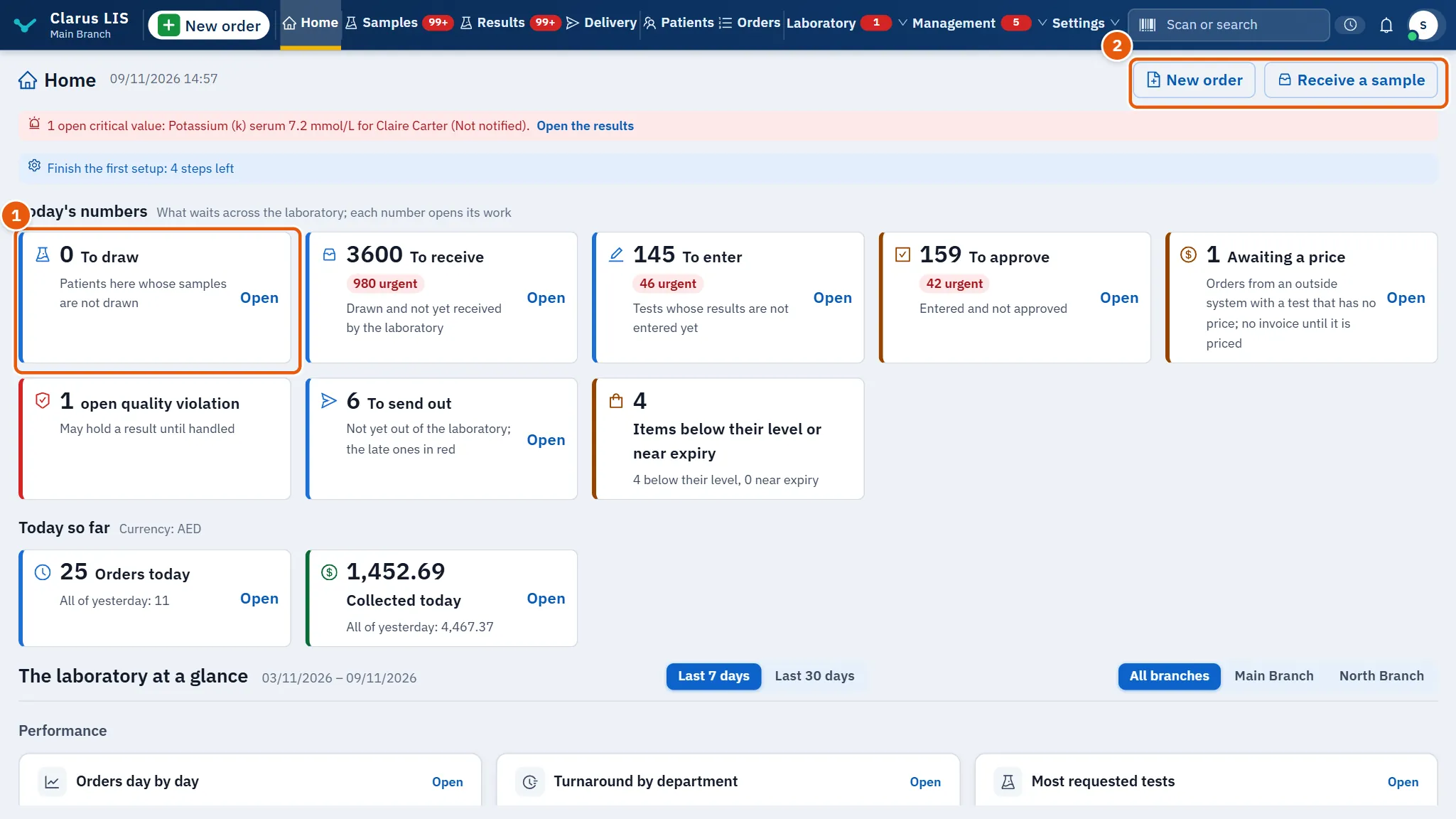
- Open the program. Home is the first page.
- If the red alert is there, read it first and press Open the results.
- Read the cards. Each number is the count that waits; press one to open the screen where it is done.
- Press New order to begin an order, or pick a row from the list.
4.12.2 Task 2 — Finish the first setup
- Press the line Finish the first setup.
- Follow the steps the setup shows. The line gives the number of steps left until none remains.
4.12.3 Task 3 — Decide a discount or a refund
- On the managers' Home, find the card in Waiting for my decision whose title is money requests.
- Read the amount and the order number in its note.
- Press Decide. The requests page of the treasury opens, where the requests are decided.

4.12.4 Task 4 — Change the period of the overview
- Go to The laboratory at a glance.
- Press another choice under Period.
- If several branches appear, choose one under Branch.
- To read a chart as numbers press Show the figures as a table.
4.12.5 Task 5 — Publish the laboratory's website
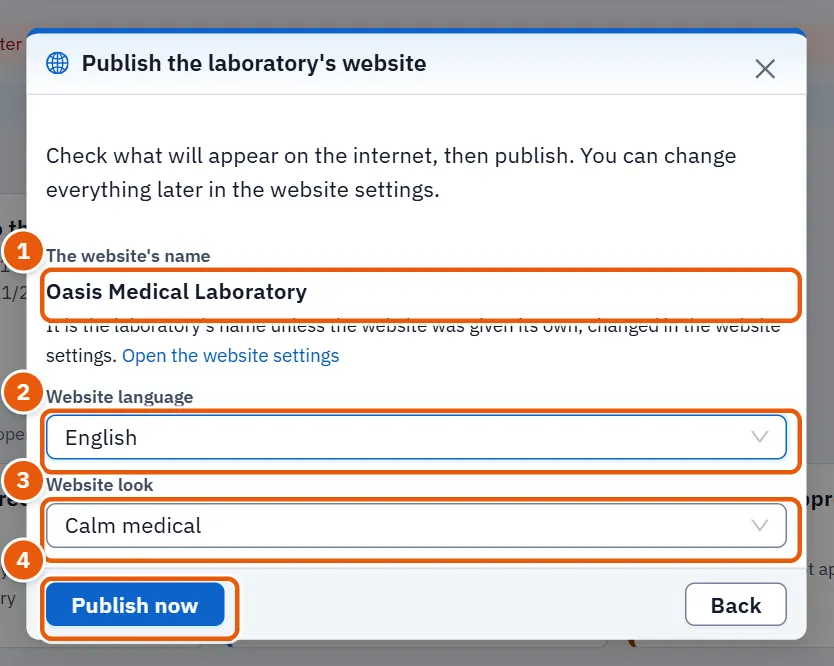
When the card of the website says Your website is ready and not yet published.:
- Press Publish your website. The window Publish the laboratory's website opens.
- Read what will appear on the internet: the The website's name, then choose the Website look (Calm medical, Dark, Modern or Warm) and, when the window offers more than one, the Website language.
- To change the name press Open the website settings (it leads to the site settings screen, when that screen is available).
- Press Publish now. The window says Your website is published at …., and its single button then closes it. Before publishing, Back closes the window without publishing. If the server refuses, its reason is shown in the window.
- Afterwards the card offers Open the website and Edit the settings.
4.13 Messages and what to do
| The screen says | Meaning | What to do |
|---|---|---|
| The list could not be loaded. | The list could not be fetched from the server | Reload the page; if it persists check the connection |
| The overview could not be read. It will be asked again in a few minutes. | The overview could not be read; it asks again after a few minutes | Wait, or reload |
| The money of these branches is left out, because no exchange rate is written for its currency in that month: …. Write it in «Rates of exchange». | A branch's money is left out because no exchange rate is written for its currency in that month | Write the rate in Rates of exchange |
| The services cannot be read right now. | The services could not be read | Reload later |
| This card cannot be read right now. | One card cannot be read | Try again later |
| Nothing waits for your decision now. | Nothing needs your decision | Nothing |
4.14 See also
Results and approval (where the cards of entry and approval lead), Samples (draw and receive), Orders (new order and awaiting price), Daily quality, Devices, Settings and users (the permissions above), Treasury (money requests).