Chapter 18Attendance
Menu: Attendance. Address: /admin/attendance.
18.1 What this screen is for
This screen records who came to work, who did not and who was late, every day. The punches arrive from fingerprint devices, from a file a device or another program exported, or are typed by hand. Nothing is lost and nothing is counted twice, and a punch is never deleted: a wrong one is voided with its reason.
The month page gives days and minutes only. The payroll turns them into a suggested deduction, and the manager decides. The employees are the payroll's own register: an employee is added on the payroll page, and here you give them their number in the fingerprint device and their work schedule.
18.2 Who sees it
| You can… | …if your role holds |
|---|---|
| Open the screen and read the pages Today, Month, Employees and schedules, Holidays and leave, and Punches without an employee | Read the attendance of every employee |
| Punch by hand, void a punch or a leave, link a number to an employee, save a schedule, add a holiday or a leave, open the Fingerprint devices and Import a file pages | Manage attendance: numbers, schedules, leaves, files, devices and punches by hand |
Without the management permission the pages Fingerprint devices and Import a file are not offered, and the buttons that change anything are absent.
18.3 The screen at a glance
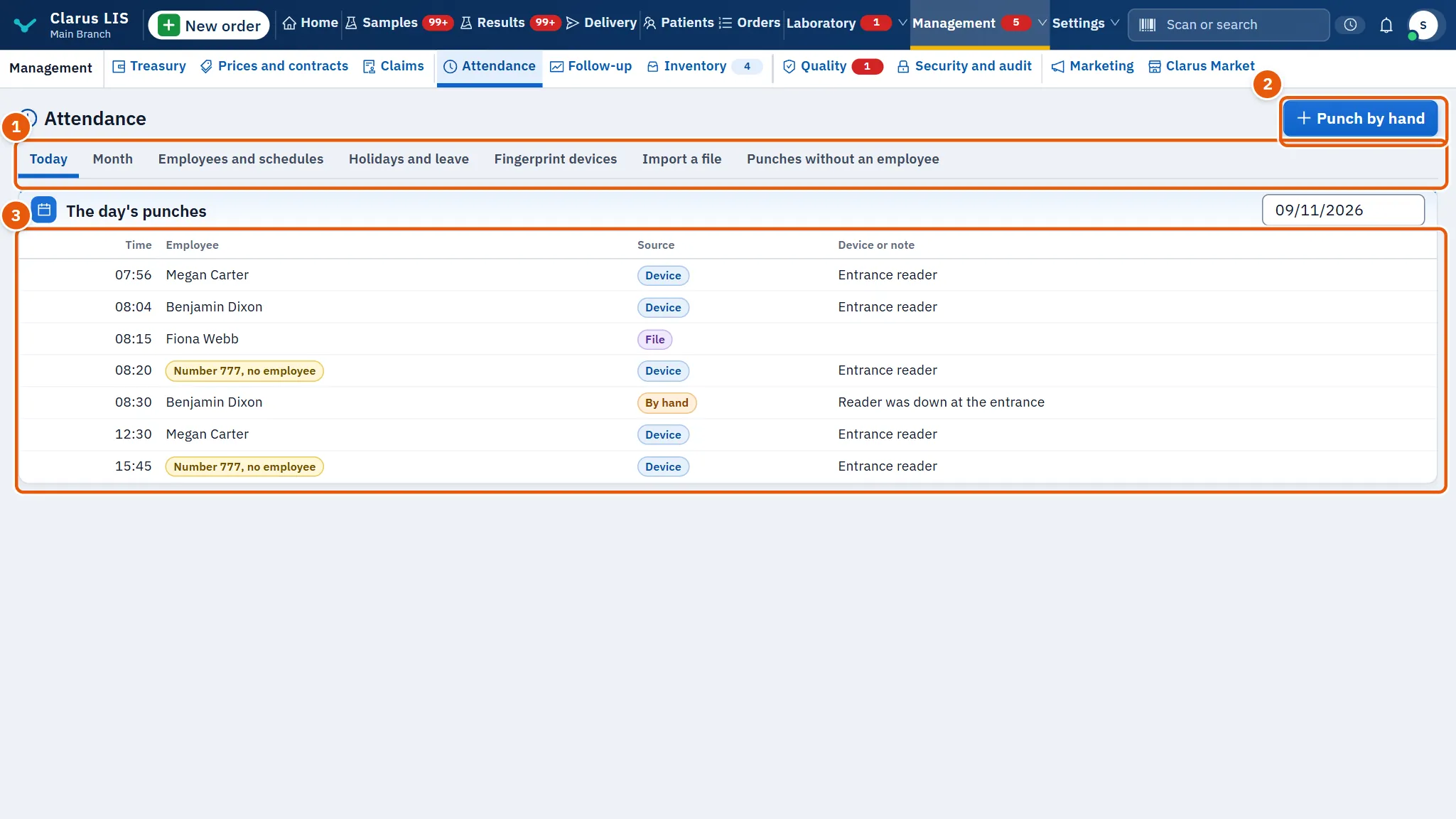
- The page tabs (Attendance pages): Today, Month, Employees and schedules, Holidays and leave, Fingerprint devices, Import a file, Punches without an employee.
- The page's own buttons, which differ from page to page.
- The page's table or form.
18.4 Today
The page opens here. The card The day's punches lists one day's punches; its date box (Day) starts at today.
| Column | Meaning |
|---|---|
| Time | The hour and minute of the punch. |
| Employee | The employee, or Number …, no employee when no employee carries that number yet. |
| Source | Device, File or By hand; a voided punch shows Voided instead. |
| Device or note | The device's name, or the note of a punch by hand. |
If the day has none, the page says: No punches on this day.
18.5 Month
The card Month has a month box. Each employee has a row.
| Column | Meaning |
|---|---|
| Working days | Working days of the month by the employee's schedule. An employee without a schedule shows Set the working days first. |
| Present | Working days (by the schedule) on which the employee has at least one punch. A punch on a day off or a holiday is not counted. |
| Absent | Working days with no punch. A holiday or a day of leave is not a working day here, so it is never an absence. |
| Leave | Days of recorded leave. |
| Unpaid | The part of the leave that is unpaid. |
| Minutes late | Minutes of lateness. The first punch of the day counts as late only if it comes after the start plus the minutes of grace; then every minute from the start is counted, not only the minutes past the grace. |
| Minutes left early | Minutes by which the employee left before the end of work, counted from the last punch to the end, and only if the exit is earlier than the end minus the grace. |
| Incomplete days | Working days with exactly one punch (an entry without an exit, or the opposite). Such a day also counts as present. |
A note above the table says whether the month is complete or still running, up to which day, and repeats that the page shows days and minutes only.
18.6 Employees and schedules
The register of employees is the payroll's. A table shows each employee, Number in the device (or No number), Work schedule and State. For a role that manages attendance, clicking a row opens the employee's window.
| Field in the window | What it does |
|---|---|
| Number in the device | The numbers already linked, each with a cross to give it back; the box A new number in the device and the button Link the number add another. These take effect at once. |
| In force from | The day the schedule starts to apply. |
| Minutes of grace | Minutes after the start that are not counted as late. |
| Working days | The days the employee works. |
| Starts at / Ends at | The hours of work. An end before the start is a shift that crosses midnight. |
The button Save the schedule needs at least one working day and both hours. An employee with no schedule has no absence counted.
18.7 Holidays and leave
Two cards: the leaves of the chosen month (Leave) with a month box, and the official holidays of that month's year. The leave table has Employee, Kind (Annual, Casual, Sick, Unpaid, Other), From, To and the state (Recorded or Voided). The holiday table has the day and Holiday.
The buttons Official holiday and Leave appear only to a role that manages attendance.
18.8 Fingerprint devices
The program pulls the punches from the pulled devices by itself, and keeps only the employee's number and the moment. It never asks a device for a fingerprint template or a picture and writes nothing to it. The table shows Name, Kind, Address, Last pull and the state. The kinds are ZKTeco, pulled, ZKTeco, pushing (ADMS) and Hikvision.
| Control | What it does |
|---|---|
| New device | Opens the device window. A pulled device needs a name and an address (Device address), with Port and Connection filled in by kind. A Hikvision device also needs User name. A pushing device needs its Serial number and address. A saved secret shows «Kept; type a new one to change it». |
| Test the connection | Asks the device if it answers and compares its clock with the server's. A clock off by minutes produces a warning. |
| Pull now | Pulls now and says how many new punches of those seen were added. |
A pushing device has neither button: it sends by itself, so the server must be open on the local network and its address set in the device.
18.9 Import a file
For a file a device or another program exported: CSV, Excel or an attlog file. The same file is never imported twice.
18.10 Punches without an employee
A table of numbers a device or file sent that no employee carries yet: Number in the device, Punches, First, Last. Nothing of them is lost.
18.11 Tasks, step by step
18.11.1 Task 1 — Add a punch by hand
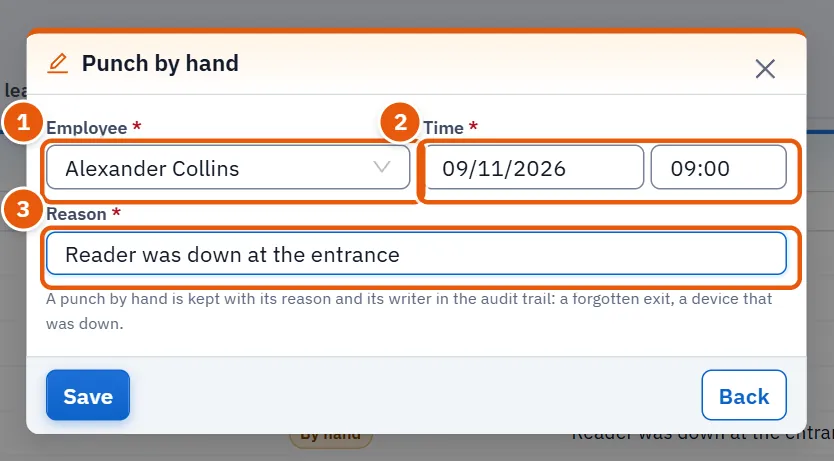
- On Today, choose the day, then press Punch by hand.
- Choose Employee (only active employees are listed).
- Set Time; it starts at 09:00 of the chosen day.
- Write the Reason. It is required, and is kept with your name in the audit trail.
- Press Save.
18.11.2 Task 2 — Void a wrong punch
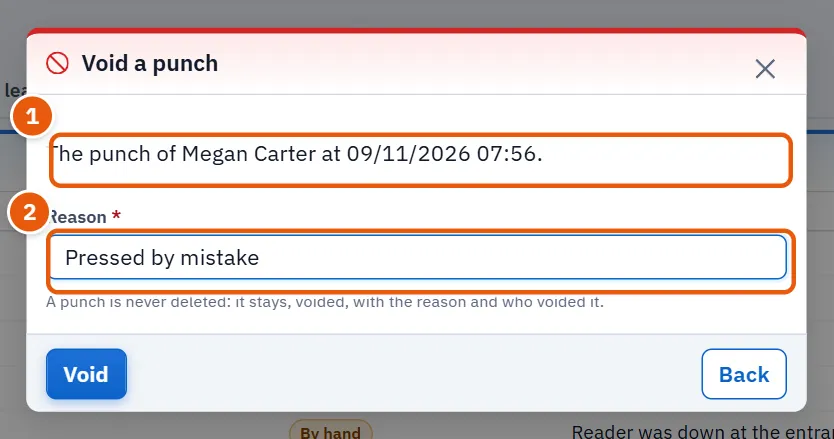
- On Today, click the punch's row (a punch already voided cannot be clicked).
- Write the Reason.
- Press Void. The punch stays in the list, marked Voided.
18.11.3 Task 3 — Link an unknown number to an employee
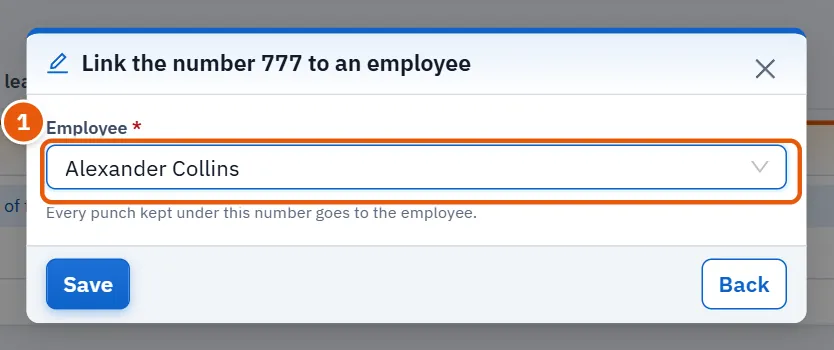
- Open Punches without an employee and click the number's row.
- Choose the Employee.
- Press Save. Every punch kept under that number becomes the employee's.
18.11.4 Task 4 — Give an employee a schedule
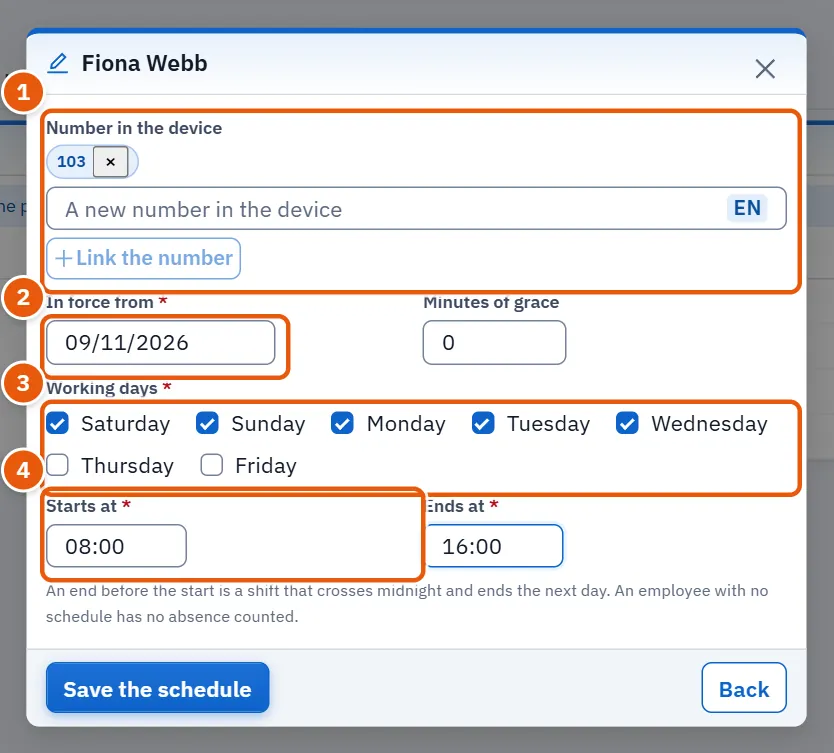
- Open Employees and schedules and click the employee.
- If the employee has no number yet, type it in A new number in the device and press Link the number.
- Set In force from, tick the Working days, and set the two hours and the minutes of grace.
- Press Save the schedule.
18.11.5 Task 5 — Record a leave or a holiday
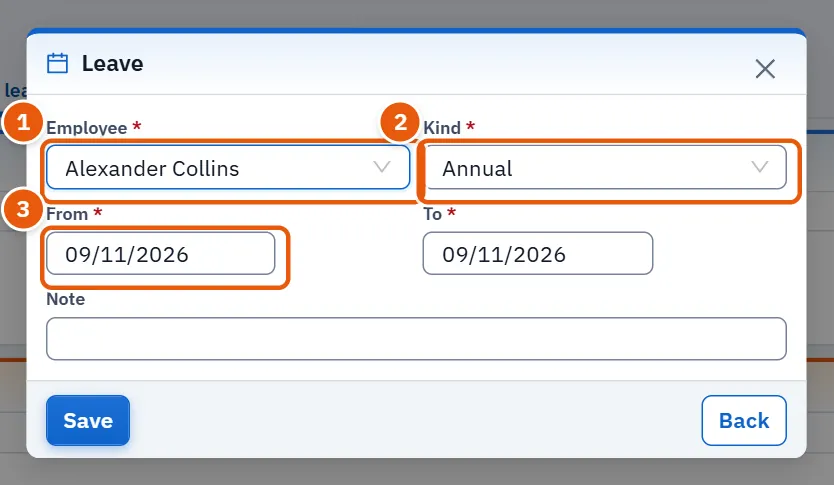
- Open Holidays and leave.
- For a leave press Leave; choose the employee and the kind, set From and To, add a Note if wished, and save.
- For a holiday press Official holiday; set the day and its name. The switch For every branch is on by default. Save.
- To void a leave, click its row, write the reason and press Void.
18.11.6 Task 6 — Add a fingerprint device
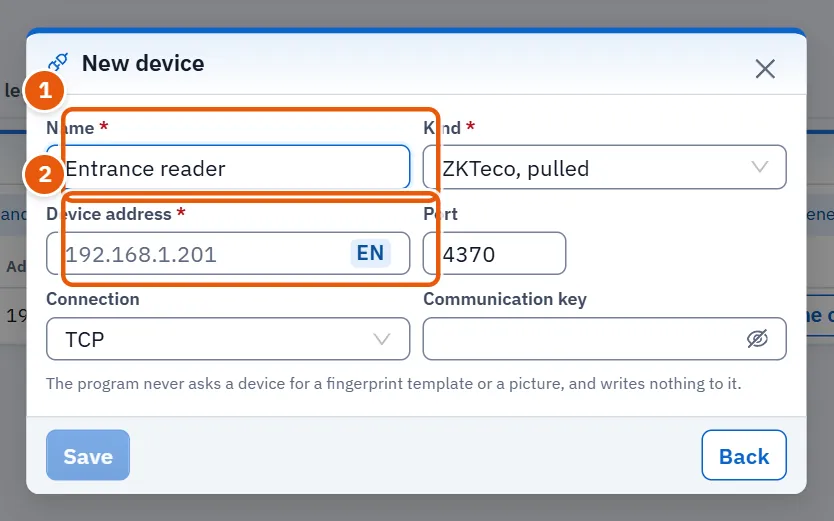
- Open Fingerprint devices and press New device.
- Give the name, choose the kind, and fill the fields it asks for.
- Press Save.
- Press Test the connection on its row, and then Pull now to bring the first punches.
18.11.7 Task 7 — Import an attendance file
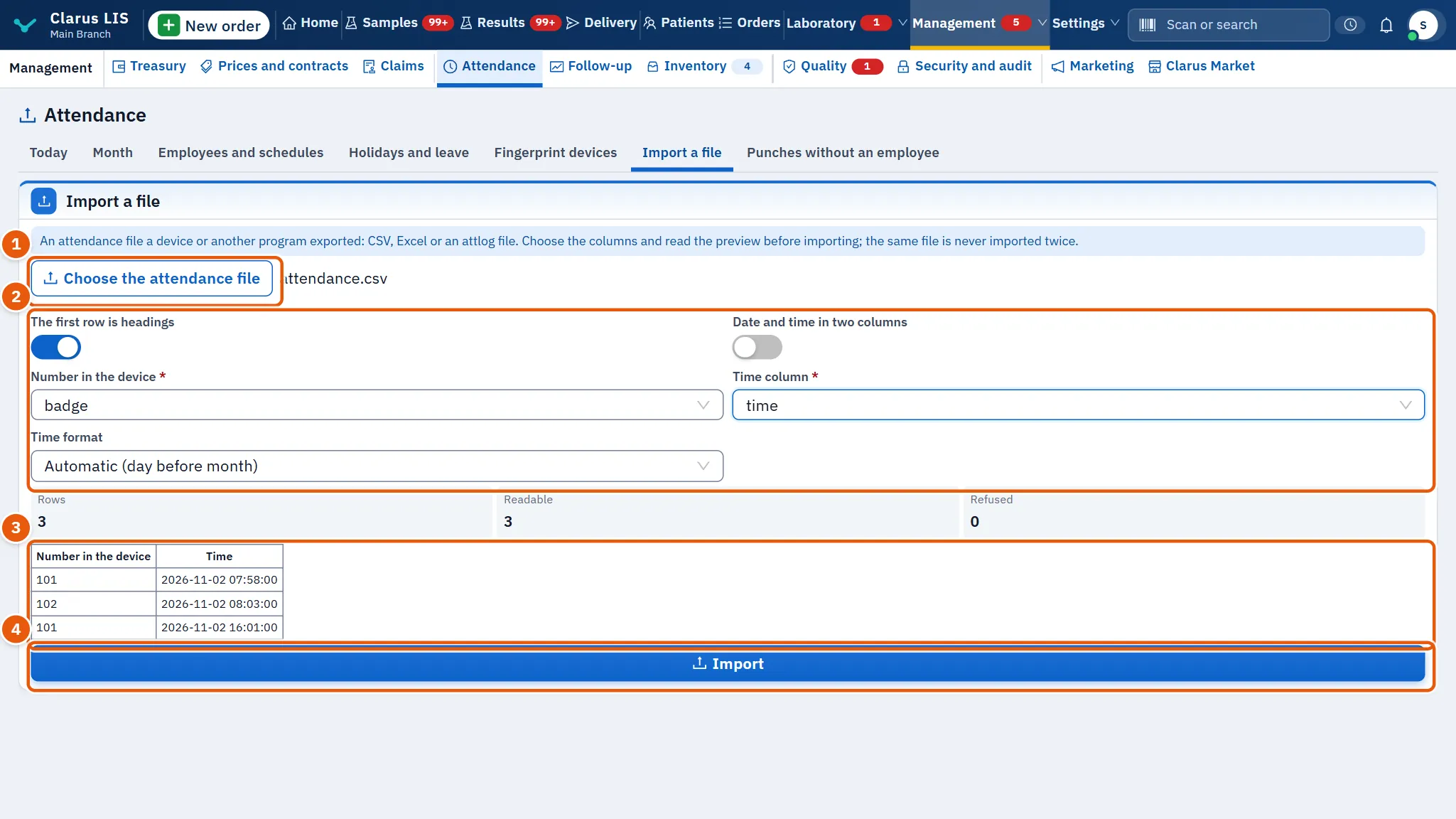
- Open Import a file and press Choose the attendance file.
- After the file is read, check The first row is headings and, if the date and the time are in two columns, turn on Date and time in two columns.
- Choose the column with the employee's number (Number in the device) and the time column (or the date and time columns). If the day-before-month order is wrong, choose the Time format.
- Read the counts (Rows, Readable, Refused), the sample punches and the refused rows.
- Press Import. The result says how many were new, how many were already kept and how many rows were refused.
18.12 Messages and what to do
| The screen says | Meaning | What to do |
|---|---|---|
| The device could not be reached. | The device did not answer. | Check its address, port and that it is on; test again. |
| The device's clock is … minutes away from the server's: set it on the device. | The device's clock differs from the server's. | Set the clock on the device. |
| This device has not called yet. | A pushing device has not called yet. | Set the server's address in the device. |
| Set the working days first | The employee has no schedule. | Give a schedule on Employees and schedules. |
| Could not save. | The change was not saved. | Try again; read the message shown with it. |
18.13 See also
- The payroll page: the suggested deduction from the month's days and minutes, and the register of employees.