Chapter 21Quality
Menu: Quality. Address: /admin/quality.
21.1 What this screen is for
This is the laboratory's quality file under the title Quality and accreditation. It keeps four things apart in four pages: the corrective actions opened when something went wrong, the competency assessments of staff, the rounds of external quality assessment, and a summary of how ready the laboratory is for accreditation.
The daily quality-control charts are not here. This screen holds the records around them: what was decided, who was assessed, how an outside round turned out.
21.2 Who sees it
Whoever holds Enter results or Verify results. Within the screen:
| You can… | …if your role holds |
|---|---|
| Read all four pages | Enter results, or Verify results |
| Open, change and close a corrective action; record a competency assessment; add a round and record its result | Verify results. Without it these buttons do not appear. |
21.3 The screen at a glance
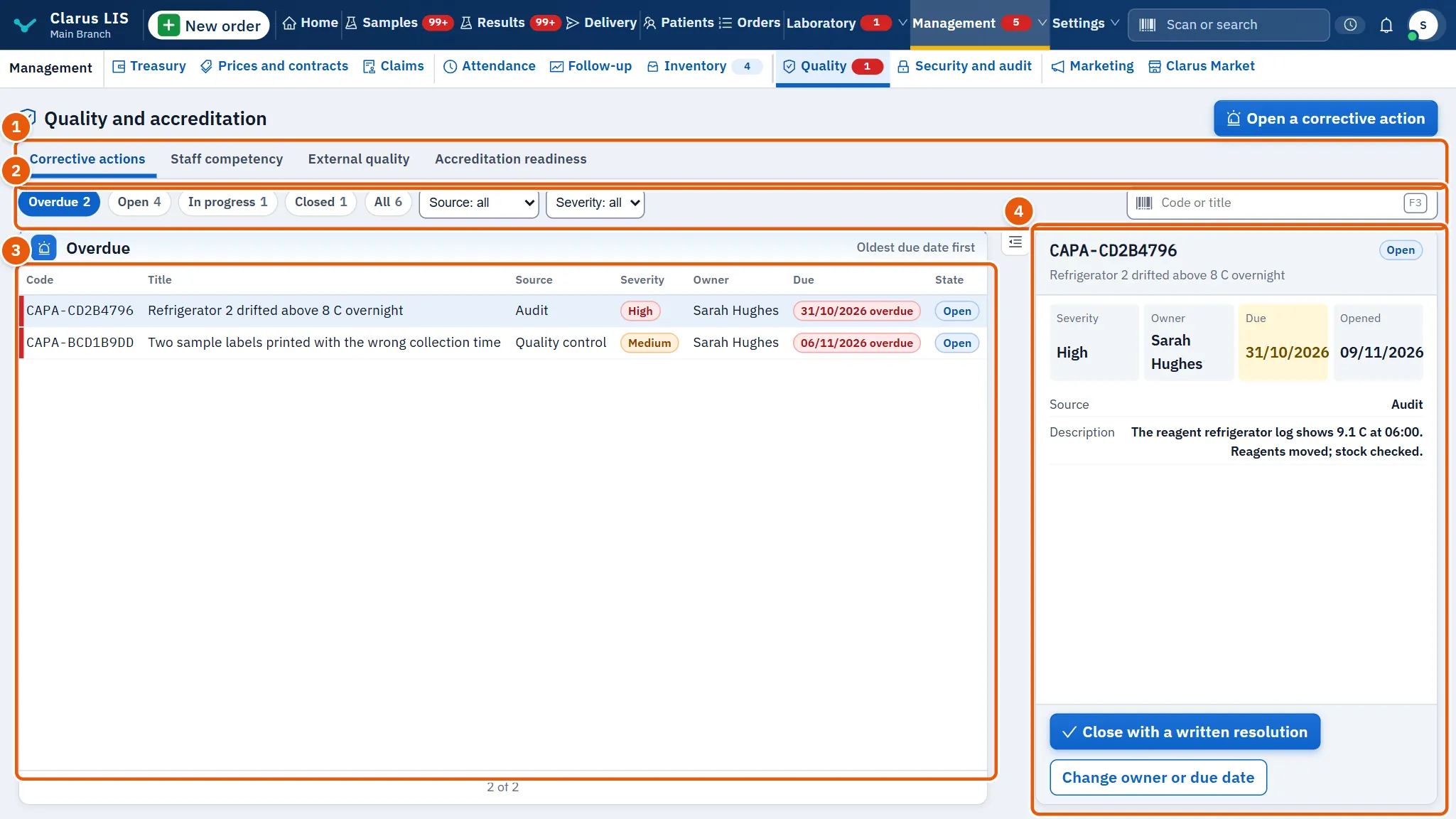
- The pages (Quality pages): Corrective actions, Staff competency, External quality and Accreditation readiness.
- The filters above the list, with the count each one holds, and a search box on the pages that have one.
- The list, with a button to load more when there are more than fifty records.
- The details of the record chosen in the list. The first record is chosen for you. Until the list is read it says «Reading the records»; if it cannot be read it says «The records could not be read.» with a retry.
21.4 Page: corrective actions
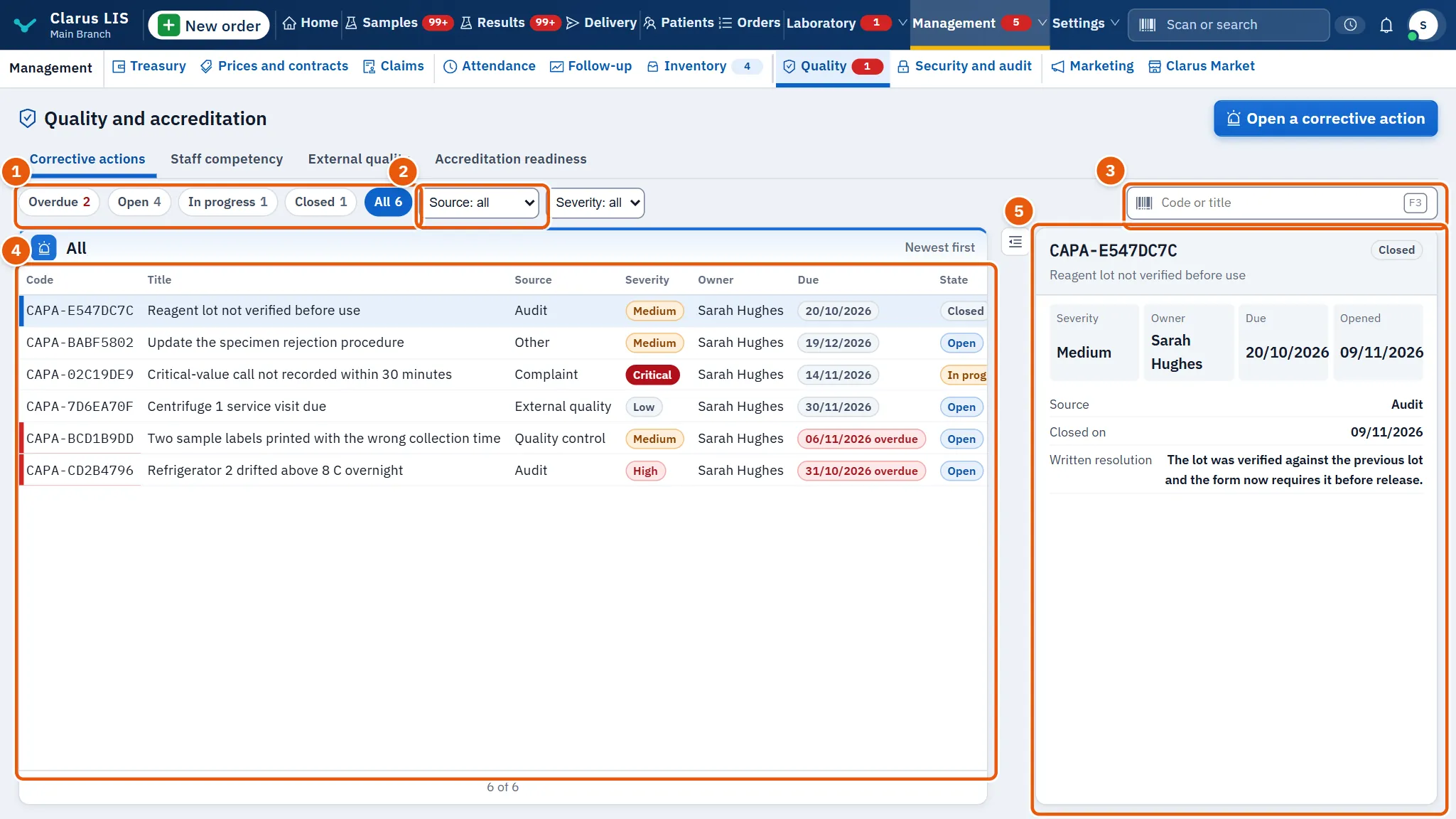
Each action is a problem being followed until it is closed with a written decision. The list opens on Overdue, nearest due date first; Closed and All show the newest first.
| Element | What it does |
|---|---|
| Action state | Overdue, Open, In progress, Closed, All, each with its count. |
| Source list | Source: all, or one of Audit, Complaint, External quality, Quality control, Other. |
| Severity list | Severity: all, or Low, Medium, High, Critical. |
| Search (Code or title) | Finds an action by code or title. With no match: «Nothing matches «…».». |
| List columns | Code, Title, Source, Severity, Owner, Due, State. A due date past today turns red and reads «date overdue». |
| Open a corrective action | Opens the window for a new action. |
| Details | Severity, owner, due date and Opened; the source and Description; for a closed action also Closed on and the Written resolution. |
| Close with a written resolution and Change owner or due date | In the details of an action not yet closed. |
The windows:
| Window | Fields |
|---|---|
| Open a corrective action | Title (required), Source, Severity, Owner (chosen from the laboratory's active users, or No owner), Due, Description. |
| …: owner, due date and state | State (only Open or In progress), Owner, Due. |
| Close … | Written resolution (required). |
21.4.1 Task 1 — Open a corrective action
- On the page Corrective actions, press Open a corrective action.
- Type the Title.
- Choose the Source and the Severity.
- Choose the Owner and the Due if they are known.
- Add a Description and save.
An action also opens by itself when an external round is saved with an unacceptable result (see below).
21.4.2 Task 2 — Change the owner or the due date
- Choose the action in the list.
- Press Change owner or due date.
- Set the State, the Owner or the Due, and save.
21.4.3 Task 3 — Close an action
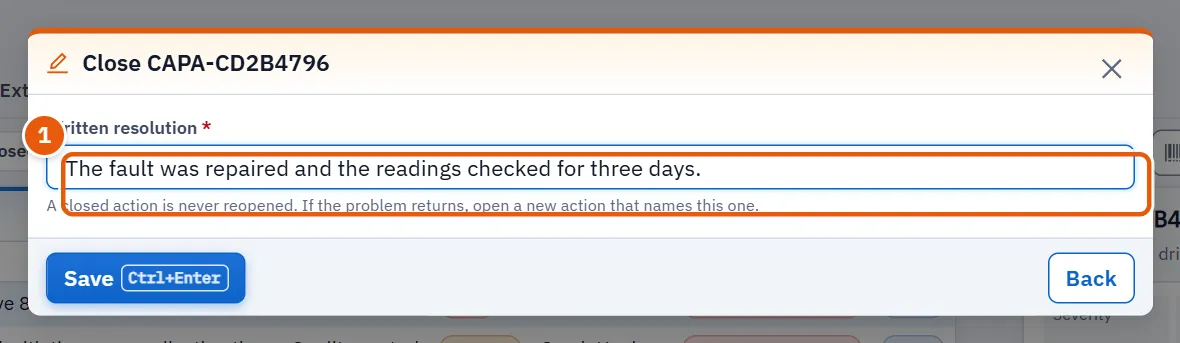
- Choose the action and press Close with a written resolution.
- Write the Written resolution. Without it the window says «Write the resolution before closing.».
- Save.
21.5 Page: staff competency
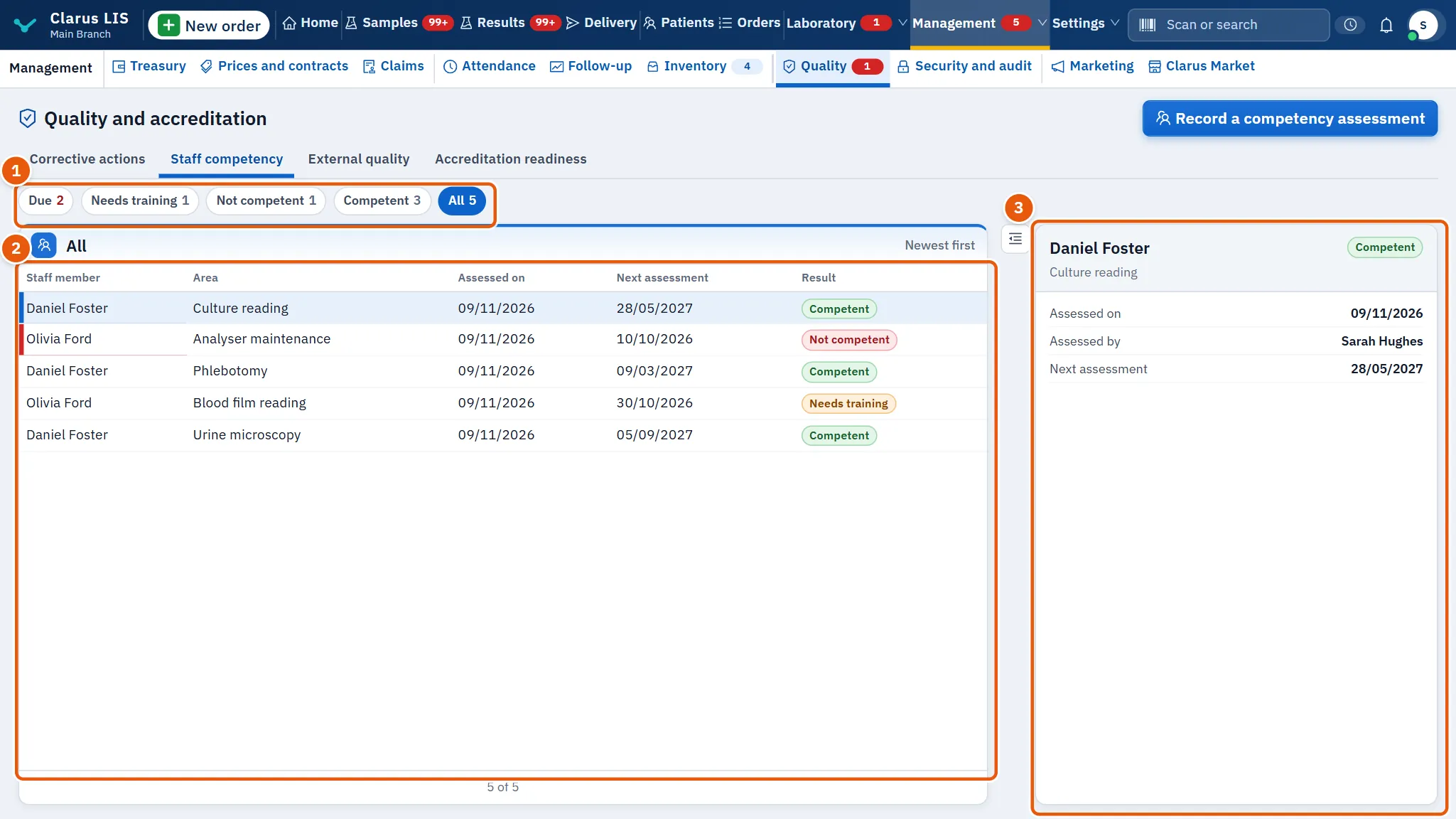
The list opens on Due: assessments whose next date falls within thirty days from today or has already passed, nearest date first; the other filters show the newest first.
| Element | What it does |
|---|---|
| Assessment result | Due, Needs training, Not competent, Competent, All, each with its count. |
| List columns | Staff member, Area, Assessed on, Next assessment, Result. |
| Details | The person and the area, the result, the date assessed, Assessed by, the next assessment and the Notes. |
| Record a competency assessment | Opens the window below. |
The results are Competent, Needs training and Not competent.
21.5.1 Task 4 — Record a competency assessment
- On the page Staff competency, press Record a competency assessment.
- Choose the Staff member and write the Area; both are required.
- Choose the Result (it starts at Competent).
- Set the Next assessment and add Notes if needed.
- Save. The assessor is you, and the server writes it: «You are the assessor; the server records it.».
21.6 Page: external quality
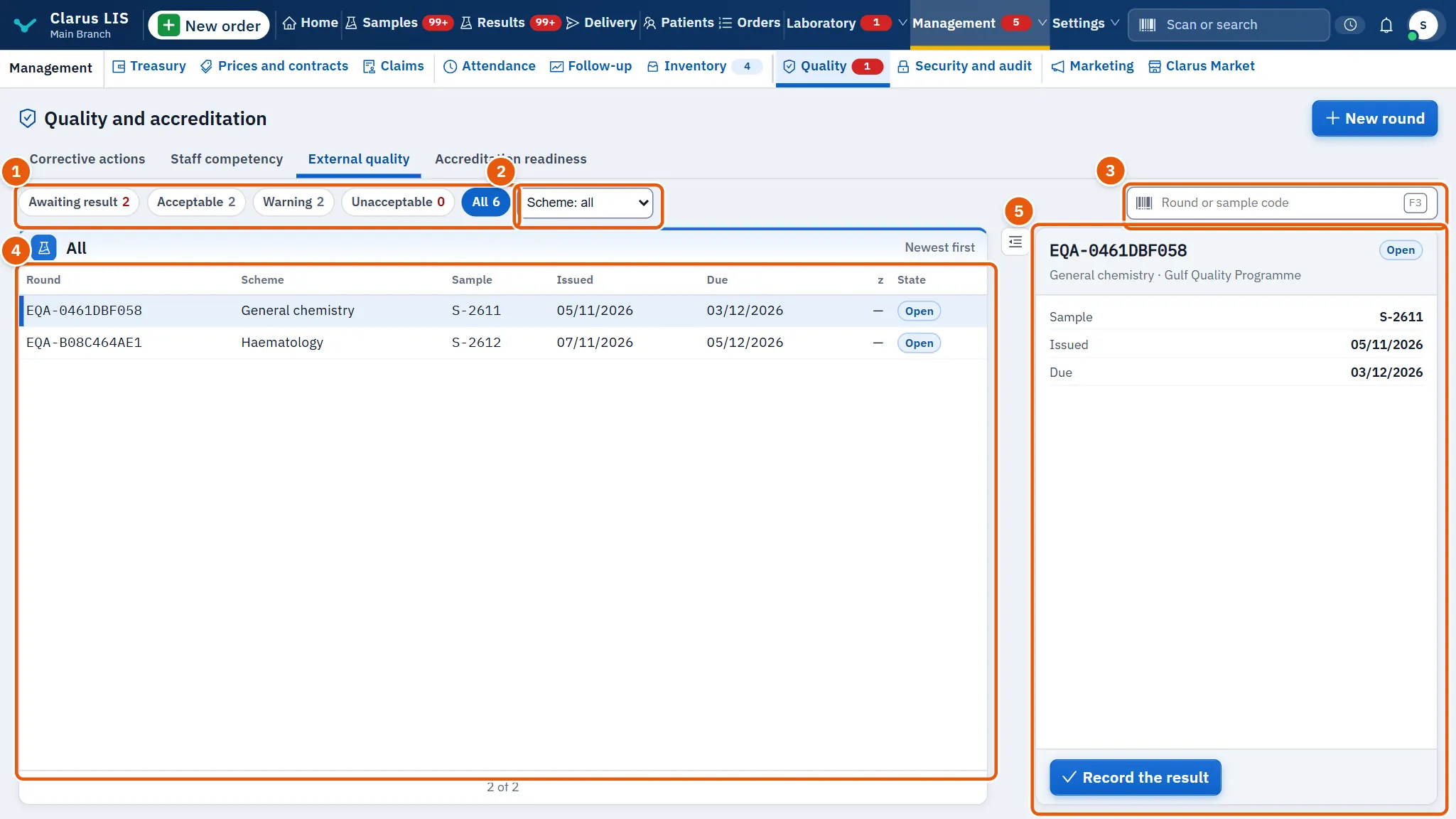
A round is one sample sent by an outside scheme. The list opens on Awaiting result, nearest due date first.
| Element | What it does |
|---|---|
| Round result | Awaiting result, Acceptable, Warning, Unacceptable, All, each with its count. |
| Scheme list | Scheme: all, or one scheme by name. |
| Search (Round or sample code) | Finds a round by its code or its sample code. |
| List columns | Round, Scheme, Sample, Issued, Due, z, State. A round awaiting its result shows Open; a finished one shows Acceptable, Warning, Unacceptable or Not evaluated. |
| Details | An open round: sample, issued and due dates. A finished round: Our result, Assigned value, Standard deviation and z. |
| New round | Opens the window for a new round: Scheme (required), Sample, Issued, Due, Notes. |
21.6.1 Task 5 — Add a round
- On the page External quality, press New round.
- Choose the Scheme.
- Enter the sample code and the two dates, and save.
21.6.2 Task 6 — Record the result of a round
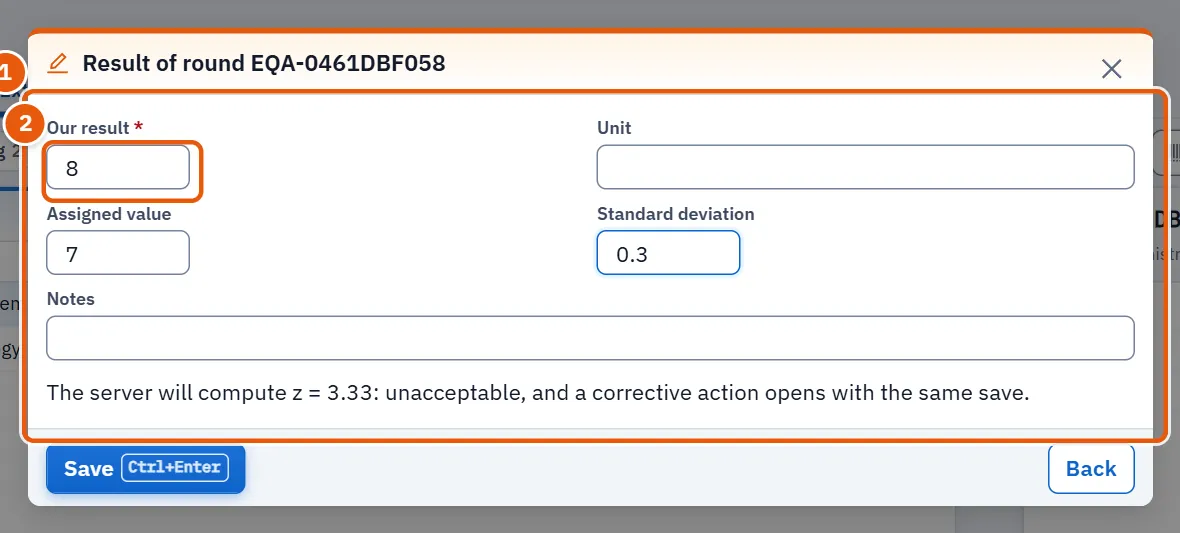
- Choose a round that is still open and press Record the result.
- Type Our result (required) and the Unit.
- Type the Assigned value and the Standard deviation from the scheme's report.
- As you type, the window says how the server will judge it: acceptable, a warning, or unacceptable with its z. Without the assigned value and the standard deviation the result is not evaluated.
- Add a comment if needed and save.
An unacceptable result opens a corrective action in the same save, with the source External quality and severity High.
21.7 Page: accreditation readiness
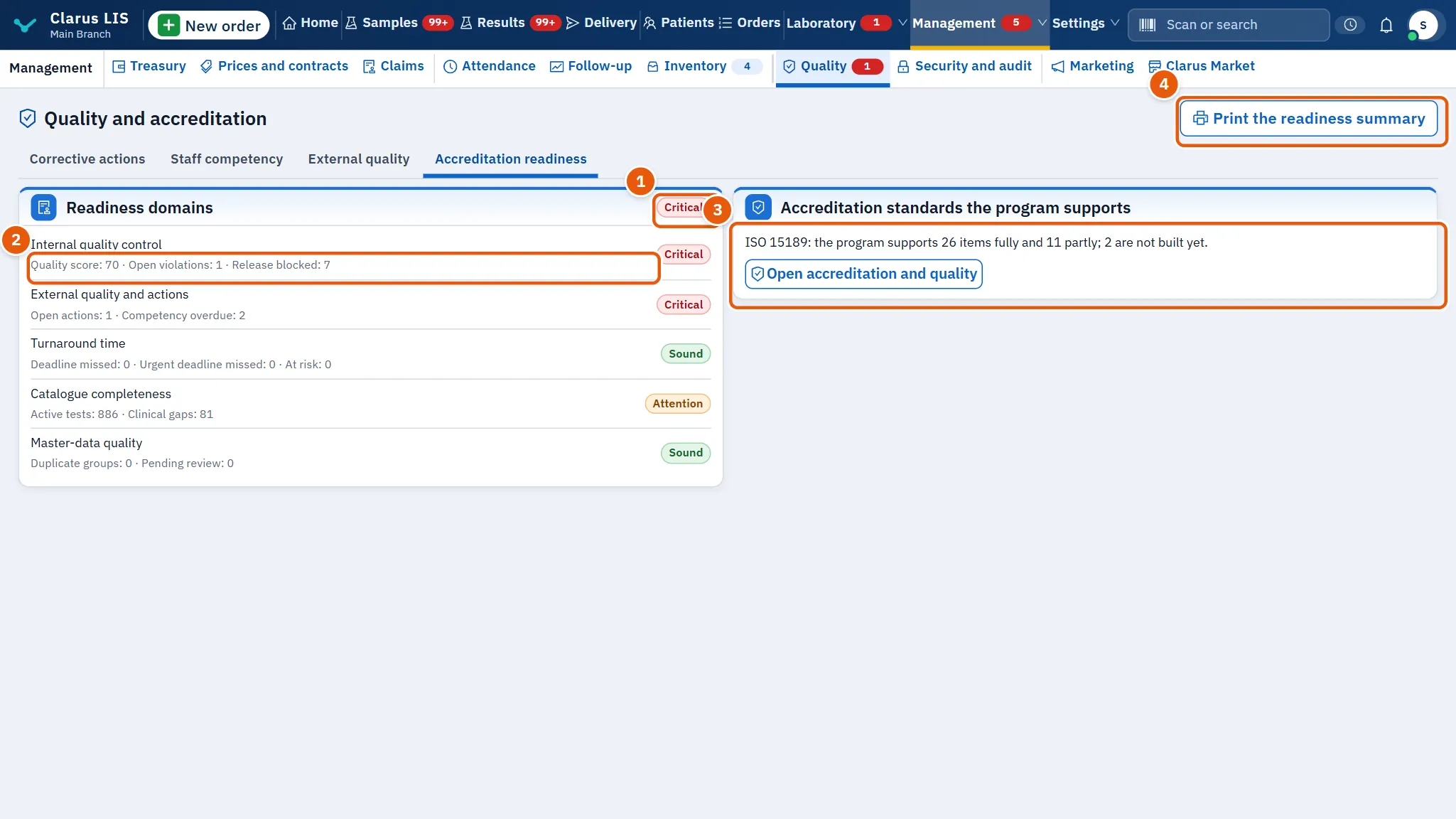
This page is read only. The card Readiness domains shows the overall status in its corner and one line per domain with its measures and its own status.
| Element | What it shows |
|---|---|
| Statuses | Sound, Attention, Critical, Unavailable. |
| Domains | Catalogue completeness, External quality and actions, Master-data quality, Internal quality control, Turnaround time. |
| Measures | Such as Open actions, Competency overdue, Quality score, Deadline missed, Urgent deadline missed, Open violations, Clinical gaps, Duplicate groups. Which ones appear depends on the domain. |
| Accreditation standards the program supports | How many items of the laboratory's first standard the program supports fully, partly, and not yet. |
| Open accreditation and quality | Goes to the accreditation screen. |
| Print the readiness summary | Prints the summary in your language. |
21.8 Messages and what to do
| The screen says | Meaning | What to do |
|---|---|---|
| The records could not be read. | The records could not be read. | Press retry; if it persists, check the connection and your permissions. |
| Write the resolution before closing. | The close window was saved empty. | Write the resolution. |
| Without the assigned value and the standard deviation the result is not evaluated. | The assigned value or the deviation is missing. | Enter both if you want the round evaluated. |
| Choose a record from the list to see its details. | No record is chosen. | Choose one in the list. |
21.9 See also
- Accreditation and quality: the standards behind the readiness summary.